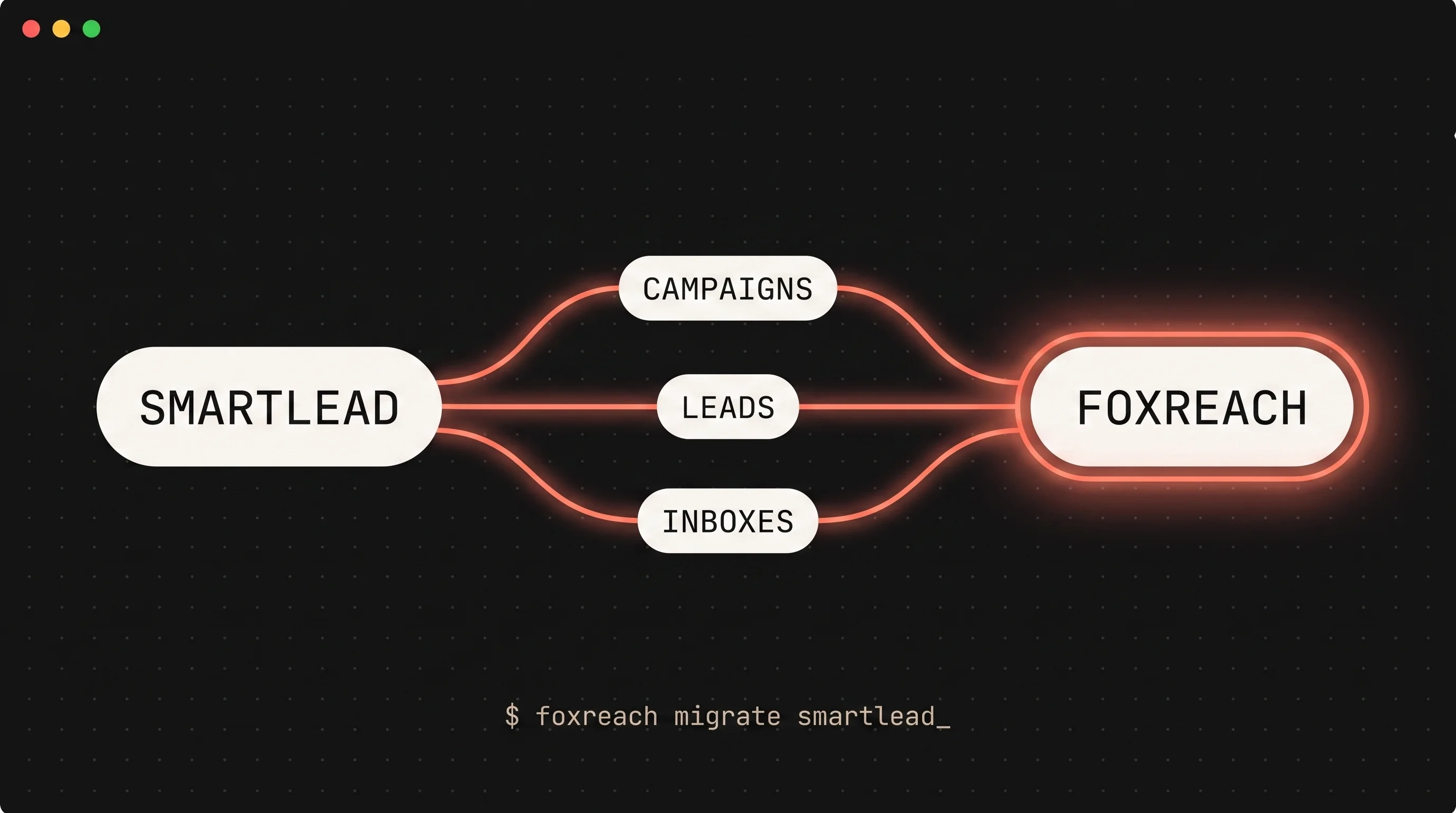
If you have been running your cold email campaigns on Smartlead and you are thinking about switching, this article covers everything you need to know. The process is simple. Most teams finish in about two to two and a half hours.
Why people are switching
Smartlead is a powerful platform. It has a lot of advanced features and a strong reputation among technical users. But there are a few reasons teams start looking elsewhere.
The cost keeps climbing. Smartlead Pro is $78 a month if you pay yearly, or $94 a month if you pay monthly. On top of that, warmup costs $59 a month extra on the Base plan. FoxReach offers a lifetime deal. You pay one time and the bill stops. Warmup is included, always, at no extra cost.
Less complexity, same results. Smartlead gives you a lot of control, but that control comes with a learning curve and a heavier setup process. FoxReach is designed for teams who want to get campaigns running quickly without spending hours configuring settings. The setup is simple: connect your inboxes, import your leads, write your sequence, and hit send.
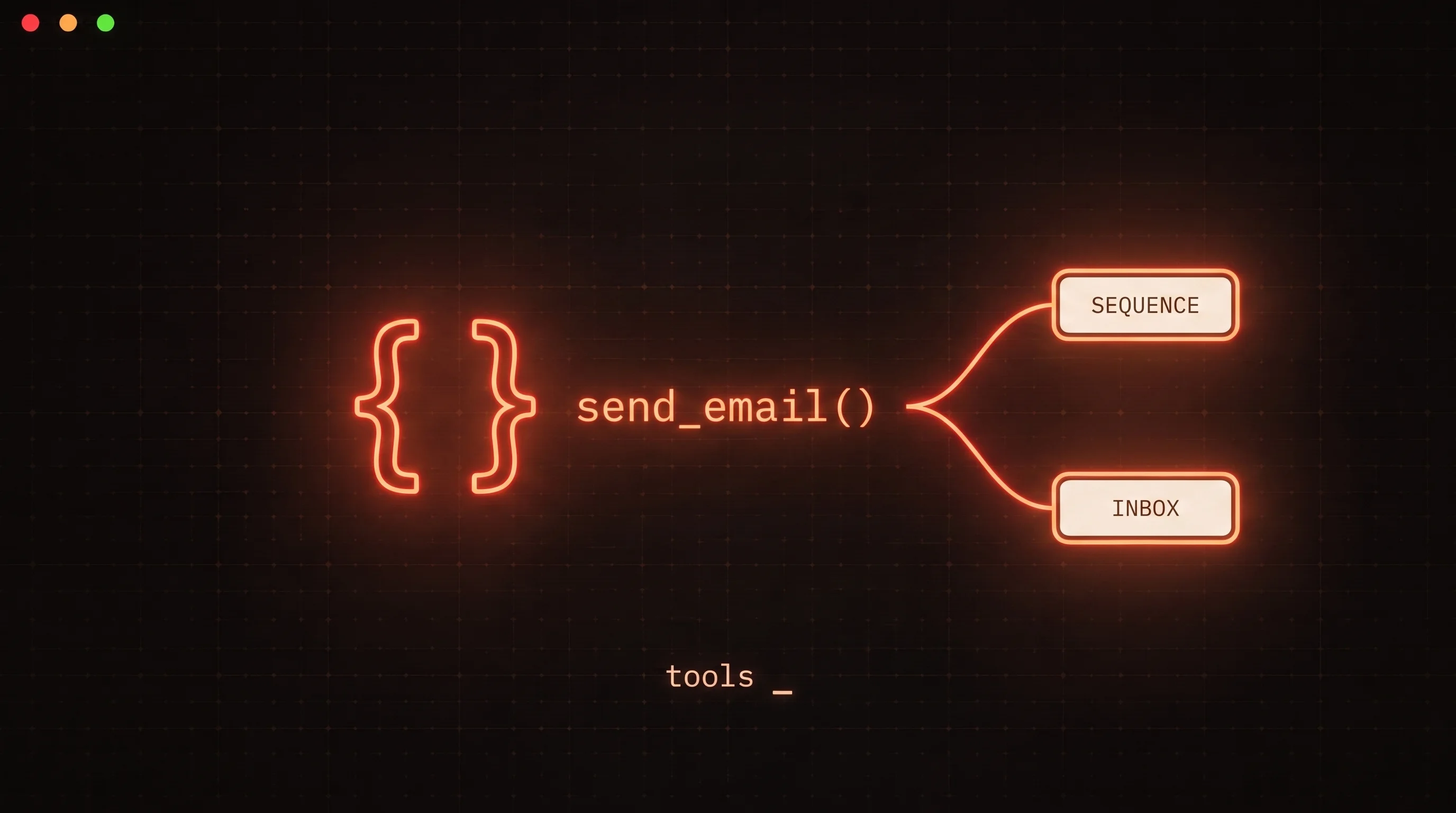
Built for teams that automate. If your team builds workflows around outbound, FoxReach gives you a full developer toolkit. It comes with a REST API, a hosted MCP server, SDKs for Python and TypeScript, a command-line interface, and webhooks. Everything is included in the plan, nothing extra to set up or pay for.
What comes with you
Almost everything you care about moves over smoothly. Here is what you can bring.
Your contacts. Export your lists from Smartlead as CSV files. Import them into FoxReach and the columns map automatically. Your contacts are ready in minutes.
Your email accounts. Disconnect your Gmail, Outlook, or SMTP accounts from Smartlead. Then connect them in FoxReach. Each one takes about 30 seconds.
Your warmup reputation. Your inbox reputation travels with the inbox, not the tool. If your inboxes were well warmed in Smartlead, that full reputation carries over when you connect them to FoxReach. The warmup continues automatically.
Your email copy. Save your best subject lines, email bodies, and follow-up sequences from Smartlead. Then recreate them as sequences in FoxReach using the same proven copy.
Your client workspaces. If you manage outbound for multiple clients, set up workspaces in FoxReach (up to 3 on the Growth plan). Organize your contacts and sequences by client, the same way you did in Smartlead.
Your inbox reputation is yours, not Smartlead's. When you move an inbox to FoxReach, it keeps the trust it built. FoxReach warmup picks up right where Smartlead left off.
The four steps to migrate
Step 1: Export your contacts
Go into your Smartlead campaigns and export each contact list as a CSV. Save your email templates, subject lines, and follow-up sequences into a doc. Note which email accounts are connected and which clients they belong to, so you can organize them the same way in FoxReach.
Step 2: Set up FoxReach
Create your FoxReach account. Connect your email accounts. Gmail connects with an app password, Outlook the same way, or through SMTP. Each one takes about 30 seconds.
Warmup starts automatically on every connected sender. There is no extra cost, no add-on to buy, and nothing to toggle on. If you were paying $59 a month for warmup on Smartlead's Base plan, that cost is gone.
If you manage multiple clients, set up your workspaces now (up to 3 on the Growth plan).
Step 3: Import your contacts
Import the CSV files you exported. Columns auto-map. Organize contacts into the right workspaces for each client if you use multiple. Your contacts are ready to use right away.
Step 4: Rebuild your sequences and launch
Create new sequences using the email copy you saved. Set up your A/B variants, assign sending accounts, choose your rotation settings, and launch.
That is it. Your campaigns are live.
How long does it take?
Most teams finish in about two to two and a half hours of actual work.
| What you do | Time |
|---|---|
| Export contacts from Smartlead | 30 to 45 minutes |
| Set up FoxReach and connect inboxes | About 20 minutes |
| Import contacts | About 10 minutes |
| Rebuild sequences | 30 to 60 minutes |
| Total | 2 to 2.5 hours |
A few tips
Start with your best campaign. Move your highest performing campaign first. Once it is running well in FoxReach, move the rest.
Do not send from both platforms at the same time. Sending the same email to the same contact from two tools doubles your sends and hurts deliverability. Move a campaign fully before launching it.
Cancel Smartlead when you are done. Once everything is moved, cancel your Smartlead subscription so you stop paying the recurring charge.
See how the two compare
Still weighing the decision? Our FoxReach vs Smartlead comparison breaks down pricing, deliverability, agency tooling, and the developer toolkit side by side.
Need help moving over? Reach out at support@foxreach.io.