

FoxReach Academy: Product Tutorials (14 short videos)
Step 1: Create your account and take the tour
Go to the sign-up page. The heading reads Create your account, and there are three ways in:- Continue with Google signs you up through Google’s consent screen. No password to set.
- Email and password. Enter your name, email, and a password of 8 to 128 characters, then click Create account. FoxReach emails you a confirmation link; the account works once you click it.
- Skip the password, email me a sign-up link. Enter only your email and FoxReach sends a one-time link. Clicking it creates the account and signs you in.
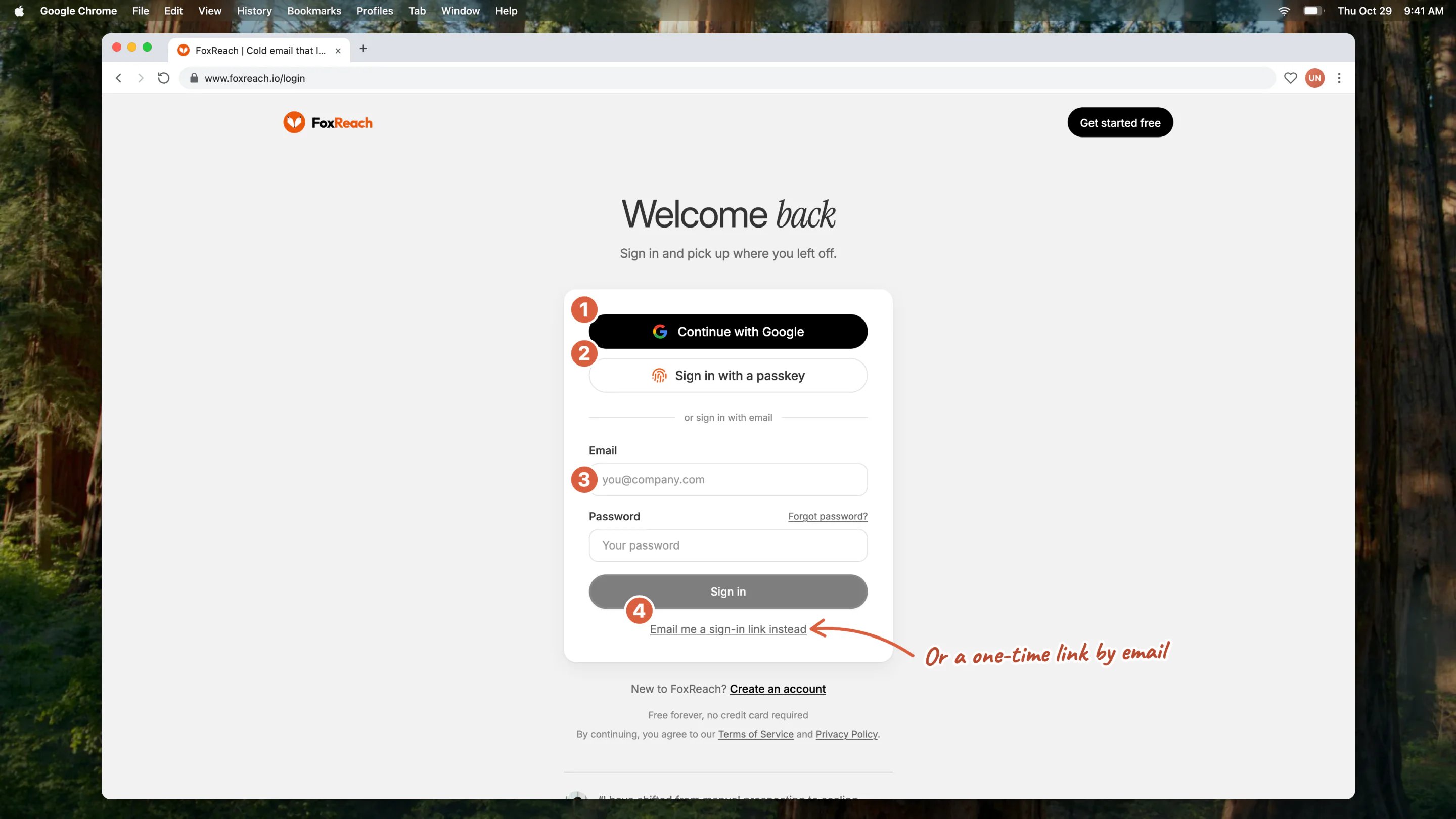
The sign-in page with the four ways in: Continue with Google, Sign in with a passkey, email and password, and a one-time sign-in link
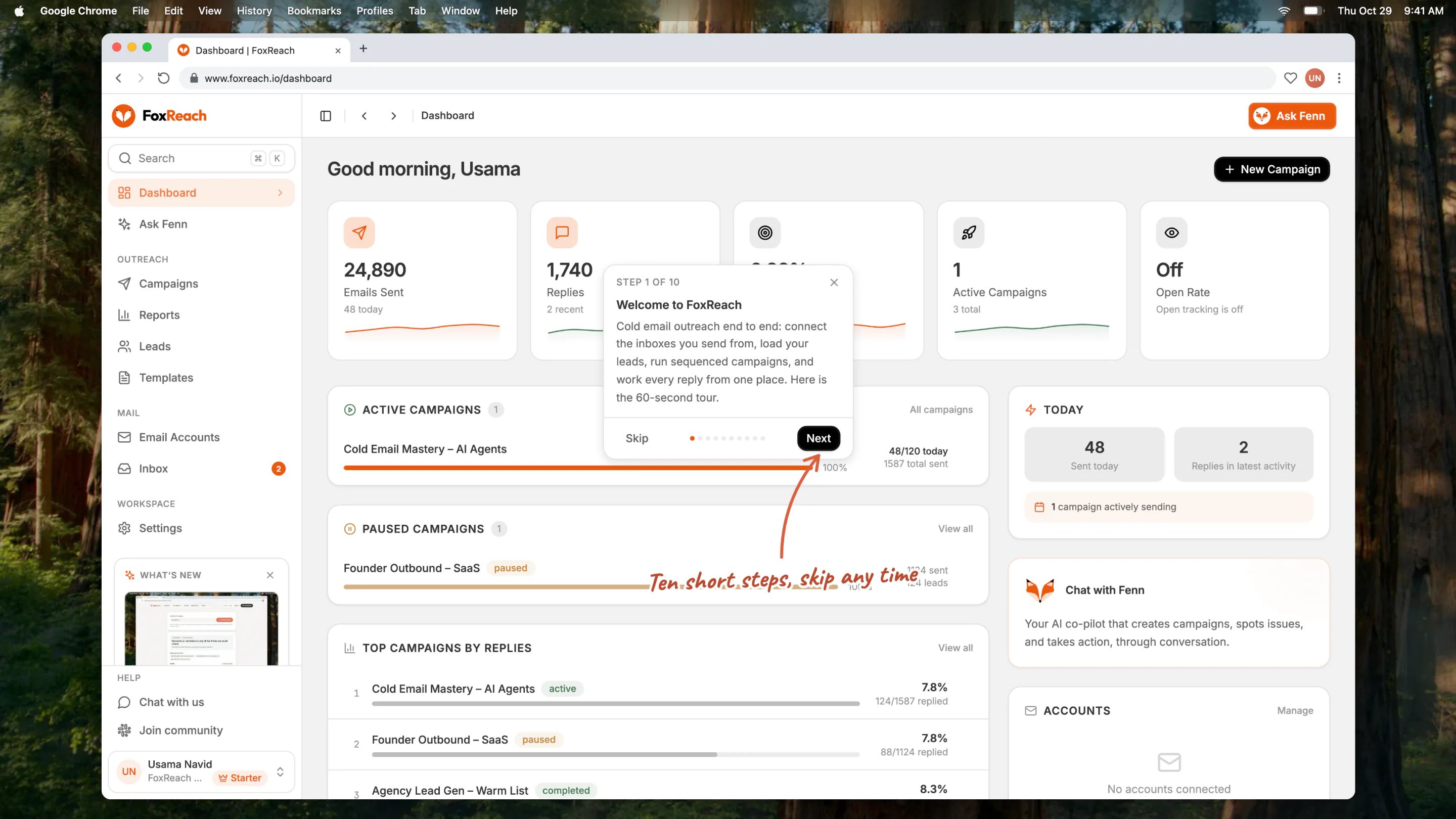
The first step of the product tour on the Dashboard, with Skip, the step dots and Next
Step 2: Connect an email account
Click Email Accounts in the sidebar, then Connect Account in the top right. The dialog offers two paths:- Sign in with Google connects a Gmail or Google Workspace mailbox through Google’s own consent screen. No app password is needed. You return to the Email Accounts page with the account in the list.
- An app password. Below the divider is a grid of provider cards: Gmail, Google Workspace, Outlook / Office 365, Yahoo, Zoho, and Custom SMTP. Picking one pre-fills the SMTP and IMAP hosts. Fill in Email Address and App Password, optionally a Display Name and Daily Limit, then click Test Connection.
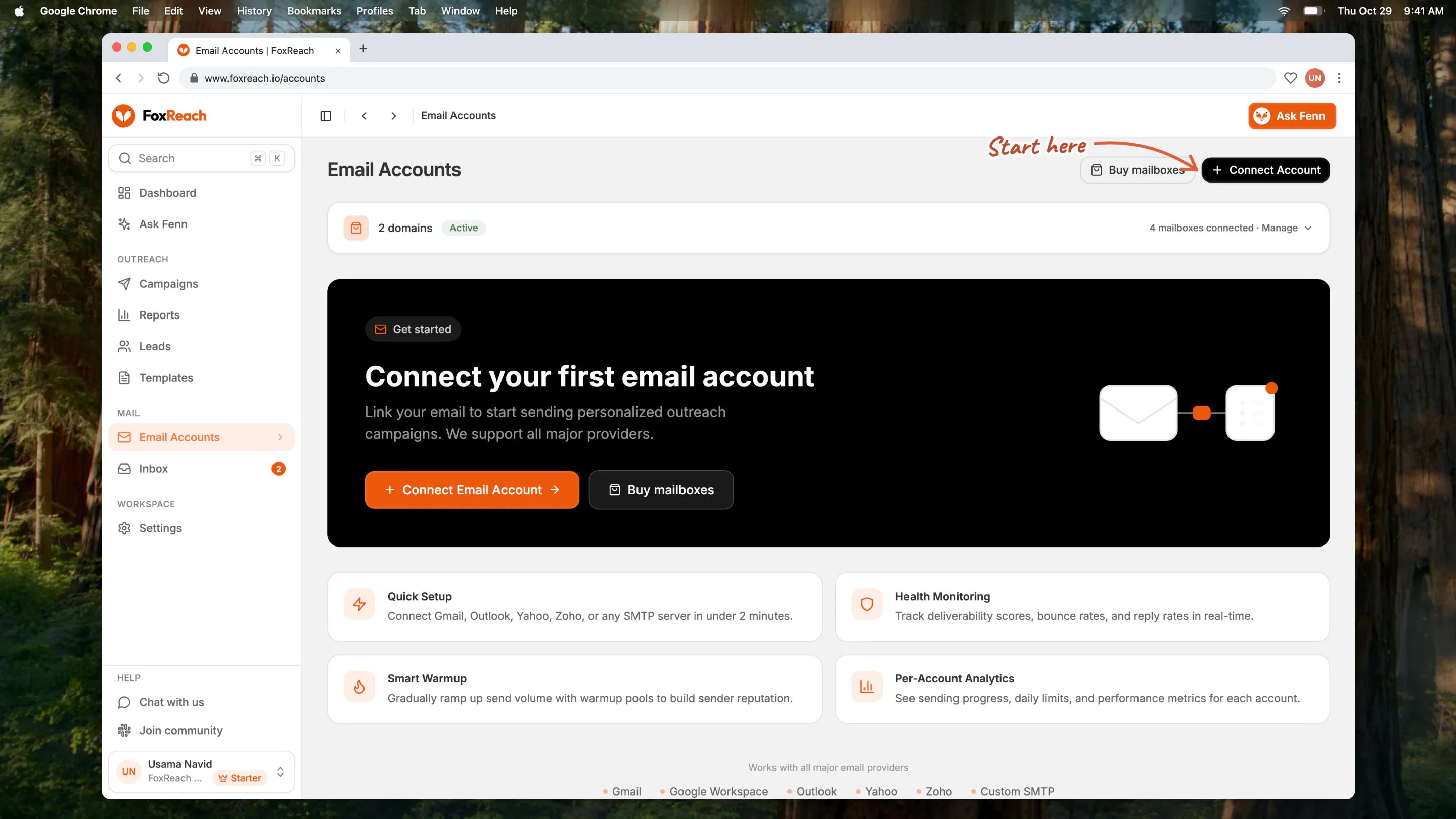
The Email Accounts page with the Connect Account button
Step 3: Warm up the inbox
A new or rarely used mailbox that suddenly sends 50 cold emails a day looks like spam to Gmail and Microsoft. Warmup fixes that by having your account exchange realistic emails with other inboxes in the FoxReach network on a ramp that grows over time, so the mailbox builds a sending history before your campaign starts. Open the account from the Email Accounts page and click Enable Warmup. The default ramp climbs over 14 days to 5 warmup emails a day. On the Free plan, warmup can be on for up to two accounts; paid plans have no cap.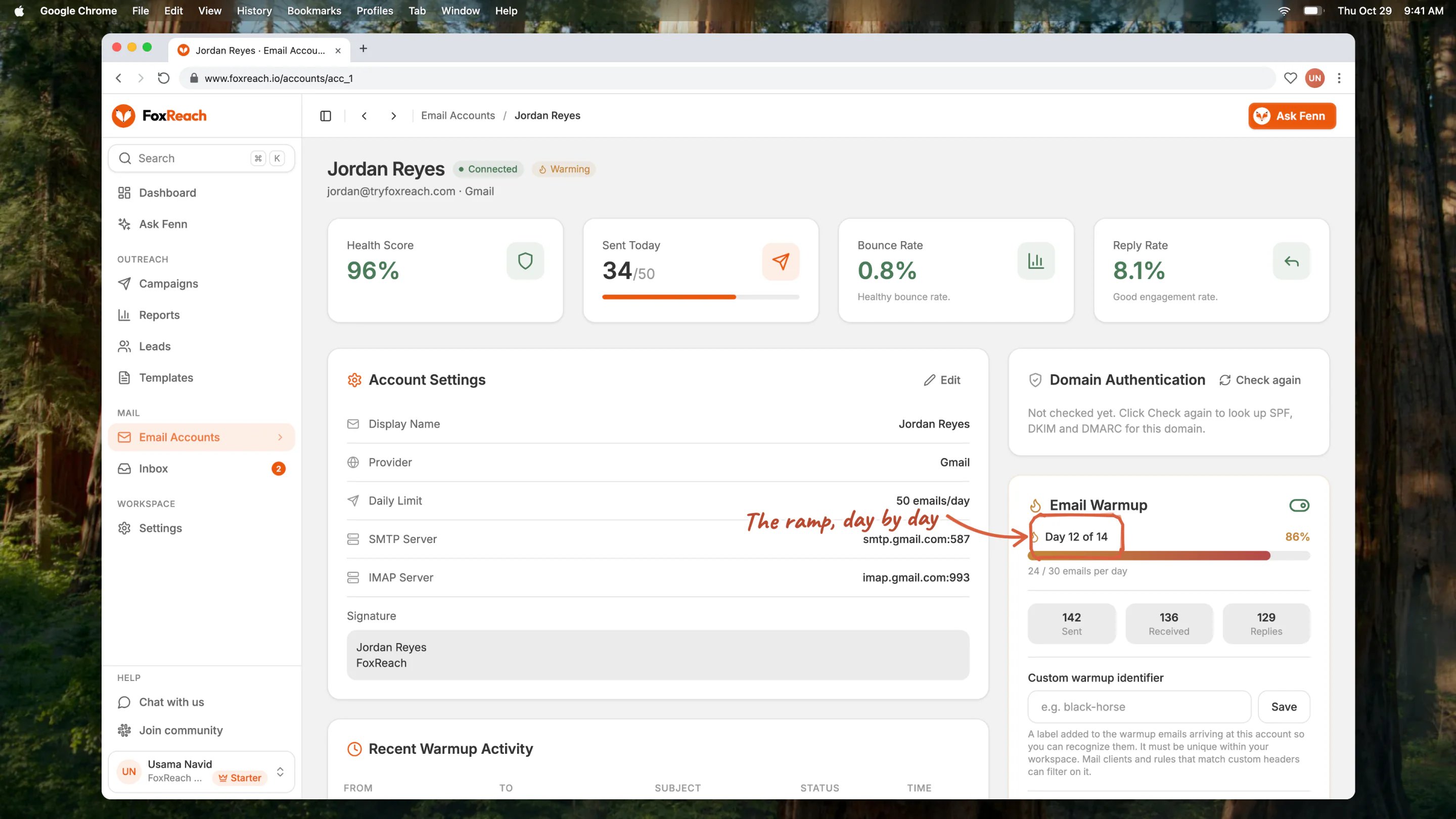
An account page mid-warmup, Day 12 of 14
Step 4: Import your leads
Click Leads in the sidebar, then Import CSV. The Import Leads page has three stages, Upload, Map Fields, and Review:- Upload. Drop a
.csvfile on the drop zone (10 MB maximum). FoxReach counts the rows and moves to mapping. - Map Fields. FoxReach suggests a column mapping from your headers and shows the first five rows so you can check it. Map email, first name, last name, and company at minimum. Any unmapped column becomes a custom field you can use in emails later.
- Review. Add tags to the batch (source, segment, or campaign name are all good choices), decide whether to turn on Verify Emails After Import, and run the import. Duplicate addresses in the file and addresses already in the workspace are skipped.
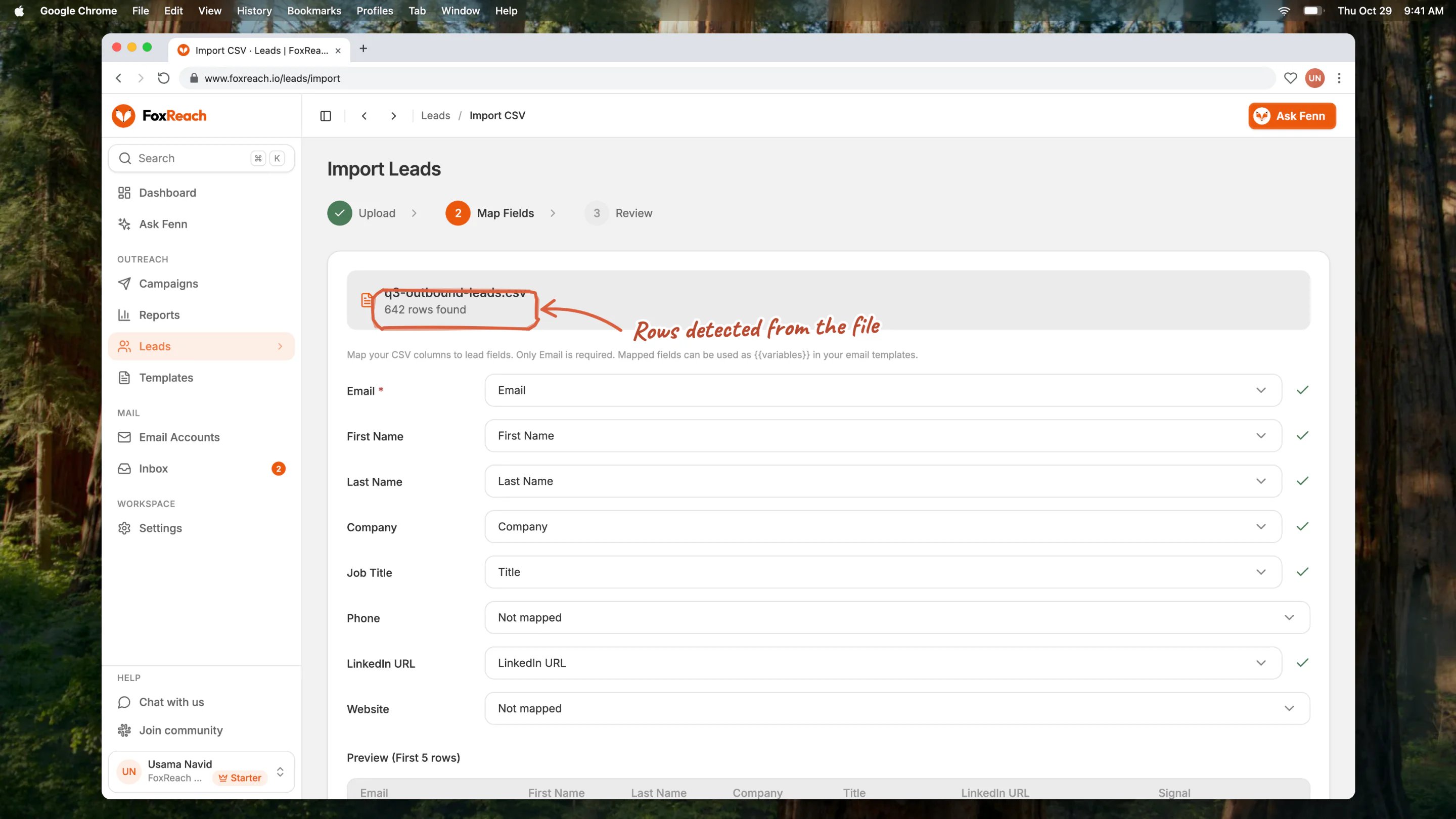
The import page after a CSV upload, with the columns mapped and the row count
Step 5: Verify emails before you send
Bounces cost more than one lost lead. A bounce rate above a few percent damages the reputation of the mailbox for every future send, which is why verification comes before the campaign, not after. There are three ways to verify: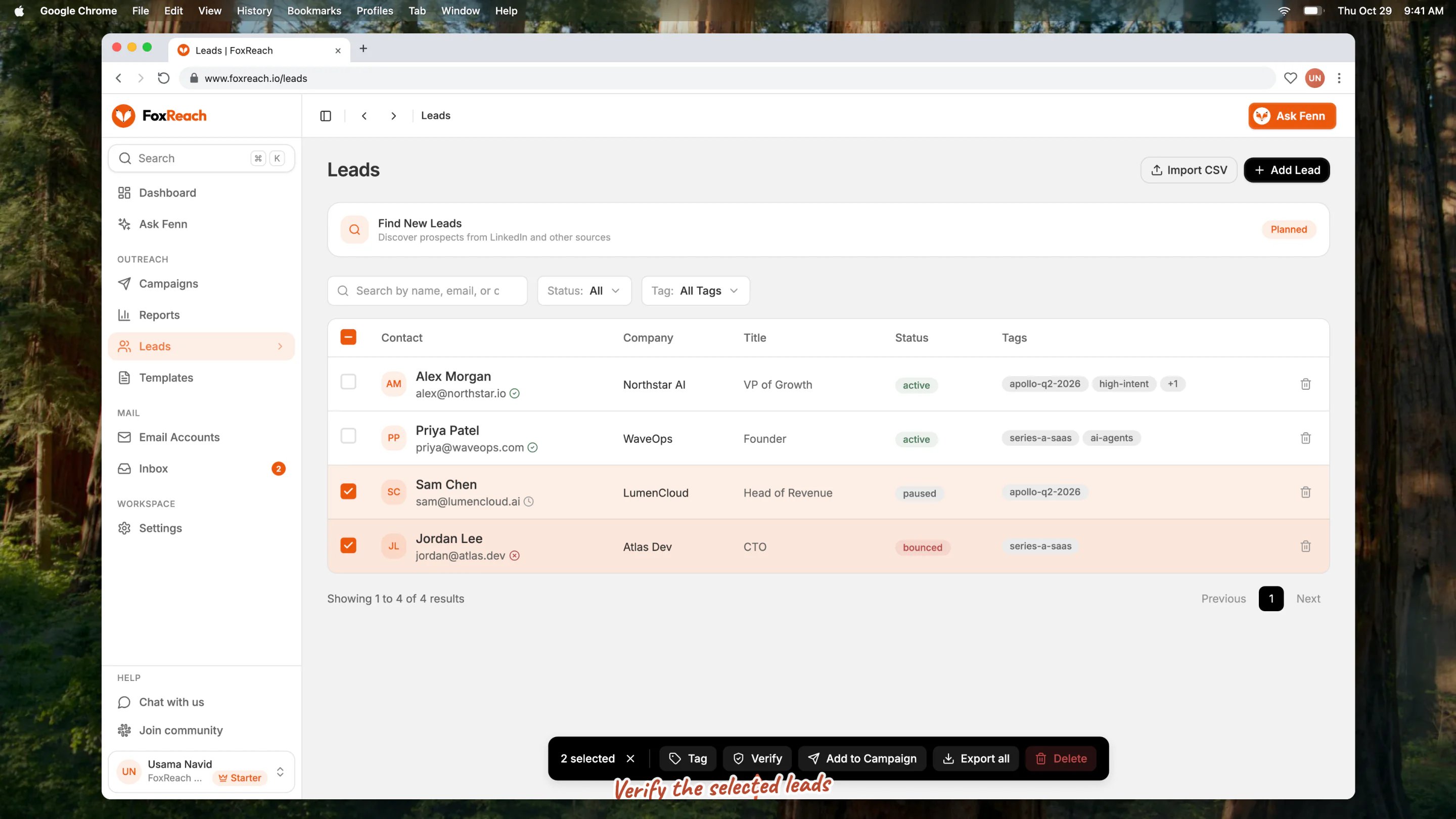
Leads selected in the list with the Verify button in the selection toolbar
- Turn on Verify Emails After Import on the Review stage of the import wizard, which checks the whole file in the background.
- On the Leads page, tick the leads you want to check and click Verify in the toolbar that appears. Up to 200 leads per run.
- Verify a single address as you add a lead by hand.
Step 6: Create the campaign and write the sequence
Click Campaigns in the sidebar, then New Campaign. The form has four cards:- Basic Information. A Campaign Name and the Timezone your leads are in. The sending window below is interpreted in this zone.
- Sending Schedule. Active Days default to Monday through Friday. The Sending Window runs From 9:00 AM To 5:00 PM by default, and FoxReach spreads the day’s sends across it.
- Sending Accounts. Every connected account is ticked. Untick any that should sit this one out.
- Sending Limits. The Daily Send Limit defaults to 100. Set it to 50 or below for a first campaign from a fresh mailbox. Your plan’s daily safety cap applies on top (25 on Free), as does each account’s own daily limit; the lowest number wins.
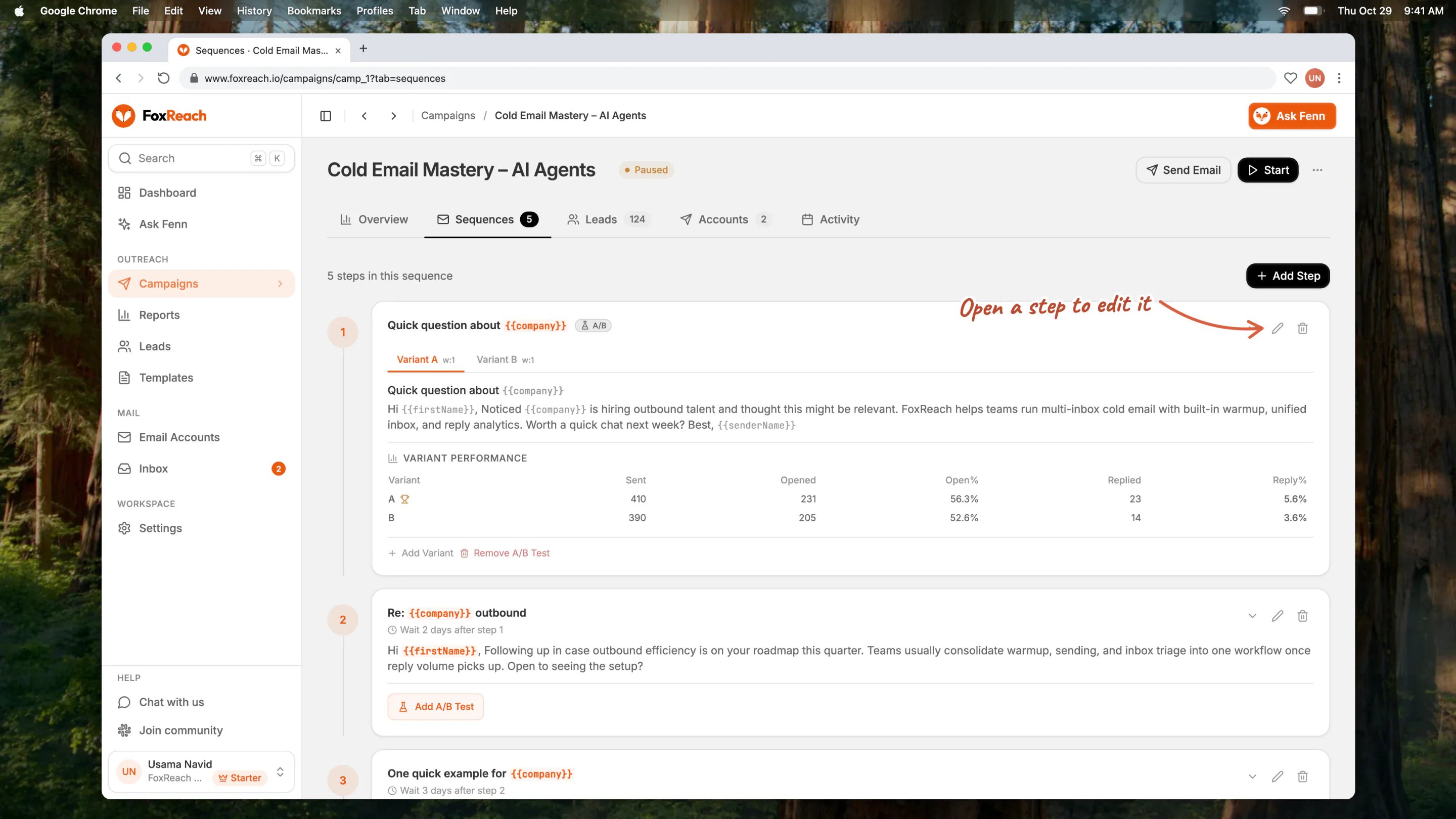
The Sequences tab of a campaign with the ordered steps and their delays
Write the first email
Open Sequences and click Add First Step. Fill in the Subject Line and the body. The Variables button inserts a lead field at the cursor. A variable looks like{{firstName}}, and {{firstName|there}} falls back to “there” when the lead has no first name. Spin syntax like {Hi|Hello|Hey} picks one option at random on each send so no two emails are identical. Click Add Step to save it.
Add follow-ups
Click Add Step again for each follow-up. From the second step on, the editor adds Delay (Days) and Delay (Hours). The delay counts from the previous step. Every follow-up is a send only if no reply step by default: before it goes out, FoxReach checks whether the lead has answered and skips the rest of the sequence for anyone who has. Follow-ups are threaded and sent from the same mailbox as the first email. Here is a three-step sequence you can paste in and edit. Replace the pitch with your own. Step 1: The introductionStep 7: Save the emails as templates
Once a sequence works, you do not want to retype it for the next campaign. Click Templates in the sidebar and New Template to store a subject and body with the same variables, fallbacks, and spin syntax as the sequence editor. In any campaign, the Load from Template dropdown at the top of the step editor pulls a template’s subject and body into the step, where you can still edit it before saving. The dual preview under the editor renders the email twice, once for a lead with every field filled and once for a lead with none, so you can catch a bare{{company}} before it ships as an empty gap.
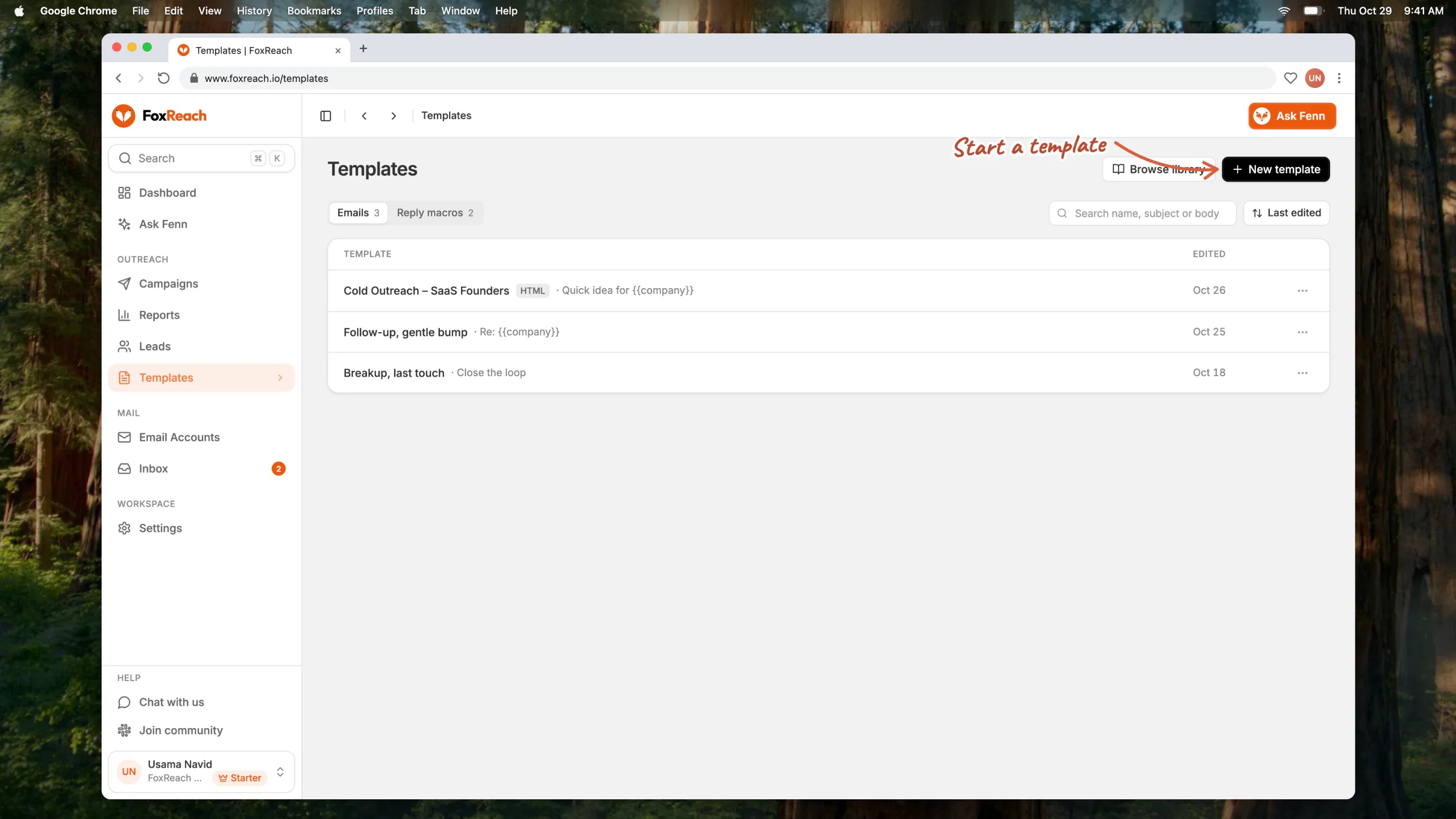
The Templates page with the New Template button
Step 8: Work the replies in the unified inbox
Every reply to every connected mailbox lands in one place. Click Inbox in the sidebar. The filter chips are All, Unread, Interested, Not Int., OOO, Bounced, Starred, and Sent, and each chip shows a count. The AI sorts each reply into those categories as it arrives, so the daily routine is: open Interested first, answer those, then clear Unread. Open a thread and the reading pane shows the conversation with the lead card beside it. When a reply is matched to a lead, FoxReach drafts a response from the campaign context and the last few messages. Click Use AI to load the draft into the reply box, edit it, and click Send. The reply goes out from the same mailbox that received the message, threaded under the original subject.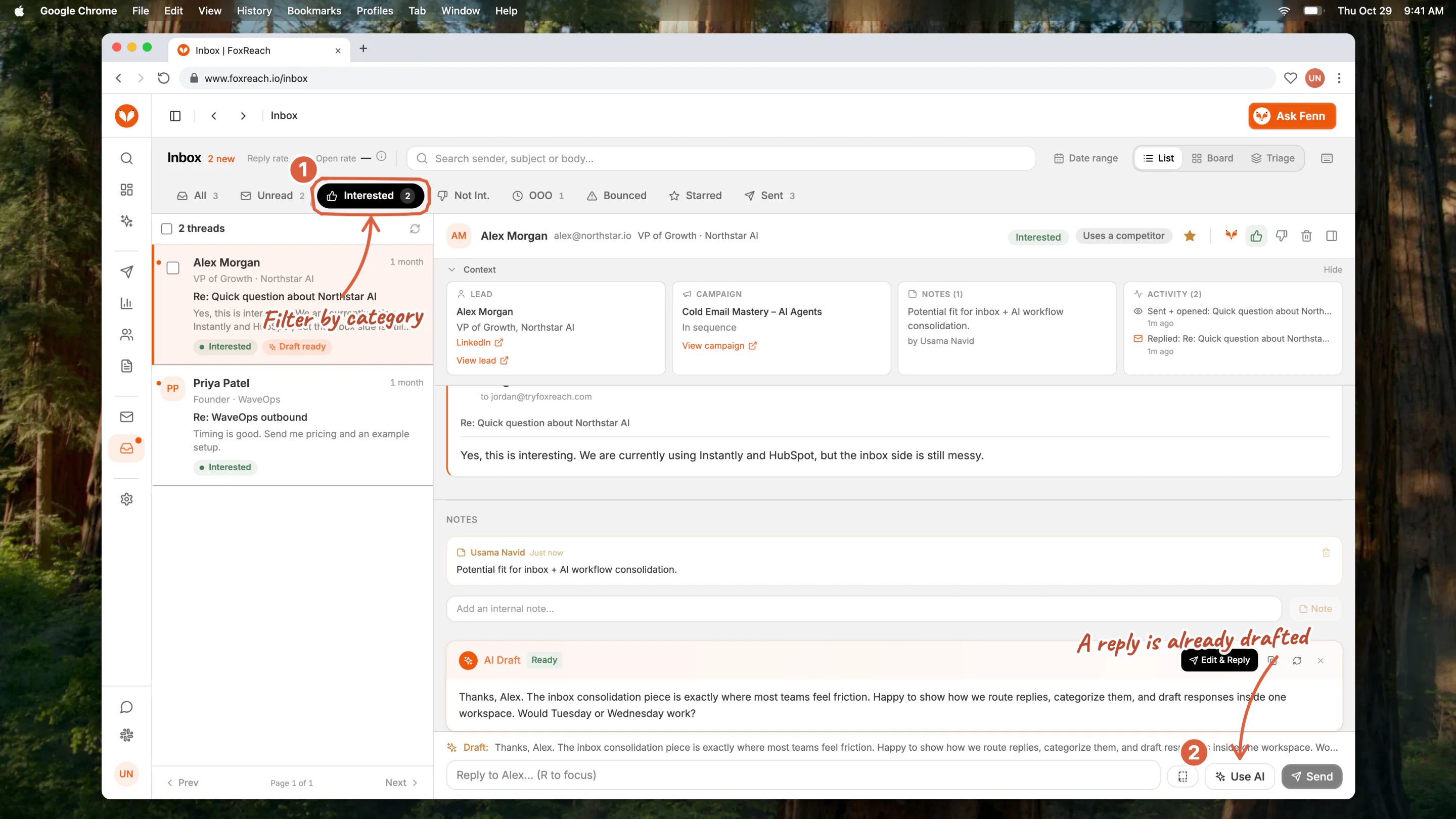
The unified inbox filtered to Interested, with a thread open and a reply drafted
Step 9: Read your first results
Click Dashboard. The four cards across the top are Emails Sent, Replies, Reply Rate, and Active Campaigns, each with a seven-day sparkline. For one campaign, open it and check the Overview tab for totals and the Activity tab for the event feed: every send, open, bounce, and reply with a timestamp. Two numbers decide whether to keep going. A rising bounce rate means stop: pause the campaign and verify the list, because bounces feed straight into the health score of the mailbox that sent them. Reply rate is the one to optimize once bounces are under control. Google’s email sender guidelines spell out the spam-rate threshold and the authentication requirements that sit behind both numbers.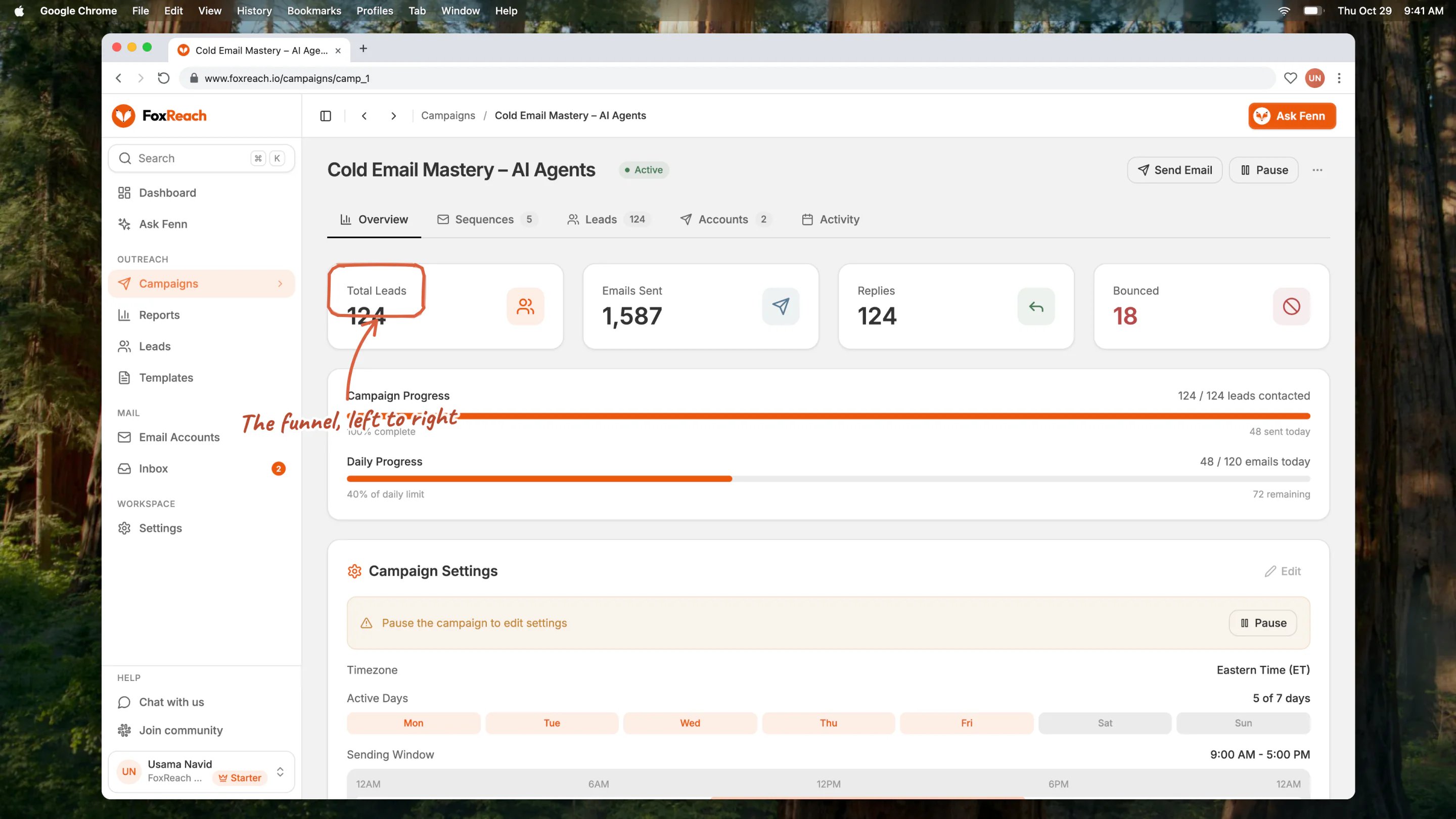
A campaign overview with the totals row: leads, sent, opened, replied and bounced
What to try next
Once the first campaign has run for a week:- Ask Fenn, the AI co-pilot under Ask Fenn in the sidebar, to summarize replies or draft the next sequence.
- Invite teammates to the workspace (Starter and up; the Free plan is single-seat).
- Split a step into A/B variants and let the reply rate pick the winner.
- Connect FoxReach to Claude, Cursor, or Claude Code through MCP, or to your own systems through API keys and webhooks.
- Connect more mailboxes at low limits to scale the daily volume without pushing any single account.
The full tutorial series
In onboarding order, with a video in each:- Connect an Email Account to FoxReach (Gmail, Outlook, SMTP) - Google sign-in or app password, the connection test, and the daily limit.
- Warm Up a New Inbox in FoxReach - enable warmup, read the ramp, and know when the mailbox is ready.
- Import Leads from a CSV into FoxReach - upload, map fields, tag the batch, and review the summary.
- Verify Emails Before You Send in FoxReach - the status icons, bulk verification, and credits.
- Create a Cold Email Campaign and Sequence in FoxReach - the campaign form, sequence steps, delays, and starting the campaign.
- Write Email Templates with Variables and Spintax in FoxReach - reusable templates with fallbacks and spin syntax.
- Work the Unified Inbox in FoxReach (AI Reply Sorting) - categories, the AI draft, and a daily reply routine.
- Read Your First Campaign Results in FoxReach - the Dashboard cards, the Activity feed, and when to act.
- Fenn, the AI Co-pilot - ask questions about your data and have Fenn draft and act, with approval.
- Workspaces and Team - separate workspaces per client or product, and teammates with roles.
- API Keys and Webhooks - push leads in and get events out.
- Claude, Cursor, and Claude Code via MCP - run FoxReach from an AI client.
- A/B Testing Cold Email - weighted variants and per-variant reply rates.
- Agency Mode - manage many client workspaces from one account.
Need help?
Email support@foxreach.io or use the contact page. Include the campaign name or the email account address so we can look at the right thing straight away. For questions other users have probably already hit, join the FoxReach community on Slack. The team is in there too. To see what changed recently, the releases page lists every update with screenshots, and the app shows a What’s new card for the latest ones. To ask for something that does not exist yet, the roadmap has a feature-request board where you can suggest and vote once you are signed in.Frequently asked questions
How long does it take to get started with FoxReach?
How long does it take to get started with FoxReach?
Do I need a credit card to try FoxReach?
Do I need a credit card to try FoxReach?
Which sign-in methods does FoxReach support?
Which sign-in methods does FoxReach support?
Can I replay the product tour after I close it?
Can I replay the product tour after I close it?
Does a follow-up still go out if the lead already replied?
Does a follow-up still go out if the lead already replied?