

Write Email Templates with Variables and Fallbacks in FoxReach (1 min)
Two kinds of templates
The Templates page holds two types, and the Type choice in the editor decides which one you are making. Email. A subject line plus a body. This is the kind that appears under Load from Template when you build a sequence step. Think first touches, follow-ups, breakups. Reply macro. A body with no subject line: the answers you send over and over when a lead writes back. Macros do not show up in the sequence picker. The Emails and Reply macros switch at the top of the list shows one type at a time, with a count next to each.Step 1: Open the Templates page
Click Templates in the sidebar. Each template is one row: its name, a small HTML tag if it sends as HTML, the subject (or, for a reply macro, its first sentence), and the date you last edited it. Search looks at the name, subject, and body, and the sort button switches between Last edited and Name.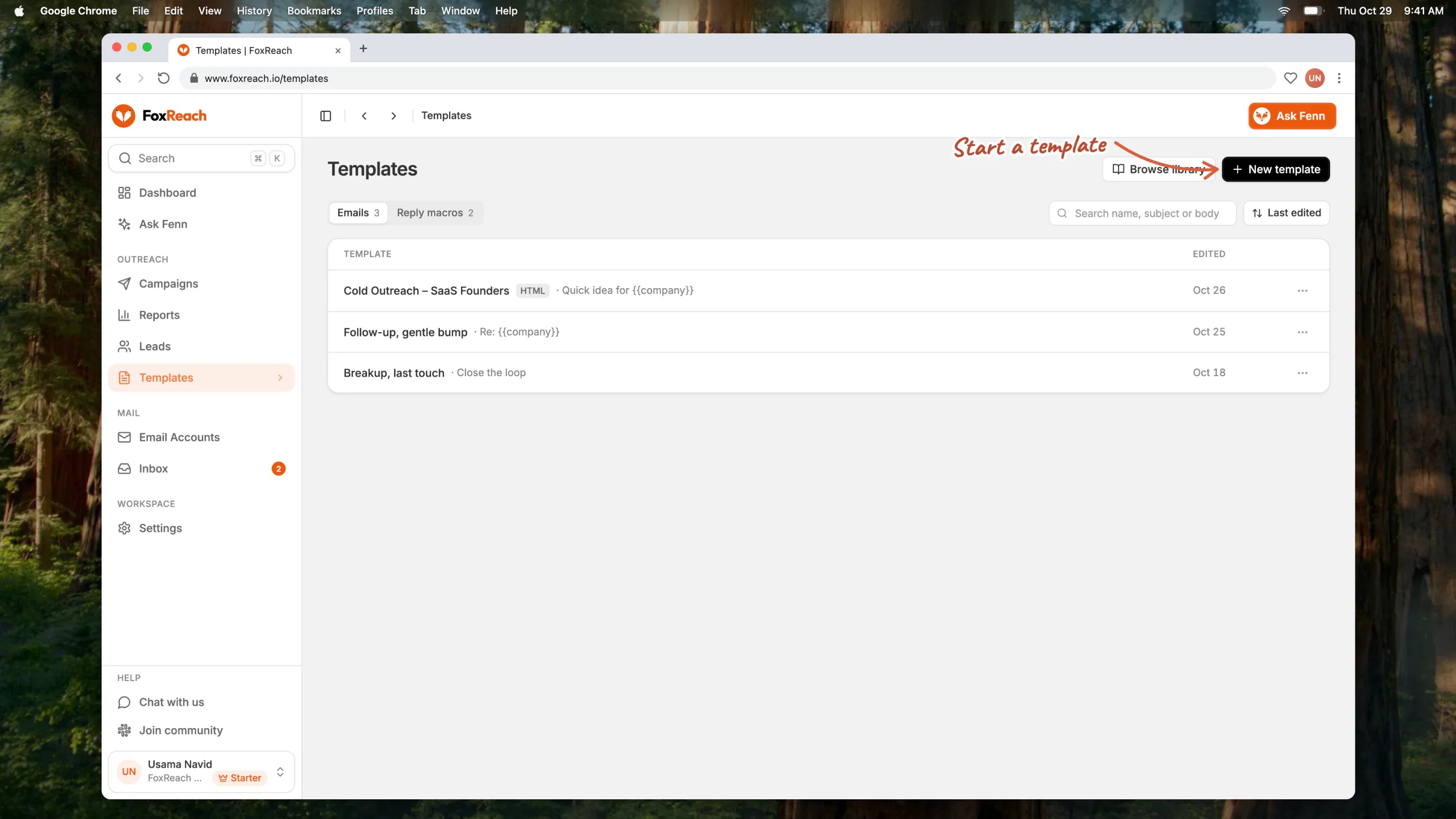
The FoxReach Templates page with the Emails and Reply macros switch, search, and one row per template showing its name, subject, and edited date
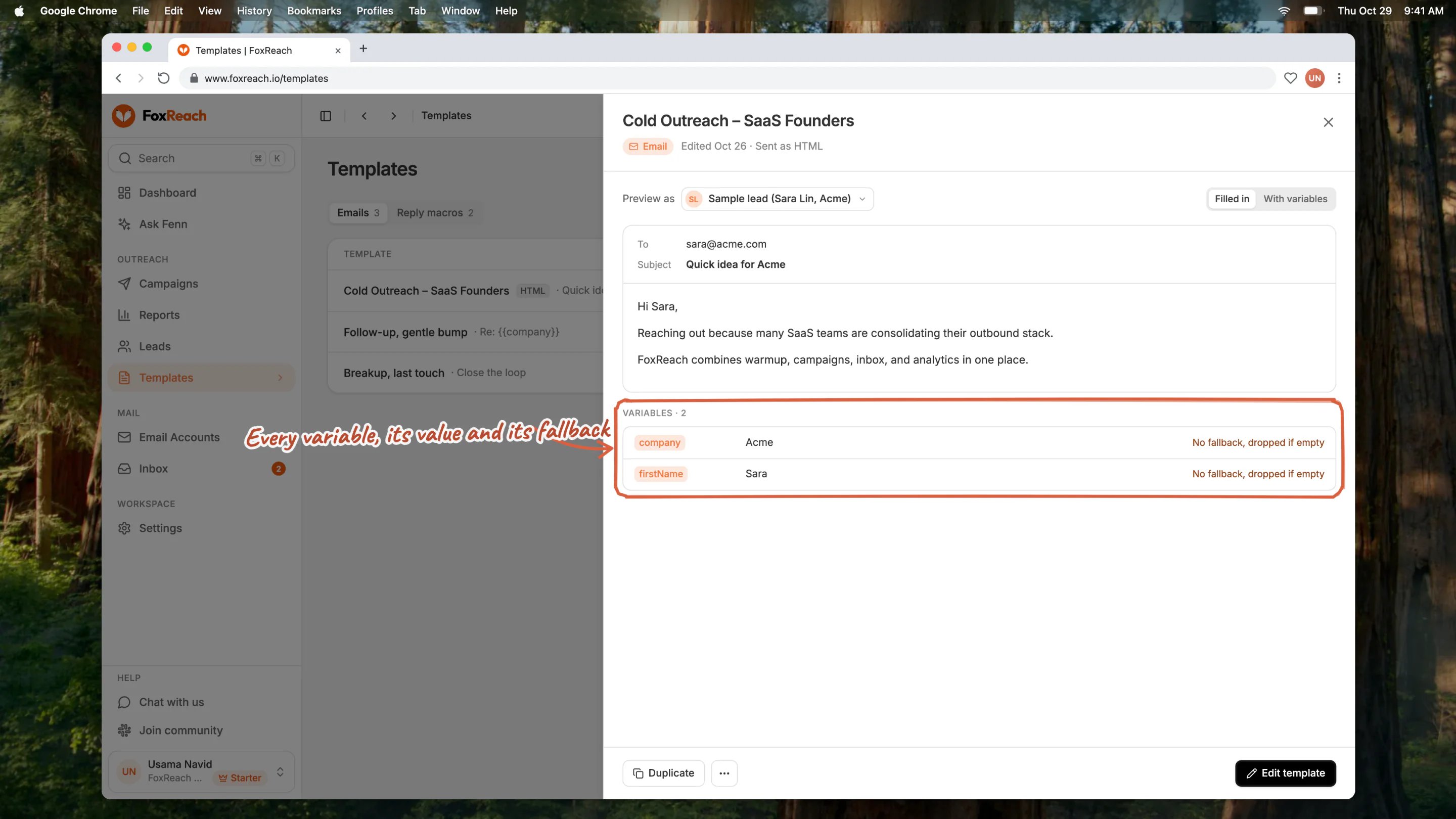
The template preview in FoxReach showing the email filled in for a lead, with the Variables list giving each variable's value and fallback
Step 2: Name it and choose a type
The editor slides in with the cursor already in the title, which reads “Untitled template” until you type. The name is the title of the sheet: it is the label you will see in the sequence picker later, so describe the job, not the content. The video calls this one “Founder intro”. You can drag the sheet’s left edge to make it wider; it remembers the width. Below the name, Type is a short list with two choices: Email or Reply macro. Leave it on Email. Choosing Reply macro hides the Subject field, because a reply goes out in an existing thread and keeps that thread’s subject. Name and body are required; the subject is optional. If you save without them, the missing field is marked in red with a line saying what to add. If the save itself fails, your edits stay in the editor and the message has a Try again button.Step 3: Write the subject line and insert a variable
The Subject field comes with its own Variables button on the right. Type the fixed part of the subject first, for example “Quick question about ”, then click Variables.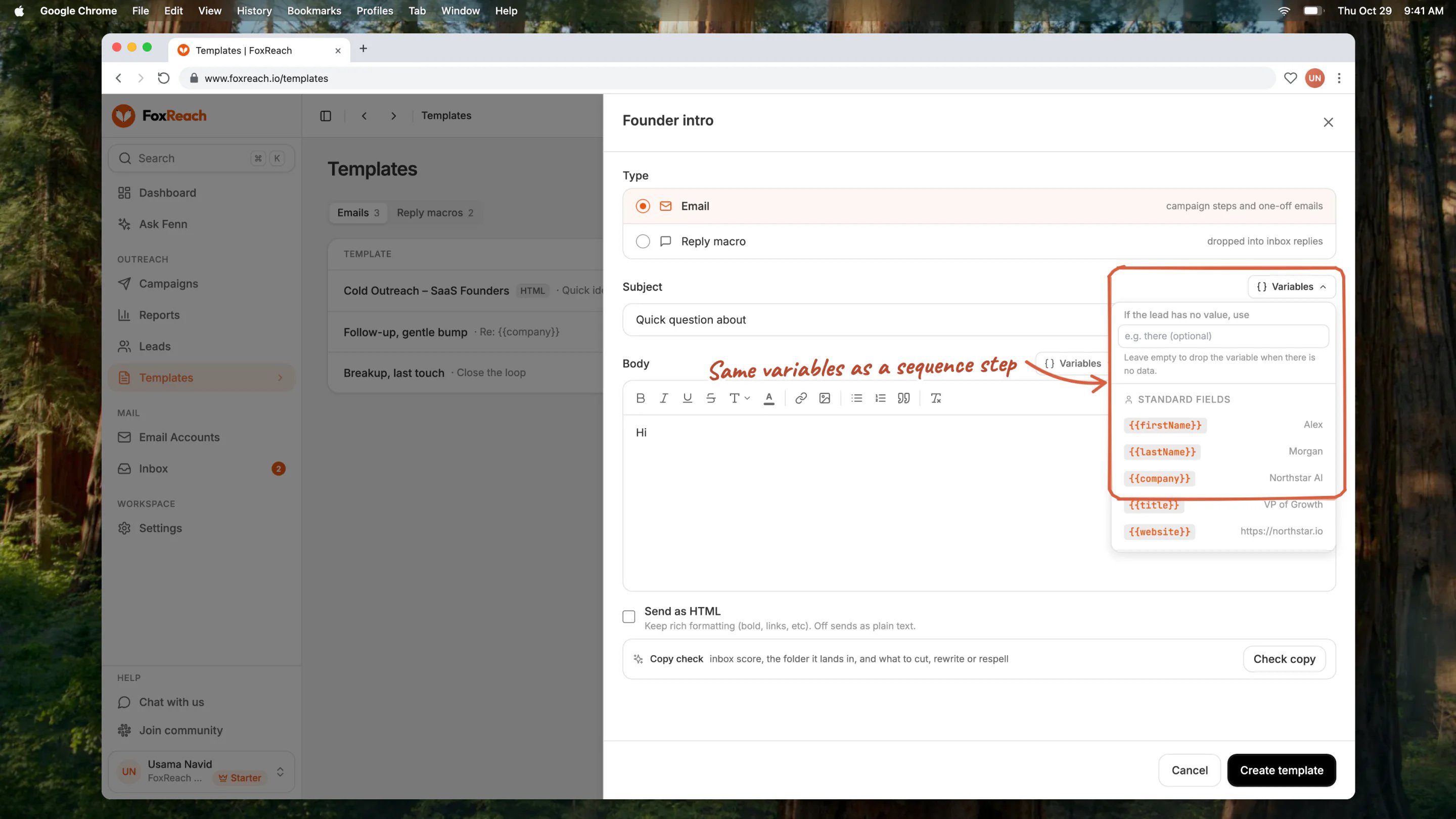
The template editor in FoxReach with the name Founder intro as its title, the Type list, a subject line, the body editor, and the Variables menu open
- Standard Fields: the columns every lead has.
- Custom Fields: any extra columns you mapped when you imported your list. This group only appears once at least one lead in the workspace has a custom field.
- Account Fields: values from the inbox that sends the email, such as the signature.
{{company}} and it is inserted at the cursor, so the subject reads Quick question about {{company}}. You can also type variables by hand.
Step 4: Write the body
The Body editor has two modes, Visual and HTML, with a Send as HTML checkbox underneath. Stay in Visual for a normal cold email. Write it the way the video does. Type “Hi ”, open the Variables button above the body, pick{{firstName}}, and add a comma. Then a line that shows you did some homework: “Saw that ” followed by {{company}} and ” is hiring SDRs.” Then the actual question and a one-line ask.
Anything on the lead record can go in here. The toolbar has the usual formatting (bold, italic, underline, strikethrough, links, lists, quotes, size, and color) and Clear formatting to strip it back. The bottom of the Variables menu explains the two extra pieces of syntax you will use next: {{firstName|there}} for defaults and {Hi|Hey} for spin syntax.
Leave Send as HTML off unless the formatting earns its place. Off sends plain text; on shows a notice that HTML emails are more likely to land in Promotions or spam, which matters most on a first touch.
Images and GIFs. The image button in the toolbar adds a picture to the body. Upload a PNG, JPEG or GIF, or paste or drop a file straight into the editor. GIFs can be up to 5 MB and other images up to 2 MB; under 1 MB loads fastest on a phone. FoxReach hosts the file for you, so you never need your own hosting. Add a short description in the Description field so the email still makes sense where images are blocked. You can also use an image link instead of an upload, but a file you upload is the safer choice: it is served from FoxReach’s tracking domain (your own tracking domain when you have set one up), never from a foxreach.io address. SVG and WebP are not accepted because many inboxes do not show them. Outlook on desktop shows only the first frame of a GIF, so make that frame carry the message.
A step with an image always sends as HTML, even if Send as HTML is off, because plain text cannot carry a picture. The editor tells you when this applies, and a plain-text version goes along with every HTML send. Images and HTML raise the chance of landing in Promotions, so use them where they earn their place. Removing the image returns the step to plain text.
Step 5: Add a fallback and some spin
Fallbacks. Not every lead has a first name. If you insert{{firstName}} with no fallback and the field is empty, the variable is dropped and the email opens with “Hi ,”. The fix is the fallback input at the top of the Variables menu, labelled “If the lead has no value, use”. Type “there” in it before you click the variable and FoxReach inserts {{firstName|there}} instead. You can also type the pipe by hand inside any existing variable.
Spin syntax. Single braces with options separated by pipes, like {Worth|Open to|Up for} a quick call this week?, pick one option at random every time the email is sent. Across a few hundred sends, your emails are not word-for-word identical, which is one of the things that separates a person writing from a script running. Use it on phrasing, never on facts.
Spin blocks have rules: at least two options, no empty options, no block nested inside another, and every opening brace needs its closing brace. FoxReach does not check these when you save the template. It checks them when the content lands in a sequence step, so a broken block shows up as an error when you save the step, not now.
Step 6: Save the template
Click Create template. A “Template created” toast confirms it, the sheet closes, and “Founder intro” appears at the top of the list. To change it later, hover the row and click the pencil (or Edit template in the preview), edit, and click Save changes. While you have unsaved edits the footer says “Unsaved changes”, and closing the sheet asks before throwing them away. Duplicate makes a copy named with “(Copy)” on the end, and its toast has an Edit button that opens the copy straight away, which is the quickest way to write a follow-up that shares the same opening. Delete asks before it goes ahead. Campaign steps that loaded the template keep their own copy, so deleting it changes nothing already scheduled.Step 7: Load it into a campaign step
Open Campaigns, open the campaign, and go to the Sequences tab. If the campaign is running you will see “Pause the campaign to edit sequences” with a Pause button; sequences are locked while a campaign is active. Click Add Step. The first thing in the new step form is a panel labelled Load from Template with a dropdown that reads “Choose a template…”. Each option shows the template name and its subject in brackets. Pick “Founder intro”.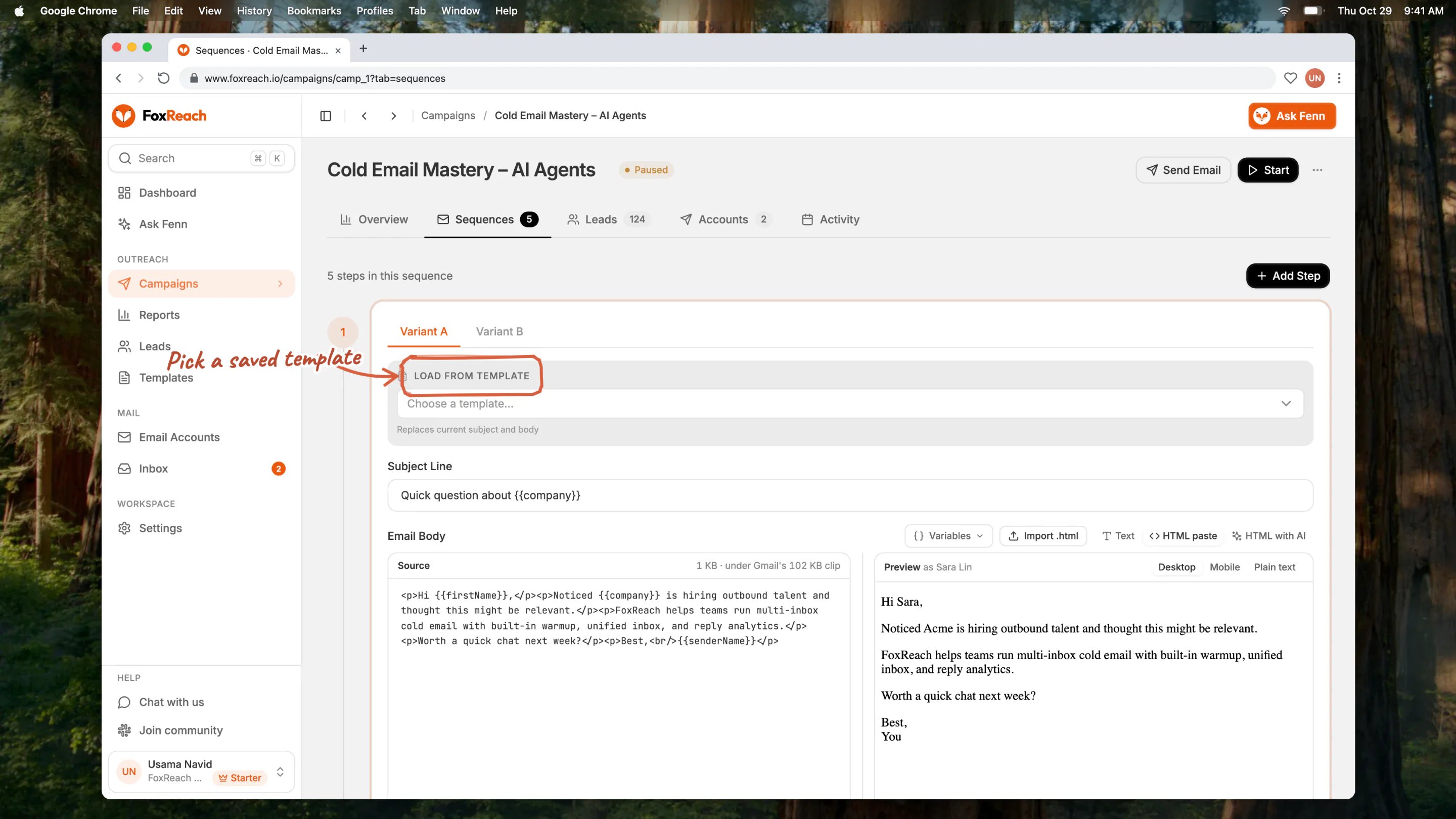
A FoxReach campaign sequence step with the Load from Template dropdown open listing the workspace's email templates
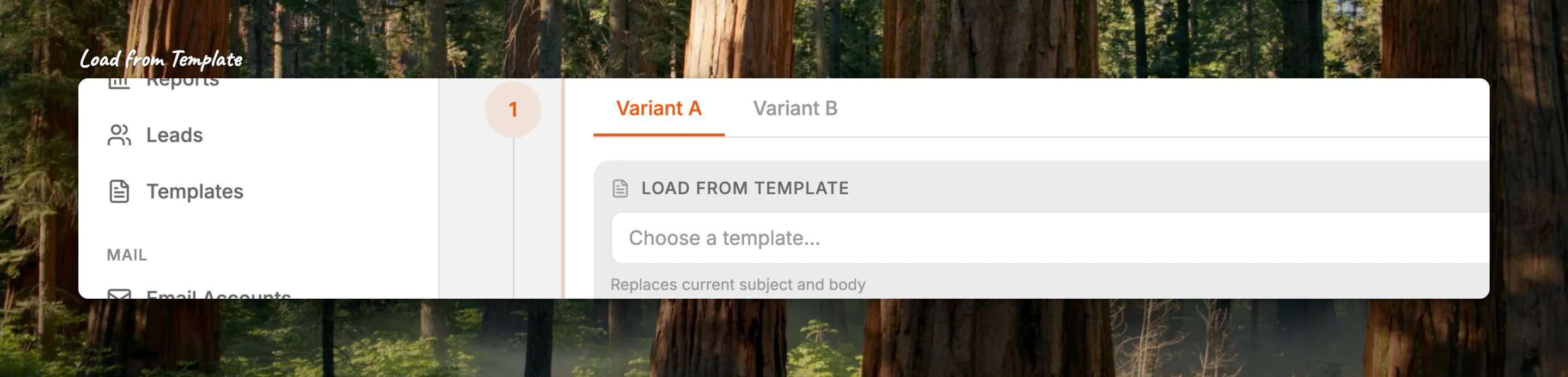
Close-up of the Load from Template section in the step editor
Variables, fallbacks, and spintax: quick reference
- Standard Fields:
firstName,lastName,fullName,email,company,title,phone,linkedin,website - Custom Fields: every custom field key on your leads, exactly as it was named on import
- Account Fields:
signature,senderName,senderEmail
{{first_name}}, {{job_title}}, and {{sender_name}} resolve to the same values. Custom field names can contain spaces and are matched to the lead’s field verbatim.
At send time spin blocks are resolved first, then variables are substituted; a fallback inside a variable is safe from the spin pass. Subjects can be up to 500 characters and bodies up to 200,000.
Start from the template library
The template library is a set of ready-made email templates curated by FoxReach. Click Browse library at the top of the Templates page (in a new workspace, the empty page offers up to three of them straight away, each with a Use button). The library opens with the list on the left and the whole email on the right, variables highlighted, so you read it before taking it. Search and the category chips narrow the list. Click Copy to my templates: the copy lands in your workspace named with “(Copy)” on the end and opens in the editor, ready to make your own. A template you already copied is marked In your templates.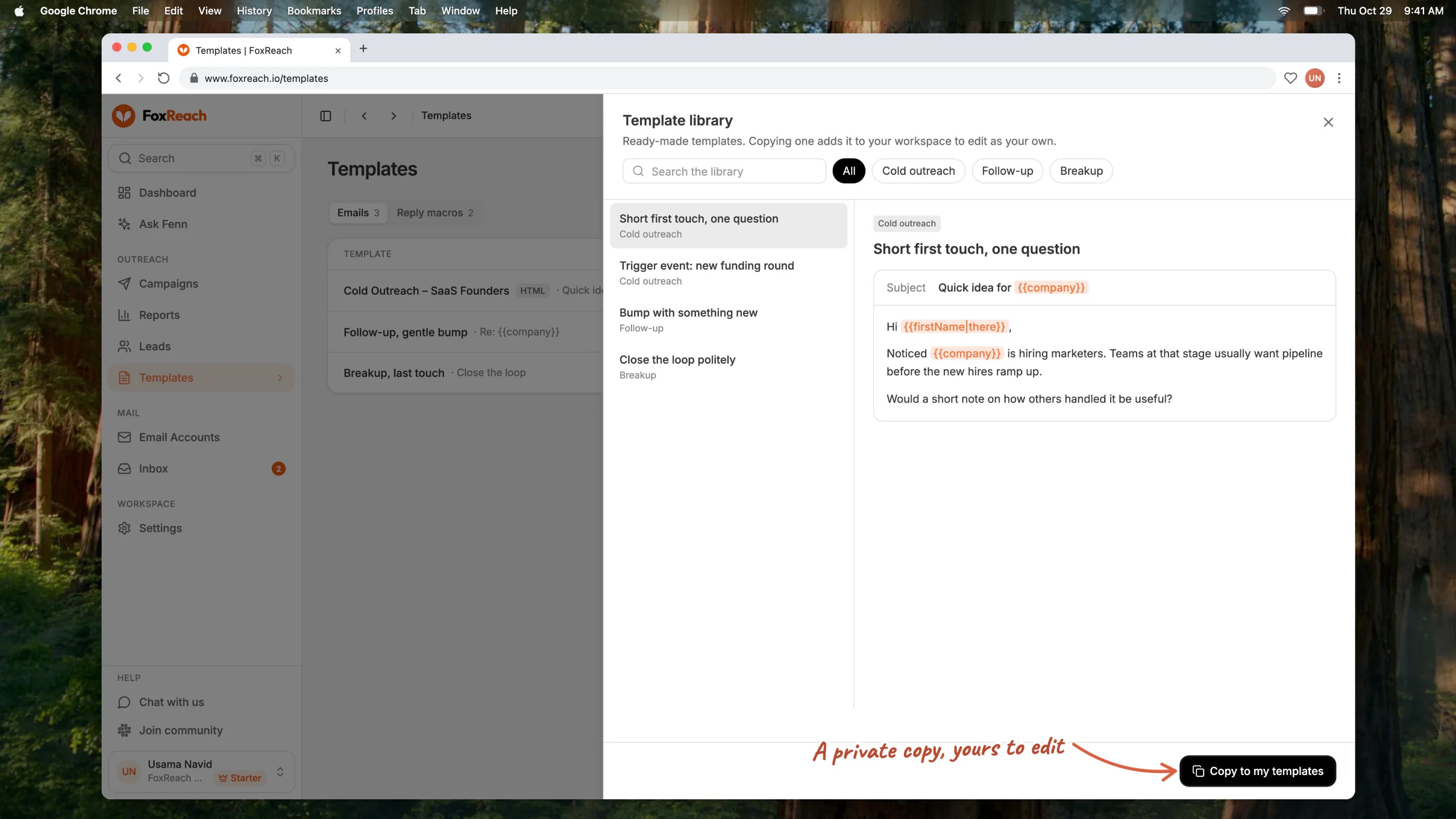
The FoxReach template library with ready-made templates on the left, the full email on the right, and Copy to my templates
Writing a template that gets replies
A few rules that hold up across most B2B lists:- Subject: short, lowercase, one variable at most. It should look like something a colleague would type.
- First line about them, not you. A specific observation beats an introduction.
- One ask, phrased as a question. Not a link, not a calendar, not three options.
- Fallback on every variable. Assume the list is dirty because it is.
- Spin the phrasing, never the facts. Greetings, transitions, and the ask are good spin candidates. Company names and numbers are not.
- Plain text for step one. Google’s email sender guidelines and Yahoo’s sender best practices both push senders toward messages that look like they were written for one person, and a text-only first touch is the simplest way to get there.
Troubleshooting
A variable renders blank. Either the lead has no value and there is no fallback, or the name does not match; custom field names must match the lead’s field key exactly. Check the “Lead missing data” side of the step preview; every blank there needs a fallback. I edited the template but the running campaign did not change. That is expected. Loading a template copies it into the step. Pause the campaign, click the pencil on the step, load the template again from Load from Template, and resume. Saving the step fails with a spin syntax error. Look for a brace you did not close, a block with only one option, an empty option like{a||b}, or a block inside another block. The template editor does not validate spin syntax, so the first place you will see the error is the step.
The image did not arrive. Check that the image is in the body when you save, and that it was uploaded or linked at an address anyone can open. Images you link from your own site must be public. Uploaded images need nothing else. Some inboxes block images until the reader allows them, which is why the description matters.
The sent email lost its formatting. Send as HTML was off, so the email went as plain text and bold, links, and styles were converted away. Turn it on if the formatting is worth the deliverability trade. Pasted HTML source switches the editor to HTML mode, which always sends as HTML.
My template is missing from Load from Template. Only Email type templates appear there, and the panel is hidden entirely when the workspace has none. Open the template and check its Type.
Next step
You have a template in the library and a step that uses it. Build the rest of the sequence with the guide to creating a cold email campaign in FoxReach, then split step one with the A/B testing guide so the subject line earns its place. When replies arrive, the unified inbox guide covers reply handling, which is where reply macros come in. Templates, variables, and spin syntax are available on every plan, including Free; the pricing page lists the limits for each.Frequently asked questions
What is the difference between an email template and a reply macro in FoxReach?
What is the difference between an email template and a reply macro in FoxReach?
Which variables can I use in a FoxReach email template?
Which variables can I use in a FoxReach email template?
What happens if a lead is missing the data a variable needs?
What happens if a lead is missing the data a variable needs?
If I edit a template, do the campaign steps that used it change too?
If I edit a template, do the campaign steps that used it change too?
How does spin syntax help cold email deliverability?
How does spin syntax help cold email deliverability?