

Work the Unified Inbox in FoxReach (AI Reply Sorting) (1 min)
Step 1: Open the inbox
Click Inbox in the sidebar. When there are unread replies, the page header shows a count next to the word Inbox. Two rows of controls sit above the thread list. The top row holds the search box (placeholder: “Search sender, subject or body”), an account selector that defaults to All accounts, a date range picker (presets such as Today or Last 7 days, or any first and last day on a calendar, then Apply), the List, Board, and Triage view switch, and a FoxReach only toggle. The second row holds the category filters. Until you pick a thread, the reading pane says “Select a thread to view” and reminds you that J and K move through the list. Every connected email account in the workspace feeds this one list. Send from five inboxes, read replies in one place.Step 2: Filter by category
The second row of chips is where you decide what to look at: All, Unread, Interested, Not Int., OOO, Bounced, Starred, and Sent. Each chip shows a count for the current scope, so you can see at a glance how many interested replies are waiting. Click Interested. The list narrows to replies the AI classified as positive. In the demo workspace, FoxReach Academy Demo, that includes a reply from Alex Morgan at Northstar AI to the campaign “Cold Email Mastery - AI Agents”. The categories map to what a reply actually is:- Interested: a real person who wants to continue the conversation.
- Not Int.: a real person who has declined.
- OOO: an out of office auto-reply.
- Bounced: a delivery failure notice, not a person.
What the reply is asking for
Next to the category badge on an open thread, FoxReach shows up to three intent chips read from the reply itself: Asks a question, Wants a call, Refers to someone, Mentions pricing, Timing objection, Uses a competitor, Wants more info, and Hostile. Two finer readings get a chip of their own when they apply: Not now (open to it, wrong time) and Wrong person (they pointed you elsewhere). Hover the category badge to see how sure the categorizer was; hover a chip for its likelihood. The same reading is handed to the AI draft, so a reply that asks about price gets a draft that answers about price. A reply that asks to stop, in any phrasing, is treated as an unsubscribe even when the rest of it reads as “not interested”: the lead is suppressed and no draft is written. The Board view lays the same replies out as columns (Uncategorized, Interested, OOO, Not Interested, Bounced) and lets you drag a card between them to recategorize it. The Triage view shows one reply at a time with a decision rail: Interested, Not interested, OOO, star, delete, and Skip. Both are desktop only.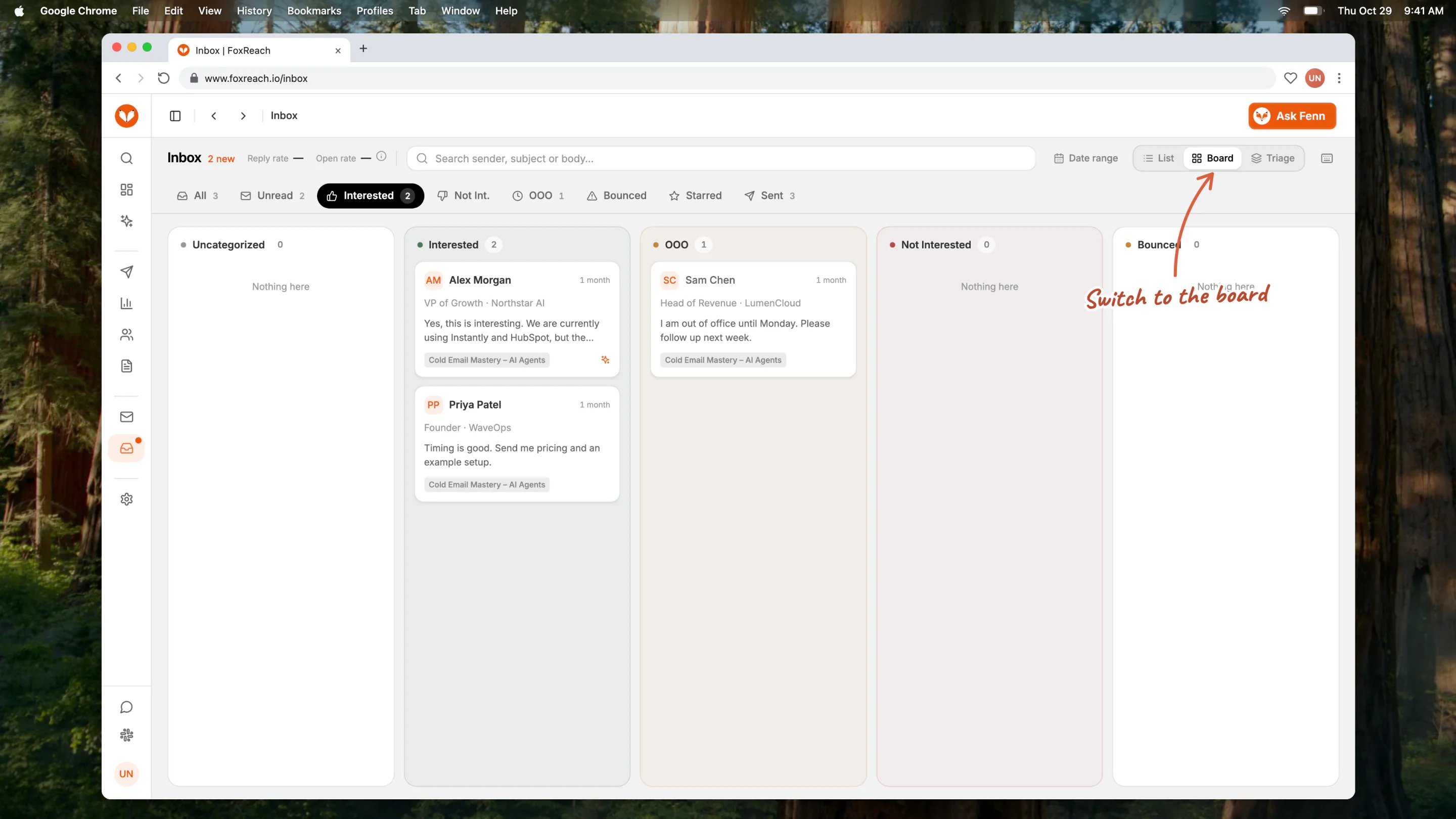
The Board view groups replies into Uncategorized, Interested, OOO, Not Interested, and Bounced columns.
Step 3: Open a thread
Click the Alex Morgan row. The reading pane fills with three things. At the top, the contact bar shows the sender’s name, email address, title and company, the category badge, a star, and the quick actions. Below it, the context strip shows four cards: Lead (with a View lead link), Campaign (with a View campaign link), Notes, and Activity, which lists the lead’s recent sends and replies so you can see which step they answered. The rest of the pane is the conversation: your outbound email and the reply, in order. Long quoted chains are collapsed behind a “Show quoted text” toggle so the new content is what you read first.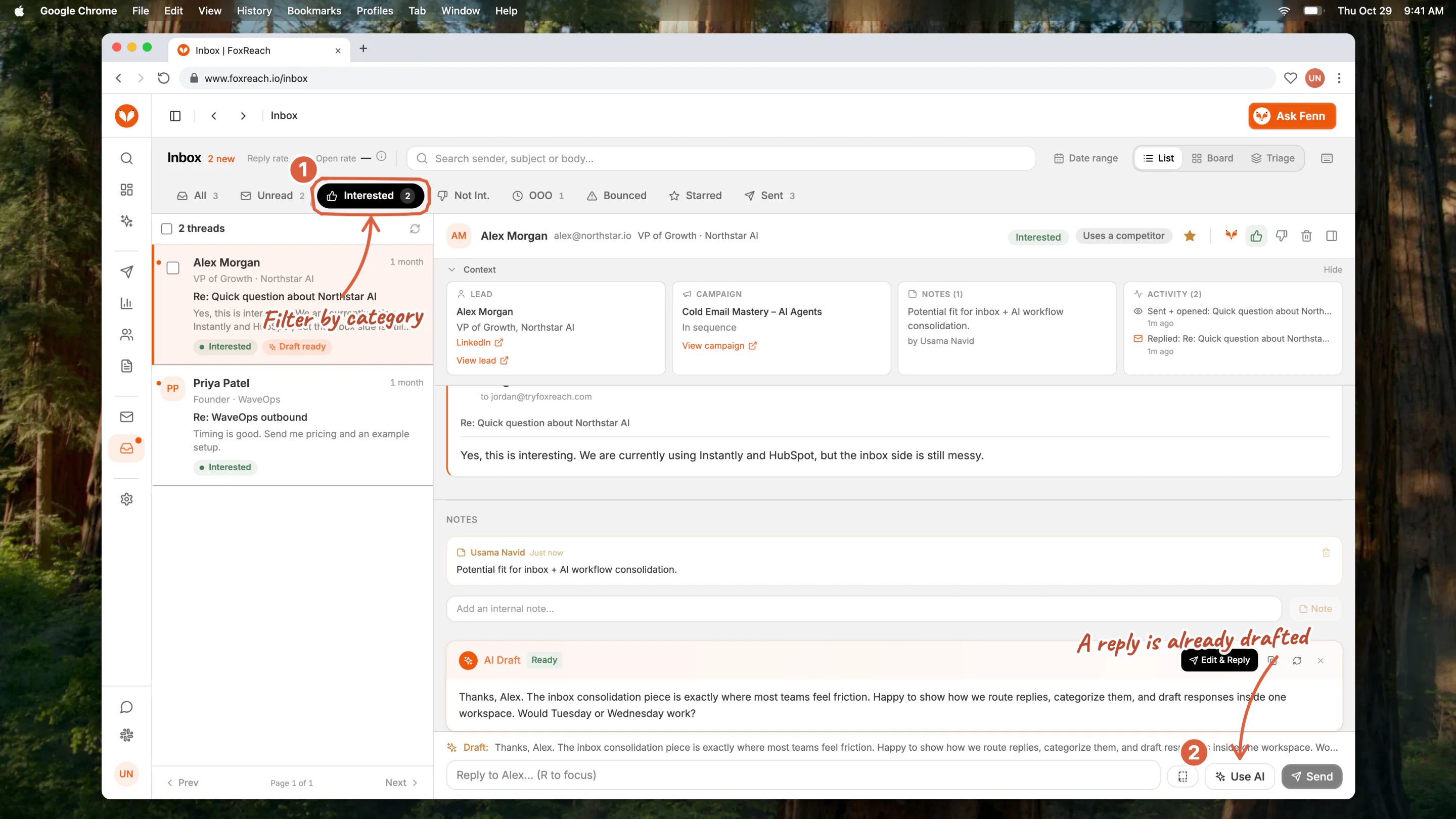
The unified inbox filtered to Interested with the Alex Morgan thread from Northstar AI open, showing the conversation, the lead card, and the campaign it came from.
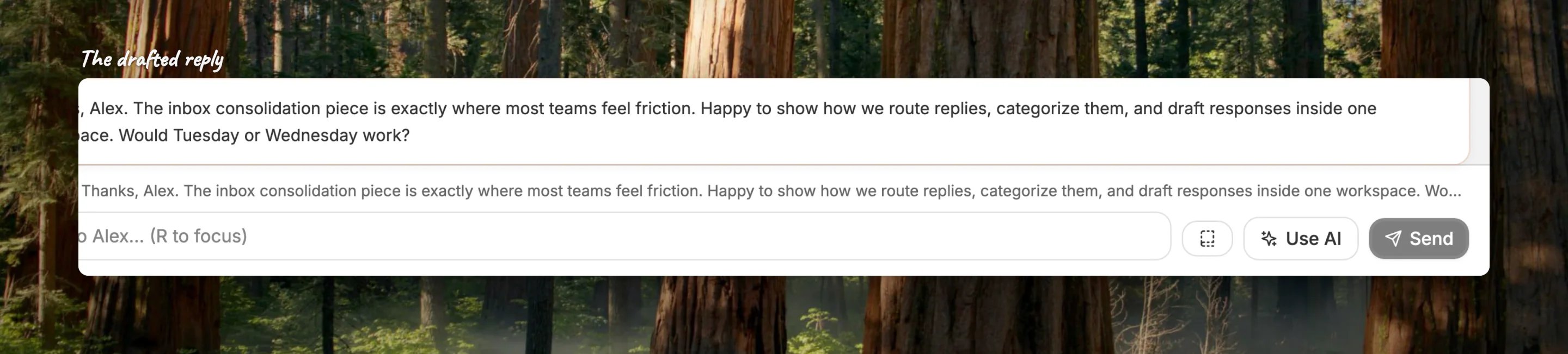
Close-up of the drafted reply and the Use AI draft button at the bottom of an Interested thread
Step 4: Load the AI draft and reply
When a reply is matched to a lead, FoxReach drafts a response in the background from the campaign context, the lead’s details, and the last few messages in both directions. At the bottom of the reading pane, the reply box shows a “Draft:” preview of the suggested text. Click Use AI to load it into the reply box, whose placeholder reads “Reply to Alex…”.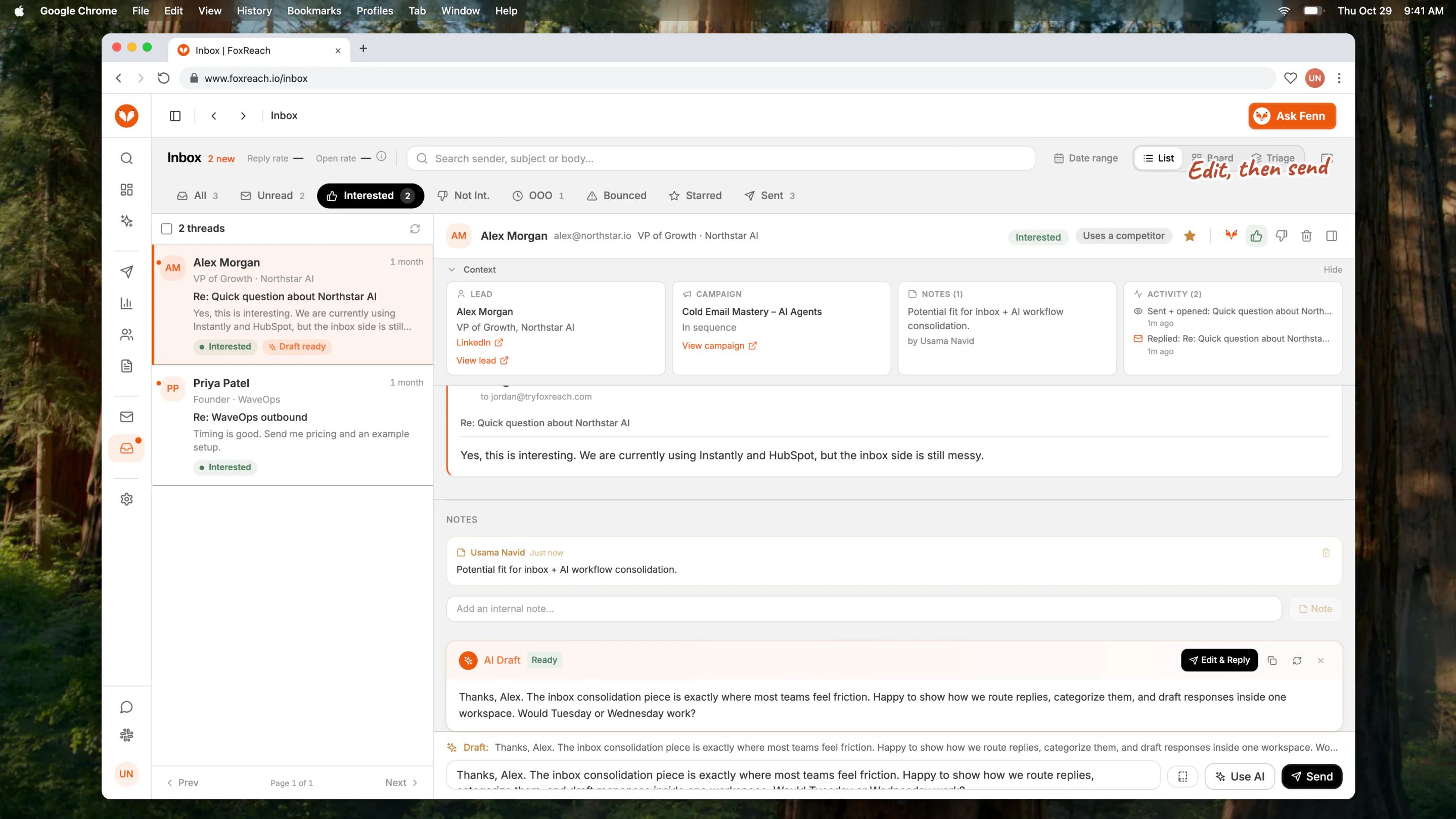
The reply composer with the AI draft loaded after clicking Use AI, ready to edit or send.
Step 5: Recategorize with thumbs up or down
The AI is right most of the time, and the fix for the rest is one click. The thumbs up button in the contact bar is “Mark as interested” and the thumbs down is “Mark as not interested”. Clicking the category badge itself cycles through Uncategorized, Interested, Not Interested, and Out of Office. Each change shows a toast, for example “Marked as interested”, with an undo option for a few seconds before it saves. The thread jumps to the matching filter and Board column, and the inbox moves you on to the next thread automatically. What the category does beyond sorting:- Interested and Not Interested change how the reply is counted in your campaign results and where it sits in the inbox. The lead’s sequence already stopped the moment their reply was matched, so recategorizing does not restart sending.
- Unsubscribe has teeth. A reply that expresses opt-out intent is categorized as an unsubscribe automatically, which suppresses the lead: status set to unsubscribed, every queued send cancelled across all campaigns. Marking a reply as an unsubscribe by hand does the same thing.
Step 6: Move through the list with J, K, and R
The inbox is built to be worked from the keyboard. With the list focused and no text field active:- J opens the next thread, K the previous one. Reaching the bottom of a page loads the next.
- R puts the cursor in the reply box.
- E marks the thread interested, X marks it not interested.
- S stars it, U toggles read and unread.
- Cmd or Ctrl plus Enter sends the reply, Cmd or Ctrl plus K focuses search.
- V cycles List, Board, and Triage. Esc closes the thread. ? opens the full shortcut list.
Step 7: Notes, stars, read state, bulk actions, and delete
Notes. Under the conversation, the Notes area has a field that says “Add an internal note…” and a Note button. Notes are visible to everyone in the workspace and never to the prospect. Stars. The star in the contact bar (or S) flags a thread for later, and the Starred chip collects them. Read state. Opening a thread marks it read. U flips it back to unread if you want it in tomorrow’s Unread queue. Bulk actions. Tick the checkbox on any row, or use the “Select all threads” checkbox at the top of the list to select the page; a banner then offers to select every matching thread across pages. A toolbar appears with Mark Read, Mark Unread, Star, Interested, Not Int., OOO, and Delete. The list shows up to 100 threads per page. Delete. The trash icon removes a thread from FoxReach and deletes the message from the mail server itself, so it will not reappear in your mailbox either. A single delete sits behind an undo toast; a bulk delete asks you to confirm first.Step 8: Check the Sent view
The Sent chip switches the list from replies to outgoing mail. Each row shows the recipient (“To: Alex Morgan”), the subject, a preview, the email type, the campaign name, and an Opened badge when open tracking recorded one. Opening a sent email shows the full message with links to the lead and the campaign step that sent it. Use it when a prospect says “I never got your email”: confirm what went out, when, and from which account.How replies get here
FoxReach reads each connected account over IMAP, the mailbox access protocol defined in RFC 3501, the same way a desktop mail client does. It checks every active, connected account about every five minutes and reads up to 50 new messages per account per check. That is why a reply can take a few minutes to show up: it waits for the next check. Each new message is matched to the email that triggered it: by threading headers first, then by the sender’s address against recent sends from the same account, then against your lead list. A match stops the lead’s sequence: they replied, so the follow-ups are cancelled. Matched replies are categorized by AI using the campaign context and the lead’s details, with a keyword fallback if the AI is unavailable. Delivery failure notices land in Bounced, and a hard bounce marks the lead so no campaign sends to them again. Mail from addresses that match none of your leads is filed as unrelated and kept out of the default view, which stops other people’s cold email from polluting your Interested filter. Opt-out replies are handled without you. “Unsubscribe”, “remove me”, and similar are categorized as unsubscribe requests and the lead is suppressed immediately. That is the reply-side half of the one-click unsubscribe support described in RFC 8058 and required by Google’s email sender guidelines for bulk senders.A daily inbox routine
Ten minutes, once a day, beats checking all afternoon:- Open Inbox with FoxReach only on and click Interested. Work each thread with J, load the draft with Use AI, edit, send.
- Click Unread and clear what is left. Correct any category the AI got wrong with E or X.
- Once a week, open Bounced. A rising bounce count on one account is an early deliverability warning.
- Star anything that needs a follow-up you cannot do today, and leave a note so the next person knows why.
Troubleshooting
A reply is not showing. Check the account in Settings first: a disconnected or errored account is not polled until you reconnect it. If the account is fine, wait for the next check, which runs about every five minutes. If the sender is not one of your leads, the reply is filed as unrelated; turn FoxReach only off and search for the address. The category is wrong. Use the thumbs buttons, E and X, or drag the card in the Board view. The change saves after the undo toast. There is no draft. Drafts are skipped on purpose for bounces, out of office replies, and opt-outs. For everything else, the draft is generated a few seconds after the reply is matched; if your plan has run out of AI credits, replies still arrive and get categorized, but the Draft line stays empty. A deleted thread is gone from my mailbox too. That is expected. Delete removes the message from the mail server as well as from FoxReach. Use Mark Read or Not Int. when you only want a thread out of the queue. The chip counts do not match what I expected. Counts follow the same scope as the list: account, search, and the FoxReach only toggle. Turn the toggle off to see workspace-wide numbers.Next step
The inbox tells you who replied. The next guide, read campaign results in FoxReach, shows where those replies came from, step by step and variant by variant. Save the replies you send most as reply macros with email templates in FoxReach, so the second interested reply takes ten seconds. If you would rather have an agent handle the first pass, every inbox action in this guide, from listing threads to sending a reply, is available through the MCP server, which is how AI agents triage replies on your behalf. New to FoxReach? Start with the getting started guide, then create your first campaign. Replies will follow.Frequently asked questions
What is the unified inbox in FoxReach?
What is the unified inbox in FoxReach?
How long does it take for a reply to show up in the inbox?
How long does it take for a reply to show up in the inbox?
Does replying from the inbox send from the same email account?
Does replying from the inbox send from the same email account?
What happens when I mark a reply as interested or not interested?
What happens when I mark a reply as interested or not interested?
Why can a reply be missing from the unified inbox?
Why can a reply be missing from the unified inbox?