

Connect an Email Account to FoxReach (Gmail, Outlook, SMTP) (1 min)
Before you start
You need three things:- A FoxReach workspace. If you are brand new, the getting started guide walks through the whole first campaign. This post is the detailed version of its first step.
- A mailbox you control, on a domain you are allowed to send cold email from. Gmail, Google Workspace, Outlook or Office 365, Yahoo, Zoho, and any server that exposes SMTP and IMAP all work.
- Either Google sign-in or an app password. If the mailbox is Gmail or Google Workspace, you can skip the password entirely and use Sign in with Google. For every other provider, and for Gmail if you prefer, you will create an app password in Step 3.
Step 1: Open Email Accounts and click Connect Account
In the sidebar, click Email Accounts. The page lists every mailbox connected to the current workspace, with a status badge, the sent-today counter against its daily limit, and its health score.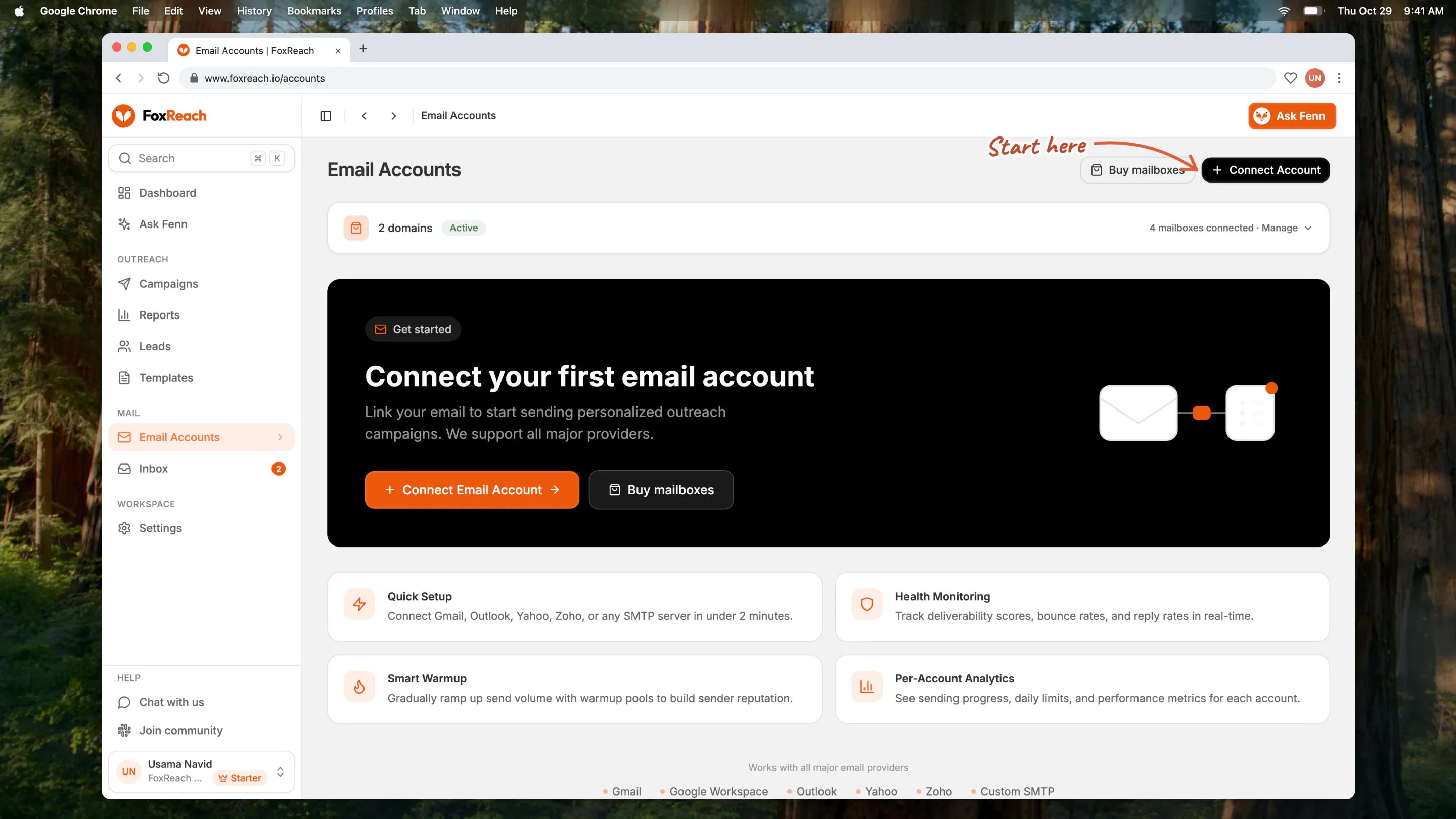
The Email Accounts page listing three connected inboxes with health scores, daily limits and sent-today counters
Step 2: Choose how to connect
The Connect Email Account dialog opens with two options. Sign in with Google sits at the top. It connects Gmail or Google Workspace in one click through Google’s consent screen. No app password is needed. Click it, pick the Google account, approve access, and you land back on the Email Accounts page with the new account already in the list and a confirmation toast. The account is created with the default daily limit of 50, which you can change on its detail page (Step 7). Below the divider, under “or connect with an app password”, is a grid of providers:Step 3: Create an app password
An app password is a 16-character code your email provider generates for a single application. It is not your normal login password, and FoxReach will not accept your normal password for Gmail. The dialog says so above the form: “Use an App Password (not your regular password). Enable 2-Step Verification first.” Gmail and Google Workspace. Turn on 2-Step Verification for the Google account, then open the app passwords page at myaccount.google.com/apppasswords, give the password a name such as FoxReach, and copy the 16 characters Google shows you. Google’s help article on creating an App Password covers the details. On Workspace, an admin may need to allow app passwords first; Google’s Workspace SMTP setup guide explains the admin side. Outlook and Office 365. If two-step verification is on for the Microsoft account, create an app password by following Microsoft’s guide on using app passwords with apps that don’t support two-step verification. If it is off, the dialog accepts your regular password. Yahoo and Zoho. Both generate app passwords from their account security settings. The dialog links to each provider’s own instructions once you pick the card.Step 4: Fill in the connection form
With Gmail selected, the form asks for a few fields.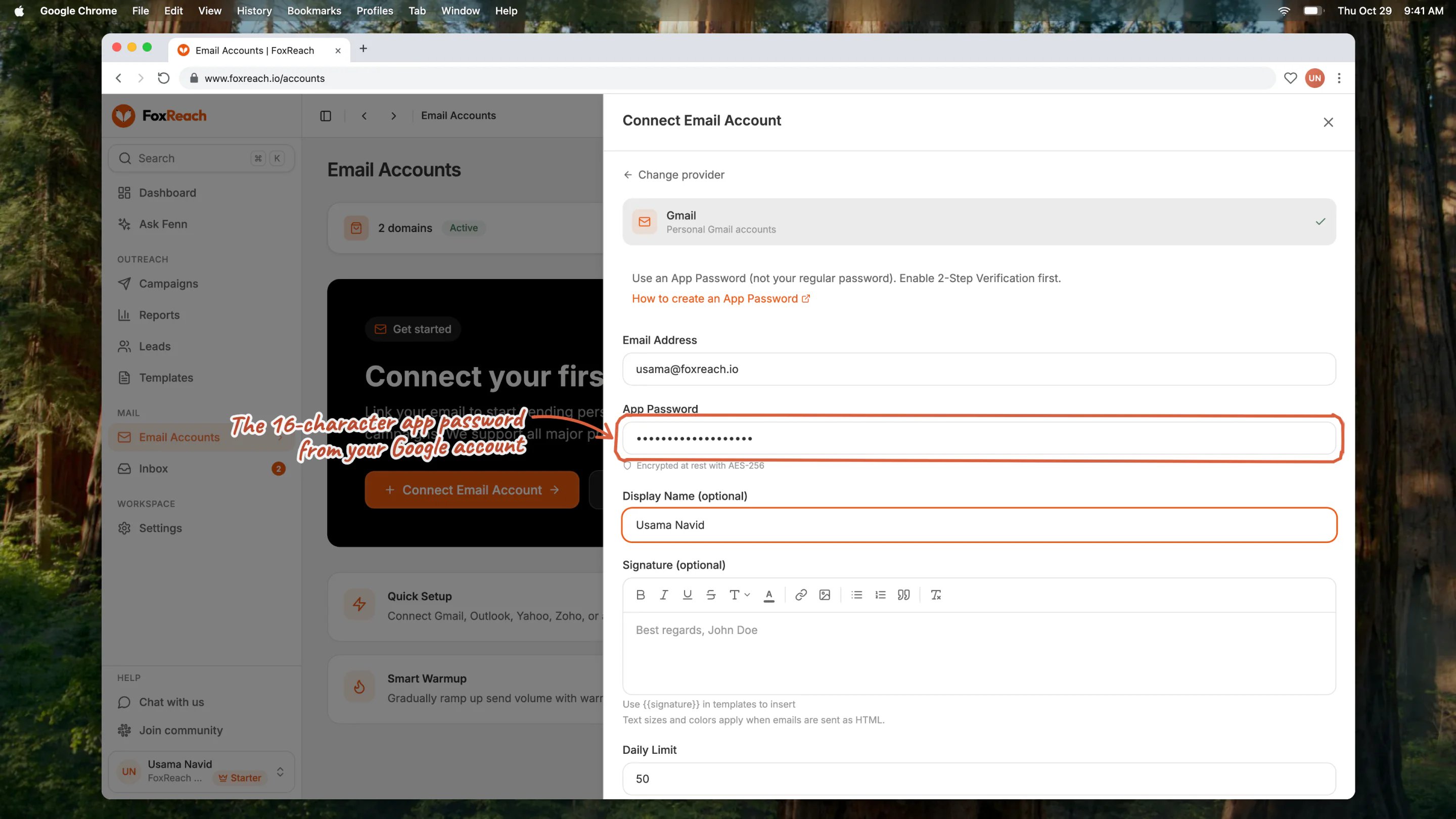
The Connect Email Account dialog with Gmail selected, showing the address, app password and display name fields and the Test Connection button
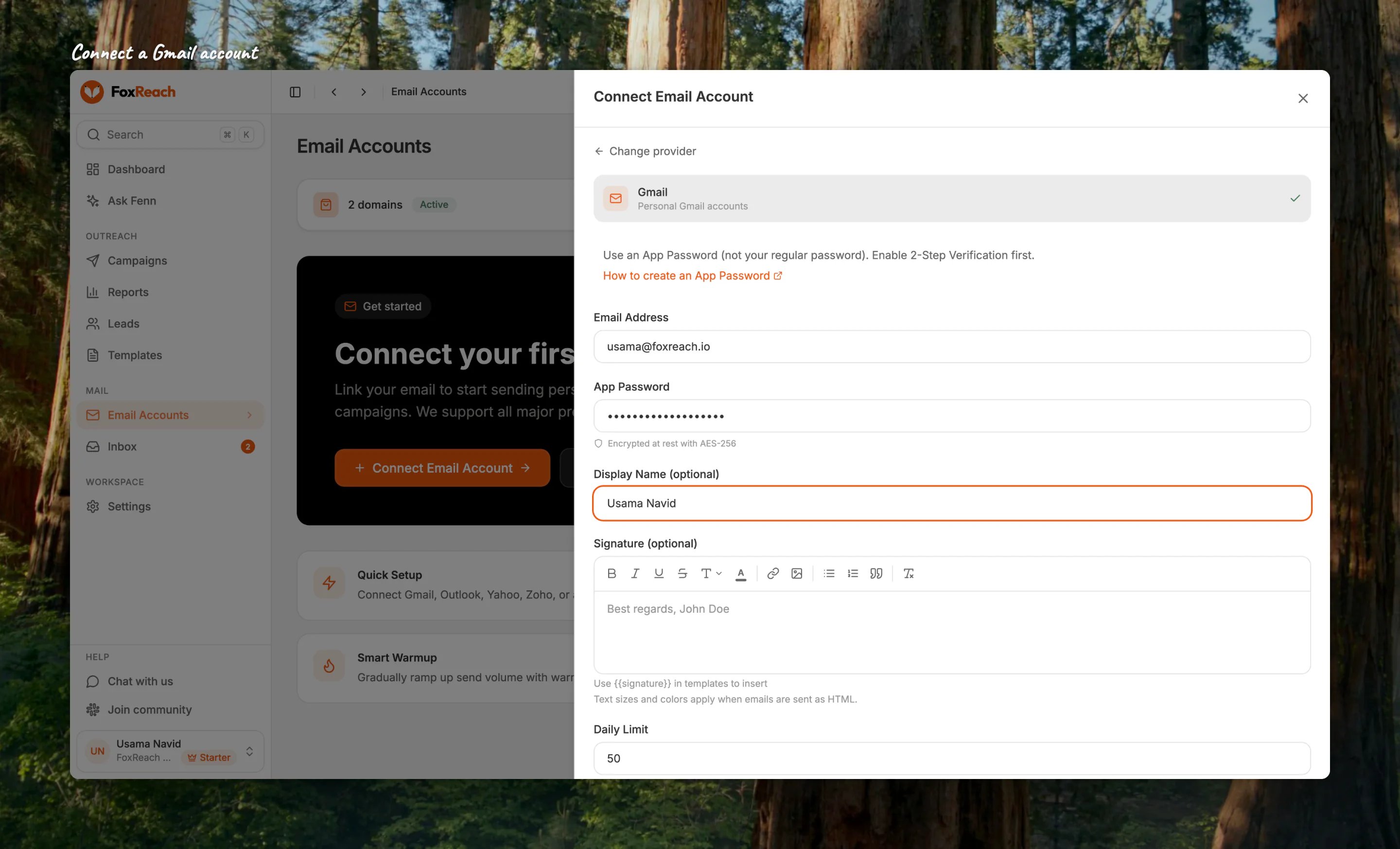
Close-up of the Connect Account dialog for a personal Gmail account with the email, app password and sender name filled in
- Email Address. The mailbox you are connecting, for example jordan@tryfoxreach.com.
- App Password. Paste the code from Step 3. Spaces are fine. Under the field FoxReach notes that credentials are encrypted at rest.
- Display Name (optional). The sender name recipients see in their inbox, such as Jordan Reyes. Leave it blank and the address is shown instead.
- Signature (optional). A rich-text block you can insert into any template with the
{{signature}}variable. Text sizes and colors only apply when the email is sent as HTML. - Daily Limit. The maximum number of campaign emails this account sends per day. The field accepts 1 to 200 and starts at 50. The hint under it changes per provider; for Gmail it recommends 30 to 50.
Step 5: Test the connection
Click Test Connection. FoxReach logs in to the mailbox twice: once over SMTP, which is how it will send, and once over IMAP, which is how it reads the inbox for replies and bounces. Two result lines appear under the form:- SMTP: Connected means sending works.
- IMAP: Connected means inbox access works.
Step 6: Connect the account
Once both lines say Connected, the same button changes to Connect Account. Click it. The dialog closes, a toast confirms the account is connected, and the new mailbox appears in the list with a green Connected badge, a 0/50 sent-today counter (or whatever limit you chose), and a starting health score. The account is ready to be attached to a campaign.Step 7: Review the account page
Click the new row to open its detail page, where you adjust the account later.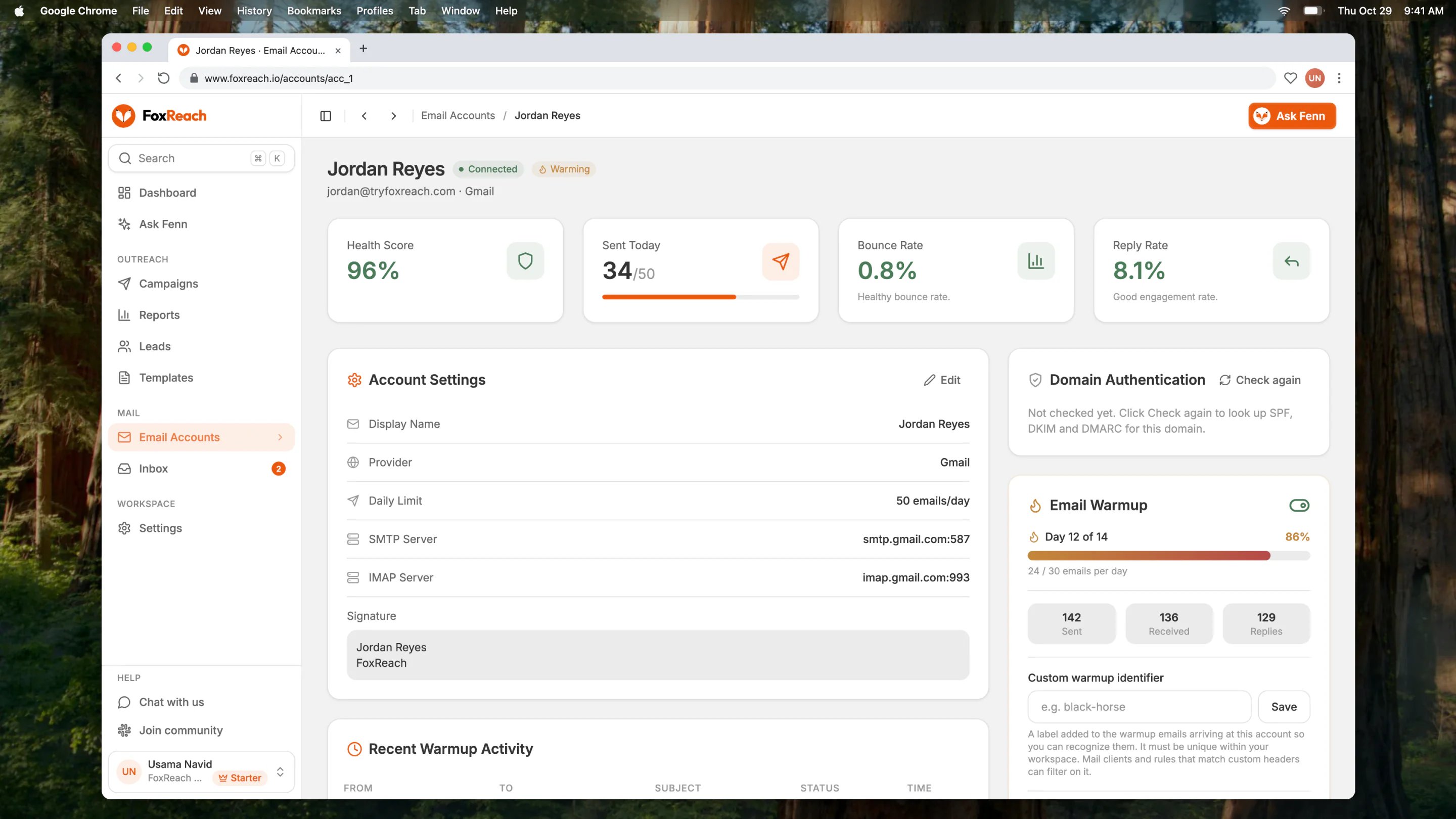
An account's detail page for Jordan Reyes, jordan@tryfoxreach.com, showing the daily limit, health score, signature and warmup settings
- Display Name, which appears as the sender name in recipients’ inboxes.
- Daily Sending Limit, 1 to 200.
- Email Signature, the rich-text block inserted with
{{signature}}.
How it behaves after you connect
A few things about connected accounts are not obvious from the form. The daily limit is per account and per day in the account’s own timezone. The Sent Today counter resets at midnight where the mailbox lives, not at a fixed server time, so a New York inbox and a London inbox each get a full day. The Email Accounts page sums these into one Sent Today total across all accounts. Provider ceilings apply on top of your setting. For Gmail and Microsoft mailboxes, campaign sends are capped at 50 per day regardless of the number in the field. Custom SMTP servers have no platform cap, since a dedicated sending server manages its own reputation. The health score is inbox placement, updated hourly. It is the share of the warmup emails this inbox sent in the last 7 days that landed in the inbox rather than in spam, and the line under the card says exactly that, for example “38 of 40 warmup emails landed in the inbox in the last 7 days.” Recent days and landings at Google or Microsoft inboxes count more in the score, so it is not always the plain ratio of those two counts. It shows green at 90 and above, amber from 70 to 89, and red below 70. A new account reads Building data until 20 of its warmup emails have been measured, and an account with warmup off reads Warmup off; neither is shown as a percentage. Campaign bounces are a separate line under the score (“3 of 120 campaign emails bounced in the last 7 days.”), because a bad lead list says nothing about the mailbox itself. Domain authentication is checked for you, but never blocks sending. SPF says which servers may send for your domain, DKIM signs each message so the receiver can confirm it was not altered, and DMARC tells receivers what to do when the first two fail. Gmail and Yahoo require all three for bulk senders, and a missing record is the usual reason a healthy-looking mailbox lands in spam. The account row shows Domain auth OK, Domain auth: warning (for example a DMARC policy of p=none, or an SPF record that does not include your provider) or Domain auth: failing (a record is missing). A failing domain also adds a red line under the Health Score card. Campaigns keep sending either way: a mailbox you bought through FoxReach can take a few hours for its DNS to propagate, and a custom server may sign with a selector FoxReach could not guess, so the check informs rather than gates. Fix the records at your DNS host, then click Check again on the account page. The status badge tells you whether FoxReach can still log in. Connected means the mailbox accepted FoxReach’s credentials the last time it tried. Error means a send, an inbox check, or a warmup send failed to authenticate, and the row shows the reason underneath. Inactive on the list page (Disconnected on the detail page) means the account is switched off and will not be used by campaigns. The Email Accounts page also shows a banner counting accounts with connection errors, so you notice them without opening each one. Sending defaults are per workspace. Settings, Workspace holds the workspace’s default daily limit and sending window; each account’s own limit is still set on its page. The workspaces guide covers what else is stored per workspace.Troubleshooting
The SMTP or IMAP line says the login failed. For Gmail and Workspace, you almost certainly pasted the regular account password instead of an app password, or 2-Step Verification is not on yet. Generate a fresh app password and paste it again. For Outlook with two-step verification on, the same rule applies. The test passes but the account later shows Error. App passwords can be revoked, for example when you change the account password or turn off 2-Step Verification, and a Google sign-in grant can be withdrawn. Open the account page. For an app password account, click Reconnect with new password in the error banner, paste a new app password, and click Reconnect; FoxReach tests it before saving. For a Google sign-in account, click Reconnect with Google on the account row and approve access again. Reconnecting keeps the account’s history and campaign assignments. The daily limit will not save above 50. For Gmail, Google Workspace, and Outlook mailboxes this is expected. Set 50 or below, and connect more mailboxes if you need more volume. Custom SMTP fails with a connection or DNS error. Check the SMTP Host and IMAP Host spellings and confirm the ports. FoxReach uses implicit TLS on port 465 and STARTTLS on port 587 for SMTP, and IMAP on 993. Ask your mail host which combination they support. Domain auth says DKIM is Missing but your provider says it is on. FoxReach looks up the selector your provider normally uses (google for Google Workspace, selector1 and selector2 for Microsoft 365, zoho for Zoho) and a short list of common names for custom servers. If your server signs under another selector, type it into the DKIM selector field on the account page and click Save. If the record was added in the last hour, DNS may not have propagated yet; click Check again later. The same address is already connected. An email account can only exist once per workspace. To move a mailbox between workspaces, delete it from the old one first.Next step
With an email account connected, the next thing a fresh mailbox needs is reputation. Turn on the toggle in the Email Warmup card and follow email warmup in FoxReach to understand the ramp. While that runs, import your leads so there is a list ready when the account is warm. If you are planning more than one mailbox, remember that connecting accounts is unlimited on every plan; the pricing page lists the monthly email and warmup allowances that actually shape how many you need.Frequently asked questions
Do I need an app password to connect Gmail to FoxReach?
Do I need an app password to connect Gmail to FoxReach?
Why does the connection test check both SMTP and IMAP?
Why does the connection test check both SMTP and IMAP?
What daily limit should I set for a new email account?
What daily limit should I set for a new email account?
What does the health score on an email account mean?
What does the health score on an email account mean?
How do I reconnect an email account that shows an error?
How do I reconnect an email account that shows an error?