

Ask Fenn (AI Co-pilot) to Build a Campaign in FoxReach (1 min)
Where Fenn lives
Fenn is available on every page of the app. Click Ask Fenn in the top bar and a panel slides in from the right, splitting the screen so the page you were on stays in view. While the panel is open the button steps aside; close the panel with the X in its top-right corner (or press Esc). Ask Fenn in the sidebar, just under Dashboard, opens the same conversation as a full page instead, and so does the expand icon in the panel header. The dock icon on that page sends it back to the side. The panel header has a New chat button, a Chat history button, and a Close button. On desktop you can drag the panel’s left edge to widen it; on a phone it takes the whole screen. On the full page (/chat), the thread title sits in the top bar next to New chat and a History button. History opens as a sidebar on the right, so the app sidebar can stay open on the left. Drag its left edge to make it wider or narrower; FoxReach remembers the width. It lists your chats under Pinned, Today, Yesterday, This week and Earlier, each with a count. The search field at the top filters past chats by title, and each chat has a ⋯ menu with Rename, Pin to top, Archive, Open in side panel, and Delete. The same menu is behind the ⋯ in the top bar for the chat you are in. A fresh chat opens with a greeting, the composer, and up to three Needs you cards: things Fenn found worth a look, such as a high bounce rate, replies waiting for an answer, or inboxes that finished warmup. Click a card to ask Fenn about it. Starter prompts sit under Start with.Step 1: Open the panel and describe the campaign
Go to any page, for example the dashboard, and click Ask Fenn in the top bar. Click into the composer at the bottom of the panel, where the placeholder reads “Message Fenn…”. Describe what you want in plain words: who to reach, when to send, and which inboxes to send from. The prompt from the video is a good template:Prompt: “Build a campaign for SaaS founders who are hiring SDRs. Weekdays 9 to 5, from my warmed inboxes.”Press Enter to send; Shift+Enter adds a new line.
Step 2: Watch Fenn read your workspace and lay out a plan
Fenn does not guess at what you have. Before proposing anything it checks the workspace, and you see that in the thread. For the prompt above, a line reading “Fetching email accounts” appears while Fenn looks up your connected inboxes, then settles into a card headed “Found email accounts” with the result underneath. Every step Fenn takes gets a card like this: the arrow on the right folds it to one line, and an “Asked for” line at the bottom lists what Fenn asked for, such as the filters of a search. If a search comes back empty the card says so, for example “Found no campaigns”, and if a step fails it shows the reason in a sentence, for example “Add at least one filter to search”. The header shows an activity readout such as “Fenn is searching your workspace” while it works. Then Fenn writes the plan. In the demo workspace, FoxReach Academy Demo, it lists the campaign name (SaaS Founders - SDR Hiring), the schedule (Monday to Friday, 9:00 to 17:00 Eastern), the two warmed accounts it will send from (jordan@tryfoxreach.com and maria@getfoxreach.com), and a daily limit of 100 emails. It also says the campaign will be created as a draft, so nothing sends until you have reviewed the sequence.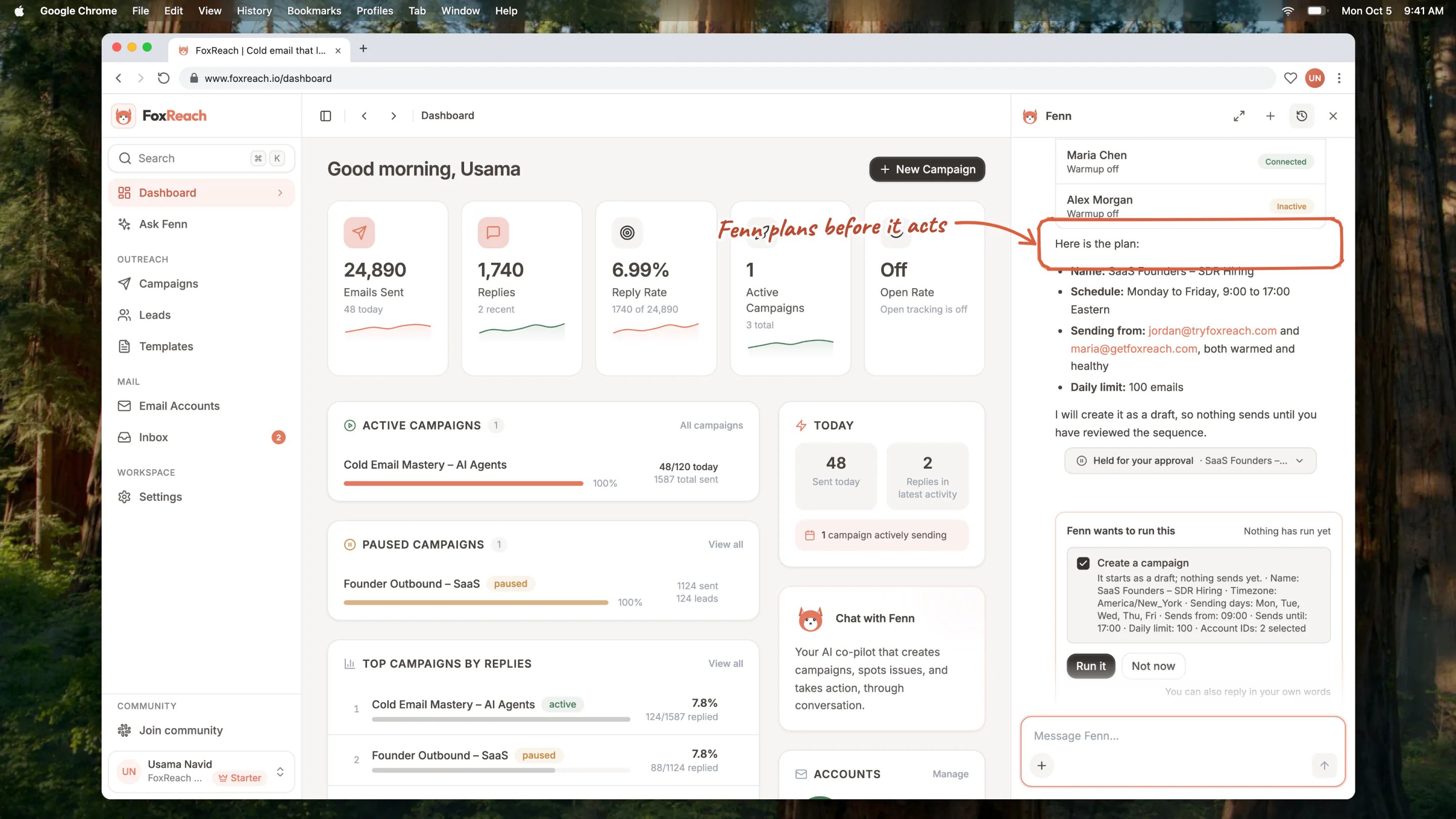
The Fenn side panel after a prompt, showing Fenn checking the workspace's email accounts and laying out the campaign plan
Step 3: Approve the plan (nothing runs without you)
Below the plan a box appears headed “Fenn wants to run this” (or “Fenn wants to run 2 actions”) with the note “Nothing has run yet”. Each action is listed in plain words with what it will do, for example “Create a campaign: it starts as a draft; nothing sends yet”. It has two buttons: Run it (or Run 2 actions), and Not now.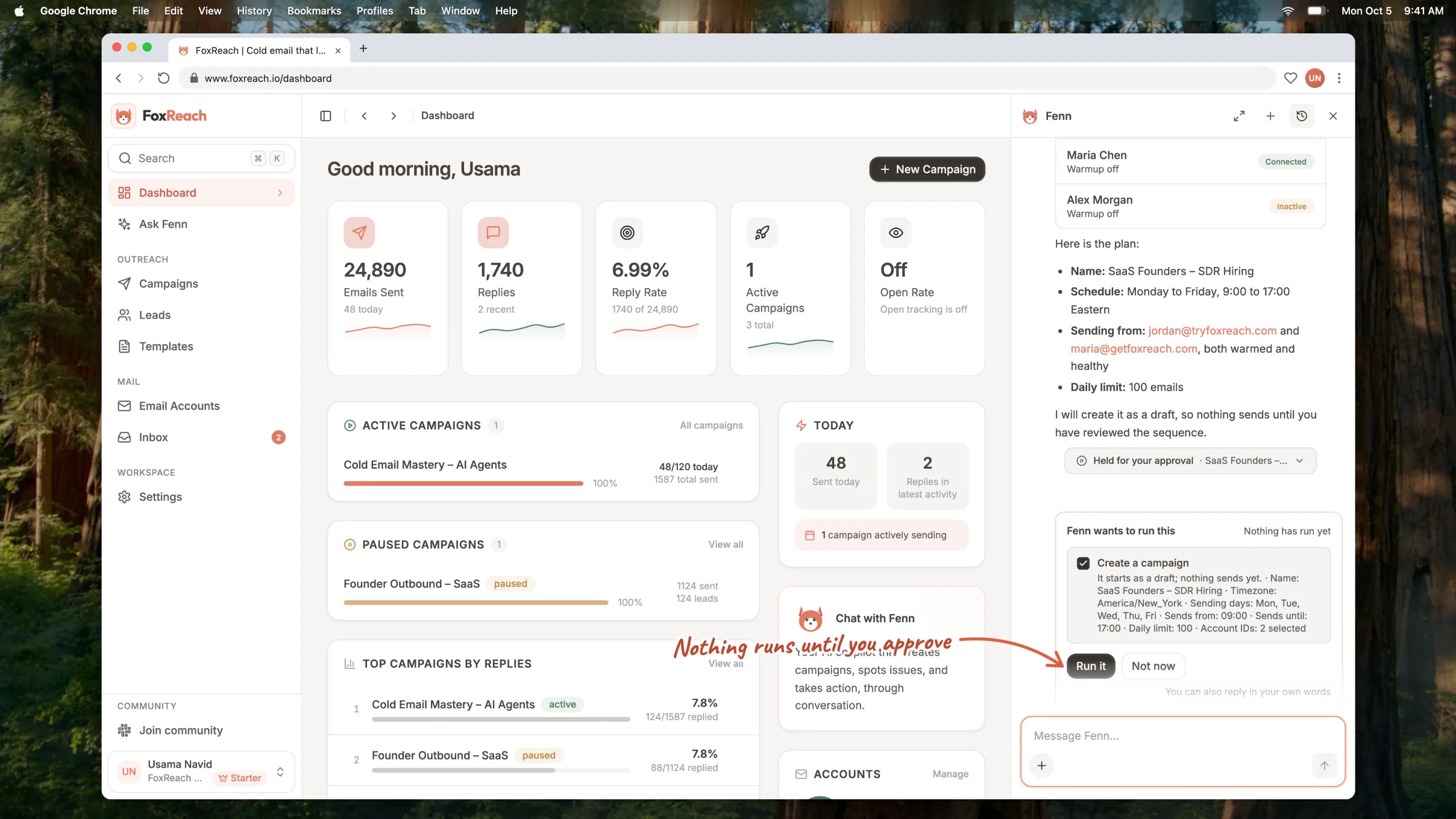
Fenn waiting for approval below the campaign plan, with the Run it button
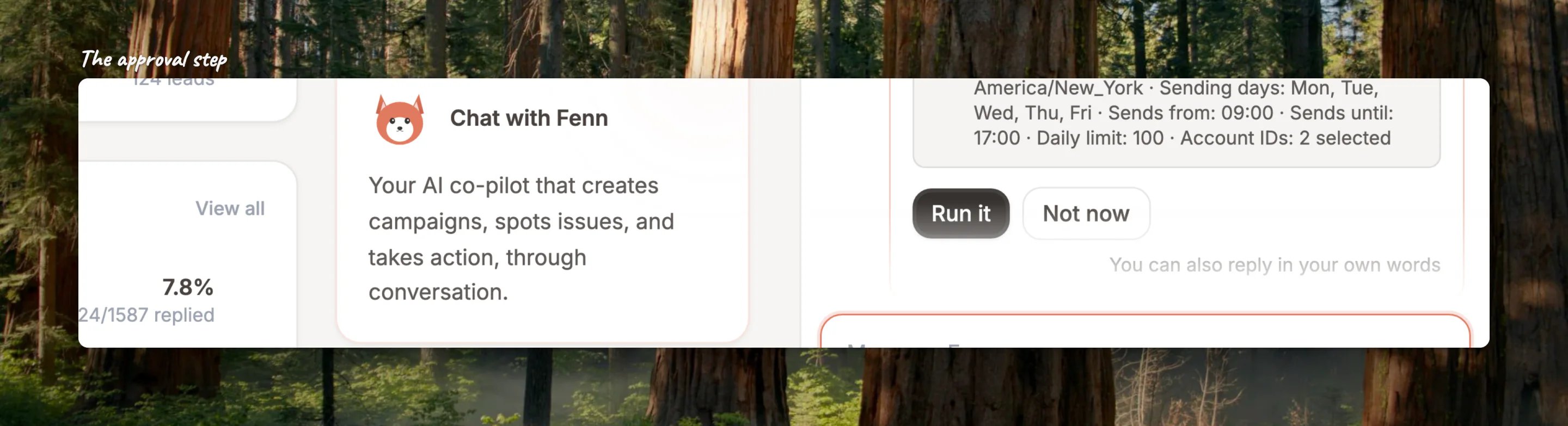
Close-up of the approval step: Fenn waits for Run it before it changes anything
Step 4: Open the campaign Fenn created
Fenn creates the campaign, and the panel shows a card for SaaS Founders - SDR Hiring with a draft status and both inboxes attached. Click the card to open the campaign page; the panel stays open beside it.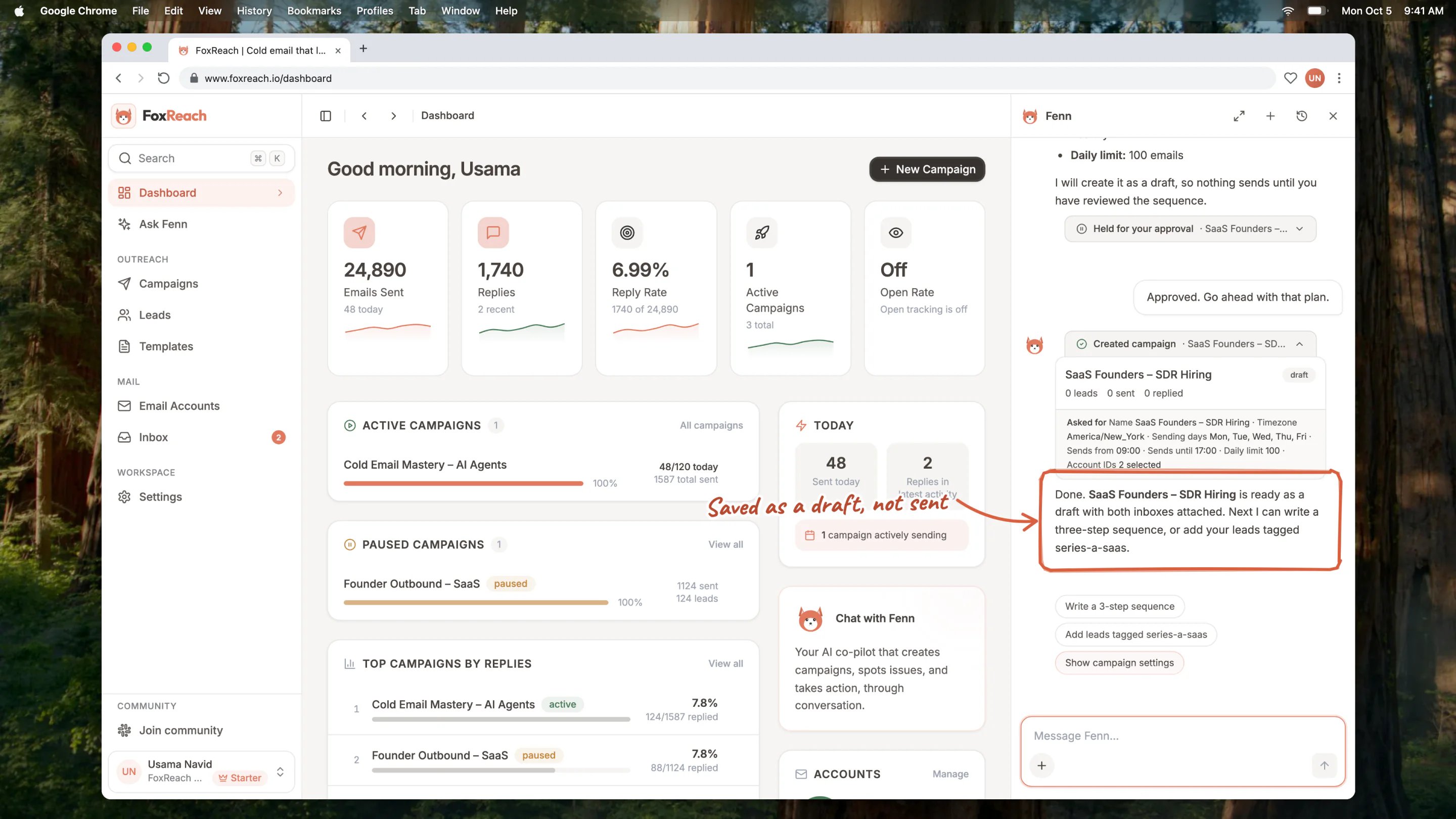
The created campaign card for the draft campaign and Fenn's follow-up suggestions
Step 5: Keep going in the same thread
The thread remembers what you have done, so you do not need to repeat the campaign name:- Write the sequence. “Write a 3-step sequence for this campaign: a short intro, a follow-up with a case study, and a final bump.” Fenn drafts the steps, shows them, and waits for approval before saving them.
- Add leads. “Add every lead tagged series-a-saas to this campaign.” Fenn looks up the tag, says how many leads matched, and asks before assigning them.
- Check stats. “How is this campaign doing?” once it has been running. Reading stats needs no approval, so the answer comes straight back.
- Start it. “Start the campaign.” Starting is a state change, so Fenn confirms first.
What Fenn can do
Fenn works with the same tools FoxReach exposes to external agents, grouped here by the jobs you would ask for:- Campaigns: list, create, update, and delete campaigns; start, pause, or resume them; attach or detach sending accounts.
- Sequences and templates: list a campaign’s steps, write new ones, edit or delete them; draft, update, and delete reusable templates.
- Leads and imports: search, create, update, and delete leads; assign them to a campaign or remove them; look up a lead’s activity; run a guided CSV import.
- Inbox replies: list threads, open a conversation, summarize what is unread, and send a reply on your behalf (with approval).
- Analytics and insights: workspace overview, per-campaign stats, inbox stats, and the Needs you cards on a new chat.
- Email accounts: list connected inboxes and check an account’s health and connection status.
The guided CSV import
Importing leads is the one job where Fenn drives a process rather than a single action. Click the + button in the composer, choose Import leads from CSV, and pick a .csv file up to 10 MB. Fenn reads the headers and a few sample rows, proposes a column mapping (which column is the email, which is the first name), and shows it to you. Confirm or correct the mapping, and only then does Fenn ask for approval to import. It skips duplicates and tags every imported lead with the file name, so you can add the batch to a campaign in one line later.Prompts that work
Fenn behaves best when the request already carries the specifics. When it does not, Fenn asks a clarifying question first, which costs you a turn.Credits
Fenn is metered in AI credits. One credit is charged per completed Fenn response, regardless of how many lookups it ran. Regenerate charges one more. A response that fails partway through, for example on a dropped connection, is not charged. Credits reset every month.Threads, pinning, and archiving
Every conversation is a thread. Threads belong to you and to the workspace you are in, so switching workspaces shows a different history. Titles come from the first message and are refined after Fenn’s first reply. Click Chat history in the panel header and your past chats open on top of the conversation, in the same list the Fenn page uses: a Search past chats field, groups for Pinned, Today, Yesterday, This week and Earlier, and Archived at the bottom. The chat you are in is highlighted. Click a chat to open it, or click Chat history again (or press Esc) to go back to the one you were in.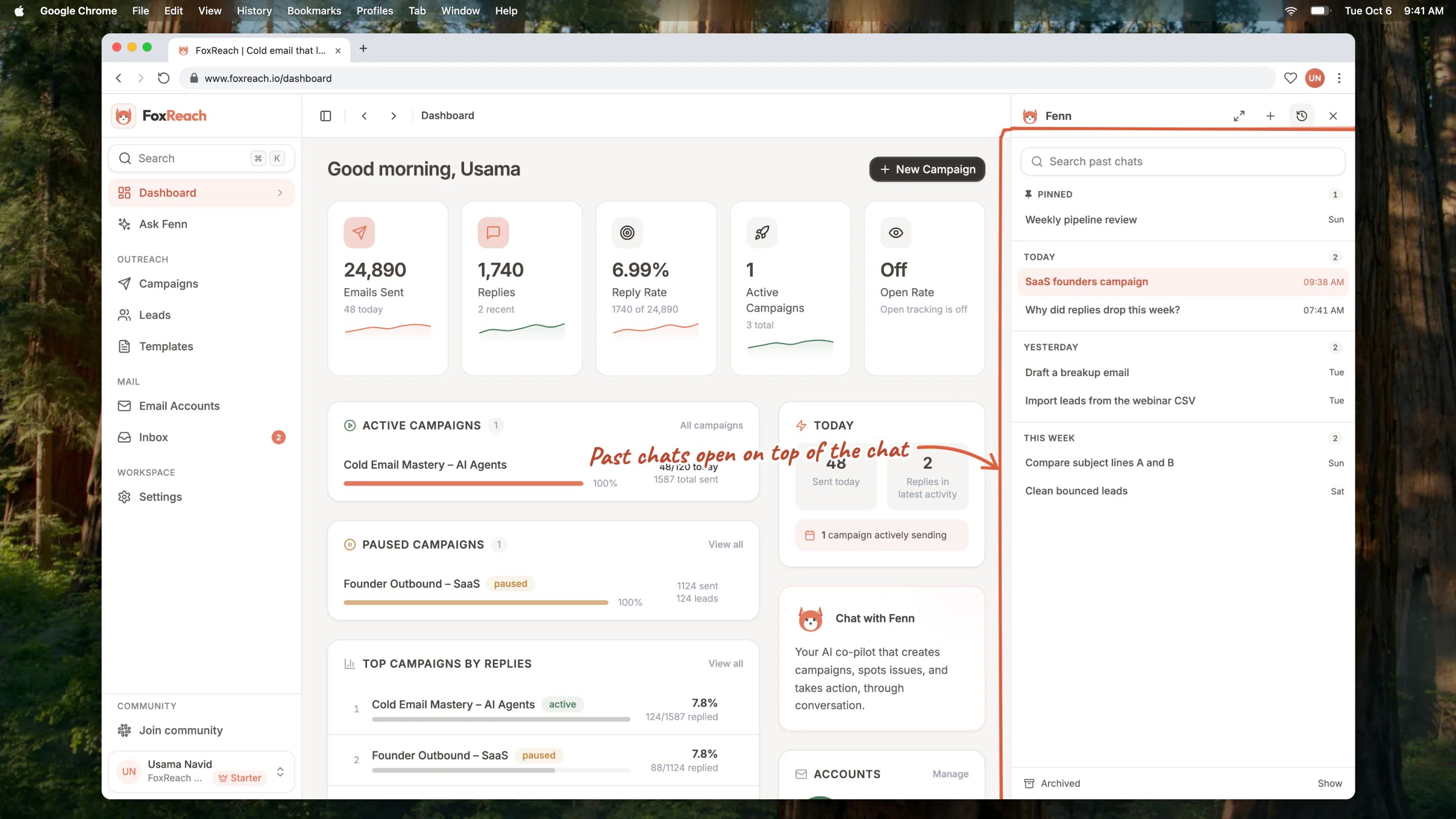
Chat history open in the Fenn side panel, on top of the conversation, with past chats grouped by Pinned, Today, Yesterday and This week
Fenn versus the MCP server
Fenn runs 63 of the hosted FoxReach MCP server’s 64 tools. The one it leaves out connects a new mailbox: that needs the mailbox password, and passwords never go through chat, so do it under Email Accounts. Fenn is the assistant inside the app, with the approval box, the campaign cards, and the credit meter. The MCP server hands the same abilities to an agent you already use, such as Claude Desktop, Cursor, or a ChatGPT connector, over the Model Context Protocol. To say “build a campaign” from inside FoxReach, use Fenn. To have an outside agent plan, build, and report across your workspace as part of a bigger workflow, connect the MCP server and follow the MCP integration guide. New to the protocol? Start with what MCP is. The approval gate is a design choice, not a limitation. Anthropic’s building effective agents recommends human checkpoints before consequential actions, and OpenAI’s practical guide to building agents says the same about high-risk actions like sending messages. Cold email is that kind of action, so FoxReach enforces the pause in code. More in human-in-the-loop cold email.Troubleshooting
“No AI credits left” or an upgrade prompt when you send. This month’s allowance is used up. Open Settings, Billing to check the AI Credits bar and upgrade, or wait for the reset. Campaigns keep running; only Fenn is paused. Fenn cannot find an account or a lead. Fenn only sees the current workspace. Check the workspace switcher at the bottom of the sidebar, confirm the inbox is connected under Email Accounts, and use the exact tag or lead email rather than a description. You clicked Not now and changed your mind. Nothing ran, so ask again with the correction. To undo something that already ran, ask Fenn to pause or delete it; that is a new action and it asks for approval first. Fenn stopped mid-task and offered a Continue chip. Fenn does a limited number of lookups per message. Click Continue and it picks up where it left off. A thread has become long. Older messages collapse behind a “Show earlier messages” pill, and Fenn carries only the recent part of a thread into each answer. Start a New chat for the next task.Next step
Now that Fenn has built the shell, finish a campaign by hand at least once so you know what Fenn is filling in: the campaign setup guide covers sequences, lead lists, and launch settings screen by screen. If you have never connected an inbox, the getting started guide comes first. When you are ready to drive the same tools from outside the app, the MCP integration guide shows how to connect Claude or Cursor to your workspace through the FoxReach MCP server.Frequently asked questions
What is Fenn in FoxReach?
What is Fenn in FoxReach?
Can Fenn change my campaigns without asking?
Can Fenn change my campaigns without asking?
How many AI credits does a Fenn conversation use?
How many AI credits does a Fenn conversation use?
Where can I see how many AI credits I have left?
Where can I see how many AI credits I have left?
Is Fenn the same as the FoxReach MCP server?
Is Fenn the same as the FoxReach MCP server?