

Warm Up a New Inbox in FoxReach (1 min)
Before you start
You need two things in place:- A connected email account showing a green Connected badge. If you have not done that yet, follow Connect an Email Account to FoxReach first.
- Authentication on the sending domain. SPF, DKIM, and DMARC tell receiving servers that mail from your domain is really yours. Warmup builds reputation on top of authentication, not instead of it. The cold email deliverability guide covers the three records.
Why a new inbox needs email warmup
Mail providers decide where an email lands by looking at how the sending domain and mailbox have behaved so far. A mailbox with no history that sends fifty cold emails on its first day looks like a throwaway account, and its mail is filtered before anyone reads it. Google’s Email sender guidelines ask senders to authenticate their domain, keep spam rates low, and increase sending volume gradually rather than sending a large volume at once. Microsoft’s 2025 requirements for high-volume senders to Outlook say the same: SPF, DKIM, and DMARC in place, and sending patterns that look like a legitimate sender rather than a burst. Warmup is how you build that history without a real audience. When it is on, FoxReach exchanges realistic emails with other inboxes in its network so providers learn to trust yours. Over two to four weeks the provider sees a mailbox that behaves like a person, and it starts treating your campaign mail the same way.Step 1: Open the account from Email Accounts
In the sidebar, click Email Accounts. The page lists every mailbox in the workspace with its status badge, sent-today counter, and health score. Accounts that already have warmup on carry a small Warming label, and the Warming Up tile at the top counts them, for example 2/3 “accounts in warmup phase”. Click the account you just connected. In the demo that is alex@foxreachmail.com, listed as Alex Morgan, Custom SMTP. The account page opens with four cards across the top: Health Score, Sent Today, Bounce Rate, and Reply Rate. Below them on the left is Account Settings, and on the right is the card this guide is about: Email Warmup.Step 2: Click Enable Warmup
On a fresh inbox the Email Warmup card shows a short pitch titled Build sender reputation: “Automatically sends and receives emails to build trust with email providers. Takes 2-4 weeks. Recommended for new accounts.” Under it is one button, Enable Warmup.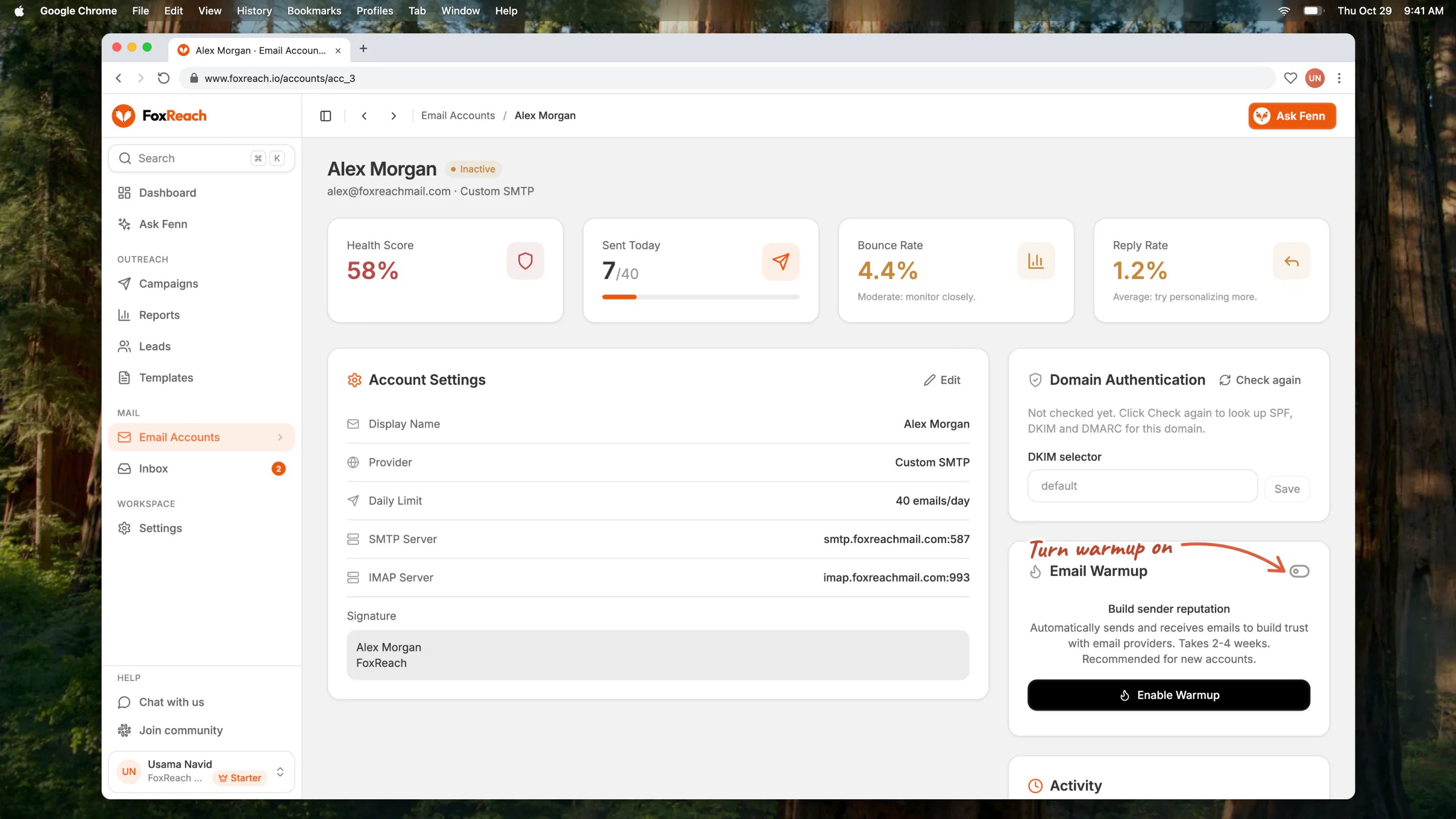
The account page for alex@foxreachmail.com, a freshly connected inbox, with the Build sender reputation panel and the Enable Warmup button on the Email Warmup card
Step 3: Check the ramp settings
Two numbers control the ramp: how many days it takes and how many warmup emails a day it climbs to. A freshly connected inbox starts on a 14-day ramp toward 5 emails a day, which is what Alex’s card shows, and those are the right values for a new mailbox. The workspace-level values live in Settings. Open the user menu at the bottom of the sidebar, click Settings, choose the Workspace tab, and expand Sending Defaults. Next to the daily sending limit and sending window you will find:Step 4: Decide where warmup mail goes
Warmup means real emails arriving in the mailbox, and by default FoxReach keeps them out of your way. Under the counters on the Email Warmup card is a toggle labelled Keep warmup mail out of the inbox. Its description reads: “On by default. After a warmup email arriving here is recognized and recorded, it is marked read and moved to a FoxReach/Warmup folder so your real inbox stays clean. Turn off to keep warmup mail visible in the inbox.” Leave it on. Your inbox, and the unified inbox in FoxReach, stay focused on replies from real leads, and the warmup mail is still in the FoxReach/Warmup folder if you want to look.Step 5: Read the Recent Warmup Activity list
Once the first exchange has happened, a Recent Warmup Activity card appears in the left column under Account Settings. It is a table with five columns: From, To, Subject, Status, and Time.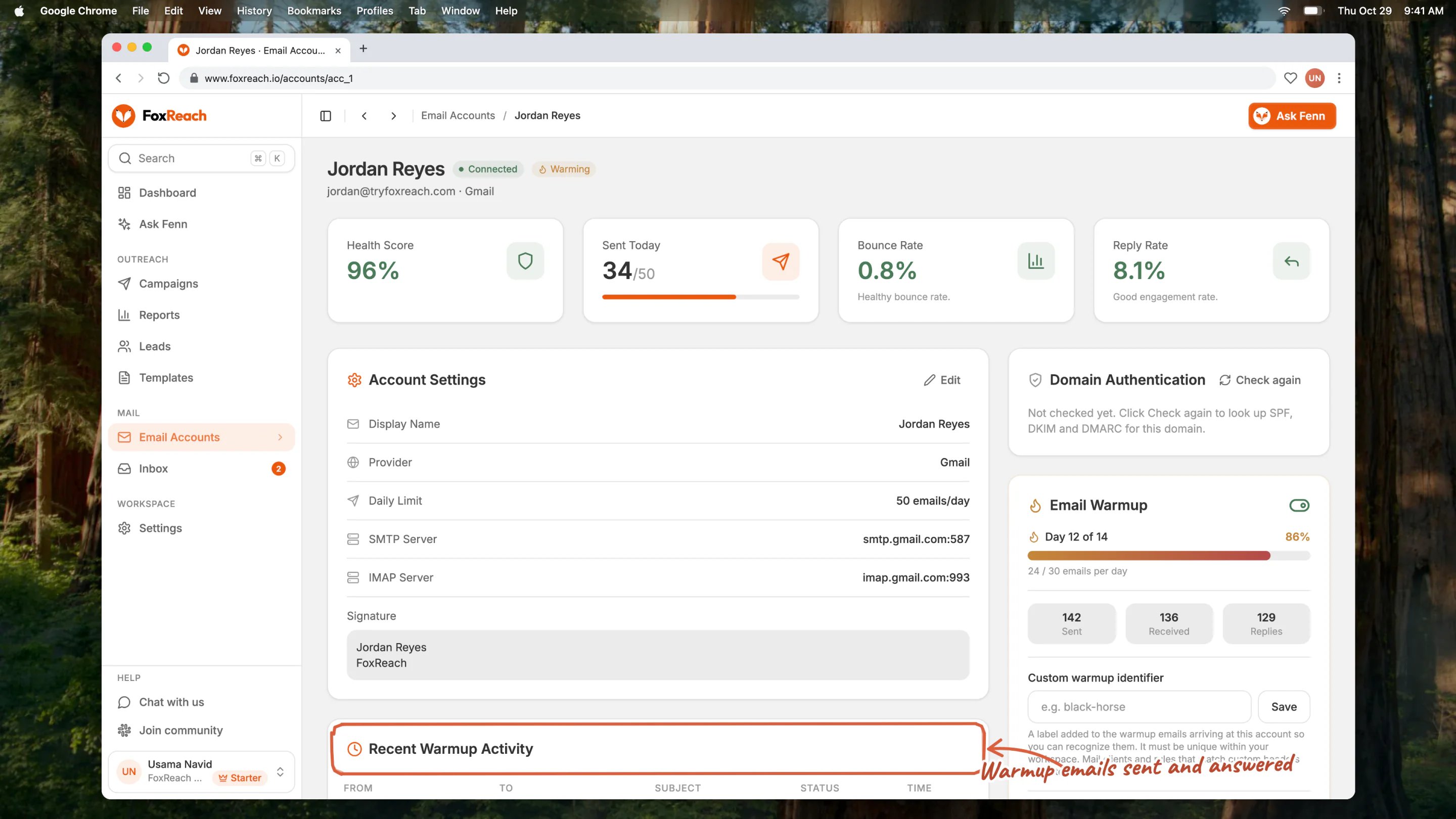
The Recent Warmup Activity list on an account page, with a row per warmup exchange showing sender, recipient, subject, status and time
How long warmup takes and how to read progress
Plan on two to four weeks before the first campaign from a new inbox. The ramp is fourteen days by default, and finishing it is the minimum; a brand-new domain benefits from the full four weeks. Here is an inbox most of the way through: in the demo, jordan@tryfoxreach.com is twelve days in.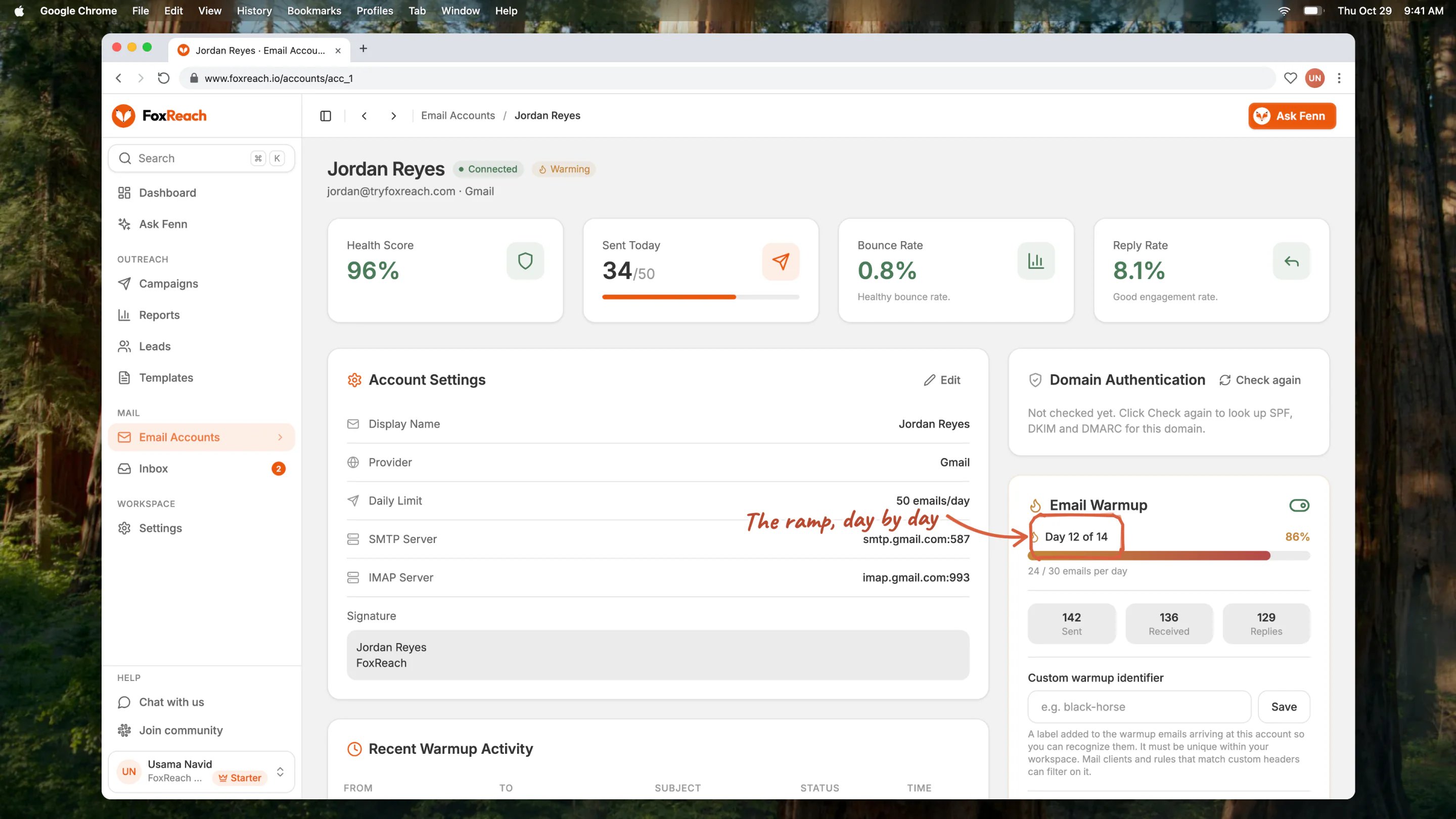
jordan@tryfoxreach.com twelve days into warmup, with the Email Warmup card showing Day 12 of 14, a daily target of 24 of 30 emails per day and the account's health score at the top of the page
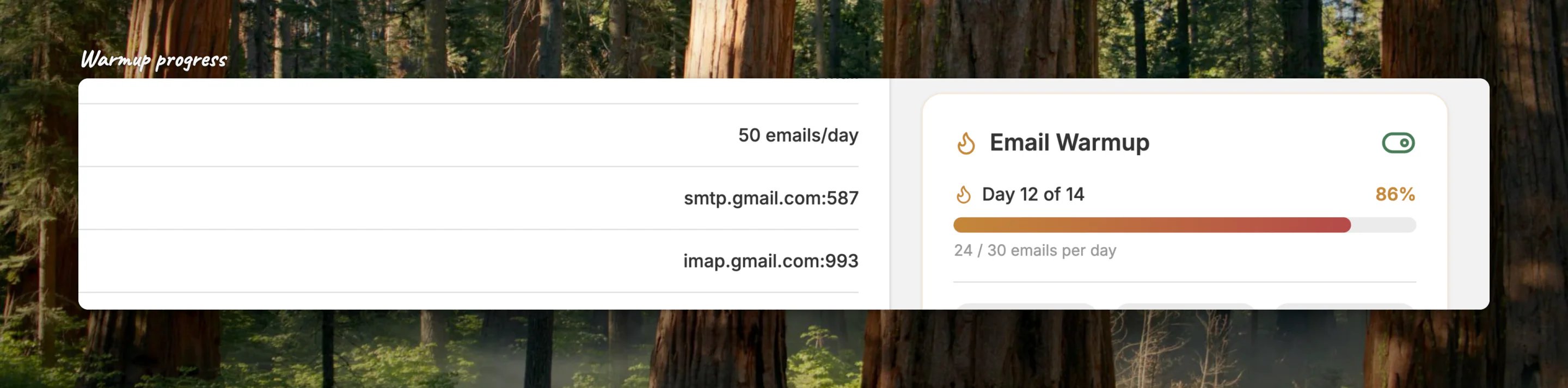
Close-up of the warmup progress card at Day 12 of 14 with the current daily limit
Warmup and your campaigns
Warmup is not a phase that ends. Keep warmup on when campaigns start. Warmup does not stop when you add the inbox to a campaign, and you should not stop it either. Campaign mail adds real volume to unknown recipients; warmup keeps trusted exchanges flowing alongside it, which protects the reputation you spent two weeks building. Warmup volume is separate from the Daily Sending Limit. The Daily Sending Limit under Account Settings, and the Sent Today counter it feeds, cover campaign email only; warmup emails do not count against it. Your provider makes no such distinction: it sees every message leaving the mailbox. For Gmail and Outlook mailboxes FoxReach will not save a Daily Sending Limit above 50, and a new inbox should start at 20 to 50 as the account page suggests. Add the warmup target on top and keep the total inside what the provider tolerates. Start campaigns low and let the Health Score guide you. After the ramp, add the inbox to a campaign with a modest limit and watch the Health Score and Bounce Rate cards for a week. If both hold, raise the limit gradually. With several inboxes, inbox rotation spreads a campaign across them. Plan limits on warmed inboxes. Connecting email accounts is unlimited on every plan. Warmup is capped on the Free plan at two inboxes per workspace; Enable Warmup on a third account returns “Your Free plan includes warmup on 2 inboxes. Upgrade to warm every inbox you connect.” Starter, Growth, and Agency can warm every inbox they connect. On the lifetime deal, Solo includes five and every tier above it is unlimited. The pricing page lists each plan’s other allowances.Troubleshooting
The Health Score dropped after campaigns started. More of this inbox’s mail is landing in spam. First pause the campaign on that inbox, or remove the inbox from the campaign’s sending accounts. Then check that SPF, DKIM, and DMARC all pass, using the deliverability guide. Bounces do not move the Health Score: they show on the Bounce Rate card and as their own line under the score, and when that line is high (the card reads “High: clean your lead list.” above 5%), the list, not the mailbox, is the problem. Keep warmup running through all of this: it is repairing the reputation while you fix the cause, and toggling it off and on resets the ramp to day one. The account shows Error and warmup went quiet. Warmup only sends from a connected mailbox. When an account drops into the Error state, warmup sends stop until you reconnect it from the Connection Error banner (a new app password, or Reconnect with Google for a Google account). Once the badge is back to Connected, warmup resumes on its own. The ramp kept counting days while the account was down, so an inbox that spent most of its ramp disconnected has less history than Day X of N suggests; give it extra time before campaigns. Warmup mail is visible in the inbox. Open the Email Warmup card and look at Keep warmup mail out of the inbox. If the toggle is off, warmup mail stays in the inbox by design; click it to turn filing back on. New warmup mail is then marked read and moved to the FoxReach/Warmup folder; mail that arrived earlier stays put. The ramp seems stuck. The daily count is an allowance, not a schedule, so a day one inbox at 1 / 5 emails per day may show one row in Recent Warmup Activity or none. And the counters only move while the mailbox is connected, so check the badge at the top of the page. If the account is Connected, Day X of N is advancing, and Recent Warmup Activity has shown nothing for two full days, contact support from the app.Next step
Warmup is running and you have two to four weeks before this inbox sends its first campaign. Use that time to build the other half of the pipeline: import your leads into FoxReach, then create a cold email campaign and add the warmed inbox as a sending account when the ramp completes. If you are choosing a plan by how many inboxes you want to warm, the pricing page has the allowances side by side.Frequently asked questions
How long should I warm up a new inbox before sending cold email?
How long should I warm up a new inbox before sending cold email?
Do warmup emails count against my account's daily sending limit?
Do warmup emails count against my account's daily sending limit?
Should I turn warmup off once my campaign is running?
Should I turn warmup off once my campaign is running?
Why is warmup mail showing up in my inbox?
Why is warmup mail showing up in my inbox?
How many inboxes can I warm up on each FoxReach plan?
How many inboxes can I warm up on each FoxReach plan?