
Most people never think about workspaces until the day they need a second one. Then the questions arrive all at once. What actually moves with a workspace? Do my inboxes carry over? Does my teammate see it? Which plan do I need?
This guide answers all of that. It explains what a workspace is in FoxReach, what lives inside one, when a second workspace is the right call and when it is overkill, how team roles work, and exactly how many workspaces and seats every plan includes.
What a workspace is
A workspace is the top-level container in FoxReach. Everything you create belongs to one workspace, and workspaces are fully isolated from each other. That includes:
- Leads, tags, and custom variables
- Campaigns, sequences, and A/B variants
- Connected email accounts and their warmup state
- The unified inbox and reply history
- Email templates
- Sending defaults (daily limit, sending window, warmup ramp)
- Webhooks and API keys
- Team members and their roles
- The subscription and its usage counters
When you switch workspaces, the whole app switches with you. The dashboard, the inbox, the campaign list, and the analytics all show only that workspace's data. There is no cross-workspace view of leads or replies, by design. If a lead exists in two workspaces, it is two separate records with two separate histories.
Every account starts with a personal workspace, created the moment you sign up. It is the one you land in after login. Your personal workspace can be renamed but it can never be deleted, so there is always a home to return to.
Where workspaces live in the app
You will meet workspaces in two places.
The switcher. Open the user menu at the bottom of the sidebar and you will see every workspace you belong to, with your personal one marked. Pick one and the app reloads into it. The last workspace you used is remembered, so you come back to it on your next login.
Settings, Workspace tab. This is where you manage the current workspace. You can rename it, change its URL slug, see and change members, accept pending invitations, and create a new workspace with the New Workspace button.

API keys are also workspace-scoped. Each key you create under Settings, Integrations belongs to the workspace you created it in, and any request made with that key acts inside that workspace. This matters if you connect FoxReach to n8n, Zapier, or an AI agent through the MCP server: one key means one workspace. Running outbound for two clients from an automation means two keys.
When to create a second workspace
The honest answer for most solo senders and small teams is: not yet. Campaigns, tags, and lead lists are lighter tools, and they already give you separate sequences, separate reporting, and separate sending accounts per campaign. If the work shares the same team, the same sending domains, and the same view of results, keep it in one workspace.
Create a separate workspace when the data must not mix. The common cases:
A client. If you run outbound for someone else, their leads, inboxes, replies, and results should be walled off from every other client and from your own pipeline. This is what the Agency plan is built around, and we cover it below.
A separate brand or product. Two brands usually mean two sets of sending domains, two reply inboxes, and two sets of templates. A workspace per brand keeps warmup, suppression, and reporting clean.
A partner or contractor who should only see one thing. Workspace membership is the access boundary in FoxReach. Inviting someone to a client workspace gives them that workspace and nothing else.
A sandbox. Some teams keep a small workspace for testing sequences, import mappings, or webhook payloads before touching the production workspace. On Free and Starter you only have one workspace, so this is a Growth and above pattern.
The test to apply: should these people, these inboxes, and these leads be isolated from each other? If yes, workspace. If no, campaign.
Team members and roles
Every workspace has its own member list. To add someone, open Settings, Workspace, scroll to Members, click Invite, and enter their email and a role. They get an email with a link that expires in seven days. If they already have a FoxReach account and are signed in, the invitation also appears as a banner on their Workspace tab.
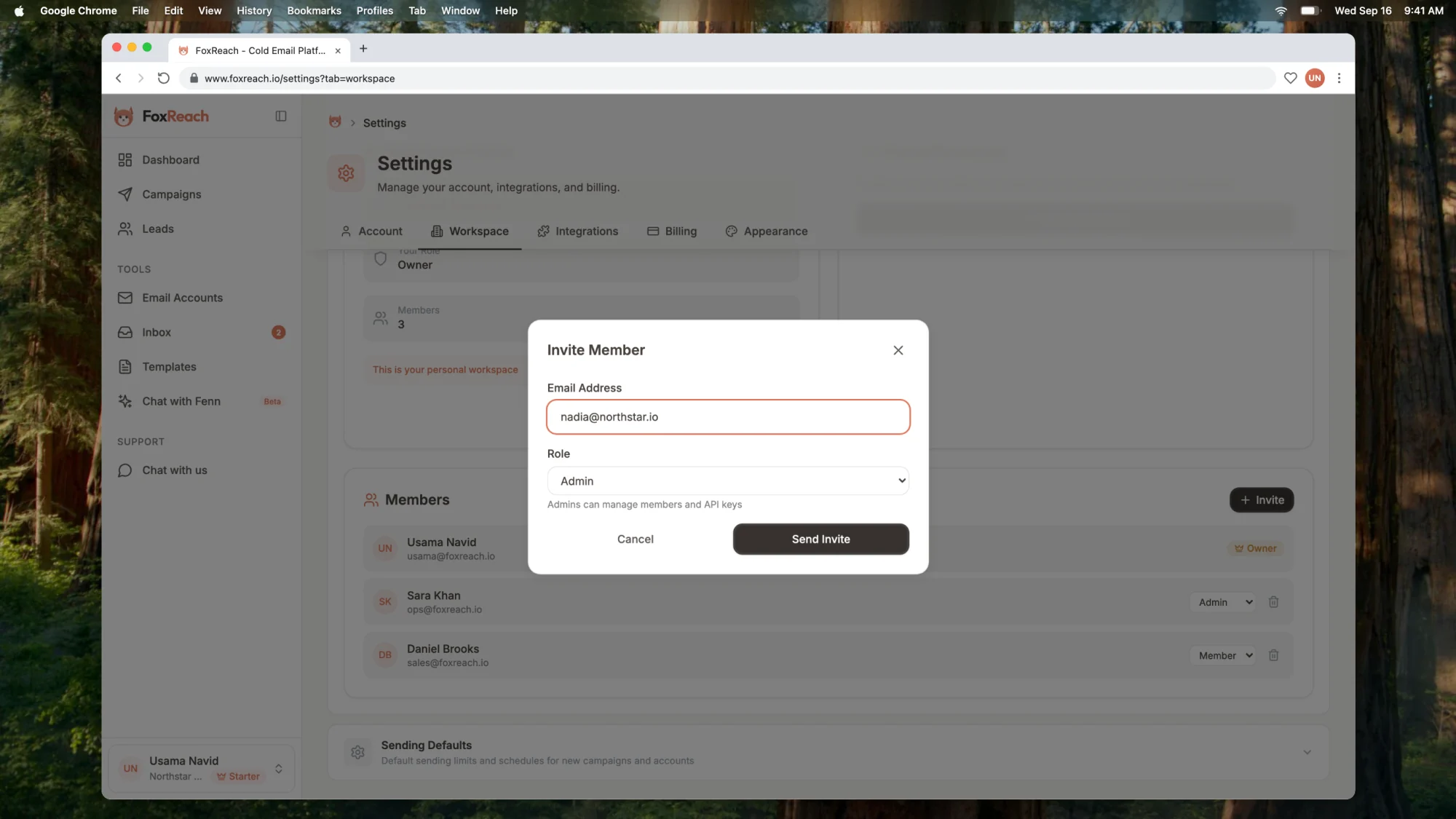
There are three roles:
| Role | What they can do |
|---|---|
| Owner | Everything, including deleting the workspace, transferring ownership, and changing anyone's role. One owner per workspace. |
| Admin | Invite and remove members, manage API keys, and do all day-to-day work. Admins cannot remove other admins. |
| Member | Day-to-day work: leads, campaigns, inbox, templates. No member or key management. |
The owner can hand ownership to someone else from the member list. When that happens the previous owner becomes an admin, so nobody loses access in the handover.
Membership is per workspace. Adding someone to one workspace does not add them to another, and each workspace counts its own members against the plan's seat limit. If you run several workspaces on the Growth plan and want the same three people in all of them, you invite them three times.
Workspace and seat limits by plan
Here is what each subscription plan includes. Contact and email limits are listed alongside because they interact with how workspaces are billed, which the next section explains.
| Plan | Workspaces | Team members | Contacts | Emails per month |
|---|---|---|---|---|
| Free | 1 | 1 | 200 | 500 |
| Starter | 1 | 5 | 5,000 | 10,000 |
| Growth | 3 | 15 | 50,000 | 100,000 |
| Agency | 30 client workspaces | Unlimited | 200,000 | 500,000 |
The lifetime deal has its own tiers, and workspaces are one of the main things that change between them:
| Lifetime tier | Workspaces | Team members |
|---|---|---|
| Solo | 1 | 1 |
| Starter | 1 | 1 |
| Professional | 2 | 5 |
| Growth | 3 | 15 |
| Scale | 10 | 25 |
| Agency | 30 | Unlimited |
| Enterprise | 50 | Unlimited |
Two details worth knowing:
The cap is per account, not per workspace. Your workspace allowance is the best plan across every workspace you own. If you own one Growth workspace, you can create up to three workspaces in total, wherever you create them from.
You can buy more slots. If you need more workspaces than your plan includes but do not need the next plan up, our team can add extra workspace slots to your account. Reach out from the app and tell us how many.
Full plan details, including verification credits, AI credits, and warmup allowances, are on the pricing page.
How billing follows workspaces
This is the part that trips people up, so it deserves its own section.
Free workspaces pool their usage. If you own more than one workspace on the Free tier, contacts and emails are counted across all of them together. Three free workspaces do not give you three times the free allowance.
Starter and Growth are attached to a workspace. When you upgrade, the subscription belongs to the workspace you upgraded from, and its contact and email limits are counted inside that workspace. If you are on Growth and want the full Growth limits inside a second workspace as well, message our team and we will set it up on that workspace.
Agency and lifetime plans follow the owner. Own one Agency workspace and every workspace you own resolves to Agency. The same is true for lifetime tiers: the plan is attached to you, so each workspace you create gets the tier's limits. On Agency, contact and email usage is shared across all your client workspaces, which is the point: one allowance, split however your clients need it that month.
Agency plan: workspaces as clients
On the Agency plan, workspaces become clients, and you get a dedicated screen to run them. The Agency Command Center (the Agency item in the sidebar) adds:
- Dashboard. Aggregate contacts, campaigns, connected accounts, emails sent this month, and real replies across every client workspace, plus alerts for disconnected accounts, workspaces near their sending allowance, and clients with no campaigns yet.
- Clients. A health card per workspace showing whether it is in setup, idle, active, or has an account error. Create, rename, or delete client workspaces here, and jump straight into one.
- Team. An access matrix. Add a teammate once, tick the client workspaces they should see, and FoxReach handles the memberships. Team members are unlimited on Agency.
- Branding and settings. Agency-level settings, including the option to bring your own OpenAI key for AI features across all clients.
If you deliver outbound for several companies, this is the shape to aim for: one workspace per client, one inbox per client, one report per client, and one screen to see them all. There is more on this pattern in use cases.
A few practical rules
Name workspaces for the entity, not the campaign. "Northstar AI" ages better than "Northstar Q3 push". Campaigns are where the quarterly work lives.
Connect email accounts to the workspace that owns the domain. An email account belongs to one workspace. If a client's domain is connected to your personal workspace by mistake, disconnect it and reconnect it inside the client workspace so warmup, sending limits, and replies land in the right place.
Give each integration its own key. One API key per workspace per tool. When a client leaves, revoke their workspace's keys and nothing else is affected.
Set sending defaults per workspace. The daily limit, sending window, and warmup ramp are stored per workspace, so a conservative client and an aggressive one can each have their own rules without touching the other.
Getting started
If you are new to FoxReach, your personal workspace is all you need for the first campaign. The getting started guide walks through connecting an inbox, importing leads, and launching a sequence. When the second client or the second brand arrives, come back to this page, open Settings, Workspace, and create the next one.