
Overview
This guide walks you through everything you need to go from sign-up to sending your first campaign. The whole process takes less than 10 minutes.
Step 1: Create Your Account
Sign up at FoxReach using your Google account. We use Google OAuth for authentication - no passwords to remember, and your account is protected by Google's security.
The free plan gives you:
- 1 email account
- 100 leads
- 1 active campaign
- Basic warmup
No credit card required.
Step 2: Connect Your Email Account
FoxReach connects to your Gmail account using App Passwords. Here's how to set one up:
- Go to your Google Account settings
- Navigate to Security > 2-Step Verification (enable if not already)
- Scroll to "App passwords" and generate a new one
- Select "Mail" as the app and your device type
- Copy the 16-character password
Back in FoxReach:
- Go to Email Accounts in the sidebar
- Click "Add Account"
- Enter your Gmail address and the App Password
- FoxReach will verify the connection automatically
Enable Warmup
Once connected, we recommend enabling warmup right away. Go to your account settings and toggle warmup on. FoxReach will start exchanging emails with our warmup pool to build your sender reputation.
Pro tip: Let your account warm up for at least 2 weeks before launching your first campaign. This dramatically improves deliverability.
Step 3: Import Your Leads
You can import leads in two ways:
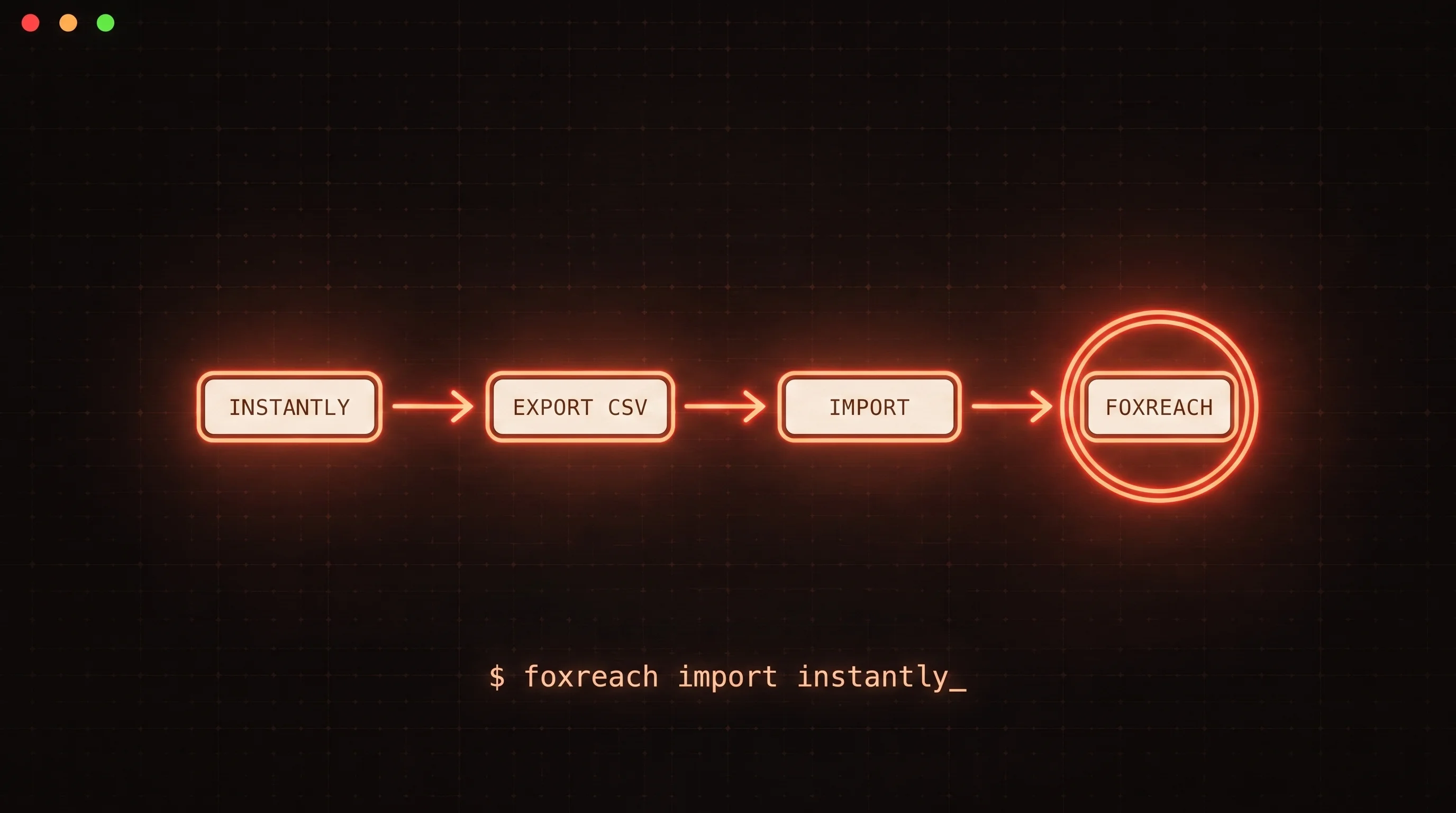
CSV Import
- Go to Leads in the sidebar
- Click "Import CSV"
- Upload your file
- FoxReach's smart field mapper will auto-detect columns (email, first name, last name, company, etc.)
- Review the mapping and confirm
Manual Entry
You can also add leads one at a time from the Leads page. This is useful for quick additions or testing.
Tips for Lead Quality
- Always verify email addresses before importing
- Remove role-based emails (info@, sales@, support@)
- Include first name and company for personalization
- Use tags to organize leads by source or segment
Step 4: Create Your Campaign
- Go to Campaigns and click "New Campaign"
- Give your campaign a name
- Select which leads to include
- Choose your sending account(s)
Write Your Sequence
A typical cold email campaign has 3-4 steps:
Email 1: The Introduction
Hi {{first_name|there}},

I noticed {{company}} is {growing fast|scaling up|expanding} and thought you might be interested in how we help teams like yours improve their outreach.

FoxReach helps sales teams send cold emails that actually land in the inbox. Would you be open to a quick chat this week?

Best,
[Your Name]
Email 2: The Follow-Up (3 days later)
{{first_name|Hi again}},

Just wanted to bump this to the top of your inbox. I know {things get busy|you're probably swamped}.

Would a 15-minute call {this week|next week} work to see if FoxReach could help {{company}}?

[Your Name]
Email 3: The Break-Up (5 days later)
Hi {{first_name|there}},

I haven't heard back, so I'll assume the timing isn't right. No worries at all.

If outreach deliverability becomes a priority for {{company}} in the future, feel free to reach out.

Best,
[Your Name]
Configure Sending Settings
- Set your daily sending limit (start with 20-30 per day for new accounts)
- Choose your time window (e.g., 9 AM - 5 PM in the recipient's timezone)
- Enable round-robin if using multiple accounts
Step 5: Launch!
Review your campaign settings, preview a few emails, and click "Start Campaign." FoxReach will begin sending according to your schedule.
Monitor Performance
Check your campaign dashboard for:
- Emails sent, opened, and replied
- Bounce rate and spam complaints
- Step-by-step conversion funnel
Manage Replies
All replies flow into your unified inbox. FoxReach's AI categorizes them automatically:
- Interested - follow up immediately
- Not Interested - respect their decision
- Out of Office - will be retried
- Bounced - removed from future sends
Next Steps
Once you're comfortable with the basics:
- Try A/B testing different subject lines
- Experiment with spin syntax for better deliverability
- Add custom fields for deeper personalization
- Connect more email accounts to scale your outreach
- Upgrade to Pro for unlimited everything
Need Help?
- Check our documentation at docs.foxreach.io
- Reach out via our contact page
- We typically respond within 24 hours (faster for Pro and Enterprise)
Happy outreaching!