
Overview
The Model Context Protocol (MCP) is an open standard that lets AI assistants interact with external tools and data sources. FoxReach hosts an MCP server that gives AI agents like Claude and Cursor direct access to your outreach workspace - no local setup, no scripts, no middleware.
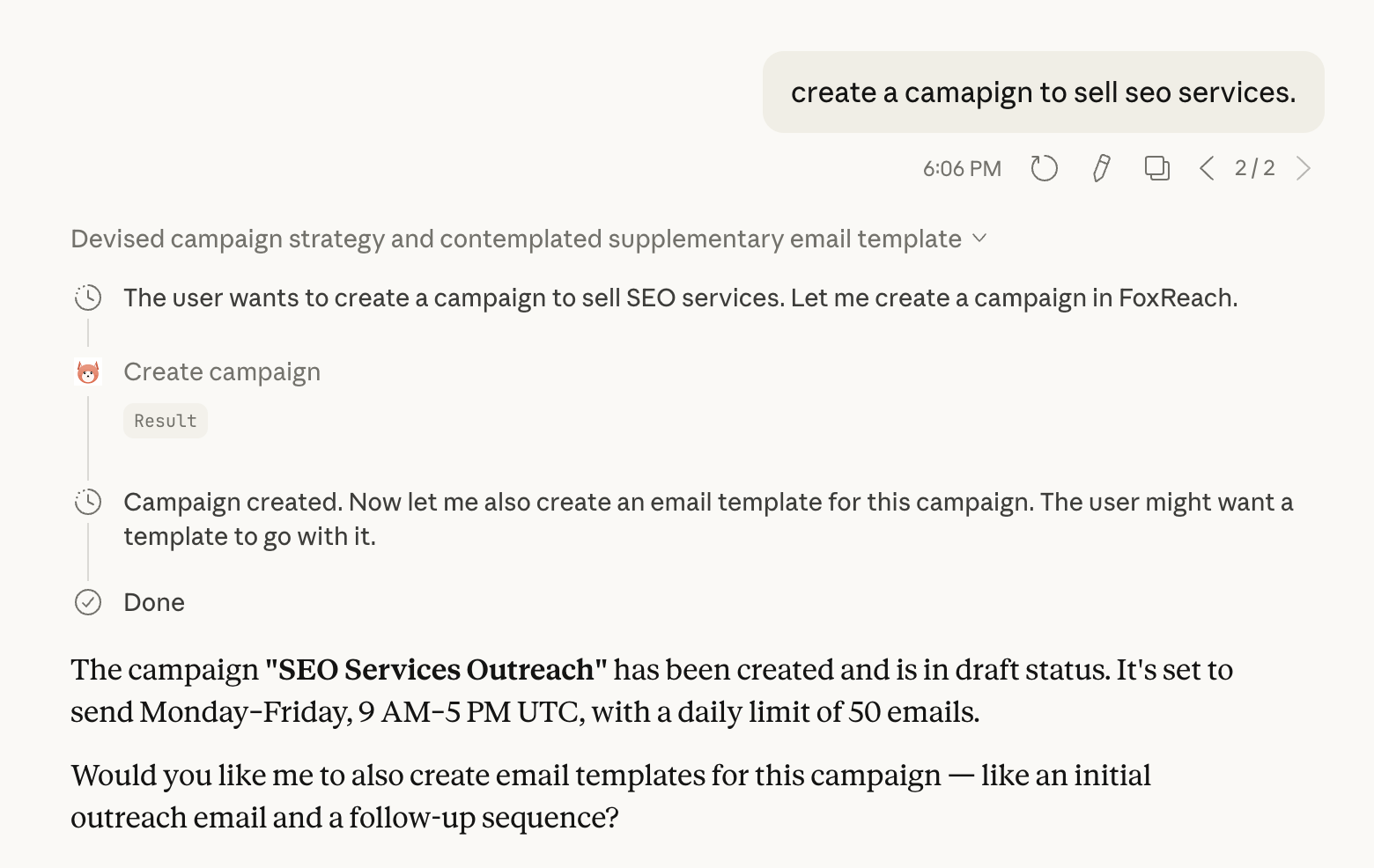
Once connected, you can manage leads, campaigns, templates, and email accounts through natural conversation. Ask your AI assistant to "create a campaign to sell SEO services" and it will handle everything for you.
Prerequisites
- A FoxReach account with at least one workspace
- One of: Claude Desktop, Cursor, or Claude Code
That's it. No API keys to manage - FoxReach uses Google OAuth to authenticate your MCP connection. When you first connect, your AI client will open a browser window where you sign in with the same Google account you use for FoxReach. The session is then authenticated automatically.
Step 1: Connect Claude Desktop
Open Claude Desktop and go to Settings > Developer > Edit Config. This opens your claude_desktop_config.json file.
Add the FoxReach MCP server to the config:
{
 "mcpServers": {
 "foxreach": {
 "url": "https://api.foxreach.io/mcp"
 }
 }
}
Save the file and restart Claude Desktop. On first use, Claude will open a browser window for you to sign in with Google. Once authenticated, you're ready to go.
You'll know it's working when you see the MCP tools icon (a small hammer) in the chat input area. Click it to see the 23 available FoxReach tools.
Step 2: Connect Cursor
In Cursor, go to Settings > MCP and click Add new MCP server.
Configure it with the following JSON:
{
 "foxreach": {
 "url": "https://api.foxreach.io/mcp"
 }
}
Once added, the server should show a green status indicator. On first use, Cursor will open a browser window for Google sign-in. After that, you can use FoxReach tools directly in Cursor's AI chat.
Step 3: Connect Claude Code
If you use Claude Code (the CLI), run:
claude mcp add foxreach \
 --transport http \
 "https://api.foxreach.io/mcp"
On the first tool call, Claude Code will open your browser for Google authentication. After signing in, all FoxReach tools are available in your terminal sessions.
Available Tools
Leads
| Tool | What it does |
|---|---|
list_leads | Search and list leads with filters |
get_lead | Get a lead's full details |
create_lead | Create a new lead by email |
update_lead | Update any field on a lead |
delete_lead | Remove a lead |
Campaigns
| Tool | What it does |
|---|---|
list_campaigns | List all campaigns |
get_campaign | Get campaign details and sequence steps |
create_campaign | Create a new draft campaign |
update_campaign | Rename a campaign |
delete_campaign | Delete a draft campaign |
start_campaign | Activate a campaign and begin sending |
pause_campaign | Pause a running campaign |
Sequences (Campaign Steps)
| Tool | What it does |
|---|---|
list_sequences | List all steps in a campaign |
create_sequence | Add an email step to a campaign |
update_sequence | Edit a sequence step |
delete_sequence | Remove a step from a campaign |
Templates
| Tool | What it does |
|---|---|
list_templates | List all email templates |
get_template | Get a template's content |
create_template | Create a new template |
update_template | Edit a template |
delete_template | Remove a template |
Email Accounts
| Tool | What it does |
|---|---|
list_email_accounts | List connected email accounts |
get_email_account | Get account health and warmup status |
Example Workflow 1: Create a Full Campaign
You can set up an entire outreach campaign in a single conversation:
"Create a campaign to sell SEO services. Add an initial outreach email and a follow-up for non-responders after 3 days."
Claude will call create_campaign, then create_sequence twice - once for the initial email and once for the follow-up with a 3-day delay. All from a single prompt.
Example Workflow 2: Create Leads from a List
You have a list of prospects and want to add them to FoxReach. Just paste them into Claude:
"Add these leads to FoxReach:
- sarah@techcorp.io, Sarah Chen, TechCorp, VP Engineering
- mike@startupco.com, Mike Johnson, StartupCo, CEO
- lisa@enterprise.com, Lisa Wang, Enterprise Ltd, Head of Sales"
Claude will call create_lead for each one, mapping the fields automatically.
Example Workflow 3: Check Campaign Performance
Ask Claude about your campaigns:
"Show me all my active campaigns and their details."
Claude will call list_campaigns with the active status filter, then get_campaign for each to show you sequence steps and stats.
Example Workflow 4: Draft and Create a Template
Let your AI assistant write outreach copy:
"Write a cold outreach email template for SaaS founders. It should mention a pain point about manual lead management and pitch FoxReach as the solution. Use personalization variables for first name and company. Save it as a template called 'SaaS Founder Outreach v1'."
Claude will draft the email with {{first_name}} and {{company}} variables, then call create_template to save it directly to your workspace.
Tips
- Start with read-only queries. Use
list_leads,list_campaigns, andget_campaignto explore your data before making changes. - Be specific with destructive actions. When asking to delete or pause something, include the name or ID so there's no ambiguity.
- Check your rate limits. The FoxReach API allows 100 requests per minute. Under normal conversational usage, you'll never hit this limit.
Troubleshooting
Tools not showing up?
Double-check that the URL in your config is https://api.foxreach.io/mcp. Restart your client after making config changes.
Google sign-in window doesn't open? Make sure your default browser is set and that pop-ups aren't blocked for the sign-in URL.
Getting authentication errors? Make sure you're signing in with the same Google account that's linked to your FoxReach workspace. If you recently changed your Google account, update your FoxReach profile first.
Connection issues? Your client will reconnect automatically if the connection drops. If issues persist, try removing and re-adding the MCP server in your client settings.
What's Next
- Explore the full API documentation for details on every endpoint
- Set up webhooks to react to email events in real time
- Check out the n8n integration for workflow automation
- Questions? Reach out via our contact page