> ## Documentation Index
> Fetch the complete documentation index at: https://www.foxreach.io/docs/llms.txt
> Use this file to discover all available pages before exploring further.
# Refer & Earn and the affiliate program
> How the FoxReach referral link works, what a referred friend earns you and when, where to see it, and how the customer referral program differs from the cash affiliate program.
FoxReach has two ways to be rewarded for bringing people in, and they are easy to mix up. **Refer & Earn** is for every user: share a link, and when a friend starts sending you both get extra daily sending capacity for a month. The **affiliate program** is for partners who send a steady stream of customers and want cash. This page covers both, starting with the one you already have.
## Refer & Earn
Open Settings and click **Refer & Earn**. The card at the top shows your code and your personal link, with Copy Link and share buttons for X and LinkedIn.
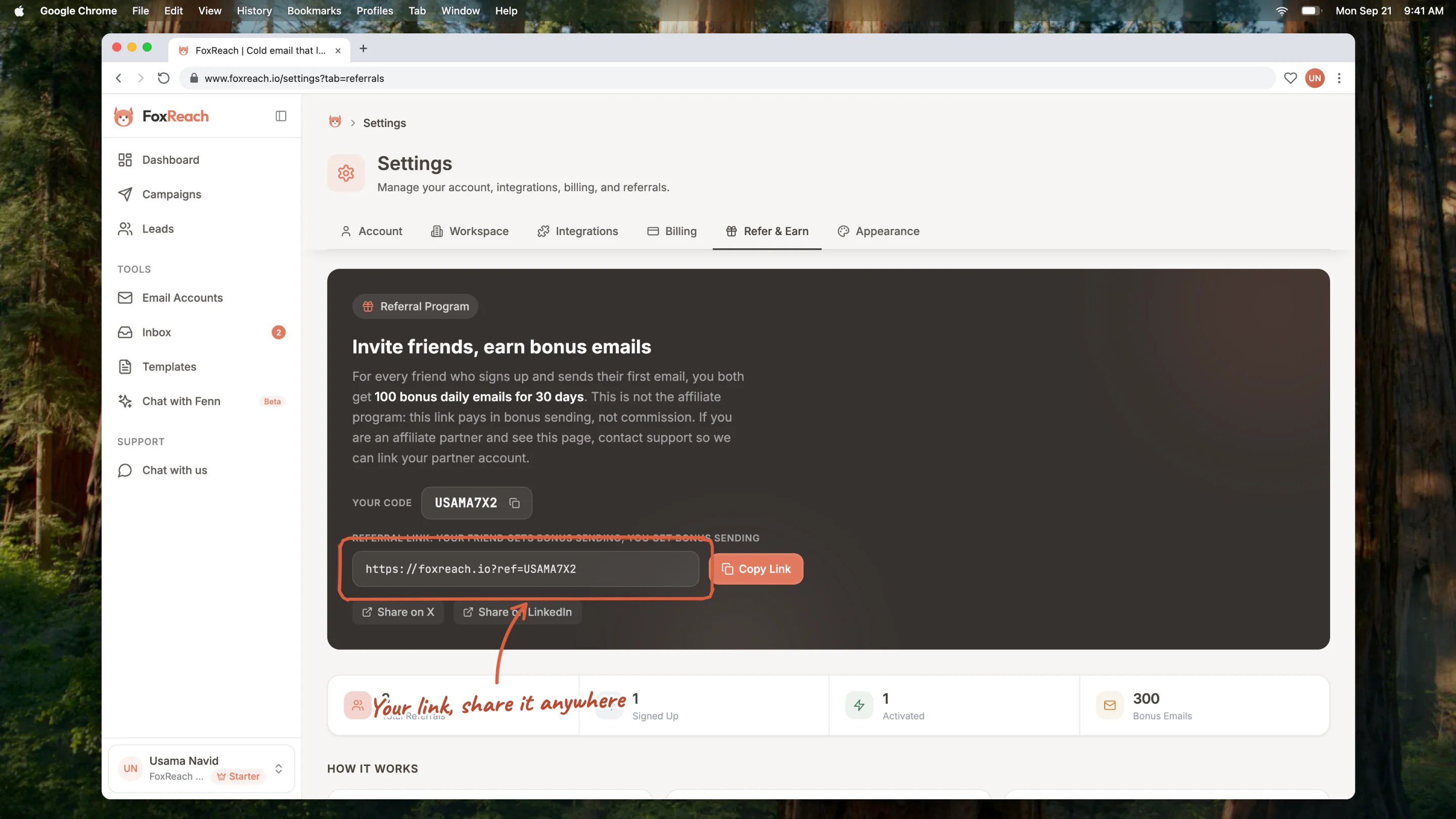 Share the link anywhere. Anyone who opens it and then creates an account is counted as your referral, even if they sign up later in the same browser.
### What you both earn, and when
The reward is sending capacity, not money: extra emails on the daily safety cap, the ceiling described in [plans and billing](/docs/product/plans-and-billing). It goes to both of you, you and the friend, and arrives at two milestones:
| Your friend | You each get |
| -------------------------------- | ---------------------------------------- |
| Sends their first campaign email | +100 emails a day, for 30 days |
| Upgrades to a paid plan | +100 more a day, and the 30 days restart |
Signing up alone earns nothing yet; the friend has to actually send. Each grant lasts 30 days from the moment it is made, and grants from several friends add up, so three friends sending in the same month lift your daily cap by 300 for that month. The friend's own grant shows on their Refer & Earn tab as bonus emails too.
The bonus raises the daily cap only. It never changes the monthly email limit of your plan.
### Tracking your referrals
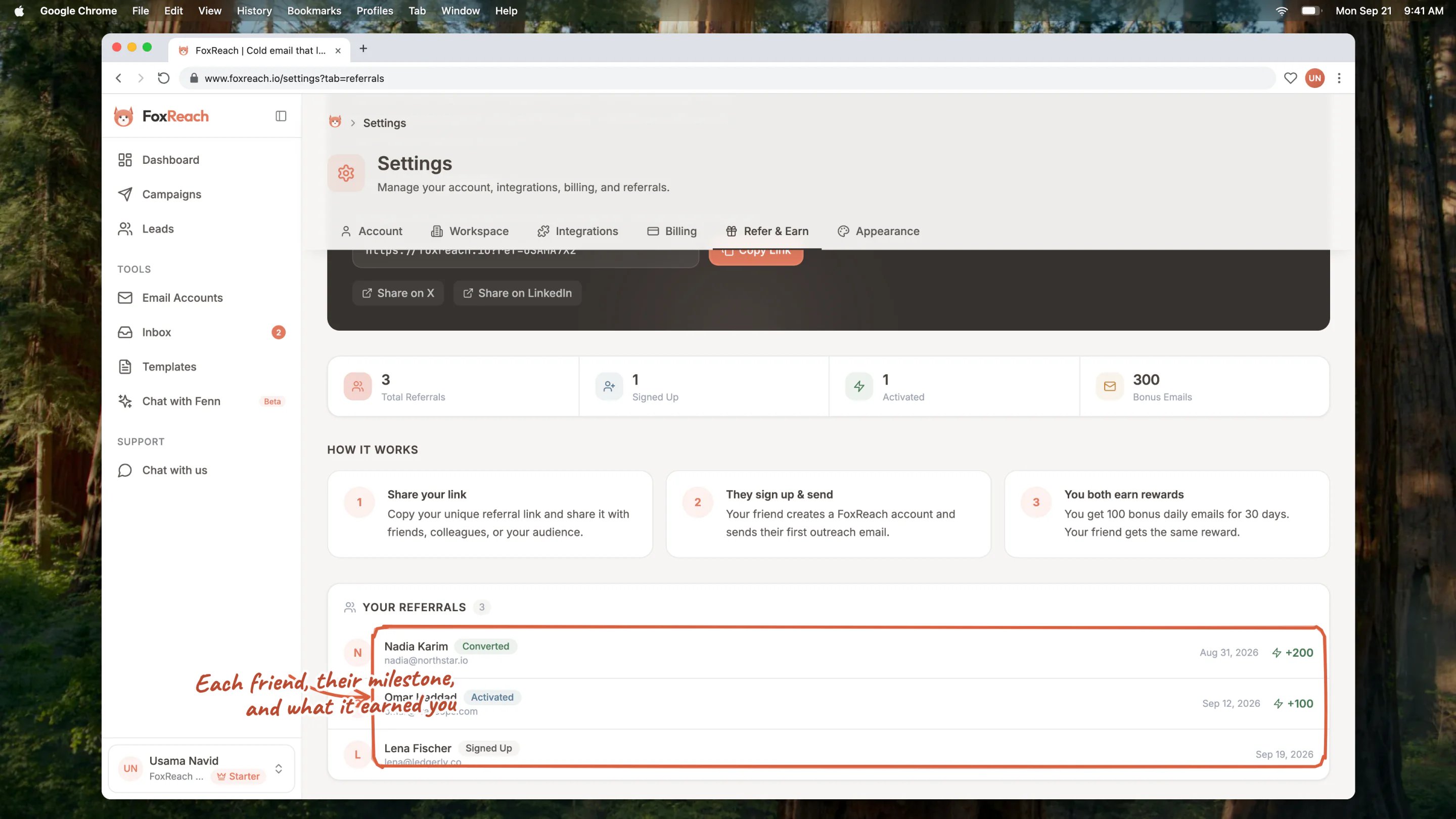
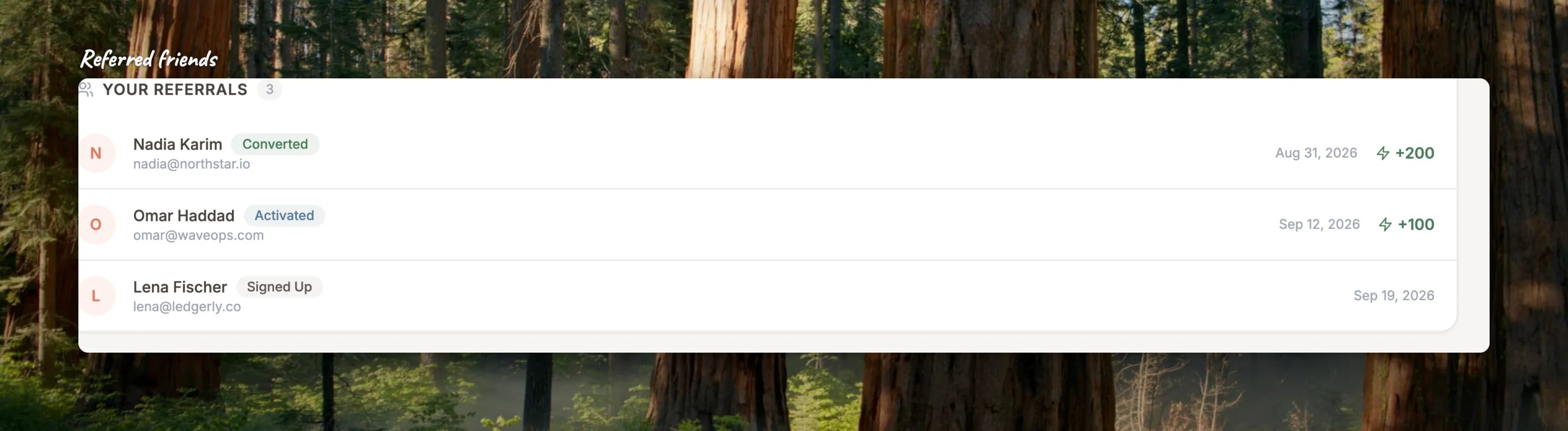
Below the link, the stat tiles count your referrals by milestone and the total bonus emails they have earned. The list under **Your referrals** names each friend, the milestone they reached (Signed up, Activated, Converted) and what it earned.
Share the link anywhere. Anyone who opens it and then creates an account is counted as your referral, even if they sign up later in the same browser.
### What you both earn, and when
The reward is sending capacity, not money: extra emails on the daily safety cap, the ceiling described in [plans and billing](/docs/product/plans-and-billing). It goes to both of you, you and the friend, and arrives at two milestones:
| Your friend | You each get |
| -------------------------------- | ---------------------------------------- |
| Sends their first campaign email | +100 emails a day, for 30 days |
| Upgrades to a paid plan | +100 more a day, and the 30 days restart |
Signing up alone earns nothing yet; the friend has to actually send. Each grant lasts 30 days from the moment it is made, and grants from several friends add up, so three friends sending in the same month lift your daily cap by 300 for that month. The friend's own grant shows on their Refer & Earn tab as bonus emails too.
The bonus raises the daily cap only. It never changes the monthly email limit of your plan.
### Tracking your referrals
Below the link, the stat tiles count your referrals by milestone and the total bonus emails they have earned. The list under **Your referrals** names each friend, the milestone they reached (Signed up, Activated, Converted) and what it earned.
 ## The affiliate program
If you can send more than the odd friend, the affiliate program pays cash instead: a 25% commission on what referred customers pay, for 24 months, on subscriptions and lifetime deals alike. Customers who come through an affiliate link also get a discount on their first payment.
It is by application. The [affiliate page](https://www.foxreach.io/affiliate) explains the terms and has an earnings calculator; once approved you get a partner code, a welcome email with your link, and a partner view that replaces the Refer & Earn card in Settings with your clicks, sign-ups, and commission ledger. Payouts go through Stripe, which you connect from that same view.
A partner code is a referral code that pays in cash, so one link cannot do both. If you are already an affiliate, the Settings tab shows your partner dashboard rather than the customer program.
## Good to know
* **One referral per person.** A friend can only be referred once, by whoever's link they used first.
* **The friend must be new.** Existing users who open your link are not counted.
* **Rewards are per workspace owner.** The bonus applies to the daily cap of workspaces you own, on both sides of the referral.
## Related guides
* [Plans and billing](/docs/product/plans-and-billing)
* [Workspaces and team](/docs/product/workspaces)
## Frequently asked questions
Signing up is the first milestone, and it pays nothing on its own. The bonus lands when they send their first campaign email, and again if they upgrade.
In the daily safety cap on your sending. Campaigns can send up to your plan's daily cap plus any active bonus; the Refer & Earn tab shows the bonus total, and it expires 30 days after each grant.
That is the affiliate program. Apply on the affiliate page; it suits people who can refer customers regularly.
Not through Refer & Earn. Discounts on the first payment come with affiliate links only.
## The affiliate program
If you can send more than the odd friend, the affiliate program pays cash instead: a 25% commission on what referred customers pay, for 24 months, on subscriptions and lifetime deals alike. Customers who come through an affiliate link also get a discount on their first payment.
It is by application. The [affiliate page](https://www.foxreach.io/affiliate) explains the terms and has an earnings calculator; once approved you get a partner code, a welcome email with your link, and a partner view that replaces the Refer & Earn card in Settings with your clicks, sign-ups, and commission ledger. Payouts go through Stripe, which you connect from that same view.
A partner code is a referral code that pays in cash, so one link cannot do both. If you are already an affiliate, the Settings tab shows your partner dashboard rather than the customer program.
## Good to know
* **One referral per person.** A friend can only be referred once, by whoever's link they used first.
* **The friend must be new.** Existing users who open your link are not counted.
* **Rewards are per workspace owner.** The bonus applies to the daily cap of workspaces you own, on both sides of the referral.
## Related guides
* [Plans and billing](/docs/product/plans-and-billing)
* [Workspaces and team](/docs/product/workspaces)
## Frequently asked questions
Signing up is the first milestone, and it pays nothing on its own. The bonus lands when they send their first campaign email, and again if they upgrade.
In the daily safety cap on your sending. Campaigns can send up to your plan's daily cap plus any active bonus; the Refer & Earn tab shows the bonus total, and it expires 30 days after each grant.
That is the affiliate program. Apply on the affiliate page; it suits people who can refer customers regularly.
Not through Refer & Earn. Discounts on the first payment come with affiliate links only.