> ## Documentation Index
> Fetch the complete documentation index at: https://www.foxreach.io/docs/llms.txt
> Use this file to discover all available pages before exploring further.
# Plans, limits and billing
> What each FoxReach plan includes, what the limits mean day to day, how to upgrade, change or cancel through the Billing tab, and how verification credits work.
Every workspace has a plan. The plan decides how many contacts you can keep, how many emails you can send a month, how much of Fenn you can use, and how many people and workspaces you can add. This page explains the plans in plain terms, what happens when you reach a limit, and how to change plan without surprises.
Billing is per workspace, not per user. If you run more than one workspace, each has its own plan and its own bill.
## The plans
| | Free | Starter | Growth | Agency |
| ------------------------------------- | ---- | --------- | --------- | --------------------------- |
| Price, monthly | \$0 | \$34 | \$89 | \$169 |
| Price, on the annual plan (per month) | \$0 | \$27 | \$71 | \$135 |
| Contacts | 200 | 5,000 | 50,000 | 200,000 |
| Emails per month | 500 | 10,000 | 100,000 | 500,000 |
| Daily safety cap | 25 | 500 | 5,000 | 25,000 |
| AI credits per month | 25 | 2,500 | 10,000 | Unlimited with your own key |
| Verification credits per month | 0 | 1,000 | 1,000 | 1,000 |
| Warmup inboxes | 2 | Unlimited | Unlimited | Unlimited |
| Workspaces | 1 | 1 | 3 | 30 |
| Team members | 1 | 5 | 15 | Unlimited |
Connected email accounts and campaigns are unlimited on every plan. Growth is the first plan with more than one workspace; Agency adds the [agency command center](/docs/product/agency-mode), white-label branding and unlimited seats.
The [pricing page](https://www.foxreach.io/pricing) is the public version of this table. There is also a one-time [lifetime deal](https://www.foxreach.io/lifetime) that gives a single workspace permanent access without a subscription.
## What the limits mean
**Contacts** are the leads in the workspace. When the count reaches the plan's limit, an import or a new lead is refused with a message saying so. Deleting leads frees the room; on the Free plan the count is shared across every free workspace you own.
**Emails per month** counts every campaign email and every one-off email sent from the workspace this billing month. At the limit, sending pauses until the month rolls over or you upgrade; nothing is lost, queued sends simply wait.
**The daily safety cap** is the most the workspace can send in one day, whatever the campaigns' own daily limits say. It protects new senders from themselves. Referral rewards add to this number (see [Refer & Earn](/docs/product/referrals)), and it is separate from the per-inbox limits you set on each email account.
**AI credits** pay for Fenn, AI drafts in the inbox, and the AI rewrites in the [copy check](/docs/product/copy-check). Each use takes credits from the month's allowance. When they run out, those buttons say so and everything else keeps working. Agency workspaces bring their own OpenAI key and are not metered.
**Verification credits** pay for [email verification](/docs/get-started/verify-emails), one per address. Paid plans get 1,000 a month; anyone can buy more, \$1 per 1,000, from the Billing tab.
## The Billing tab
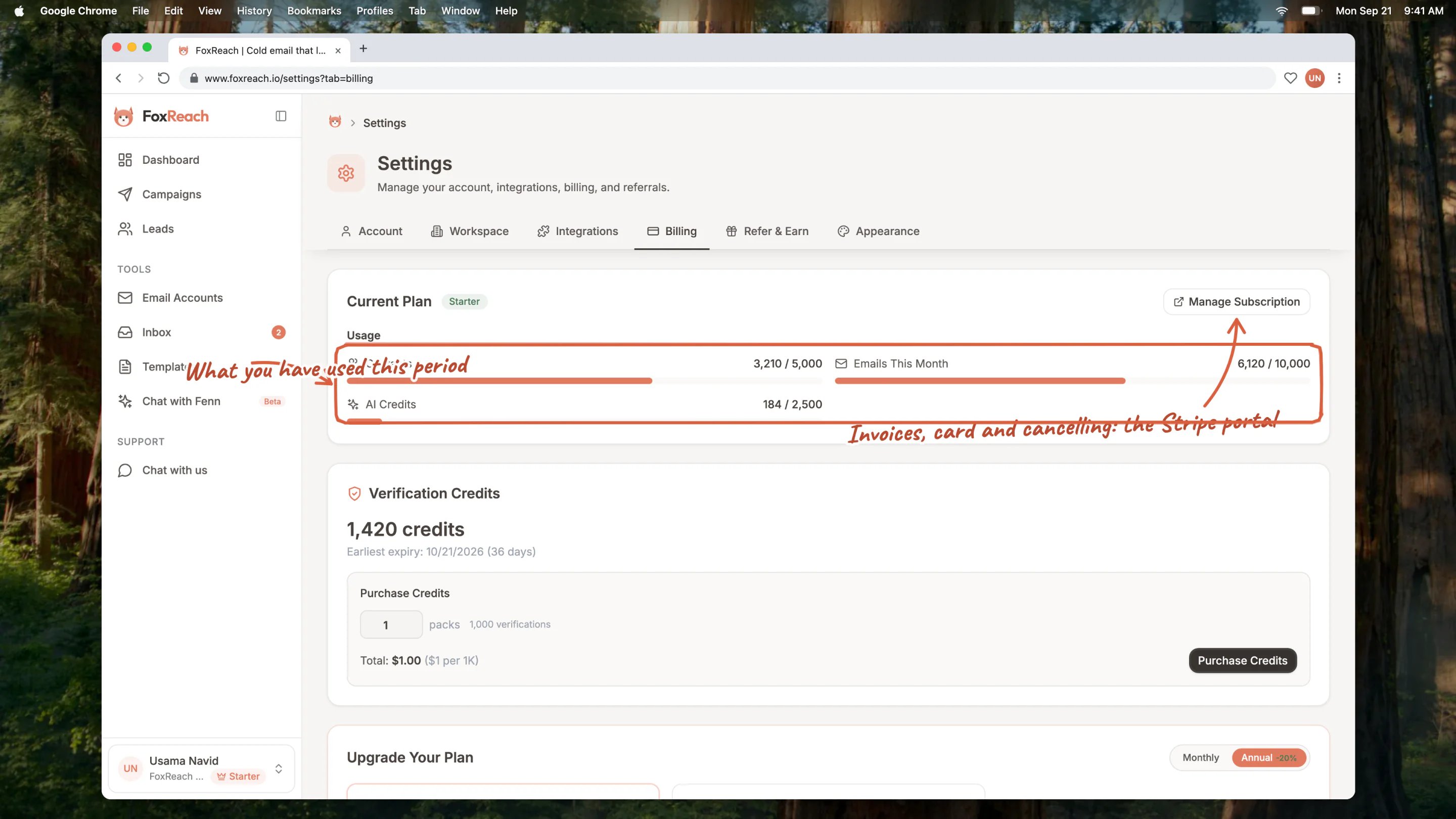
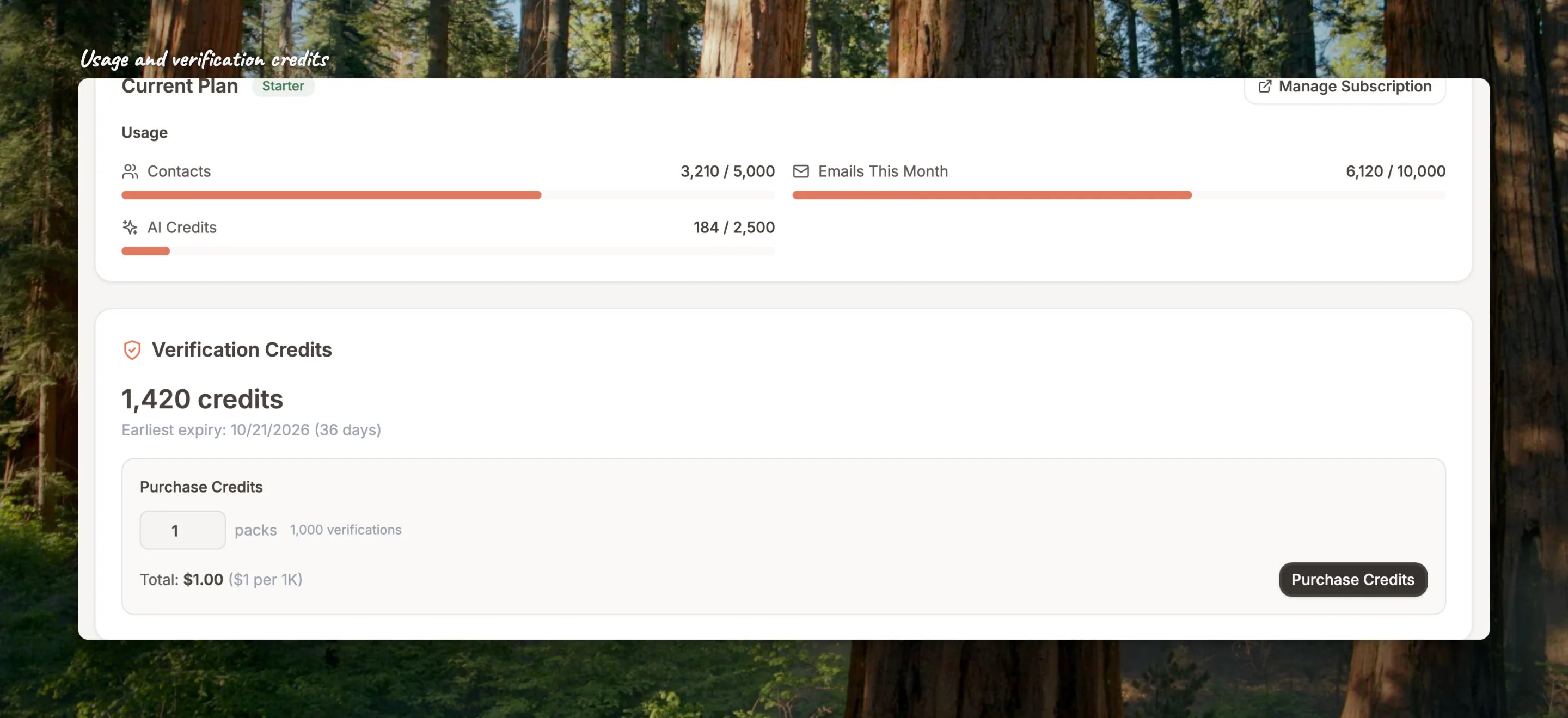
Open Settings and click **Billing**. The top card names your plan and shows usage bars for contacts, emails this month and AI credits, then your verification credit balance.
 Only a workspace owner or admin can change the plan or buy credits.
### Upgrade
Scroll to **Upgrade Your Plan**. Pick **Monthly** or **Annual** (annual is 20% less, billed once a year), read the "What you'd gain" line under each plan, and click **Upgrade to Growth** or **Upgrade to Agency**. FoxReach sends you to Stripe Checkout; when you finish there you land back on this tab with the new plan active. Card details never touch FoxReach.
Only a workspace owner or admin can change the plan or buy credits.
### Upgrade
Scroll to **Upgrade Your Plan**. Pick **Monthly** or **Annual** (annual is 20% less, billed once a year), read the "What you'd gain" line under each plan, and click **Upgrade to Growth** or **Upgrade to Agency**. FoxReach sends you to Stripe Checkout; when you finish there you land back on this tab with the new plan active. Card details never touch FoxReach.
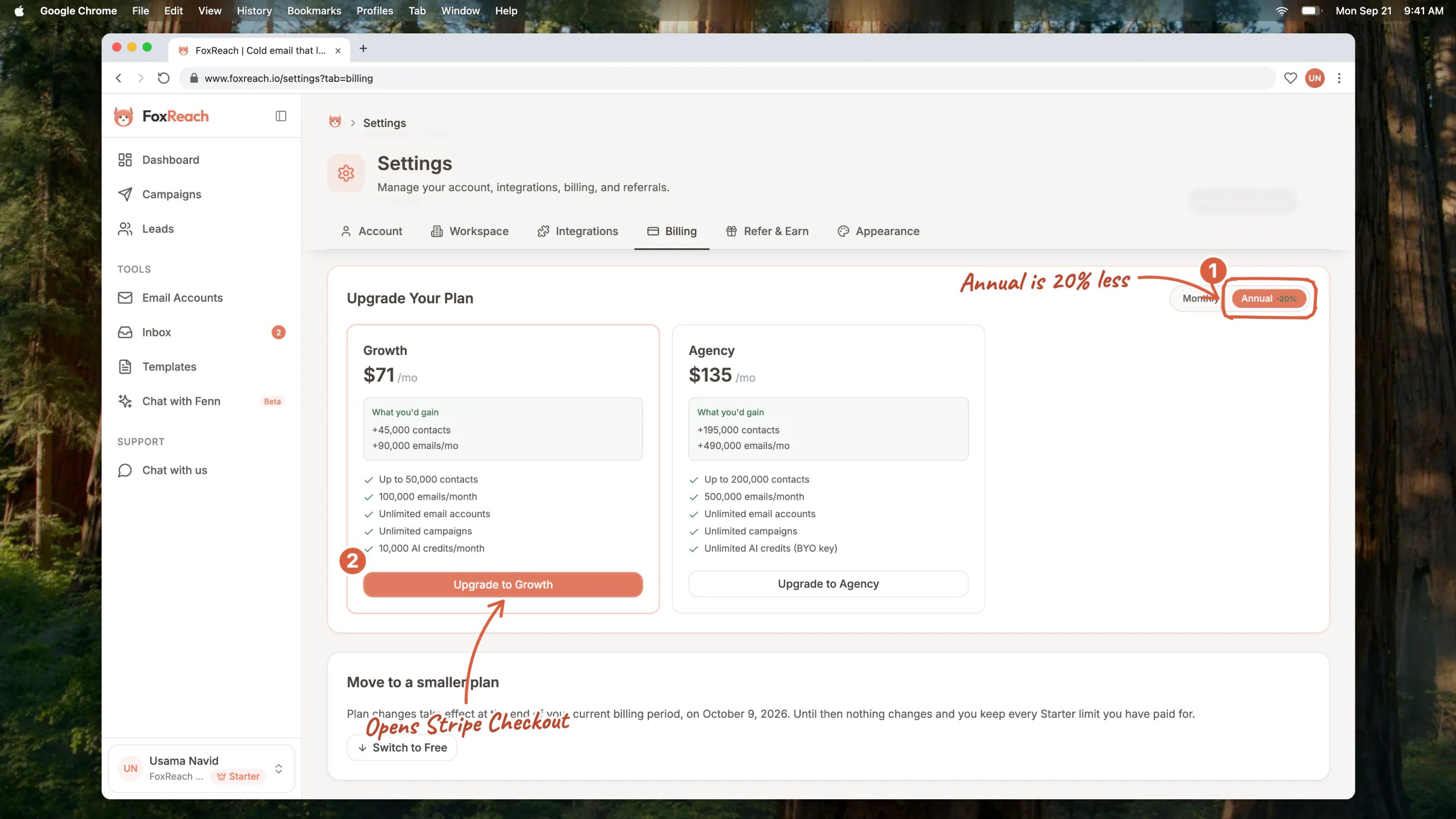 An upgrade takes effect immediately. If you were invited to upgrade from the pricing page before signing in, FoxReach remembers the plan you chose and takes you straight to checkout after you sign in.
### Change your card, download invoices, or cancel
Click **Manage Subscription**. It opens the Stripe customer portal for your workspace, where you can update the card, see and download every invoice, and cancel. Cancelling from the portal keeps the paid plan until the end of the period you have paid for, then the workspace goes back to Free.
### Move to a smaller plan
Below the upgrade cards, **Move to a smaller plan** lets you step down to a cheaper paid plan or to Free without leaving FoxReach. Every downgrade takes effect at the end of the current billing period, never straight away: you keep everything you have paid for until then. Until that date a banner on the tab names the pending plan with a **Keep** button that cancels the change.
An upgrade takes effect immediately. If you were invited to upgrade from the pricing page before signing in, FoxReach remembers the plan you chose and takes you straight to checkout after you sign in.
### Change your card, download invoices, or cancel
Click **Manage Subscription**. It opens the Stripe customer portal for your workspace, where you can update the card, see and download every invoice, and cancel. Cancelling from the portal keeps the paid plan until the end of the period you have paid for, then the workspace goes back to Free.
### Move to a smaller plan
Below the upgrade cards, **Move to a smaller plan** lets you step down to a cheaper paid plan or to Free without leaving FoxReach. Every downgrade takes effect at the end of the current billing period, never straight away: you keep everything you have paid for until then. Until that date a banner on the tab names the pending plan with a **Keep** button that cancels the change.
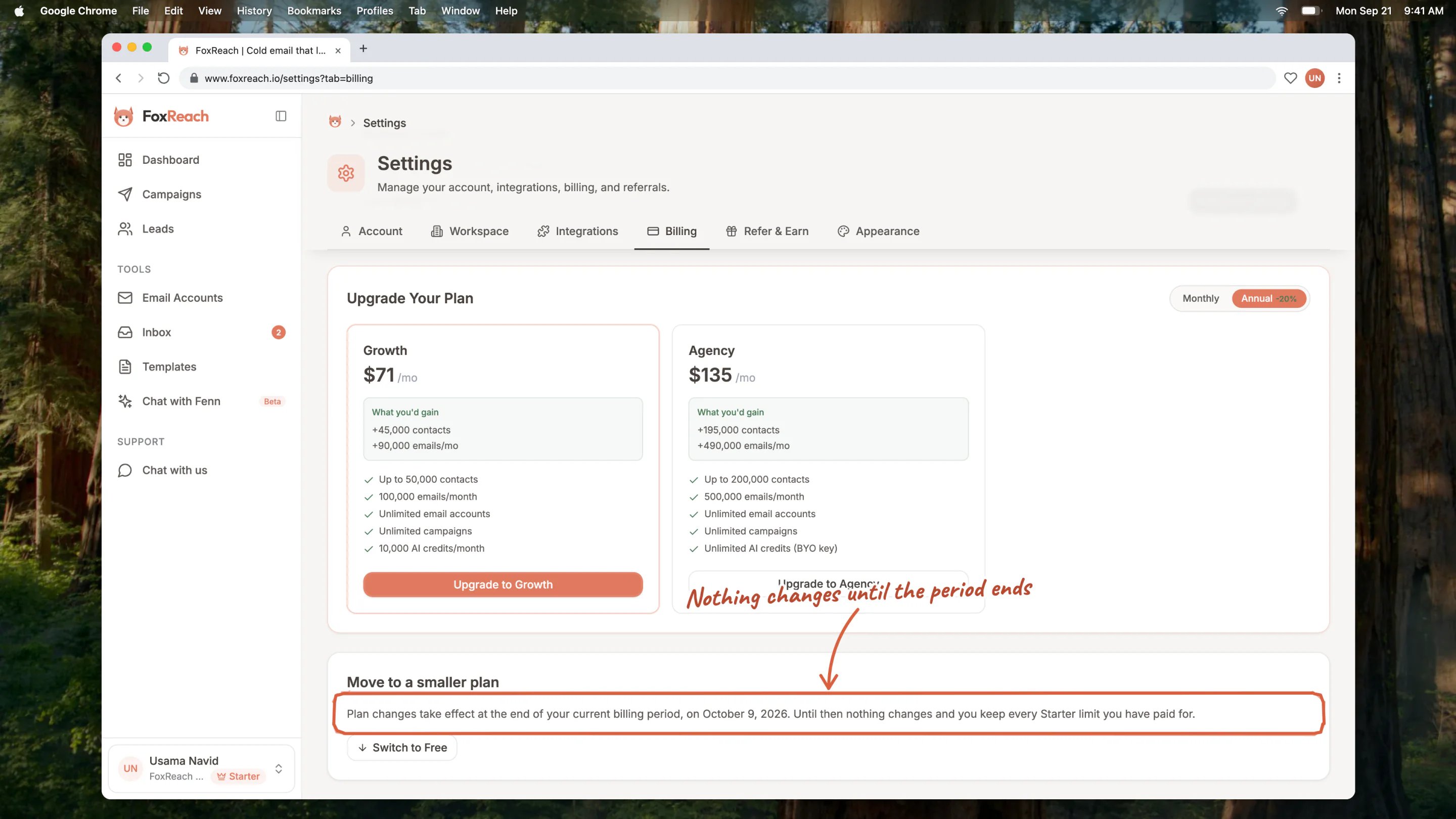 When a downgrade lands, the new limits apply. If the workspace holds more contacts than the new plan allows, nothing is deleted, but you cannot add more until you are back under the limit.
### Buy verification credits
In the **Verification Credits** card, set the number of packs (1,000 verifications each, \$1 per pack) and click **Purchase Credits**. Stripe Checkout again; the credits appear on the balance when you return. Credits expire 30 days after they arrive, whether bought or granted with the plan, and the card shows the earliest expiry; the monthly 1,000 does not roll over.
## Good to know
* **A failed payment** puts the subscription on hold and the workspace behaves as Free until the card is fixed in the portal. Update the card and the plan comes back with the next successful charge.
* **Agency covers every workspace you own.** If you hold an Agency subscription on one workspace, every workspace you own gets Agency limits.
* **The lifetime deal is not a subscription.** A workspace with a lifetime grant has nothing recurring to change, so a downgrade is not offered.
* **Referral bonus emails raise the daily cap only**, never the monthly limit.
## Related guides
* [Workspaces and team](/docs/product/workspaces)
* [Agency mode](/docs/product/agency-mode)
* [Verify emails](/docs/get-started/verify-emails)
* [Refer & Earn](/docs/product/referrals)
## Frequently asked questions
No. Free has no card, no trial clock and no expiry. It is small (200 contacts, 500 emails a month, warmup on two inboxes) but it stays free.
Sending pauses. Campaigns stay active and their queues keep their place; the moment the billing month rolls over, or you upgrade, sending resumes where it left off.
Yes. Upgrading to the annual version of your plan starts a new annual period through Stripe Checkout. Going from annual to monthly is a downgrade in price, so it takes effect at the end of the annual period.
Manage Subscription on the Billing tab opens the Stripe customer portal, which lists every invoice with a download link.
The grant attaches to the first workspace you create with the email you bought with. Sign in with that email and the workspace shows the lifetime plan on its Billing tab.
When a downgrade lands, the new limits apply. If the workspace holds more contacts than the new plan allows, nothing is deleted, but you cannot add more until you are back under the limit.
### Buy verification credits
In the **Verification Credits** card, set the number of packs (1,000 verifications each, \$1 per pack) and click **Purchase Credits**. Stripe Checkout again; the credits appear on the balance when you return. Credits expire 30 days after they arrive, whether bought or granted with the plan, and the card shows the earliest expiry; the monthly 1,000 does not roll over.
## Good to know
* **A failed payment** puts the subscription on hold and the workspace behaves as Free until the card is fixed in the portal. Update the card and the plan comes back with the next successful charge.
* **Agency covers every workspace you own.** If you hold an Agency subscription on one workspace, every workspace you own gets Agency limits.
* **The lifetime deal is not a subscription.** A workspace with a lifetime grant has nothing recurring to change, so a downgrade is not offered.
* **Referral bonus emails raise the daily cap only**, never the monthly limit.
## Related guides
* [Workspaces and team](/docs/product/workspaces)
* [Agency mode](/docs/product/agency-mode)
* [Verify emails](/docs/get-started/verify-emails)
* [Refer & Earn](/docs/product/referrals)
## Frequently asked questions
No. Free has no card, no trial clock and no expiry. It is small (200 contacts, 500 emails a month, warmup on two inboxes) but it stays free.
Sending pauses. Campaigns stay active and their queues keep their place; the moment the billing month rolls over, or you upgrade, sending resumes where it left off.
Yes. Upgrading to the annual version of your plan starts a new annual period through Stripe Checkout. Going from annual to monthly is a downgrade in price, so it takes effect at the end of the annual period.
Manage Subscription on the Billing tab opens the Stripe customer portal, which lists every invoice with a download link.
The grant attaches to the first workspace you create with the email you bought with. Sign in with that email and the workspace shows the lifetime plan on its Billing tab.