> ## Documentation Index
> Fetch the complete documentation index at: https://www.foxreach.io/docs/llms.txt
> Use this file to discover all available pages before exploring further.
# Personalize emails with your own CSV columns
> Any column in your lead spreadsheet that FoxReach has no box for becomes a custom field: how it gets in, where it shows up, and how to use it in an email with a fallback.
Your lead list has more in it than names and companies. There is the reason you picked each person: they are hiring, they raised money, they use a tool you replace. There might be a city, a product line, or a sentence you wrote just for that one person. FoxReach keeps every one of those columns and lets you drop them into an email, so the first line reads like you looked them up, because you did.
This page is about those extra columns. FoxReach calls them custom fields. There is nothing to configure: they come in with your CSV, and they work in any email you write.
## What a custom field is
FoxReach has a fixed set of boxes for a lead: email, first name, last name, company, job title, phone, LinkedIn URL and website. Everything else in your spreadsheet is a custom field. The column header becomes the field's name and the cell becomes its value, one per lead.
So a sheet with a `Signal` column gives every lead a custom field called `Signal`. Alex has "Hiring SDR Manager" in it, Priya has "Raised Series A", and a lead with an empty cell has nothing there.
## How custom fields get in
### From a CSV import
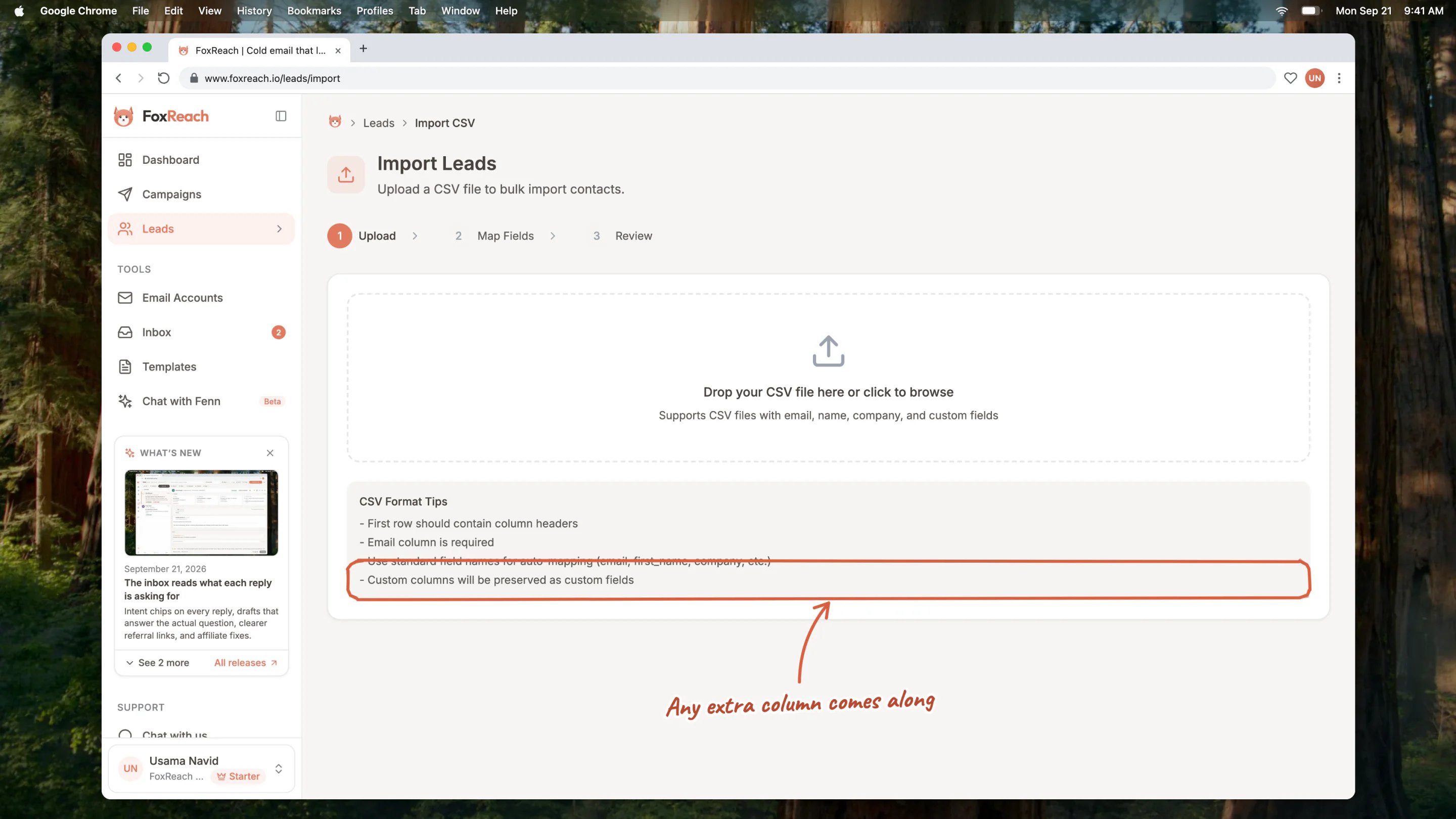
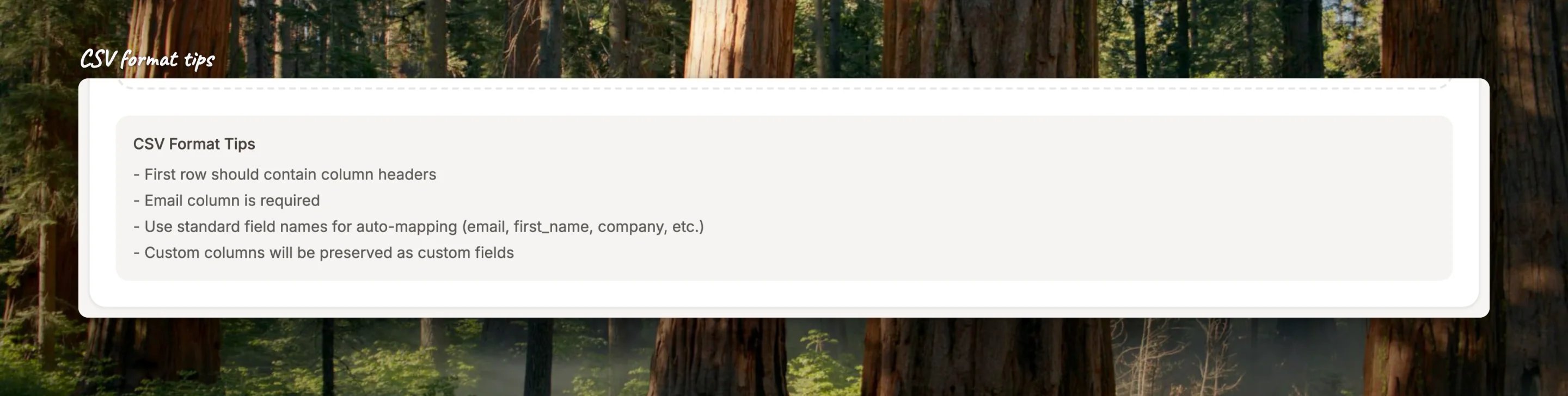
Upload the file on the Leads page as usual. The upload step already says so in its format tips: custom columns are kept.
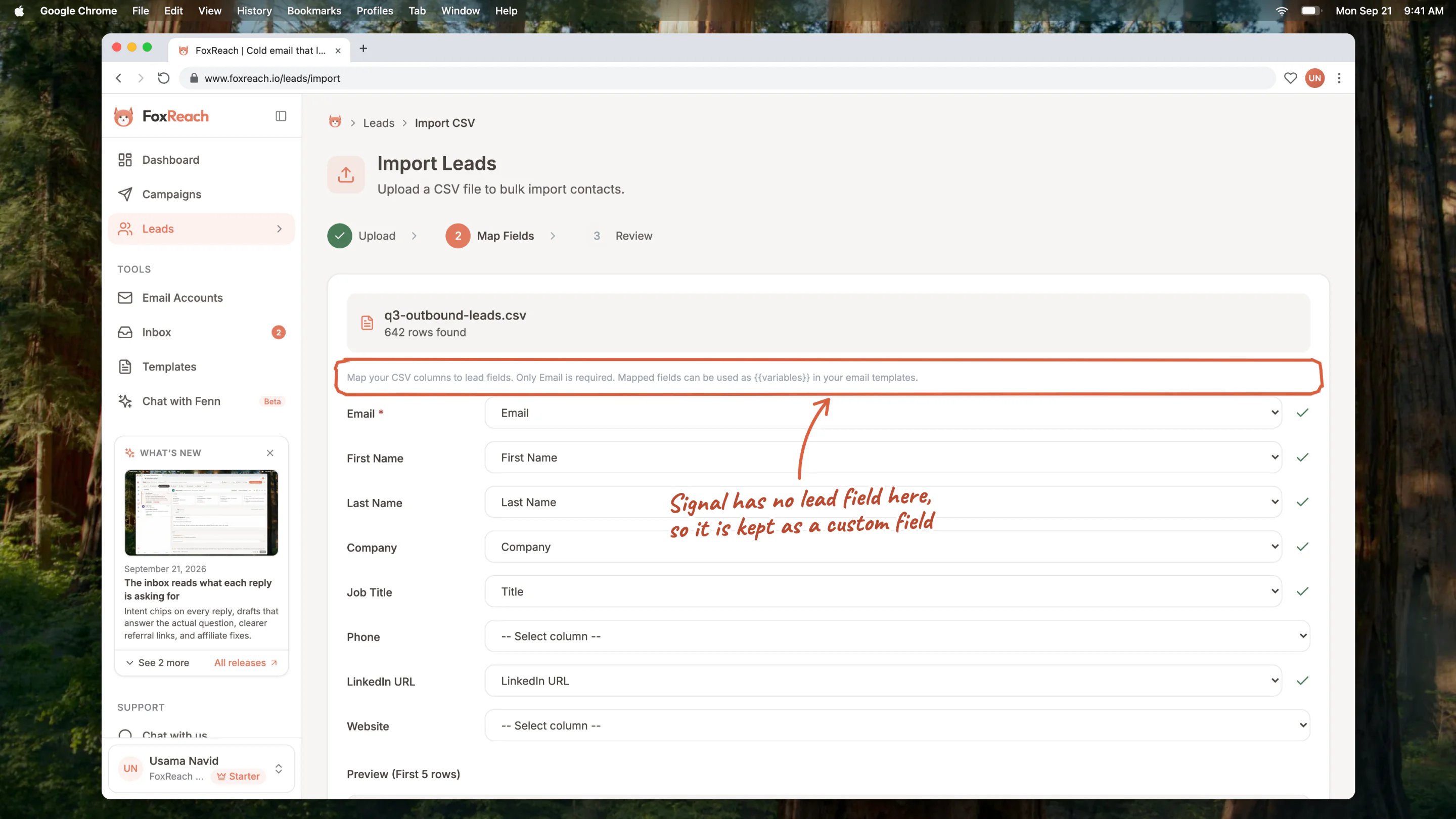
 On the Map Fields step, each row is one of FoxReach's own lead fields and you pick which column feeds it. A column that matches none of those rows is not thrown away. It becomes a custom field on every lead in the file, named after its header.
 Clean up the header row before you upload. The header is the name you will type into emails later, so `signal` is easier to live with than `Signal (Q3 list)`.
The [import guide](/docs/get-started/import-leads) covers the rest of the import: tags, verification, duplicates and limits.
### By hand, on a lead
Open any lead and look for the Custom Fields card. It lists what came in with the import, with a count in the corner.
Clean up the header row before you upload. The header is the name you will type into emails later, so `signal` is easier to live with than `Signal (Q3 list)`.
The [import guide](/docs/get-started/import-leads) covers the rest of the import: tags, verification, duplicates and limits.
### By hand, on a lead
Open any lead and look for the Custom Fields card. It lists what came in with the import, with a count in the corner.
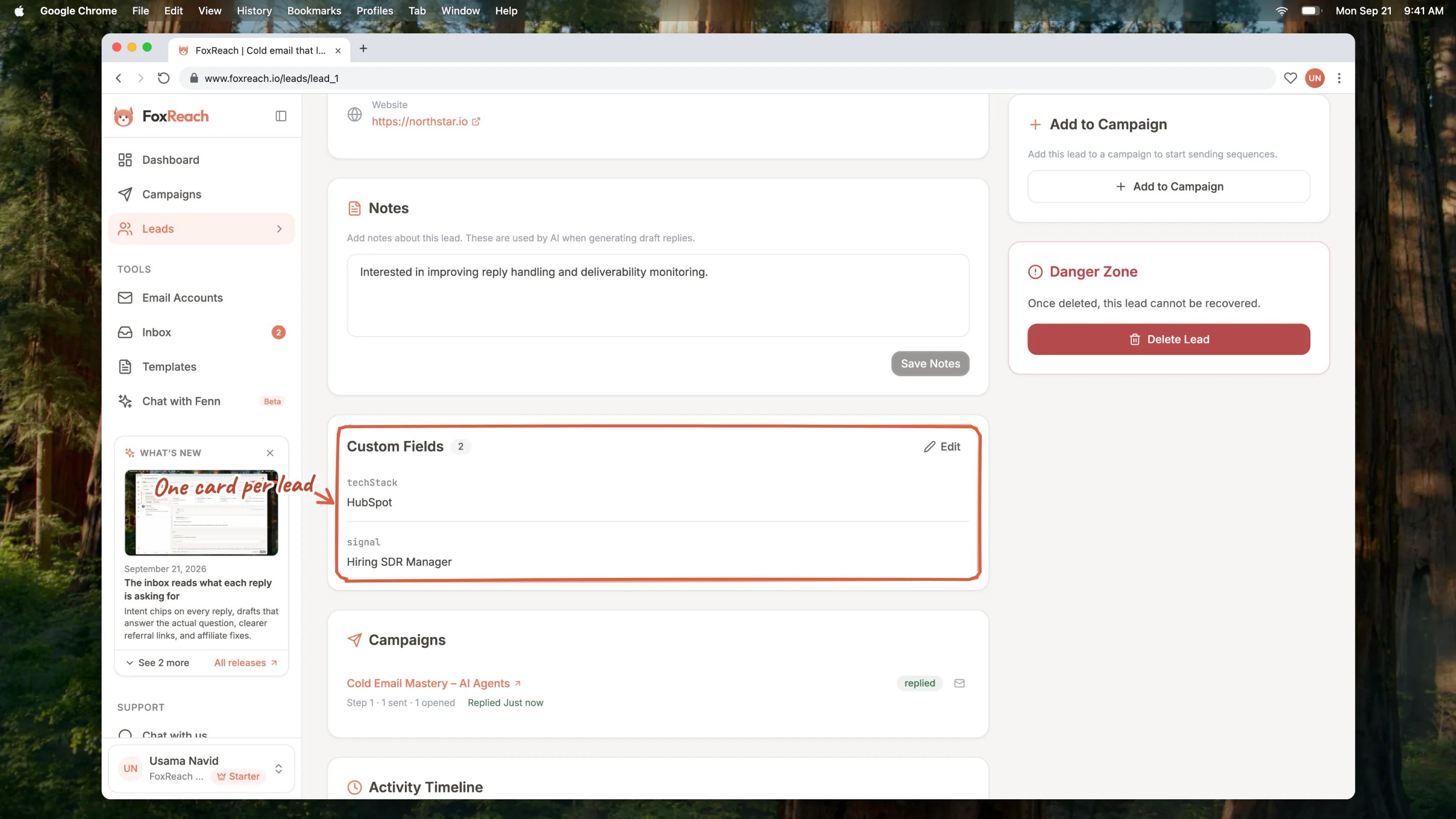
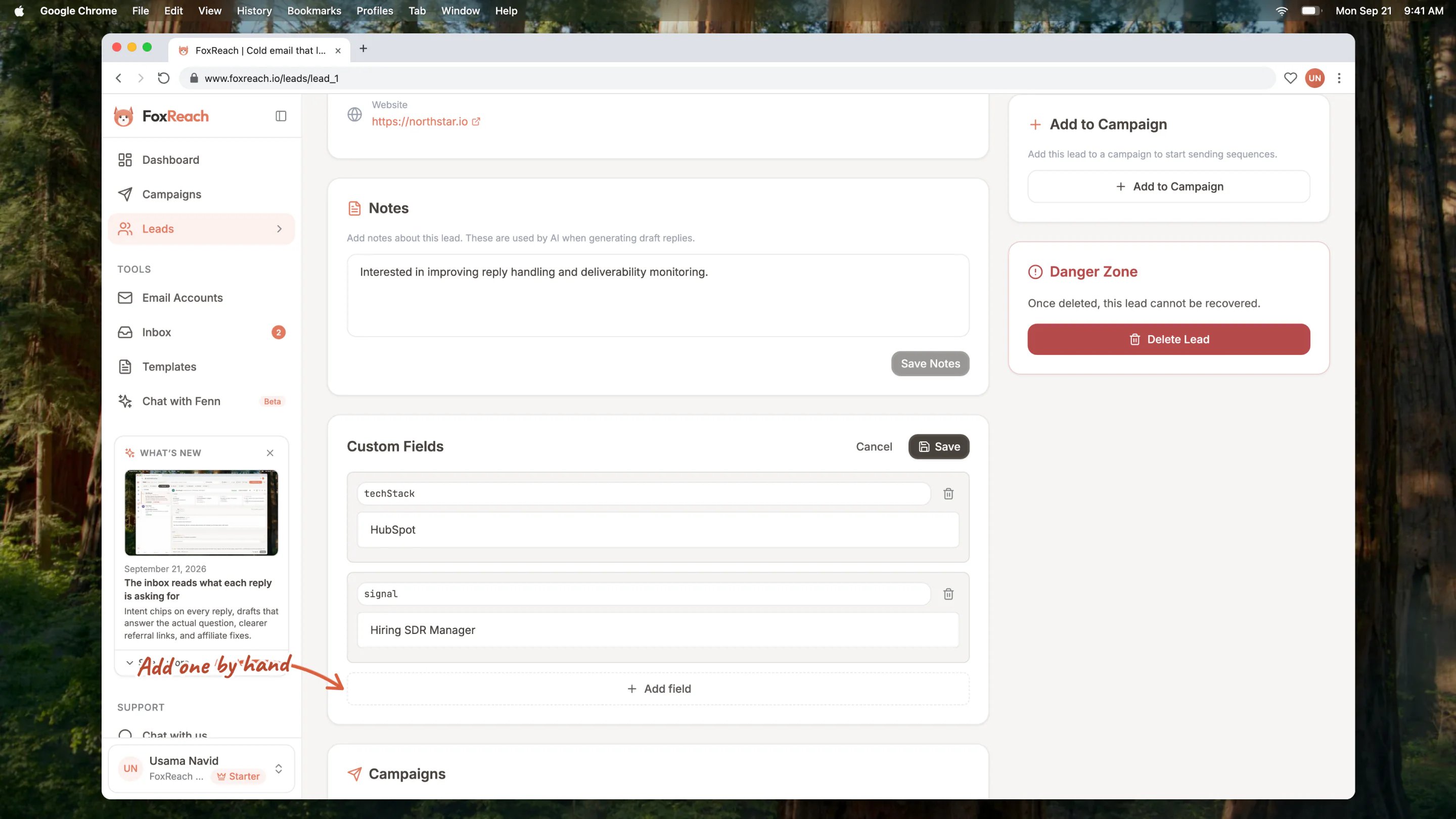
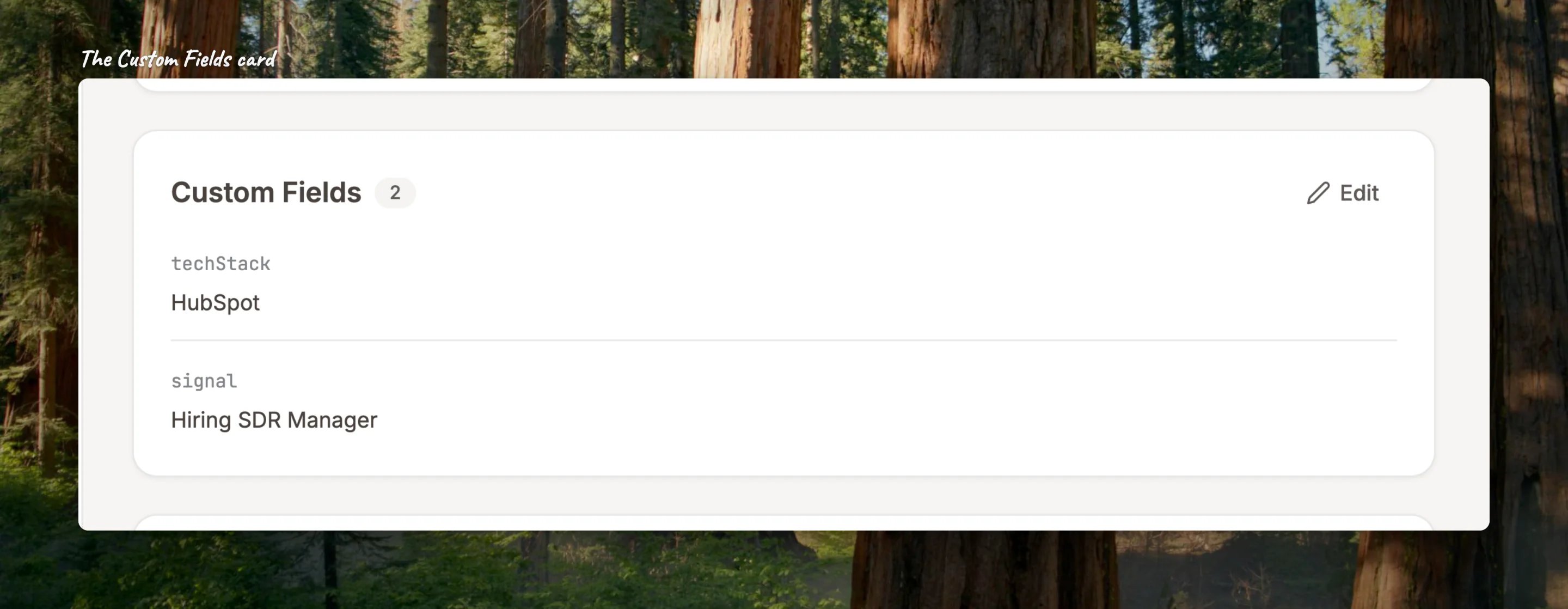 Click **Edit** on the card to change a value, remove a field, or click **Add field** to add a new one with a name and a value. This is how you fix a typo for one person, or add a `signal` to a lead who came in without one. The new field is usable in emails straight away.
 ### From another tool
If leads reach FoxReach from a CRM, a form or a script, custom fields travel with them. The [API keys and webhooks page](/docs/product/api-keys-and-webhooks) shows where to start; the fields work the same way once they are on the lead.
## Where custom fields show up
* **On the lead page**, in the Custom Fields card.
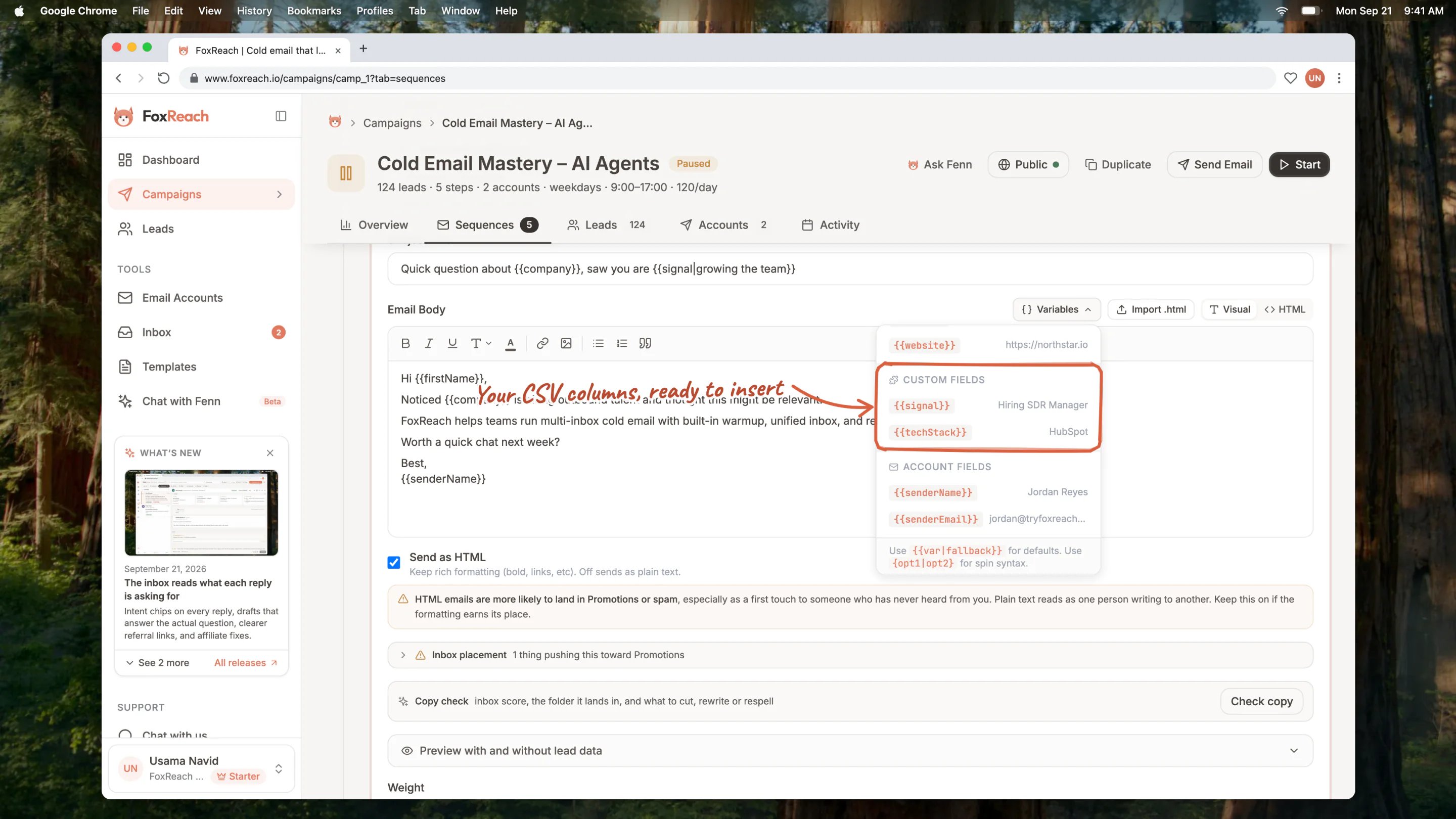
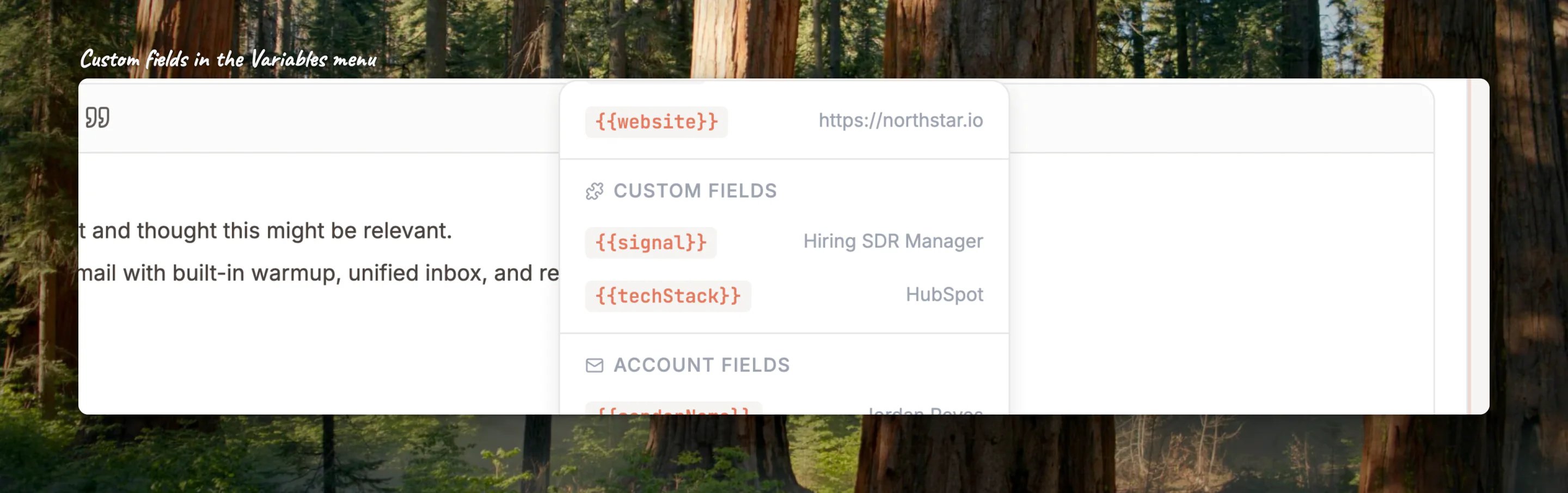
* **In the Variables menu** when you write an email, under their own heading, with a real lead's value next to each one so you can see what it looks like filled in.
* **In exports.** Download your leads as a CSV and every custom field is a column again.
## Using them in an email
Open a sequence step, a template or a one-off email and click **Variables** above the subject line or the body. The menu lists FoxReach's standard fields first, then a **Custom Fields** section with every field your leads have. Click one to insert it where your cursor is.
### From another tool
If leads reach FoxReach from a CRM, a form or a script, custom fields travel with them. The [API keys and webhooks page](/docs/product/api-keys-and-webhooks) shows where to start; the fields work the same way once they are on the lead.
## Where custom fields show up
* **On the lead page**, in the Custom Fields card.
* **In the Variables menu** when you write an email, under their own heading, with a real lead's value next to each one so you can see what it looks like filled in.
* **In exports.** Download your leads as a CSV and every custom field is a column again.
## Using them in an email
Open a sequence step, a template or a one-off email and click **Variables** above the subject line or the body. The menu lists FoxReach's standard fields first, then a **Custom Fields** section with every field your leads have. Click one to insert it where your cursor is.
 You can also type a variable yourself. Wrap the field name in double curly braces: `{{signal}}`. The name has to match the header exactly, capital letters included, so if the column was `Signal`, write `{{Signal}}`.
When FoxReach sends the email, each variable is replaced with that lead's value. This works in the subject line as well as the body, and in [templates](/docs/get-started/email-templates) you save for later.
### Say what to write when a lead has no value
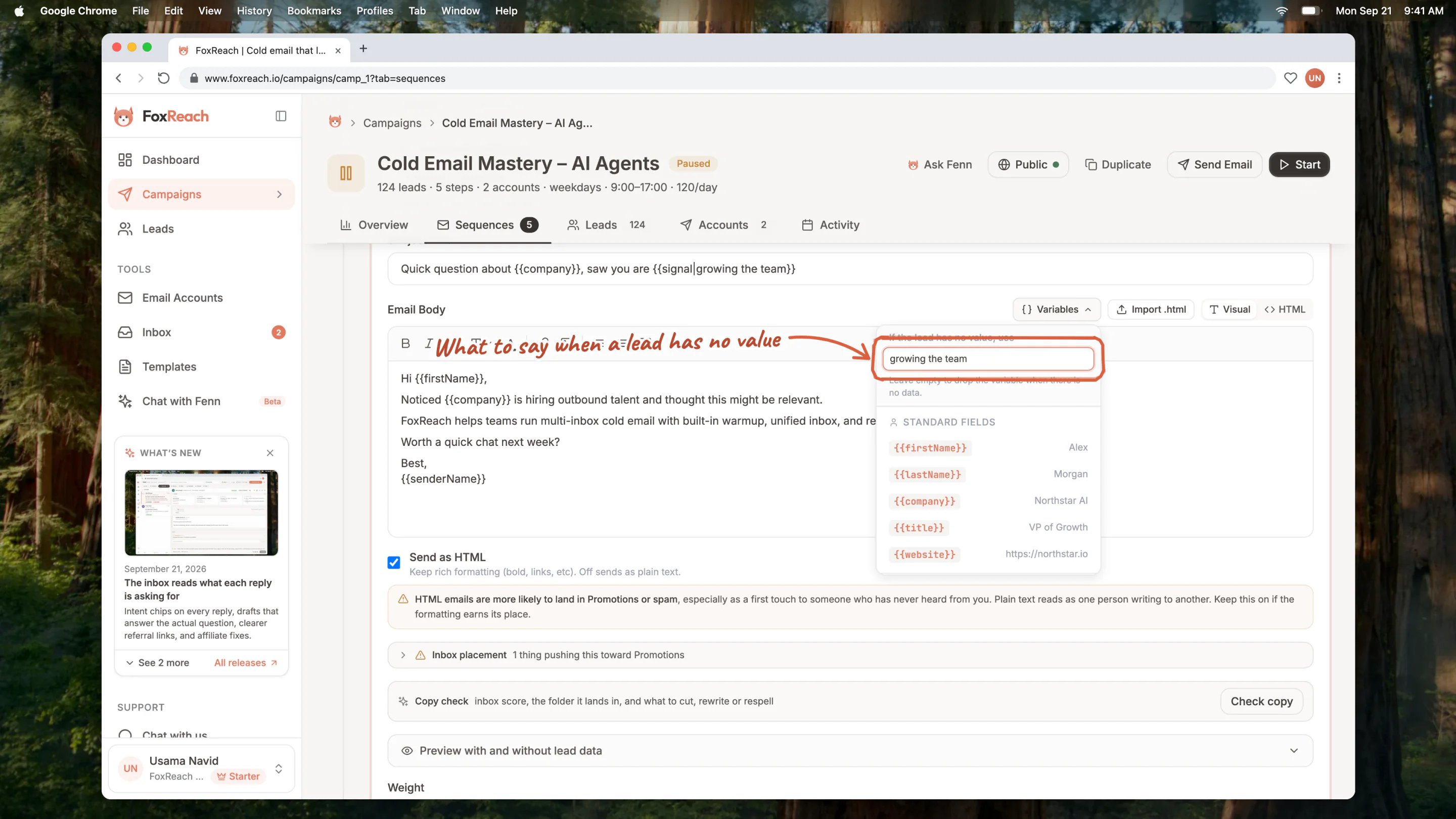
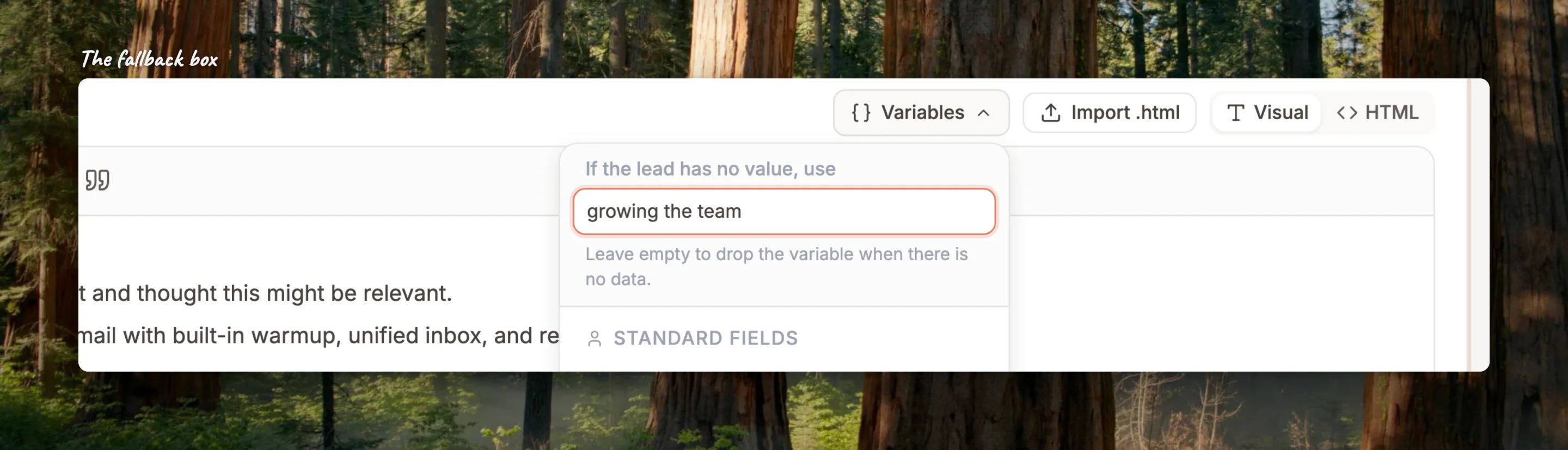
Not every lead will have every field. Before you insert a variable, type a fallback into the box at the top of the Variables menu, the one labelled **If the lead has no value, use**. FoxReach inserts the variable with that fallback built in, like `{{signal|growing the team}}`. Leave the box empty and the variable simply disappears for leads without a value, so a sentence like `saw you are {{signal}}` would end mid-air. Give it a fallback.
You can also type a variable yourself. Wrap the field name in double curly braces: `{{signal}}`. The name has to match the header exactly, capital letters included, so if the column was `Signal`, write `{{Signal}}`.
When FoxReach sends the email, each variable is replaced with that lead's value. This works in the subject line as well as the body, and in [templates](/docs/get-started/email-templates) you save for later.
### Say what to write when a lead has no value
Not every lead will have every field. Before you insert a variable, type a fallback into the box at the top of the Variables menu, the one labelled **If the lead has no value, use**. FoxReach inserts the variable with that fallback built in, like `{{signal|growing the team}}`. Leave the box empty and the variable simply disappears for leads without a value, so a sentence like `saw you are {{signal}}` would end mid-air. Give it a fallback.
 ### Check it before you send
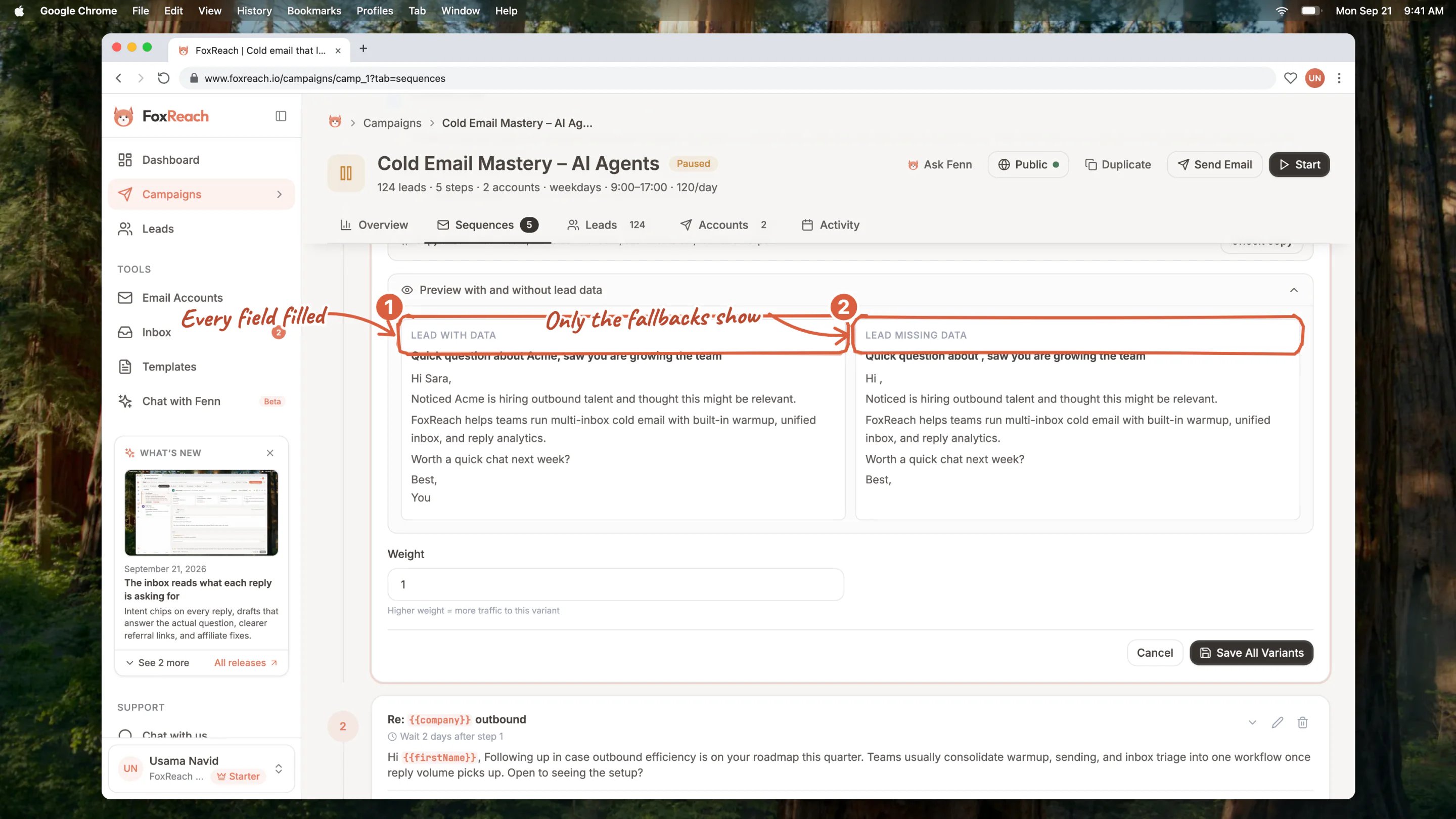
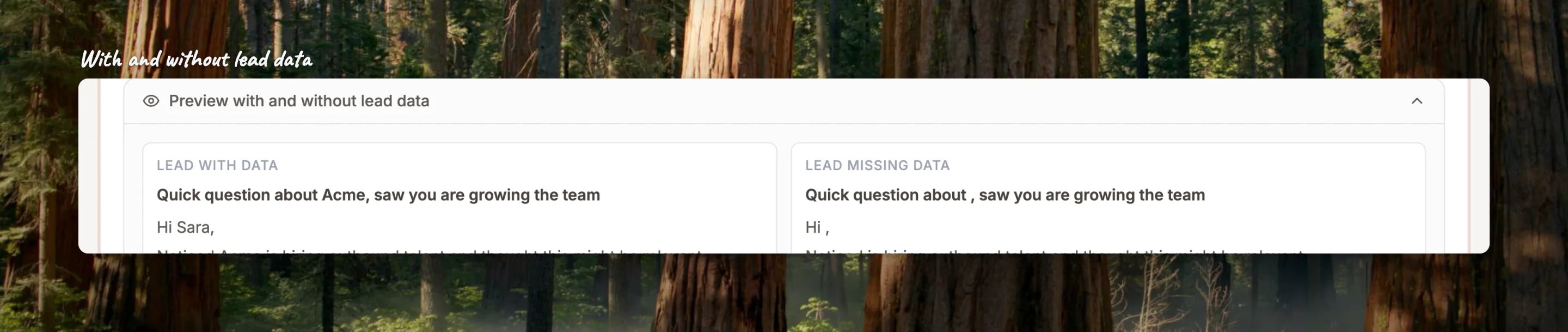
Under every step editor there is a **Preview with and without lead data** section. Open it and you see the email twice: once for a lead who has every field, and once for a lead who has none. The second one is the honest test. If it reads "Hi ," or "Quick question about ,", a variable is missing its fallback.
### Check it before you send
Under every step editor there is a **Preview with and without lead data** section. Open it and you see the email twice: once for a lead who has every field, and once for a lead who has none. The second one is the honest test. If it reads "Hi ," or "Quick question about ,", a variable is missing its fallback.
 ## Three ways people use them
**A reason column.** Add a `signal` column with the thing that put each person on the list: "hiring an SDR manager", "just raised a Series A", "opened a second office". Then open with it: `Saw you are {{signal|building out sales}}, so this might be timely.`
**A tool column.** If you replace or plug into other software, a `techStack` column lets you name it: `Teams on {{techStack|a CRM}} usually bolt three tools onto it for outreach.`
**A line written by hand.** For a short, high-value list, add an `opener` column and write one sentence per person. The email body is then just `{{opener}}` followed by your pitch. This is the most personal cold email you can send at scale, and FoxReach does not care that the column is a whole sentence.
## Good to know
* **Blank cells are fine.** The lead gets no value for that field and the fallback shows instead.
* **Importing again does not update existing leads.** A lead whose email is already in the workspace is skipped by the import, so changed cells in a re-upload are not applied. Edit the lead on its page instead.
* **Names are case-sensitive.** `{{signal}}` and `{{Signal}}` are two different fields.
* **Limits.** Up to 50 custom fields per lead, names up to 100 characters, values up to 5,000 characters. A value is text; a number or a date is kept as the text you typed.
* **Custom fields are per workspace.** Leads in another workspace have their own.
## Related guides
* [Import leads from a CSV](/docs/get-started/import-leads)
* [Create a campaign and write the sequence](/docs/get-started/create-campaign)
* [Email templates](/docs/get-started/email-templates)
* [API keys and webhooks](/docs/product/api-keys-and-webhooks)
## Frequently asked questions
No. Every column in your CSV that is not one of FoxReach's own lead fields becomes a custom field on its own, named after the column header. There is no field list to define first.
Either the lead has no value in that field, or the name does not match. Names are case-sensitive and must match the column header exactly, so check the Custom Fields card on one lead to see the exact spelling. Add a fallback so the sentence still reads well when the value is missing.
Yes. Click Variables above the subject line and pick the field, or type it yourself the same way as in the body, with a fallback so the subject still reads well for a lead without a value.
Each one becomes a column in the CSV, next to the standard fields, so the file you download has the same shape as the one you uploaded.
Export the leads, fix the column in the spreadsheet, delete those leads in FoxReach and import the file again. An import does not update leads that already exist, so the delete step matters. For a handful of leads, editing the Custom Fields card on each lead page is quicker.
## Three ways people use them
**A reason column.** Add a `signal` column with the thing that put each person on the list: "hiring an SDR manager", "just raised a Series A", "opened a second office". Then open with it: `Saw you are {{signal|building out sales}}, so this might be timely.`
**A tool column.** If you replace or plug into other software, a `techStack` column lets you name it: `Teams on {{techStack|a CRM}} usually bolt three tools onto it for outreach.`
**A line written by hand.** For a short, high-value list, add an `opener` column and write one sentence per person. The email body is then just `{{opener}}` followed by your pitch. This is the most personal cold email you can send at scale, and FoxReach does not care that the column is a whole sentence.
## Good to know
* **Blank cells are fine.** The lead gets no value for that field and the fallback shows instead.
* **Importing again does not update existing leads.** A lead whose email is already in the workspace is skipped by the import, so changed cells in a re-upload are not applied. Edit the lead on its page instead.
* **Names are case-sensitive.** `{{signal}}` and `{{Signal}}` are two different fields.
* **Limits.** Up to 50 custom fields per lead, names up to 100 characters, values up to 5,000 characters. A value is text; a number or a date is kept as the text you typed.
* **Custom fields are per workspace.** Leads in another workspace have their own.
## Related guides
* [Import leads from a CSV](/docs/get-started/import-leads)
* [Create a campaign and write the sequence](/docs/get-started/create-campaign)
* [Email templates](/docs/get-started/email-templates)
* [API keys and webhooks](/docs/product/api-keys-and-webhooks)
## Frequently asked questions
No. Every column in your CSV that is not one of FoxReach's own lead fields becomes a custom field on its own, named after the column header. There is no field list to define first.
Either the lead has no value in that field, or the name does not match. Names are case-sensitive and must match the column header exactly, so check the Custom Fields card on one lead to see the exact spelling. Add a fallback so the sentence still reads well when the value is missing.
Yes. Click Variables above the subject line and pick the field, or type it yourself the same way as in the body, with a fallback so the subject still reads well for a lead without a value.
Each one becomes a column in the CSV, next to the standard fields, so the file you download has the same shape as the one you uploaded.
Export the leads, fix the column in the spreadsheet, delete those leads in FoxReach and import the file again. An import does not update leads that already exist, so the delete step matters. For a handful of leads, editing the Custom Fields card on each lead page is quicker.