> ## Documentation Index
> Fetch the complete documentation index at: https://www.foxreach.io/docs/llms.txt
> Use this file to discover all available pages before exploring further.
# Buy domains and mailboxes in FoxReach
> How to buy new sending domains with Google Workspace or Microsoft 365 mailboxes inside FoxReach: picking domains, naming the mailboxes, paying, what happens after payment, yearly domain renewal with auto-renew, and adding or canceling mailboxes later.
Cold email should not go out from your main company domain. If a campaign gets marked as spam, you want that reputation to land on a domain you can replace, not on the one your invoices and customer support come from. The usual fix is a handful of lookalike domains (trynorthstar.com, getnorthstar.com) with a few mailboxes each.
Setting those up by hand means a registrar, DNS records, a Google Workspace or Microsoft 365 account, app passwords, and connecting every mailbox to your sending tool one at a time. In FoxReach you pick the domains, name the mailboxes, and pay once. The domains are registered, the mailboxes are created, and each one shows up as a connected email account in your workspace with warmup ready to go.
This guide walks through a purchase from start to finish, then covers what happens after payment, how renewal works, and how to change an order later.
## What you get and what it costs
* **Domains.** Each domain is registered for one year. The price is shown next to every result before you add it, along with what it costs to renew after the first year.
* **Mailboxes.** Google Workspace or Microsoft 365, \$4.50 a month each. Up to 5 mailboxes per domain, and up to 10 domains per order. All mailboxes on one domain use the same platform.
* **Connected and ready.** Every mailbox becomes a connected email account in the workspace you bought it from, with a starting daily sending limit of 30 and warmup turned on where your plan includes it.
You pay the domains and the first month of mailboxes up front. After that, mailboxes are billed monthly and domains renew once a year. Only workspace owners and admins can buy, change or cancel mailboxes.
## Step 1: Pick your domains
Open **Email Accounts** and click **Buy mailboxes**. Type your brand name, or a full domain like northstar.net, into the search box. Results appear as you type.
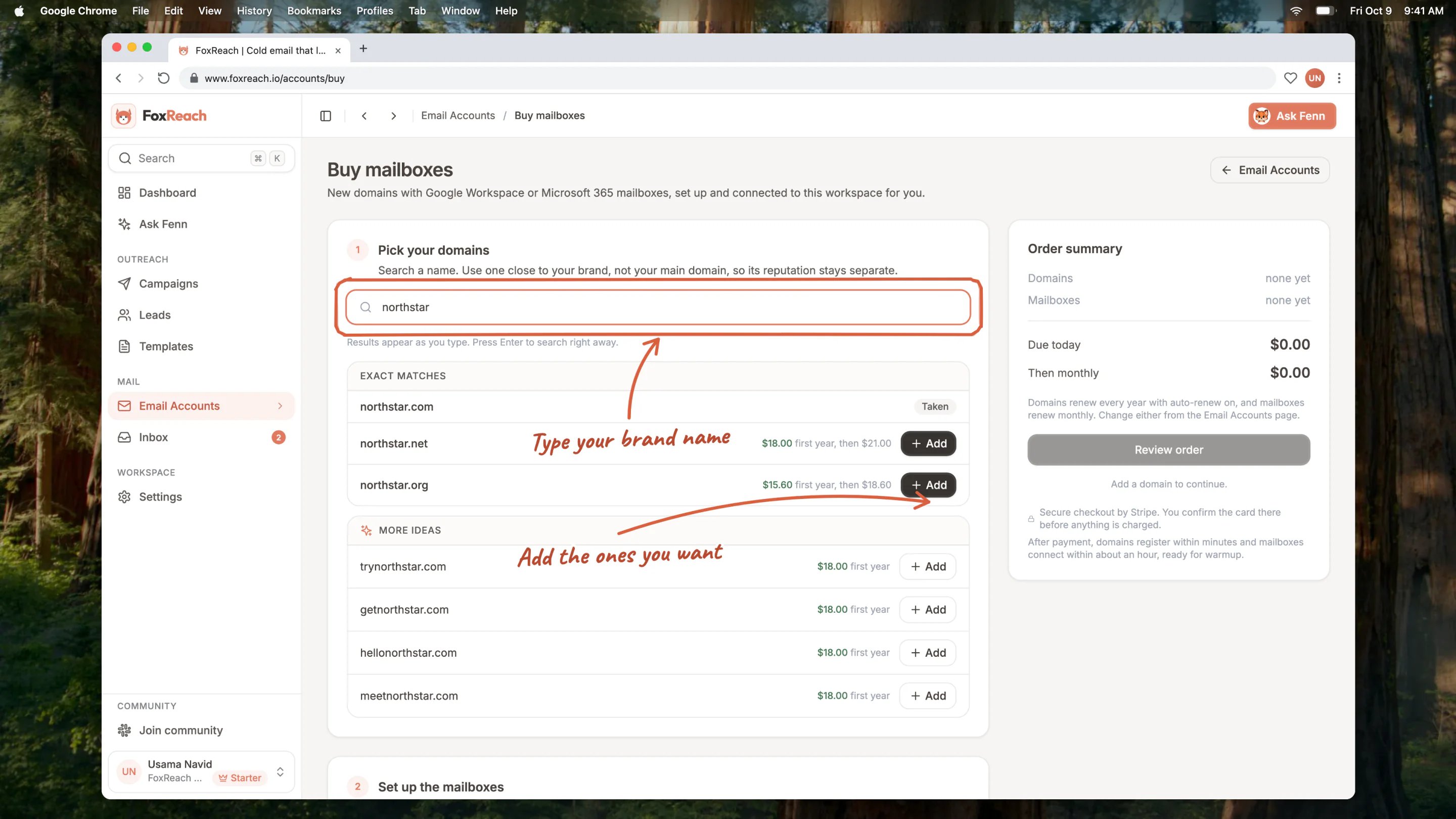 **Exact matches** checks your name on .com, .net and .org. A name someone already owns shows as Taken. **More ideas** suggests close variations with prefixes like try, get and hello, which is where most good sending domains come from.
Click **Add** next to each domain you want. They collect under **In your order** below the search, where you can remove any of them.
Pick names that are clearly yours. A recipient who looks up the domain should land somewhere that makes sense, which is what step 3 is for.
## Step 2: Set up the mailboxes
Each domain you added gets a card in **Set up the mailboxes**. Choose Google Workspace or Microsoft 365 for the domain, then fill in a first and last name for each mailbox. FoxReach suggests a username from the name; change it if you want a different address. The full address is shown under each row.
**Exact matches** checks your name on .com, .net and .org. A name someone already owns shows as Taken. **More ideas** suggests close variations with prefixes like try, get and hello, which is where most good sending domains come from.
Click **Add** next to each domain you want. They collect under **In your order** below the search, where you can remove any of them.
Pick names that are clearly yours. A recipient who looks up the domain should land somewhere that makes sense, which is what step 3 is for.
## Step 2: Set up the mailboxes
Each domain you added gets a card in **Set up the mailboxes**. Choose Google Workspace or Microsoft 365 for the domain, then fill in a first and last name for each mailbox. FoxReach suggests a username from the name; change it if you want a different address. The full address is shown under each row.
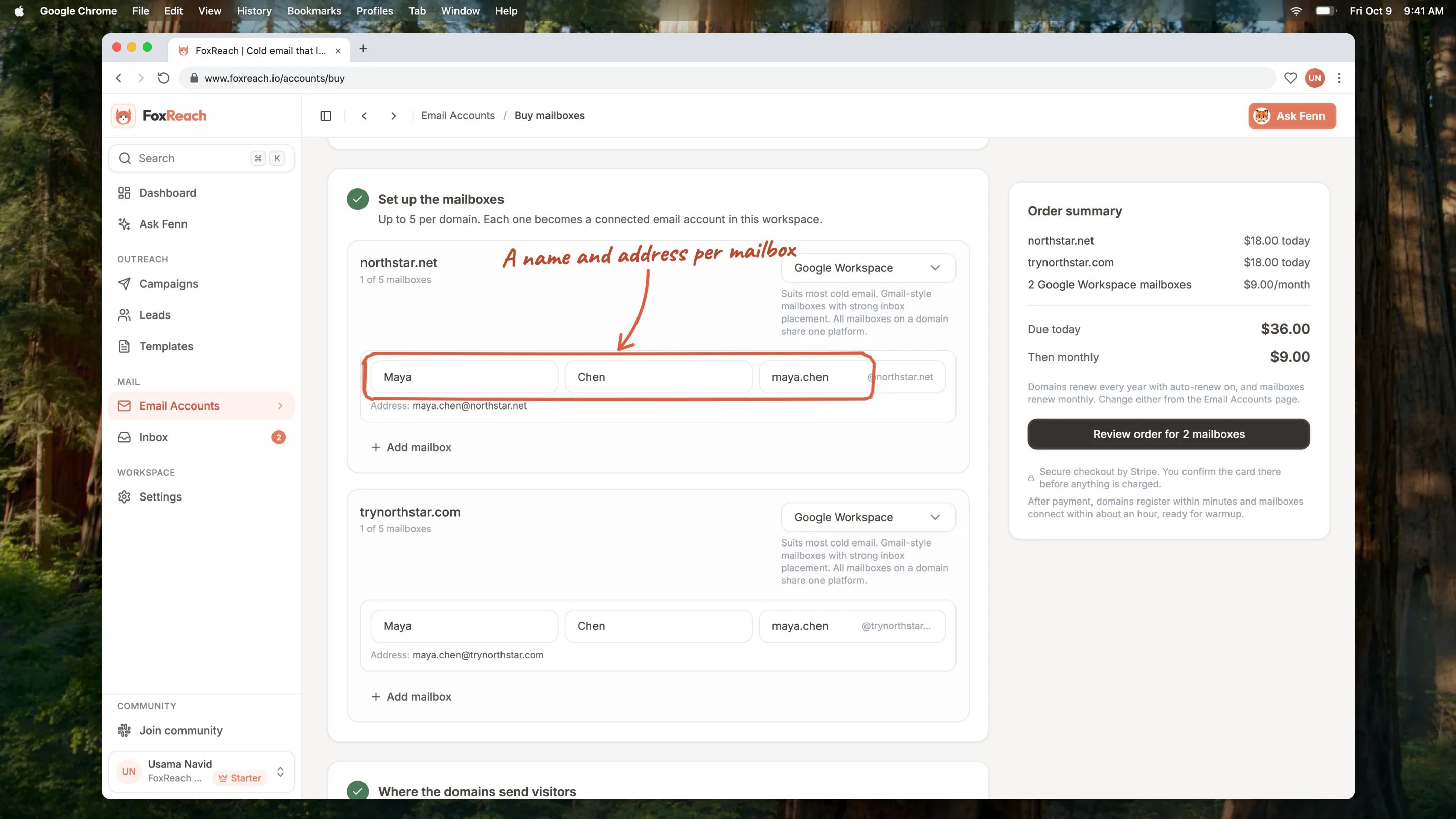 Click **Add mailbox** for more addresses on the same domain, up to 5. Two or three per domain is a common starting point: enough to spread volume, few enough to warm up properly.
## Step 3: Choose where the domains send visitors
In **Where the domains send visitors**, enter your main website, starting with https. Anyone who types one of your new domains into a browser is forwarded there. Spam filters and curious recipients both expect a real site behind the domain, so this matters more than it looks.
## Step 4: Review and pay
The **Order summary** on the right adds up what you owe today and what you pay each month. When every mailbox has a name and the website is filled in, click **Review order**.
Click **Add mailbox** for more addresses on the same domain, up to 5. Two or three per domain is a common starting point: enough to spread volume, few enough to warm up properly.
## Step 3: Choose where the domains send visitors
In **Where the domains send visitors**, enter your main website, starting with https. Anyone who types one of your new domains into a browser is forwarded there. Spam filters and curious recipients both expect a real site behind the domain, so this matters more than it looks.
## Step 4: Review and pay
The **Order summary** on the right adds up what you owe today and what you pay each month. When every mailbox has a name and the website is filled in, click **Review order**.
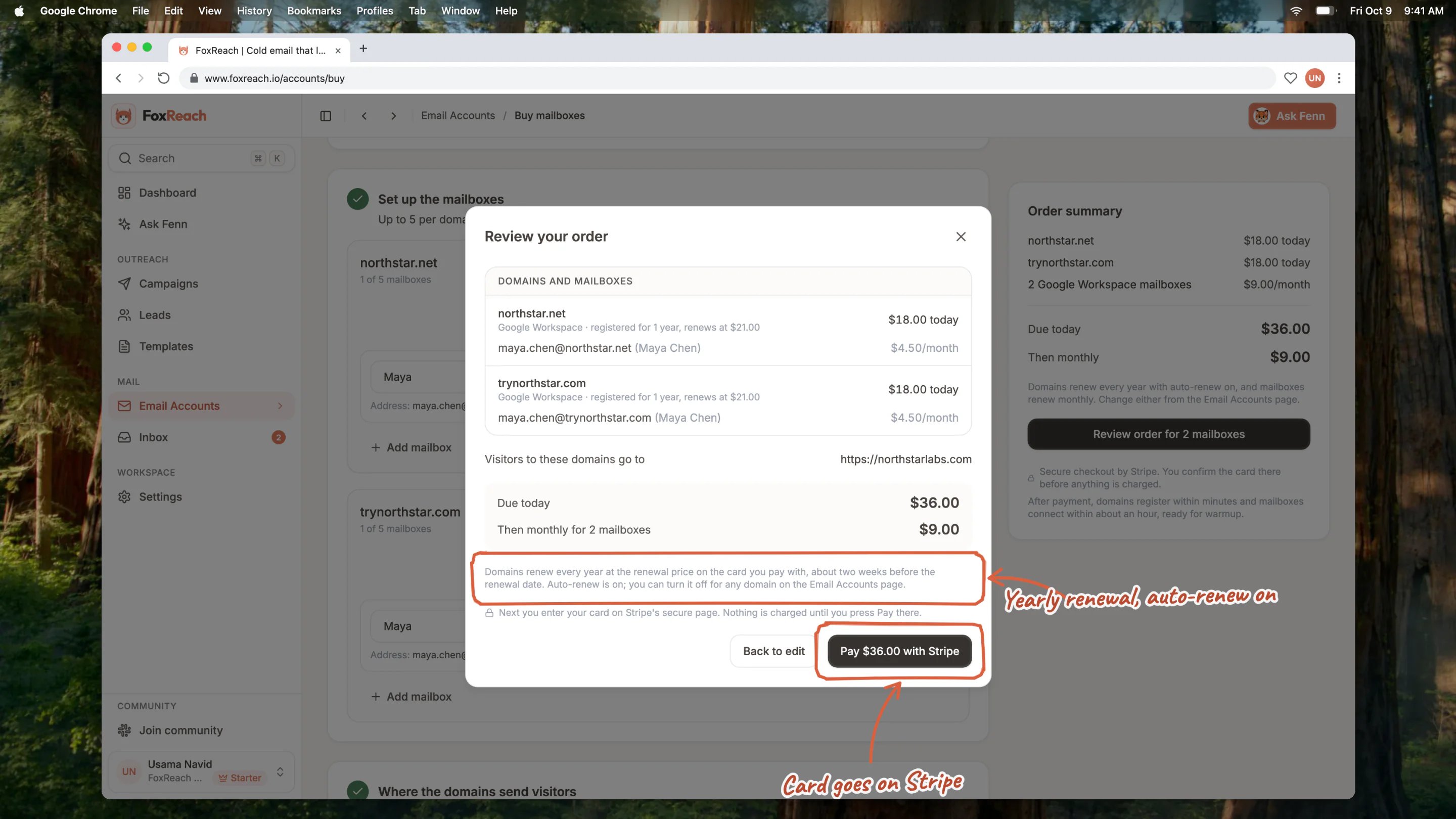 The review lists every domain with its first-year and renewal price, every mailbox address, the site the domains forward to, and both totals. Click **Pay with Stripe** to enter your card on Stripe's secure page. Nothing is charged until you confirm there.
## After you pay
You come back to Email Accounts, and your order appears at the top of the page with a progress bar on each mailbox:
1. **Registering domain.** Usually done within minutes.
2. **Creating mailbox.** The mailboxes are set up on Google Workspace or Microsoft 365. This can take up to about an hour.
3. **Connecting.** FoxReach checks it can send and receive with the new mailbox and adds it to your account.
4. **Connected.** The mailbox appears in your email accounts list, ready to warm up and use in campaigns.
The page updates on its own, so you can leave it open or come back later. If a domain cannot be registered after all, for example because someone registered it in the meantime, that domain and its mailboxes are refunded automatically and the rest of the order goes ahead.
New domains should warm up before they carry campaign volume. See [warming up an inbox](/docs/get-started/warm-up-inbox) for how long and what to expect.
## Domain renewal and auto-renew
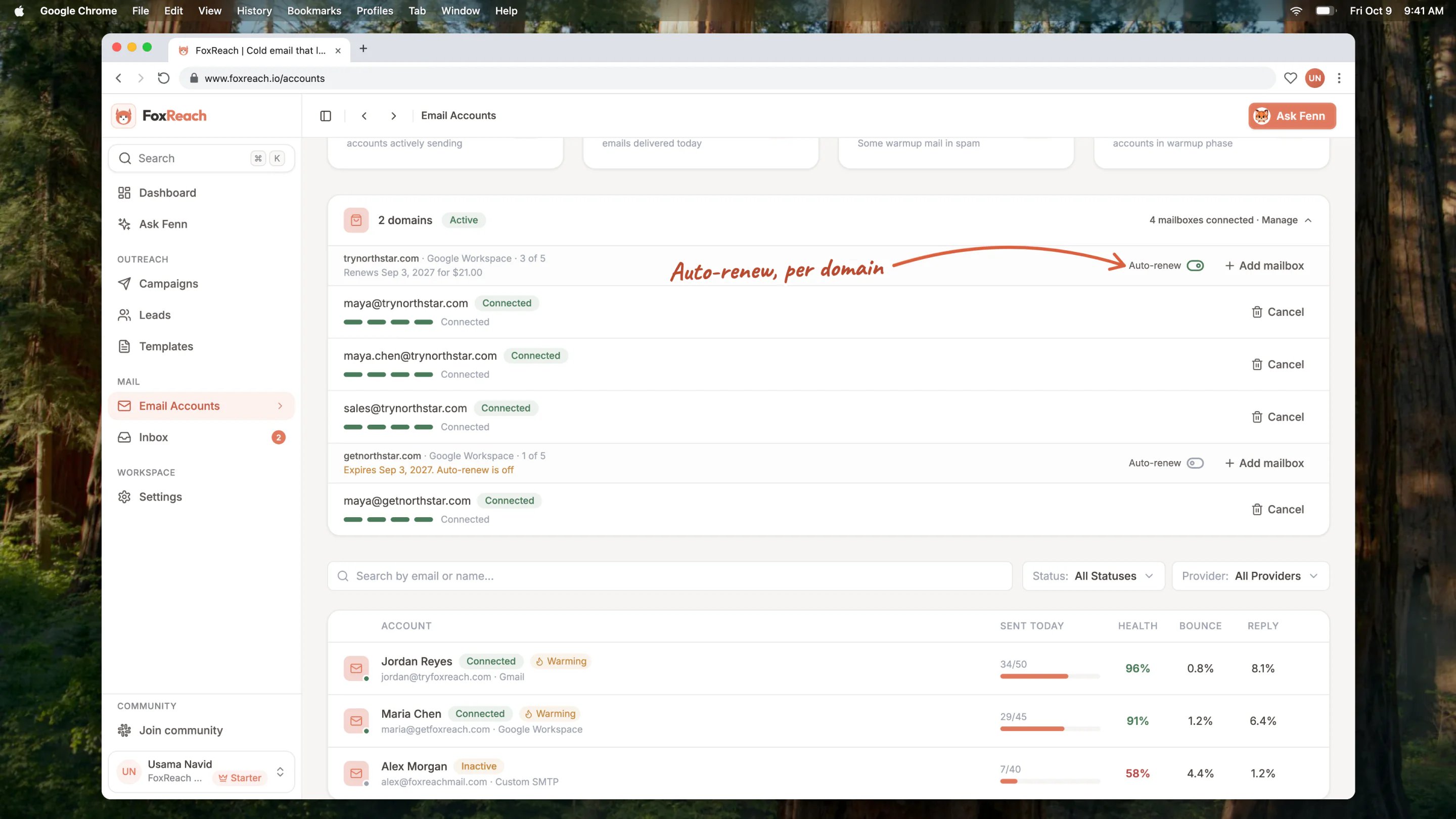
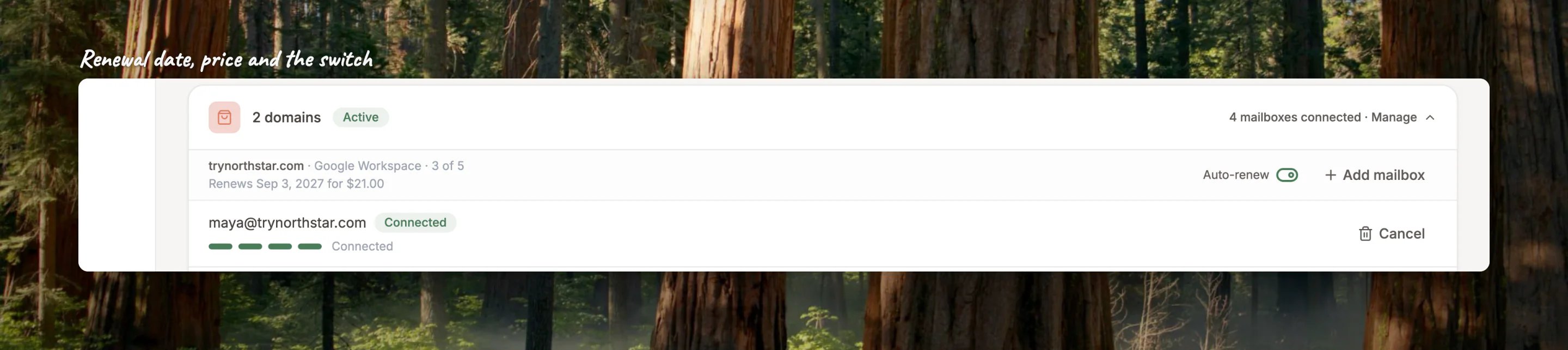
Domains renew every year, and auto-renew is on for every domain you buy. Each domain in your order shows its renewal date and price, with an **Auto-renew** switch next to it.
The review lists every domain with its first-year and renewal price, every mailbox address, the site the domains forward to, and both totals. Click **Pay with Stripe** to enter your card on Stripe's secure page. Nothing is charged until you confirm there.
## After you pay
You come back to Email Accounts, and your order appears at the top of the page with a progress bar on each mailbox:
1. **Registering domain.** Usually done within minutes.
2. **Creating mailbox.** The mailboxes are set up on Google Workspace or Microsoft 365. This can take up to about an hour.
3. **Connecting.** FoxReach checks it can send and receive with the new mailbox and adds it to your account.
4. **Connected.** The mailbox appears in your email accounts list, ready to warm up and use in campaigns.
The page updates on its own, so you can leave it open or come back later. If a domain cannot be registered after all, for example because someone registered it in the meantime, that domain and its mailboxes are refunded automatically and the rest of the order goes ahead.
New domains should warm up before they carry campaign volume. See [warming up an inbox](/docs/get-started/warm-up-inbox) for how long and what to expect.
## Domain renewal and auto-renew
Domains renew every year, and auto-renew is on for every domain you buy. Each domain in your order shows its renewal date and price, with an **Auto-renew** switch next to it.
 With auto-renew on:
* About 30 days before the renewal date, we email you the date and the price.
* About two weeks before the date, the renewal is charged to the card you paid with.
* If the card is declined, you get an email with a link to pay, and we try the card again every few days. The domain row on Email Accounts shows the problem too.
* Once the renewal is paid, the domain is renewed for another year and the row shows the new date.
With auto-renew off, the domain is not charged again. You get one email about 30 days before the date as a reminder. On the renewal date the domain expires and its mailboxes stop working and are removed from your monthly charge.
You can switch auto-renew off or back on at any time before the renewal is paid. Once this year's renewal has been paid, the switch stays on until it completes. If a renewal payment is still failing when the date arrives, the domain expires the same way.
## Add or cancel mailboxes later
Open the order on Email Accounts (click **Manage** on its card if it is collapsed).
* **Add mailboxes** to a domain you already own with **Add mailbox** on its row, up to 5 per domain. The new mailboxes are charged for the rest of the current month right away, then join your monthly bill.
* **Cancel a mailbox** with **Cancel** on its row. It is shut down and removed from your next monthly charge. A mailbox that is still being set up can be canceled once it finishes.
Mailboxes you bought show a Managed badge in your email accounts list. Deleting one there removes it from FoxReach; to stop paying for it, cancel it from the order card instead.
## Related
* [Connect an email account you already have](/docs/get-started/connect-email-account)
* [Warm up an inbox](/docs/get-started/warm-up-inbox)
* [Plans and billing](/docs/product/plans-and-billing)
This documentation is built and hosted on [Mintlify](https://mintlify.com), a developer documentation platform.
With auto-renew on:
* About 30 days before the renewal date, we email you the date and the price.
* About two weeks before the date, the renewal is charged to the card you paid with.
* If the card is declined, you get an email with a link to pay, and we try the card again every few days. The domain row on Email Accounts shows the problem too.
* Once the renewal is paid, the domain is renewed for another year and the row shows the new date.
With auto-renew off, the domain is not charged again. You get one email about 30 days before the date as a reminder. On the renewal date the domain expires and its mailboxes stop working and are removed from your monthly charge.
You can switch auto-renew off or back on at any time before the renewal is paid. Once this year's renewal has been paid, the switch stays on until it completes. If a renewal payment is still failing when the date arrives, the domain expires the same way.
## Add or cancel mailboxes later
Open the order on Email Accounts (click **Manage** on its card if it is collapsed).
* **Add mailboxes** to a domain you already own with **Add mailbox** on its row, up to 5 per domain. The new mailboxes are charged for the rest of the current month right away, then join your monthly bill.
* **Cancel a mailbox** with **Cancel** on its row. It is shut down and removed from your next monthly charge. A mailbox that is still being set up can be canceled once it finishes.
Mailboxes you bought show a Managed badge in your email accounts list. Deleting one there removes it from FoxReach; to stop paying for it, cancel it from the order card instead.
## Related
* [Connect an email account you already have](/docs/get-started/connect-email-account)
* [Warm up an inbox](/docs/get-started/warm-up-inbox)
* [Plans and billing](/docs/product/plans-and-billing)
This documentation is built and hosted on [Mintlify](https://mintlify.com), a developer documentation platform.