> ## Documentation Index
> Fetch the complete documentation index at: https://www.foxreach.io/docs/llms.txt
> Use this file to discover all available pages before exploring further.
# Run client workspaces in agency mode
> How to run client workspaces in agency mode in FoxReach: the Agency Command Center dashboard, client health cards, team access matrix, branding and limits.
By the end of this tutorial you will have opened the Agency Command Center, read the roll-up dashboard across all your clients, created a client workspace, checked its usage and health, switched into it to work, given a teammate access to it, and set your agency's name, logo and colors. Each client keeps its own leads, inboxes, campaigns and replies, and you watch all of them from one screen.
Agency mode is what the Agency plan adds on top of regular workspaces: one login, one screen, and a wall between every client's data.
## Before you start
You need three things:
* **The Agency plan.** Agency Admin only appears in the sidebar for accounts on Agency. Compare plans on the [pricing page](https://www.foxreach.io/pricing).
* **To be the owner of the workspace that holds the subscription.** Agency mode is scoped to the owner, so it needs to be your account, not a workspace you were invited to.
* **A FoxReach account for each teammate you want to add.** The agency team is built from existing accounts, so ask teammates to sign up first.
If you are new to FoxReach, run through the [getting started guide](/docs/get-started/overview) in your personal workspace first. It is easier to learn the app once than inside a client's data.
## Step 1: Open the Agency Command Center
In the sidebar, scroll to the Agency section and click Agency Admin. That opens the Agency Command Center, the page behind agency mode. Its subtitle reads "Manage clients, team, and branding across all workspaces".
There are five tabs across the top: Dashboard, Clients, Team, Branding and Settings. The tab you are on is stored in the page URL, so you can bookmark the Clients tab directly and land on it next time.
The workspace you signed up with also appears here, marked Personal. Run your own agency's outreach there and keep client work out of it.
## Step 2: Read the dashboard
The Dashboard tab rolls every workspace you own into eight tiles: Clients, Emails Sent this month, Reply Rate, Total Replies, Active Campaigns out of total campaigns, Contacts, Accounts connected out of total, and Verification Credits. These are the numbers to glance at before you open any single client.
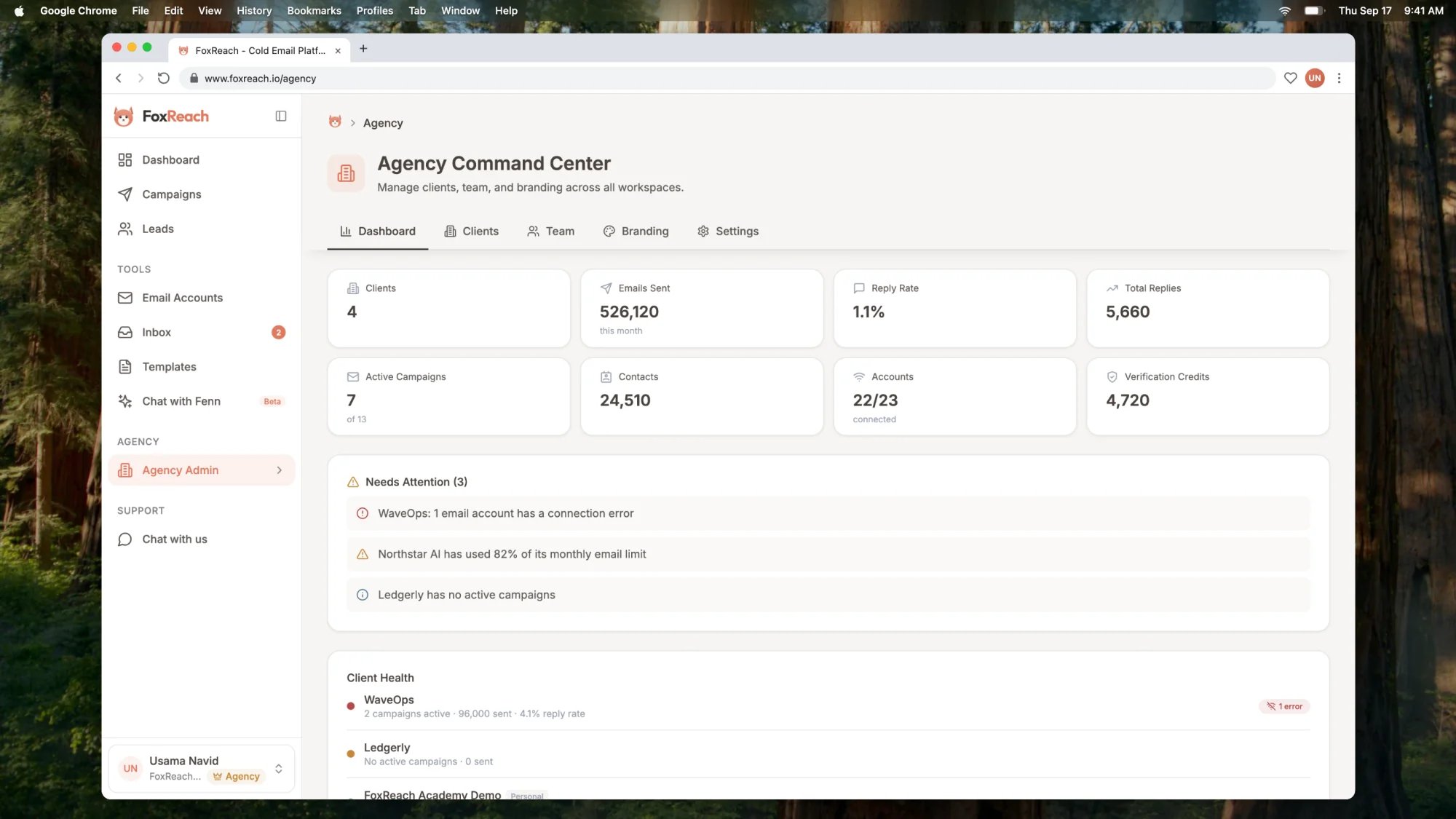 Below the tiles is the Needs Attention card, with the number of open alerts in its title. It surfaces three kinds of problems across all clients:
* **An email account with a connection error.** In the screenshot, WaveOps has one inbox that stopped connecting. Nothing sends from that account until it is reconnected.
* **A client close to its monthly email limit.** Northstar AI is well into its allowance for the month, so its campaigns will stop once it hits the cap.
* **A client with no active campaigns.** Ledgerly has a workspace, contacts and inboxes but nothing running.
Under that, Client Health lists every workspace with a status dot, active campaigns, emails sent this month and reply rate, with errors sorted to the top. The demo agency here is FoxReach Academy Demo, with Northstar AI, WaveOps and Ledgerly as clients.
Treat Needs Attention as a morning checklist. Errors first, because a broken inbox is lost sends every hour it stays down. Limits second. Idle clients last, because they are a conversation rather than a fix.
## Step 3: Create a client workspace
Open the Clients tab. At the top there is a "Search clients..." box and, on the right, a "New client name..." field with a Create button. Type the client's name and click Create, or press Enter. A "Client workspace created" toast confirms it and the new card appears in the grid. In the video we add a client called Stackform.
That one click creates a complete, isolated workspace with its own leads, email accounts, campaigns, templates, inbox, API keys and sending defaults, exactly like the one you signed up with. The Agency plan includes up to 30 of them.
Name the workspace after the client, not a campaign or a quarter. "Northstar AI" still makes sense a year from now; "Northstar Q3 push" does not.
## Step 4: Check usage and health, then switch in
Every client card is a small status page for that client.
Below the tiles is the Needs Attention card, with the number of open alerts in its title. It surfaces three kinds of problems across all clients:
* **An email account with a connection error.** In the screenshot, WaveOps has one inbox that stopped connecting. Nothing sends from that account until it is reconnected.
* **A client close to its monthly email limit.** Northstar AI is well into its allowance for the month, so its campaigns will stop once it hits the cap.
* **A client with no active campaigns.** Ledgerly has a workspace, contacts and inboxes but nothing running.
Under that, Client Health lists every workspace with a status dot, active campaigns, emails sent this month and reply rate, with errors sorted to the top. The demo agency here is FoxReach Academy Demo, with Northstar AI, WaveOps and Ledgerly as clients.
Treat Needs Attention as a morning checklist. Errors first, because a broken inbox is lost sends every hour it stays down. Limits second. Idle clients last, because they are a conversation rather than a fix.
## Step 3: Create a client workspace
Open the Clients tab. At the top there is a "Search clients..." box and, on the right, a "New client name..." field with a Create button. Type the client's name and click Create, or press Enter. A "Client workspace created" toast confirms it and the new card appears in the grid. In the video we add a client called Stackform.
That one click creates a complete, isolated workspace with its own leads, email accounts, campaigns, templates, inbox, API keys and sending defaults, exactly like the one you signed up with. The Agency plan includes up to 30 of them.
Name the workspace after the client, not a campaign or a quarter. "Northstar AI" still makes sense a year from now; "Northstar Q3 push" does not.
## Step 4: Check usage and health, then switch in
Every client card is a small status page for that client.
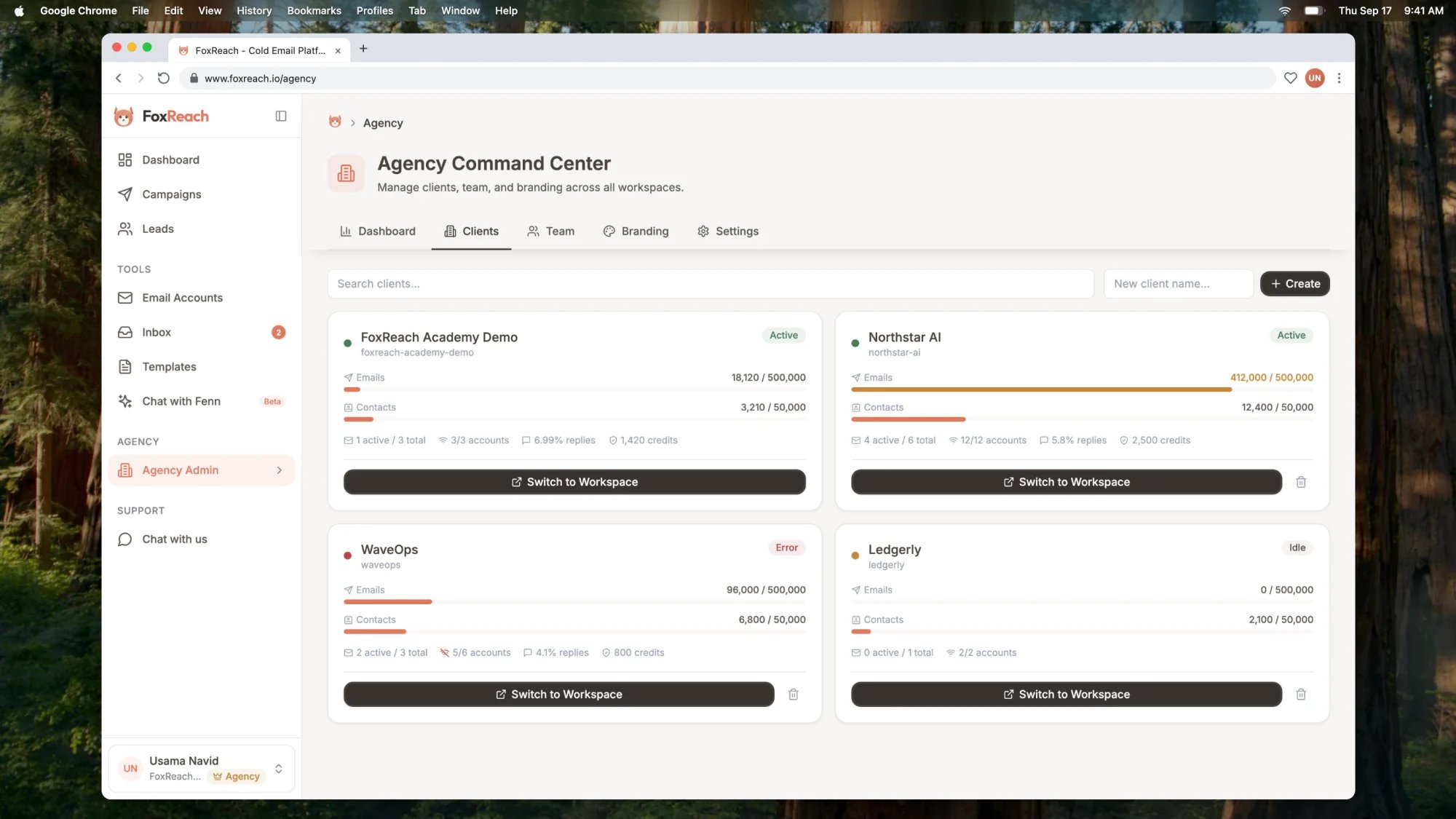 Reading a card from the top:
* **Name, slug and a status badge.** The badge is Active when campaigns are running, Idle when the workspace has campaigns but none running, Setup when it has none yet, and Error when any email account has a connection error. WaveOps shows Error for that reason.
* **Two usage bars.** Emails shows sent this month against the monthly limit, and Contacts shows stored contacts against the contact limit. A bar turns amber at 80 percent and red at 100 percent, which is how Northstar AI stands out in the screenshot.
* **A stats row.** Active campaigns out of total, connected accounts out of total, the reply rate when there is one, and verification credits when the workspace has any.
To work inside a client, click Switch to Workspace. Every page, from the dashboard to the inbox, now shows only that client's data, so connect their inboxes, import their leads and build their campaigns there. To come back, click Agency Admin in the sidebar; it stays visible in every workspace you own because the plan follows you.
The trash icon on a card deletes the client workspace after you type its name to confirm, because nothing in it can be recovered. The Personal workspace has no delete option.
Watch a heavy sender's Emails bar rather than the agency-wide tile. The dashboard total can look healthy while one client is about to stall.
## Step 5: Set your agency branding
Open the Branding tab. This is where you give agency mode your own identity instead of FoxReach's. The form on the left has these fields:
* **Brand Name**, with the placeholder "Your Agency Name". The video sets it to Brightlane Growth.
* **Logo URL** and **Favicon URL**. Both must be full HTTPS links to images you already host.
* **Primary Color** and **Accent Color**, each with a color picker and a hex field.
* A checkbox labelled Hide "Sent with FoxReach" watermark, described on the tab as removing FoxReach branding from emails sent by your clients.
Click Save Branding. A "Branding updated" toast confirms the save.
Reading a card from the top:
* **Name, slug and a status badge.** The badge is Active when campaigns are running, Idle when the workspace has campaigns but none running, Setup when it has none yet, and Error when any email account has a connection error. WaveOps shows Error for that reason.
* **Two usage bars.** Emails shows sent this month against the monthly limit, and Contacts shows stored contacts against the contact limit. A bar turns amber at 80 percent and red at 100 percent, which is how Northstar AI stands out in the screenshot.
* **A stats row.** Active campaigns out of total, connected accounts out of total, the reply rate when there is one, and verification credits when the workspace has any.
To work inside a client, click Switch to Workspace. Every page, from the dashboard to the inbox, now shows only that client's data, so connect their inboxes, import their leads and build their campaigns there. To come back, click Agency Admin in the sidebar; it stays visible in every workspace you own because the plan follows you.
The trash icon on a card deletes the client workspace after you type its name to confirm, because nothing in it can be recovered. The Personal workspace has no delete option.
Watch a heavy sender's Emails bar rather than the agency-wide tile. The dashboard total can look healthy while one client is about to stall.
## Step 5: Set your agency branding
Open the Branding tab. This is where you give agency mode your own identity instead of FoxReach's. The form on the left has these fields:
* **Brand Name**, with the placeholder "Your Agency Name". The video sets it to Brightlane Growth.
* **Logo URL** and **Favicon URL**. Both must be full HTTPS links to images you already host.
* **Primary Color** and **Accent Color**, each with a color picker and a hex field.
* A checkbox labelled Hide "Sent with FoxReach" watermark, described on the tab as removing FoxReach branding from emails sent by your clients.
Click Save Branding. A "Branding updated" toast confirms the save.
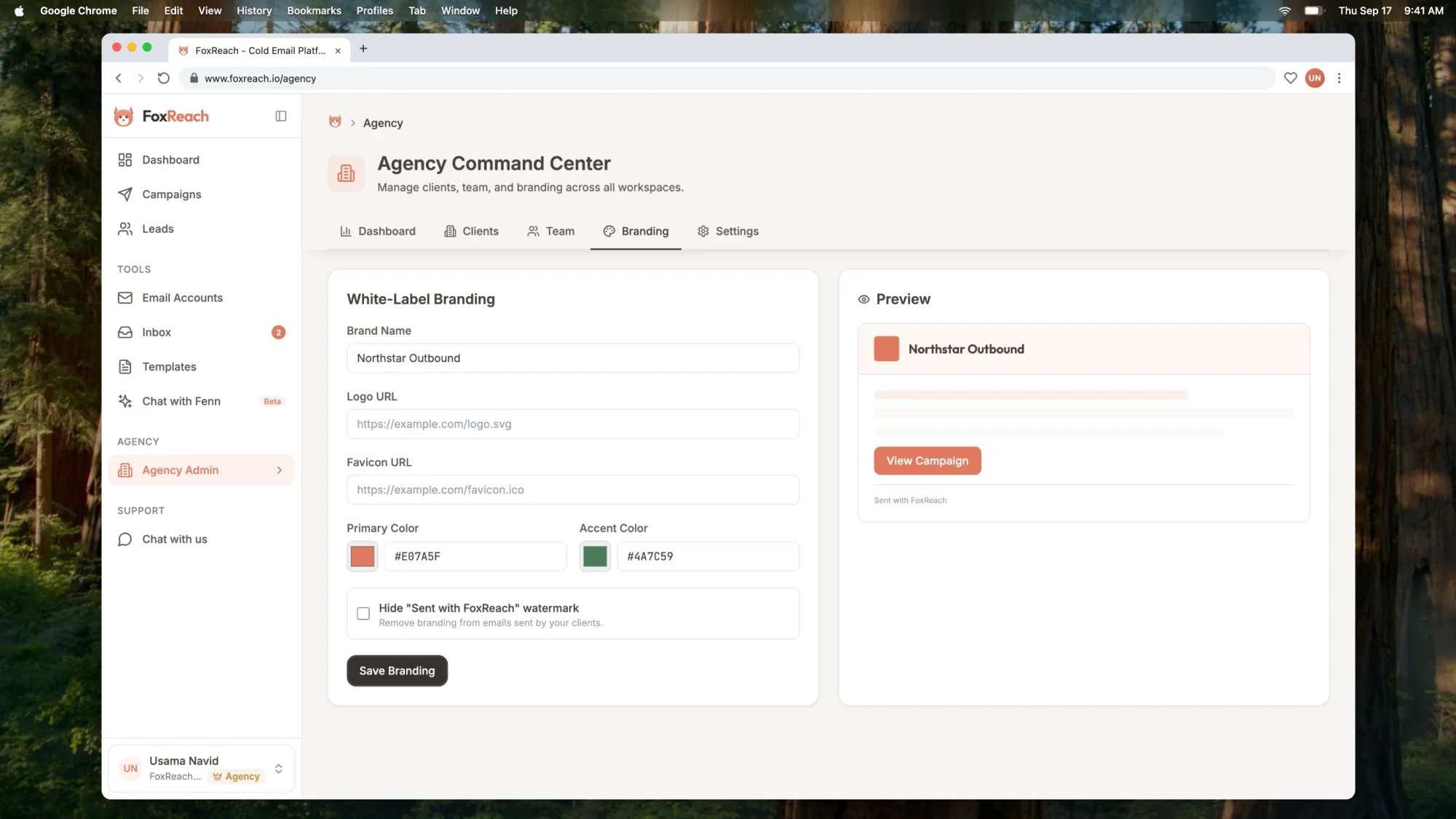 The Preview card on the right updates as you type, showing your logo, brand name and primary color on a mock header and button, so you can check a color reads well before you commit to it.
## Step 6: Bring your own OpenAI key (optional)
The Settings tab has a BYO OpenAI Key card. Paste a key that starts with sk- and click Save Key. Once saved, the card shows a Key configured badge and a Remove button. The tab describes this as bringing your own key for unlimited AI credits across all client workspaces.
The same tab has a Verification Credits card totalling verification credits across your client workspaces. The Agency plan includes 1,000 a month.
## How client workspaces work
A client workspace in agency mode is a regular FoxReach workspace that you own. Four things follow from that.
**Isolation is complete.** Leads, tags, campaigns, sequences, connected email accounts, warmup state, the inbox, templates, webhooks, API keys and sending defaults all belong to one workspace. A lead that exists for two clients is two separate records with two separate histories. There is no cross-client view of replies, by design.
**The plan follows you, not the workspace.** Starter and Growth subscriptions attach to the workspace they were bought in. Agency is different: because you own an Agency workspace, every workspace you own resolves to Agency. You do not upgrade each client separately. Each client workspace gets the Agency limits: 200,000 contacts, 500,000 emails a month with a 25,000 a day safety cap, unlimited email accounts and campaigns, and unlimited AI credits.
**The cap is 30 client workspaces.** That count is per account, across every workspace you own, including the personal one. If an agency outgrows it, our team can add extra workspace slots without moving you to a different plan. Ask from the [contact page](https://www.foxreach.io/contact).
**A workspace is for a client, a campaign is for a project.** If the work shares the same sending domains, the same team and the same reporting, it belongs in one workspace as separate campaigns. Create a new workspace when the data must not mix: a different client, a different brand with its own domains, or a partner who should never see another pipeline. The longer version of that decision, plus the seat and workspace limits on every plan, is in the [workspaces guide](/docs/product/workspaces).
Two practical rules for agencies. Connect each client's inboxes inside that client's workspace, on domains the client controls, so warmup, sending limits and replies land in the right place. Google's [email sender guidelines](https://support.google.com/a/answer/81126) apply per sending domain, so authentication and complaint rates are judged client by client, not agency-wide. And because you send on a client's behalf, the [FTC's CAN-SPAM compliance guide](https://www.ftc.gov/business-guidance/resources/can-spam-act-compliance-guide-business) holds both the company whose product is promoted and the company that sends the mail responsible, so keep each client's unsubscribe handling and postal address inside their own workspace templates.
## Team access
The Team tab is the access matrix. Instead of inviting the same person into each client workspace one at a time, you add them to the agency once and tick the clients they should see.
Click Invite Member. The Invite Team Member panel asks for three things:
* **Email.** The person must already have a FoxReach account; the panel says so under the field, and the invite fails with a "User not found" message otherwise.
* **Role.** Member or Manager.
* **Workspace Access.** A checkbox per client workspace. Tick the ones this teammate should work in.
Click Send Invite. The teammate gets each ticked workspace in their switcher immediately; there is no email link to accept. The tab then lists them with their role and an "Access:" line naming the workspaces they can open.
To change what someone can see, click Edit Access on their row, adjust the role or the checkboxes, and click Save Changes. Removing someone with the trash icon takes them out of every client workspace they were assigned to at once, and their assignments are not kept, so re-inviting them means ticking the workspaces again.
Team members are unlimited on the Agency plan, so access is the only thing to decide: a fulfilment teammate gets the clients they run, a reviewer gets every client, a client-side contractor gets exactly one.
The agency team and a workspace's own member list are different things. Someone invited through Settings, Workspace inside a client workspace is a member there but not on your Team tab. Use the Team tab for your people and per-workspace invites for the client's staff.
## Troubleshooting
**Agency Admin is missing from the sidebar.** The link only renders on the Agency plan, and only for the account that owns the subscription. Check Settings, Billing for the plan name. If you were invited to an agency's workspace rather than owning one, the owner sees Agency Admin and you do not.
**A client card shows Error.** One or more of that workspace's email accounts has a connection error, usually an expired password or a revoked OAuth grant. Click Switch to Workspace, open Email Accounts, and reconnect the account. The Error badge clears on the next refresh. Reconnecting is covered in [connect an email account to FoxReach](/docs/get-started/connect-email-account).
**Create fails with "Your Agency plan allows 30 workspace(s). Upgrade to create more."** You have hit the workspace cap. Delete a client you no longer serve, or ask the team for extra workspace slots from the contact page.
**A teammate cannot see a client.** Open the Team tab and check their Access line. If the client is not listed, click Edit Access, tick it and save. If they were added to the workspace directly and later removed there, the matrix may still list it; untick and re-tick the workspace to resync.
**Save Branding fails.** Logo URL and Favicon URL must start with https\://, and the two colors must be six-digit hex values like #E07A5F. Fix the field and retry.
## Next step
You now have agency mode running: one screen for every client, a workspace per client, and a team that only sees what it should. Next, switch into your first client and [connect their email accounts](/docs/get-started/connect-email-account), then launch a campaign and learn to [read the results](/docs/get-started/campaign-results) per client. If a client wants their CRM or an automation wired to their workspace, the [API keys and webhooks guide](/docs/product/api-keys-and-webhooks) shows how to give each client workspace its own key.
If you are still deciding whether the Agency plan fits, the [workspaces guide](/docs/product/workspaces) explains what every plan includes, and the [pricing page](https://www.foxreach.io/pricing) has the current numbers.
## Frequently asked questions
Agency mode is the Agency Command Center that the Agency plan unlocks at Agency Admin in the sidebar. It rolls every client workspace you own into one dashboard, flags what needs attention, lets you create and switch into client workspaces, assign teammates to clients from one access matrix, and set your agency's branding.
The Agency plan includes up to 30 client workspaces, with unlimited team members across them. Each workspace you own gets the Agency limits of 200,000 contacts and 500,000 emails per month. If you need more than 30 workspaces, contact the FoxReach team and they can add extra workspace slots to your account.
No. The Agency subscription follows you as the owner, not the workspace it was bought in. Every client workspace you create from the Clients tab resolves to the Agency plan automatically, so you pay once and every client gets the same limits, email accounts, campaigns and AI credits.
Yes. On the Team tab, invite a teammate and tick only the workspaces they should have under Workspace Access. They see those workspaces in their switcher and nothing else. Edit Access changes the list later. The teammate must already have a FoxReach account before you can add them.
It lists three kinds of alerts across all your client workspaces: an email account with a connection error, a workspace that is close to its monthly email limit, and a client workspace that has no active campaigns. Fix the errors first, then the limits, then the idle clients.
The Preview card on the right updates as you type, showing your logo, brand name and primary color on a mock header and button, so you can check a color reads well before you commit to it.
## Step 6: Bring your own OpenAI key (optional)
The Settings tab has a BYO OpenAI Key card. Paste a key that starts with sk- and click Save Key. Once saved, the card shows a Key configured badge and a Remove button. The tab describes this as bringing your own key for unlimited AI credits across all client workspaces.
The same tab has a Verification Credits card totalling verification credits across your client workspaces. The Agency plan includes 1,000 a month.
## How client workspaces work
A client workspace in agency mode is a regular FoxReach workspace that you own. Four things follow from that.
**Isolation is complete.** Leads, tags, campaigns, sequences, connected email accounts, warmup state, the inbox, templates, webhooks, API keys and sending defaults all belong to one workspace. A lead that exists for two clients is two separate records with two separate histories. There is no cross-client view of replies, by design.
**The plan follows you, not the workspace.** Starter and Growth subscriptions attach to the workspace they were bought in. Agency is different: because you own an Agency workspace, every workspace you own resolves to Agency. You do not upgrade each client separately. Each client workspace gets the Agency limits: 200,000 contacts, 500,000 emails a month with a 25,000 a day safety cap, unlimited email accounts and campaigns, and unlimited AI credits.
**The cap is 30 client workspaces.** That count is per account, across every workspace you own, including the personal one. If an agency outgrows it, our team can add extra workspace slots without moving you to a different plan. Ask from the [contact page](https://www.foxreach.io/contact).
**A workspace is for a client, a campaign is for a project.** If the work shares the same sending domains, the same team and the same reporting, it belongs in one workspace as separate campaigns. Create a new workspace when the data must not mix: a different client, a different brand with its own domains, or a partner who should never see another pipeline. The longer version of that decision, plus the seat and workspace limits on every plan, is in the [workspaces guide](/docs/product/workspaces).
Two practical rules for agencies. Connect each client's inboxes inside that client's workspace, on domains the client controls, so warmup, sending limits and replies land in the right place. Google's [email sender guidelines](https://support.google.com/a/answer/81126) apply per sending domain, so authentication and complaint rates are judged client by client, not agency-wide. And because you send on a client's behalf, the [FTC's CAN-SPAM compliance guide](https://www.ftc.gov/business-guidance/resources/can-spam-act-compliance-guide-business) holds both the company whose product is promoted and the company that sends the mail responsible, so keep each client's unsubscribe handling and postal address inside their own workspace templates.
## Team access
The Team tab is the access matrix. Instead of inviting the same person into each client workspace one at a time, you add them to the agency once and tick the clients they should see.
Click Invite Member. The Invite Team Member panel asks for three things:
* **Email.** The person must already have a FoxReach account; the panel says so under the field, and the invite fails with a "User not found" message otherwise.
* **Role.** Member or Manager.
* **Workspace Access.** A checkbox per client workspace. Tick the ones this teammate should work in.
Click Send Invite. The teammate gets each ticked workspace in their switcher immediately; there is no email link to accept. The tab then lists them with their role and an "Access:" line naming the workspaces they can open.
To change what someone can see, click Edit Access on their row, adjust the role or the checkboxes, and click Save Changes. Removing someone with the trash icon takes them out of every client workspace they were assigned to at once, and their assignments are not kept, so re-inviting them means ticking the workspaces again.
Team members are unlimited on the Agency plan, so access is the only thing to decide: a fulfilment teammate gets the clients they run, a reviewer gets every client, a client-side contractor gets exactly one.
The agency team and a workspace's own member list are different things. Someone invited through Settings, Workspace inside a client workspace is a member there but not on your Team tab. Use the Team tab for your people and per-workspace invites for the client's staff.
## Troubleshooting
**Agency Admin is missing from the sidebar.** The link only renders on the Agency plan, and only for the account that owns the subscription. Check Settings, Billing for the plan name. If you were invited to an agency's workspace rather than owning one, the owner sees Agency Admin and you do not.
**A client card shows Error.** One or more of that workspace's email accounts has a connection error, usually an expired password or a revoked OAuth grant. Click Switch to Workspace, open Email Accounts, and reconnect the account. The Error badge clears on the next refresh. Reconnecting is covered in [connect an email account to FoxReach](/docs/get-started/connect-email-account).
**Create fails with "Your Agency plan allows 30 workspace(s). Upgrade to create more."** You have hit the workspace cap. Delete a client you no longer serve, or ask the team for extra workspace slots from the contact page.
**A teammate cannot see a client.** Open the Team tab and check their Access line. If the client is not listed, click Edit Access, tick it and save. If they were added to the workspace directly and later removed there, the matrix may still list it; untick and re-tick the workspace to resync.
**Save Branding fails.** Logo URL and Favicon URL must start with https\://, and the two colors must be six-digit hex values like #E07A5F. Fix the field and retry.
## Next step
You now have agency mode running: one screen for every client, a workspace per client, and a team that only sees what it should. Next, switch into your first client and [connect their email accounts](/docs/get-started/connect-email-account), then launch a campaign and learn to [read the results](/docs/get-started/campaign-results) per client. If a client wants their CRM or an automation wired to their workspace, the [API keys and webhooks guide](/docs/product/api-keys-and-webhooks) shows how to give each client workspace its own key.
If you are still deciding whether the Agency plan fits, the [workspaces guide](/docs/product/workspaces) explains what every plan includes, and the [pricing page](https://www.foxreach.io/pricing) has the current numbers.
## Frequently asked questions
Agency mode is the Agency Command Center that the Agency plan unlocks at Agency Admin in the sidebar. It rolls every client workspace you own into one dashboard, flags what needs attention, lets you create and switch into client workspaces, assign teammates to clients from one access matrix, and set your agency's branding.
The Agency plan includes up to 30 client workspaces, with unlimited team members across them. Each workspace you own gets the Agency limits of 200,000 contacts and 500,000 emails per month. If you need more than 30 workspaces, contact the FoxReach team and they can add extra workspace slots to your account.
No. The Agency subscription follows you as the owner, not the workspace it was bought in. Every client workspace you create from the Clients tab resolves to the Agency plan automatically, so you pay once and every client gets the same limits, email accounts, campaigns and AI credits.
Yes. On the Team tab, invite a teammate and tick only the workspaces they should have under Workspace Access. They see those workspaces in their switcher and nothing else. Edit Access changes the list later. The teammate must already have a FoxReach account before you can add them.
It lists three kinds of alerts across all your client workspaces: an email account with a connection error, a workspace that is close to its monthly email limit, and a client workspace that has no active campaigns. Fix the errors first, then the limits, then the idle clients.