> ## Documentation Index
> Fetch the complete documentation index at: https://www.foxreach.io/docs/llms.txt
> Use this file to discover all available pages before exploring further.
# Your account settings
> The Account and Appearance tabs in FoxReach Settings: profile and timezone, passwords and passkeys, the emails FoxReach sends you, the product tour, light and dark mode with colour presets, and deleting your account.
Settings has six tabs. Workspace, Integrations, Billing and Refer & Earn each have their own guide. This page covers the two that are about you rather than the workspace: **Account** and **Appearance**. Everything here follows you across workspaces.
## Profile and timezone
The Account tab opens on your profile: your name, the email you sign in with, which sign-in methods are linked, and your timezone.
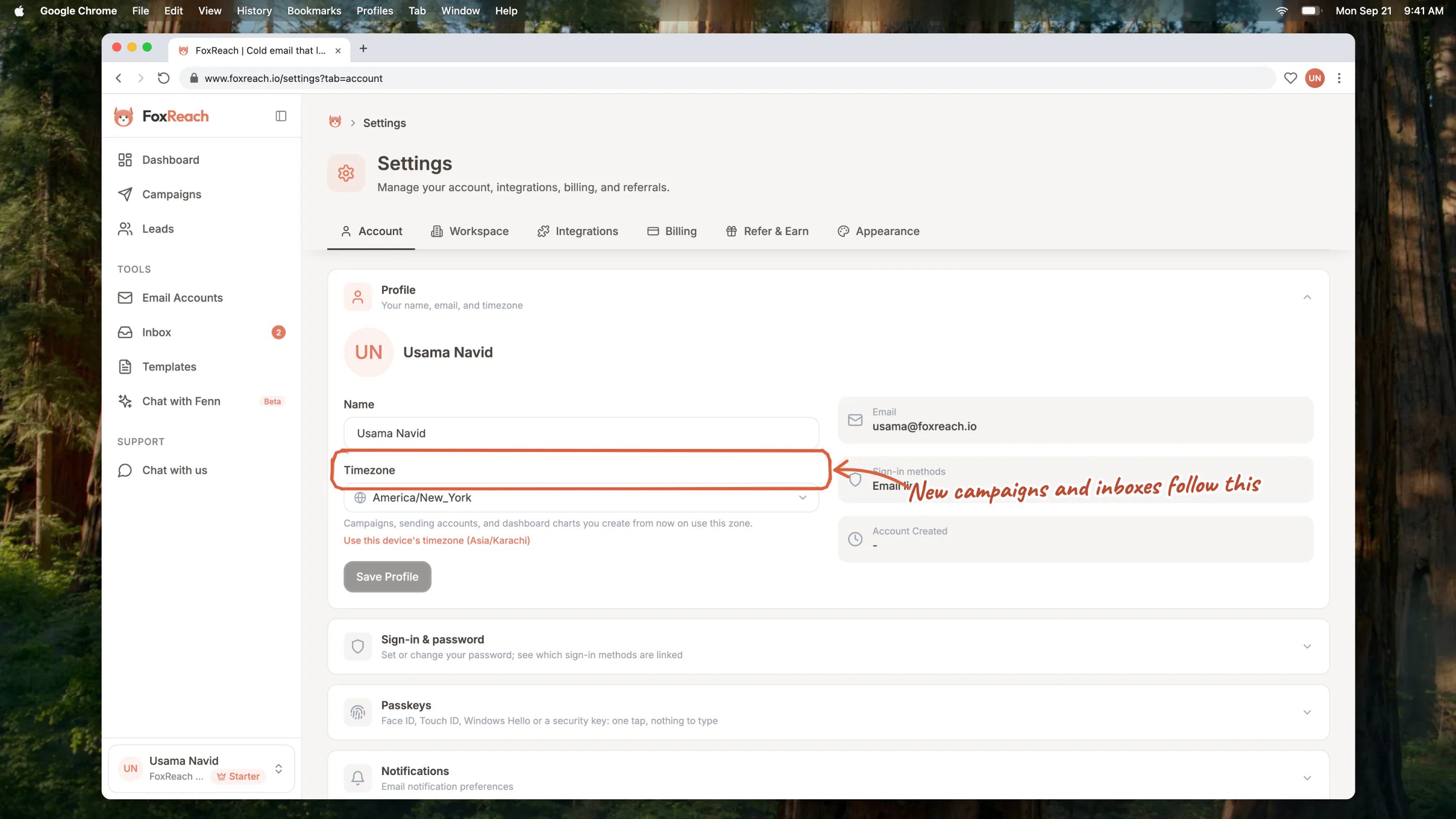 The timezone matters more than it looks. Campaigns, sending accounts and dashboard charts you create from now on use it as their default, so a campaign's 9 to 5 sending window means 9 to 5 in this zone unless you change it on the campaign. Click **Use this device's timezone** to set it to wherever you are, then **Save Profile**. Existing campaigns keep the zone they were created with.
Your email address is fixed here; it is the identity every sign-in method resolves to.
## Sign-in and password
Open **Sign-in & password**. If you signed up with Google or a sign-in link you have no password yet, and this is where you add one, so you can sign in without either. If you already have one, the same form changes it and asks for the current password first. Other devices stay signed in either way.
The timezone matters more than it looks. Campaigns, sending accounts and dashboard charts you create from now on use it as their default, so a campaign's 9 to 5 sending window means 9 to 5 in this zone unless you change it on the campaign. Click **Use this device's timezone** to set it to wherever you are, then **Save Profile**. Existing campaigns keep the zone they were created with.
Your email address is fixed here; it is the identity every sign-in method resolves to.
## Sign-in and password
Open **Sign-in & password**. If you signed up with Google or a sign-in link you have no password yet, and this is where you add one, so you can sign in without either. If you already have one, the same form changes it and asks for the current password first. Other devices stay signed in either way.
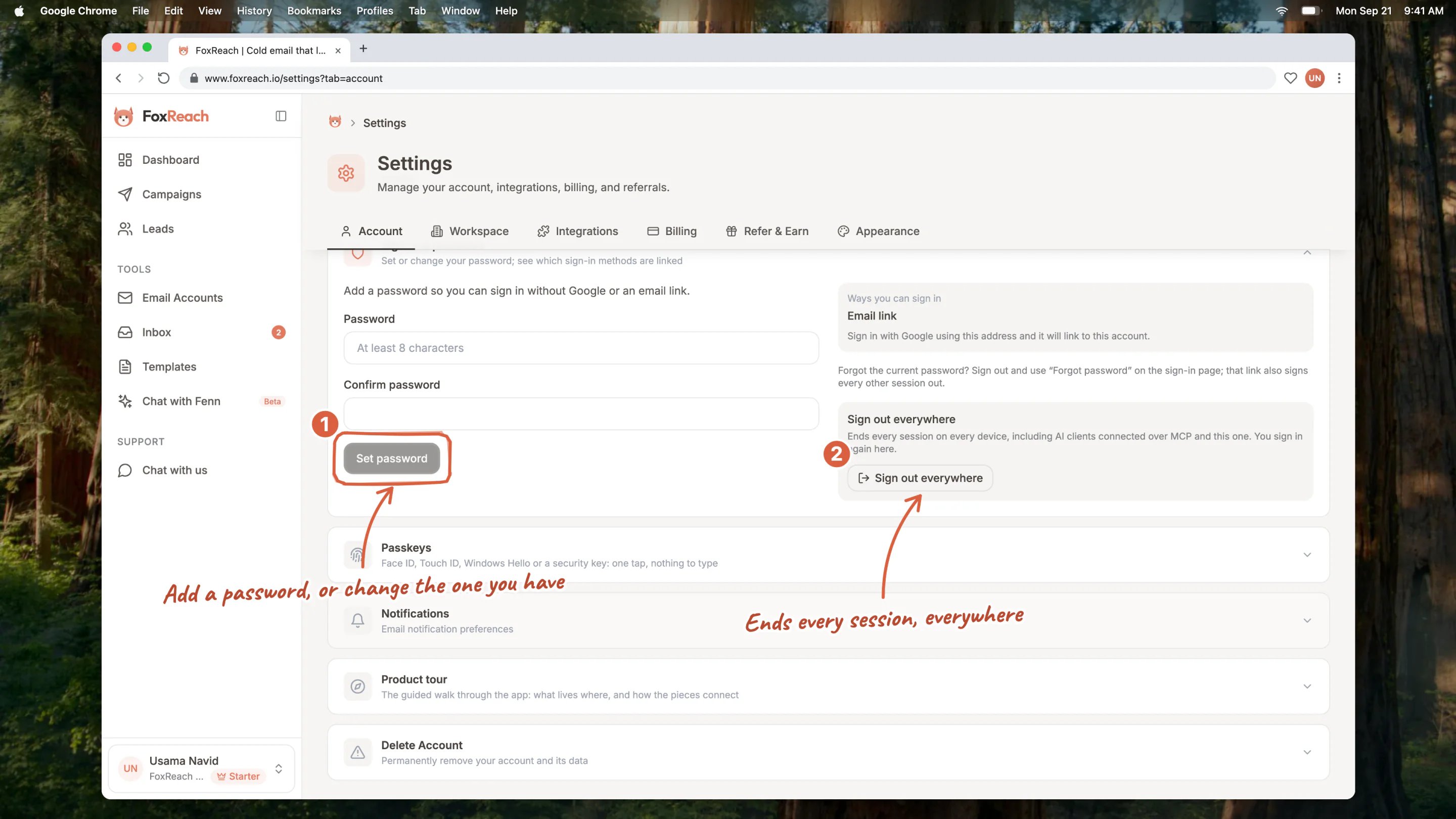 Forgot the current one? Use **Forgot password?** on the sign-in page instead. That emails a reset link, and completing it signs every other session of yours out.
**Sign out everywhere**, in the same section, ends every session on every device at once: other browsers, your phone, and AI clients connected over MCP, plus the one you are using, so you sign in again. Use it when a device goes missing or you signed in somewhere you should not have. Passwords and passkeys are not changed.
### Passkeys
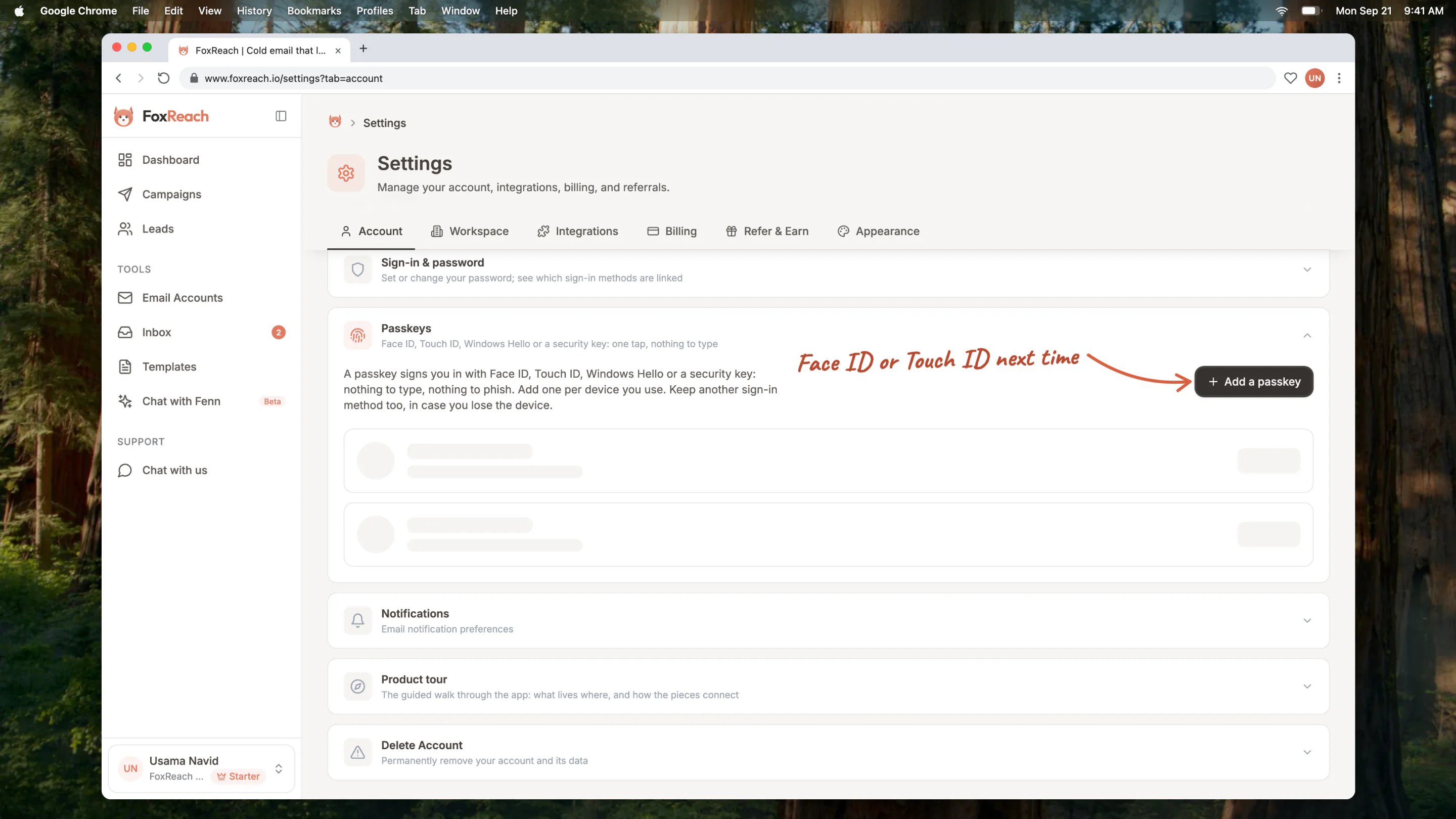
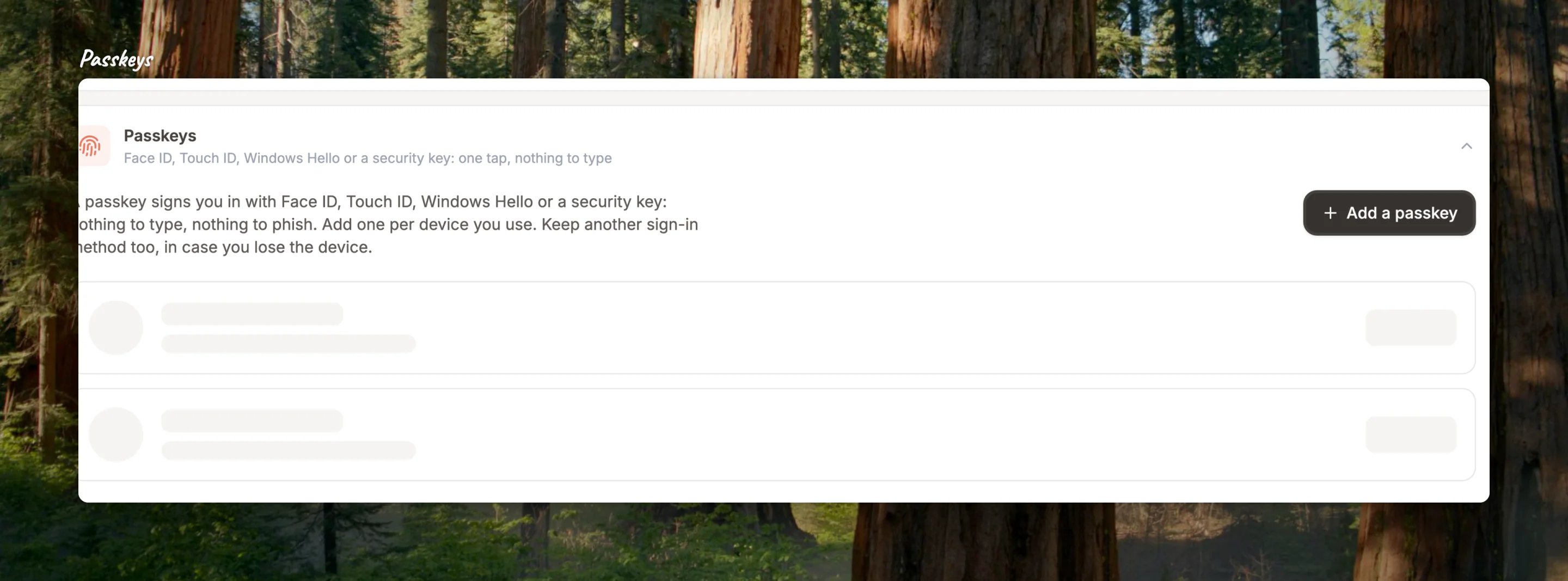
A passkey signs you in with Face ID, Touch ID, Windows Hello or a security key: nothing to type and nothing to phish. Open **Passkeys** and click **Add a passkey**; your device asks you to confirm, and the next sign-in on that device is one tap. Add one per device you use. Each passkey has a name you can change, and a remove button.
Forgot the current one? Use **Forgot password?** on the sign-in page instead. That emails a reset link, and completing it signs every other session of yours out.
**Sign out everywhere**, in the same section, ends every session on every device at once: other browsers, your phone, and AI clients connected over MCP, plus the one you are using, so you sign in again. Use it when a device goes missing or you signed in somewhere you should not have. Passwords and passkeys are not changed.
### Passkeys
A passkey signs you in with Face ID, Touch ID, Windows Hello or a security key: nothing to type and nothing to phish. Open **Passkeys** and click **Add a passkey**; your device asks you to confirm, and the next sign-in on that device is one tap. Add one per device you use. Each passkey has a name you can change, and a remove button.
 Keep a second sign-in method too. A passkey lives on the device that made it (or in that device's password manager), so a lost laptop should not be your only way in.
## The emails FoxReach sends you
Open **Notifications**. Each kind of email FoxReach sends about your account has its own switch: onboarding tips, the weekly digest of campaign performance and replies, a note when a campaign completes, health alerts about a sending inbox, and a note when an import finishes. Turn off what you do not want; the rest keeps coming.
Keep a second sign-in method too. A passkey lives on the device that made it (or in that device's password manager), so a lost laptop should not be your only way in.
## The emails FoxReach sends you
Open **Notifications**. Each kind of email FoxReach sends about your account has its own switch: onboarding tips, the weekly digest of campaign performance and replies, a note when a campaign completes, health alerts about a sending inbox, and a note when an import finishes. Turn off what you do not want; the rest keeps coming.
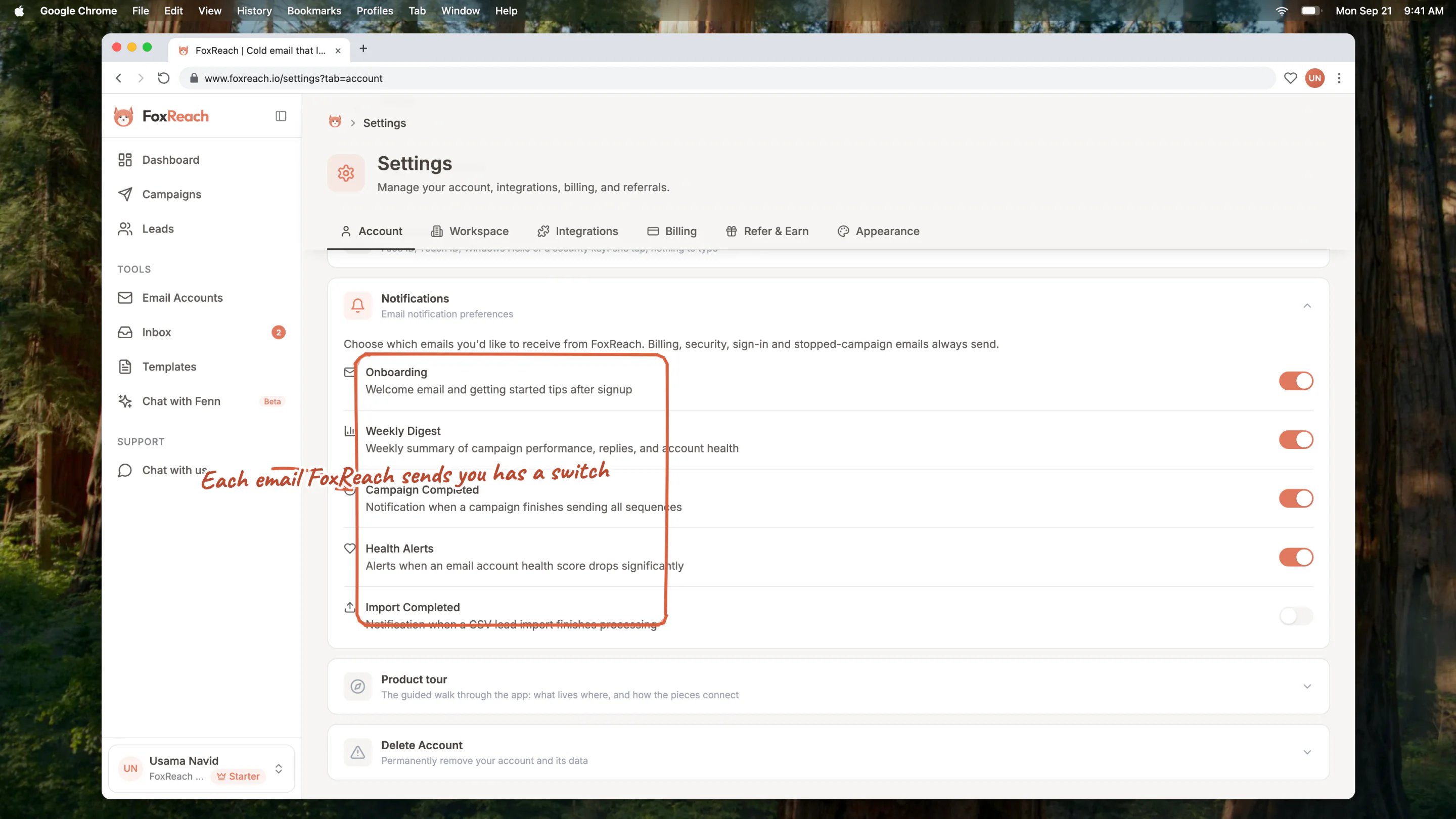 Every one of those emails also has an unsubscribe link in its footer that flips the matching switch off for you. Billing receipts and workspace invitations are not on this list; they always arrive.
## The product tour
**Product tour** replays the ten-step walk through the app that ran on your first visit. Handy after a long break or when someone new is looking over your shoulder. The [getting started guide](/docs/get-started/overview) describes what the tour covers.
## Appearance
The Appearance tab controls how FoxReach looks in this browser, and only this browser; it is not saved to your account.
Every one of those emails also has an unsubscribe link in its footer that flips the matching switch off for you. Billing receipts and workspace invitations are not on this list; they always arrive.
## The product tour
**Product tour** replays the ten-step walk through the app that ran on your first visit. Handy after a long break or when someone new is looking over your shoulder. The [getting started guide](/docs/get-started/overview) describes what the tour covers.
## Appearance
The Appearance tab controls how FoxReach looks in this browser, and only this browser; it is not saved to your account.
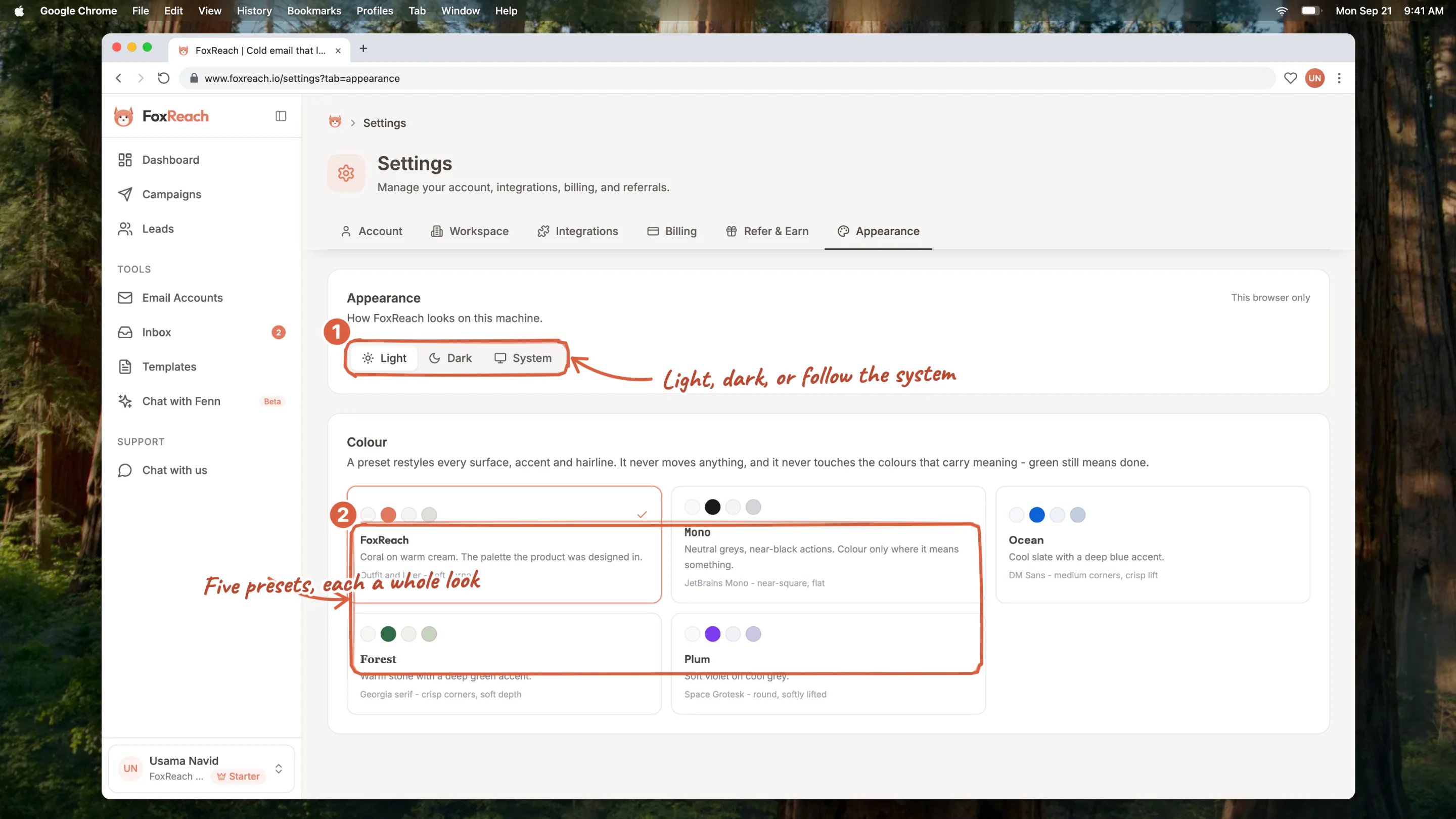
 * **Light, Dark or System.** System follows your operating system, so the app switches with it at sunset.
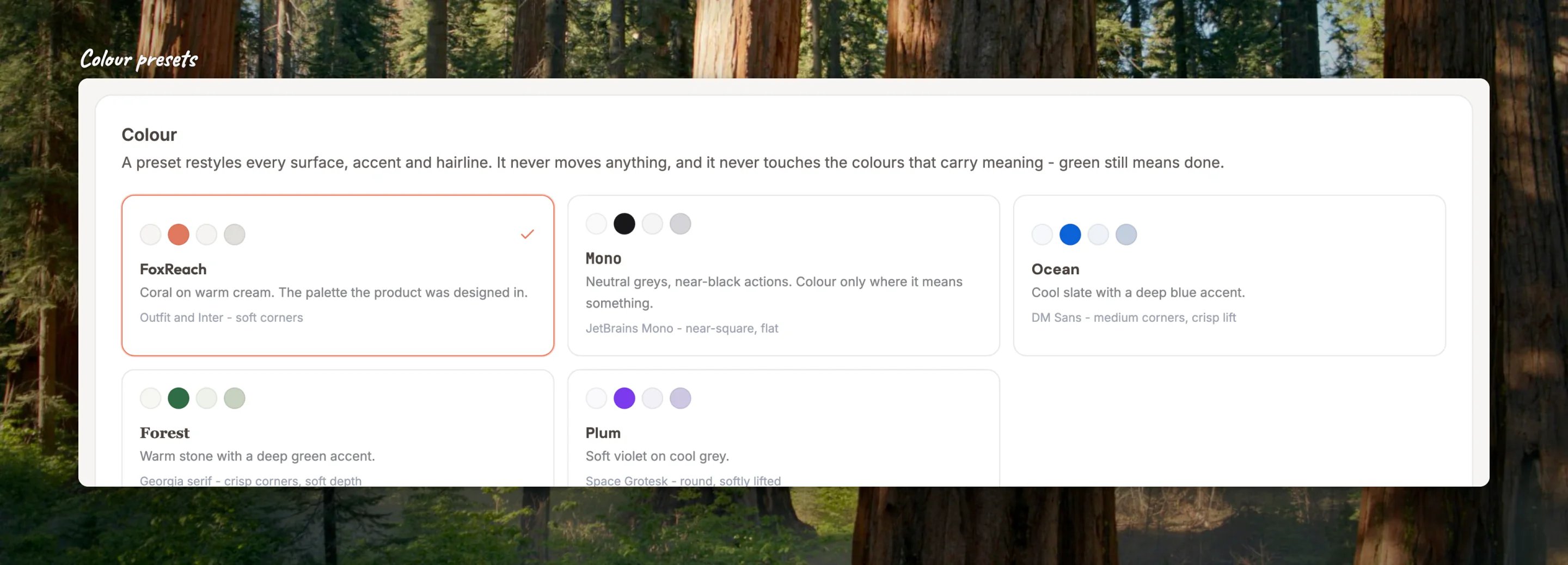
* **Colour presets.** FoxReach is the coral-on-cream look the product was designed in. Mono is neutral greys with colour only where it means something. Ocean, Forest and Plum each pair a different accent with their own typeface and corner style. A preset restyles every surface; it never moves anything, and the colours that carry meaning stay put, so green still means done and red still means failed.
## Delete your account
At the bottom of the Account tab, **Delete Account** removes you and everything you own. Open it and FoxReach first shows what would go: the workspaces you own, and the campaigns, contacts, connected email accounts and templates inside them. If you are a member of someone else's workspace, that membership ends but their data is untouched.
* **Light, Dark or System.** System follows your operating system, so the app switches with it at sunset.
* **Colour presets.** FoxReach is the coral-on-cream look the product was designed in. Mono is neutral greys with colour only where it means something. Ocean, Forest and Plum each pair a different accent with their own typeface and corner style. A preset restyles every surface; it never moves anything, and the colours that carry meaning stay put, so green still means done and red still means failed.
## Delete your account
At the bottom of the Account tab, **Delete Account** removes you and everything you own. Open it and FoxReach first shows what would go: the workspaces you own, and the campaigns, contacts, connected email accounts and templates inside them. If you are a member of someone else's workspace, that membership ends but their data is untouched.
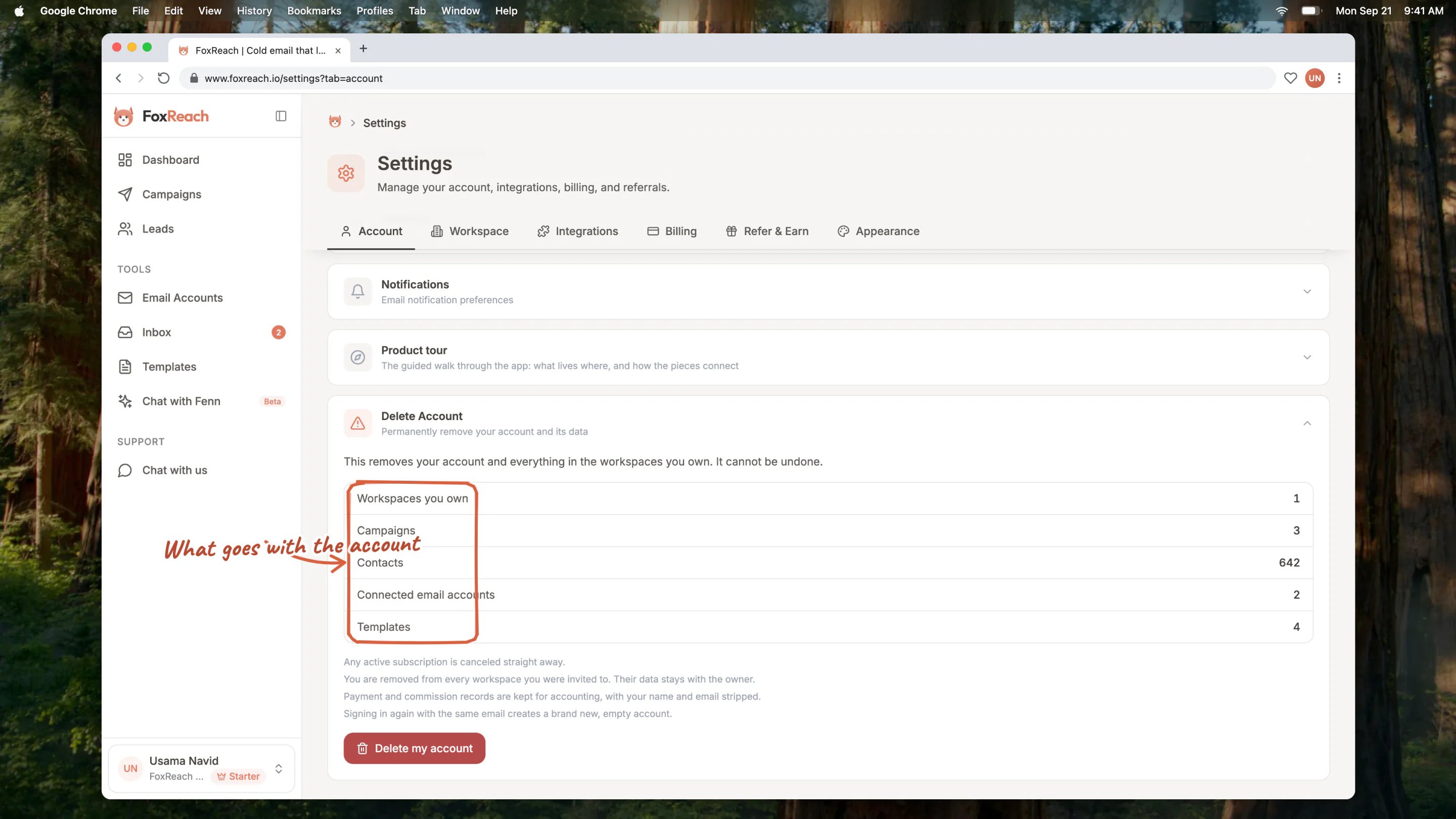 If you own a workspace that still has other members, deletion is blocked until you transfer ownership or remove them, so a team is never left with a headless workspace. To go ahead, type **DELETE** into the confirmation box and confirm. Any paid subscription on your workspaces is cancelled at the same time, and the deletion cannot be undone.
## Related guides
* [Getting started](/docs/get-started/overview)
* [Workspaces and team](/docs/product/workspaces)
* [Plans and billing](/docs/product/plans-and-billing)
## Frequently asked questions
Not from Settings. The address is the identity every sign-in method resolves to. Contact support and they will help you move to a new one.
No. It becomes the default for campaigns and email accounts you create from now on. Existing campaigns keep the zone in their own settings, which you can change on the campaign's Settings tab.
Billing receipts and workspace invitations are sent regardless of the switches; nothing else should be. If another kind keeps arriving, check that the switch is off for the account that received it, since preferences are per account, not per workspace.
Appearance is stored in the browser, not on your account, so each browser has its own choice.
Deletion is blocked while such a workspace exists. Transfer ownership to another member from the Workspace tab, or remove the members, and try again.
If you own a workspace that still has other members, deletion is blocked until you transfer ownership or remove them, so a team is never left with a headless workspace. To go ahead, type **DELETE** into the confirmation box and confirm. Any paid subscription on your workspaces is cancelled at the same time, and the deletion cannot be undone.
## Related guides
* [Getting started](/docs/get-started/overview)
* [Workspaces and team](/docs/product/workspaces)
* [Plans and billing](/docs/product/plans-and-billing)
## Frequently asked questions
Not from Settings. The address is the identity every sign-in method resolves to. Contact support and they will help you move to a new one.
No. It becomes the default for campaigns and email accounts you create from now on. Existing campaigns keep the zone in their own settings, which you can change on the campaign's Settings tab.
Billing receipts and workspace invitations are sent regardless of the switches; nothing else should be. If another kind keeps arriving, check that the switch is off for the account that received it, since preferences are per account, not per workspace.
Appearance is stored in the browser, not on your account, so each browser has its own choice.
Deletion is blocked while such a workspace exists. Transfer ownership to another member from the Workspace tab, or remove the members, and try again.