> ## Documentation Index
> Fetch the complete documentation index at: https://www.foxreach.io/docs/llms.txt
> Use this file to discover all available pages before exploring further.
# Automate cold email with n8n
> Install the FoxReach community node for n8n, connect your API key, and build automation workflows to manage leads and campaigns programmatically.
## Overview
The FoxReach n8n community node lets you connect FoxReach to hundreds of other apps - CRMs, spreadsheets, Slack, webhooks, and more. Create leads from form submissions, add them to campaigns automatically, and react to replies in real time.
This guide walks you through installation, setup, and three practical workflows you can build today. n8n is one of several ways to plug into FoxReach; the [integrations page](https://www.foxreach.io/integrations) lists the others, including the SDKs, the CLI, and the MCP server.
## Prerequisites
Before you start, make sure you have:
* A FoxReach account with an API key (Settings > Integrations > API Keys)
* An n8n instance (self-hosted or n8n Cloud)
* At least one connected email account and a campaign in FoxReach
If you have never created an API key or a webhook in FoxReach before, the [API keys and webhooks tutorial](/docs/product/api-keys-and-webhooks) walks through both screens in the dashboard.
## Step 1: Install the Node
In your n8n instance, go to **Settings > Community Nodes**, click **Install**, and enter the package name:
```
n8n-nodes-foxreach
```
The package is published on npm as [n8n-nodes-foxreach](https://www.npmjs.com/package/n8n-nodes-foxreach). The n8n docs cover the [GUI installation flow](https://docs.n8n.io/integrations/community-nodes/installation-and-management/gui-installation/) in more detail, including the note that only an owner or admin can install community nodes on a self-hosted instance.
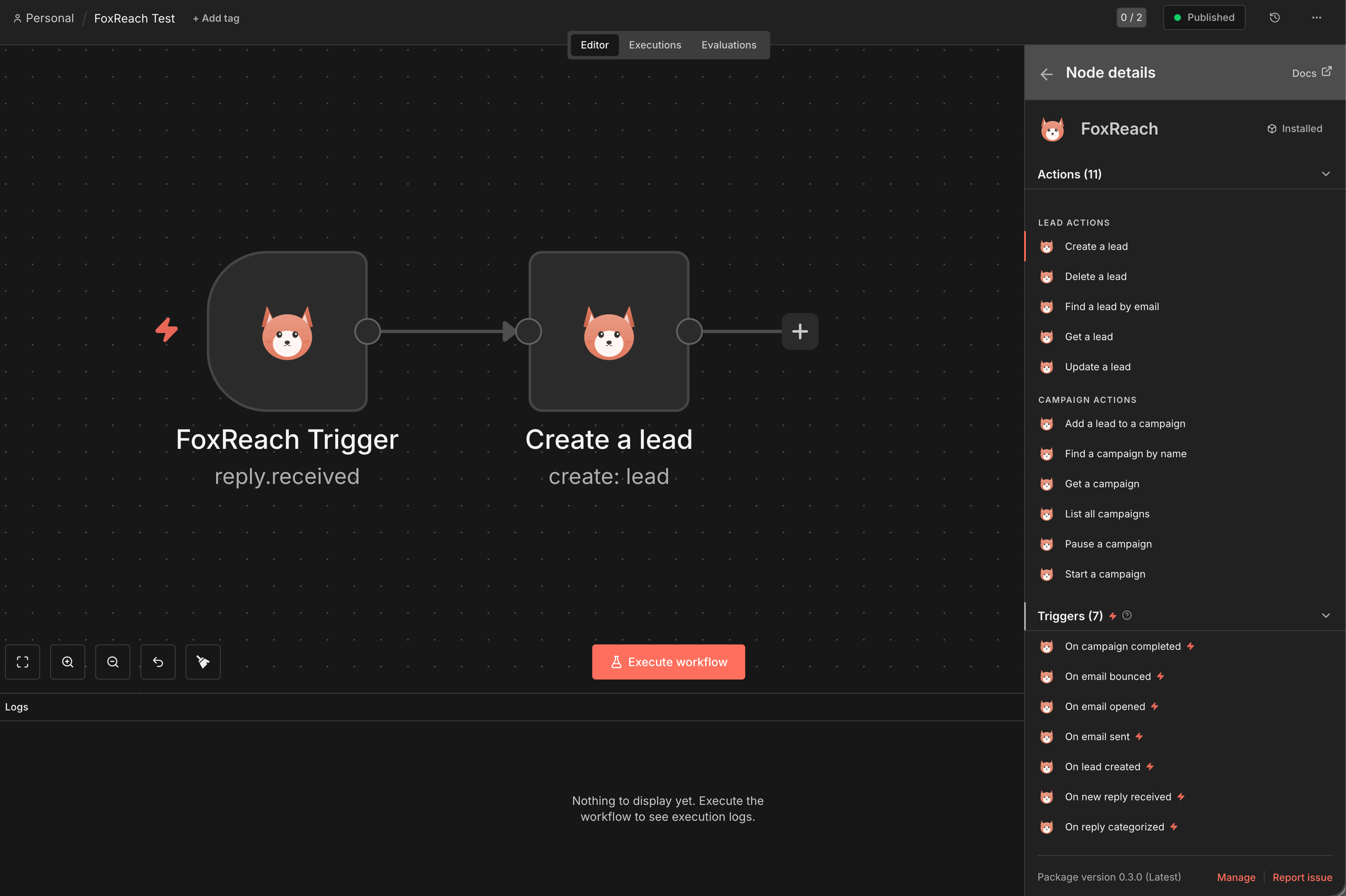
This adds two nodes to your canvas:
* **FoxReach** - The action node. It exposes eight resources: Lead, Campaign, Sequence, Template, Email Account, Inbox, Analytics, and Webhook
* **FoxReach Trigger** - Start workflows when events happen (replies, bounces, opens, campaign status changes, lead changes)
 > If you're self-hosting n8n, you can also install via CLI: `npm install n8n-nodes-foxreach` in your n8n root directory and restart.
## Step 2: Connect Your API Key
1. Open any FoxReach node on the canvas
2. Click **Create New Credential** under the FoxReach API credential
3. Paste your API key (starts with `otr_...`)
4. Click **Save** - n8n will verify the connection
Your API key is stored securely in n8n's credential vault and sent as the `X-API-Key` header on every request.
> You can generate API keys in FoxReach under **Settings > Integrations > API Keys**. Click **Create API Key**, give it a name, and keep both the **read** and **write** scopes selected. The trigger node needs write access to register its webhook, and the full key is only shown once in the **API Key Created** dialog.
## Available Operations
### Lead Operations
| Operation | Description |
| ----------------- | --------------------------------------------------------------------------- |
| **Create** | Add a new lead with email, first name, last name, company, and other fields |
| **Get** | Retrieve a lead by ID |
| **Get Activity** | Get the activity history for a lead |
| **Update** | Modify any field on an existing lead |
| **Delete** | Remove a lead from your workspace |
| **Find by Email** | Search for a lead using their email address |
| **Bulk Import** | Import many leads in one request |
### Campaign Operations
| Operation | Description |
| ------------------ | ------------------------------------------- |
| **Create** | Create a new campaign |
| **Get** | Retrieve campaign details by ID |
| **Get Many** | List all campaigns |
| **Find by Name** | Search for a campaign by name |
| **Update** | Update a campaign (must be paused or draft) |
| **Delete** | Delete a draft campaign |
| **Add Lead** | Add a lead to a specific campaign |
| **Remove Lead** | Remove a lead from a campaign |
| **Add Accounts** | Add email accounts to a campaign |
| **Remove Account** | Remove an email account from a campaign |
| **Start** | Start a campaign |
| **Pause** | Pause an active campaign |
| **Resume** | Resume a paused campaign |
### Other Resources
The node has grown beyond leads and campaigns since the first release. The remaining resources cover the rest of the API surface:
| Resource | Operations |
| ----------------- | ----------------------------------------------------------------------------------- |
| **Sequence** | Create, Get Many, Update, Delete sequence steps for a campaign |
| **Template** | Create, Get, Get Many, Update, Delete |
| **Email Account** | Get, Get Many |
| **Inbox** | Get Many, Get Conversation, Get Stats, Send Reply, Update (read, starred, category) |
| **Analytics** | Campaign Stats, Workspace Overview |
| **Webhook** | Create, Get Many, Get Events, Update, Delete |
### Trigger Events
The FoxReach Trigger node starts your workflow when these events occur:
| Event | Description |
| ---------------------- | --------------------------------------------------------- |
| **New Reply Received** | A prospect replies to your outreach email |
| **Reply Categorized** | A reply is categorized (interested, not interested, etc.) |
| **Email Sent** | An email is successfully sent from a campaign |
| **Email Failed** | An email fails to send |
| **Email Bounced** | A sent email bounces back |
| **Email Opened** | A recipient opens a tracked email |
| **Campaign Started** | A campaign is started or resumed |
| **Campaign Paused** | A campaign is paused |
| **Campaign Completed** | All leads in a campaign have been processed |
| **Lead Created** | A new lead is created |
| **Lead Updated** | A lead is updated |
Two notes on the event list:
* **Email Opened** only fires for campaigns that have **Track opens** switched on in the campaign settings, and FoxReach adds the open pixel from the second step of a sequence onwards, never on the first cold email. Enable **Track link clicks** the same way if you want click data.
* The API also has an `email.clicked` event. The trigger node does not list it, so if you need it, subscribe with the FoxReach node's **Webhook > Create** operation and point the URL at an n8n Webhook node.
The trigger flattens each delivery for you. The output item contains `eventId`, `eventType`, and `timestamp` plus every field of the event payload at the top level.
## Workflow 1: Sync New CRM Contacts to FoxReach
Automatically create leads in FoxReach whenever a new contact is added to your CRM.
**Nodes:**
1. **CRM Trigger** (e.g., HubSpot, Pipedrive, or Google Sheets) - fires when a new contact is created
2. **FoxReach > Create Lead** - creates the lead with mapped fields
3. **FoxReach > Add Lead to Campaign** - adds them to your outreach campaign
**Setup:**
1. Add your CRM trigger node and connect it
2. Add a FoxReach node, set Resource to **Lead** and Operation to **Create**
3. Map the fields from your CRM: Email, First Name, Last Name, Company
4. Add another FoxReach node, set Resource to **Campaign** and Operation to **Add Lead**
5. Enter the Campaign ID and connect the Lead ID from the previous step
## Workflow 2: Notify Slack on Interested Replies
Get instant Slack notifications when a prospect shows interest.
**Nodes:**
1. **FoxReach Trigger** - set event to **Reply Categorized**
2. **IF Node** - filter where category equals "interested"
3. **Slack > Send Message** - post to your sales channel
**Setup:**
1. Add the FoxReach Trigger node, select **Reply Categorized**
2. Add an IF node: check if `category` equals `interested`
3. On the true branch, add a Slack node with a message template:
```
New interested reply from {{$json.fromEmail}}
Subject: {{$json.subject}}
Campaign ID: {{$json.campaignId}}
Category: {{$json.category}}
```
The Reply Categorized payload carries `replyId`, `fromEmail`, `subject`, `accountId`, `campaignId`, and `category`. If you want the campaign name in the message, add a **FoxReach > Campaign > Get** node between the IF node and Slack and read `name` from its output.
## Workflow 3: Auto-Pause Campaign on High Bounce Rate
Protect your sender reputation by pausing campaigns that are bouncing too much.
**Nodes:**
1. **FoxReach Trigger** - set event to **Email Bounced**
2. **FoxReach > Get Campaign** - fetch current campaign stats
3. **IF Node** - check if bounce rate exceeds threshold
4. **FoxReach > Pause Campaign** - pause it automatically
**Setup:**
1. Add the FoxReach Trigger with **Email Bounced** event
2. Add a FoxReach node to get the campaign details using the `campaignId` from the trigger
3. Add an IF node: divide `totalBounced` by `totalSent` from the campaign response and check if the result is above your threshold (e.g., 0.05 for 5%)
4. On the true branch, add a FoxReach node with **Pause** operation
FoxReach also has its own bounce circuit breaker that pauses a campaign after a burst of hard bounces, so treat this workflow as a lower, stricter threshold of your own rather than the only safety net.
## Tips
* **Test with a single lead first.** Before connecting a large data source, run your workflow manually with one item to verify field mapping.
* **Use the Find operations.** Before creating a lead, use Find by Email to check if they already exist. This prevents duplicates.
* **Set up error handling.** Add an Error Trigger workflow to catch failures - e.g., if a lead's email is already taken, the API returns a 409 conflict.
* **Rate limits.** The FoxReach API allows 100 requests per minute. For bulk imports, use the Lead > Bulk Import operation, or use n8n's batch processing with a wait node between batches.
## Troubleshooting
**"401 Unauthorized" error**
Your API key is invalid or expired. Generate a new one in FoxReach under Settings > Integrations > API Keys.
**"404 Not Found" on campaign operations**
The campaign ID doesn't exist or belongs to a different workspace. Double-check the ID in FoxReach. API keys are workspace-scoped, so a key from one workspace cannot see another workspace's campaigns.
**Trigger not firing**
Make sure the workflow is active (toggled on). FoxReach registers a webhook when you activate the workflow and removes it when you deactivate. Re-activating with the same URL and event returns the existing webhook instead of creating a duplicate, so you will not get double deliveries from toggling a workflow on and off.
**Trigger stopped firing after working for a while**
If your n8n endpoint stops answering with a 2xx, FoxReach retries each delivery after 60 seconds and again after 120 seconds, then marks it failed. After ten consecutive failed deliveries the webhook is disabled automatically. Open **Settings > Integrations > Webhooks** in FoxReach, check **Recent Deliveries** on the webhook, fix the endpoint, then click **Enable** or deactivate and reactivate the workflow.
**Duplicate leads**
The API returns a 409 error if a lead with the same email already exists. Use the Find by Email operation first, or handle the error with a try/catch pattern in n8n.
## What's Next
The n8n node is currently in **beta**. We're actively adding more operations and improving the experience. Zapier and Make.com apps are listed as Planned on the [integrations page](https://www.foxreach.io/integrations); until they ship, both platforms can call the FoxReach API through their generic HTTP modules and receive FoxReach webhooks through their custom webhook triggers.
* Full API documentation: [foxreach.io/docs](/docs/get-started/overview)
* Creating keys and webhooks in the dashboard: [API keys and webhooks tutorial](/docs/product/api-keys-and-webhooks)
* Questions? Reach out via our [contact page](https://www.foxreach.io/contact)
## Frequently asked questions
The npm package is n8n-nodes-foxreach. Installing it adds two nodes to your n8n canvas: FoxReach, the action node with Lead, Campaign, Sequence, Template, Email Account, Inbox, Analytics, and Webhook resources, and FoxReach Trigger, which starts a workflow when a FoxReach event such as a reply or a bounce happens.
The FoxReach Trigger node lists eleven events: New Reply Received, Reply Categorized, Email Sent, Email Failed, Email Bounced, Email Opened, Campaign Started, Campaign Paused, Campaign Completed, Lead Created, and Lead Updated. Email Opened only fires for campaigns that have Track opens switched on, and the open pixel is added from the second step of a sequence onwards.
In FoxReach, open Settings, click the Integrations tab, expand API Keys, and click Create API Key. Give the key a name and keep both the read and write scopes selected, because the trigger node needs write access to register its webhook. The full key, which starts with otr\_, is shown once. Paste it into the FoxReach API credential in n8n.
The trigger registers a webhook in FoxReach when you activate the workflow and removes it when you deactivate. If your n8n URL stops answering with a 2xx, FoxReach retries each delivery three times and disables the webhook after ten consecutive failed deliveries. Check the Recent Deliveries list under Settings > Integrations > Webhooks, fix the endpoint, and re-enable the webhook or reactivate the workflow.
> If you're self-hosting n8n, you can also install via CLI: `npm install n8n-nodes-foxreach` in your n8n root directory and restart.
## Step 2: Connect Your API Key
1. Open any FoxReach node on the canvas
2. Click **Create New Credential** under the FoxReach API credential
3. Paste your API key (starts with `otr_...`)
4. Click **Save** - n8n will verify the connection
Your API key is stored securely in n8n's credential vault and sent as the `X-API-Key` header on every request.
> You can generate API keys in FoxReach under **Settings > Integrations > API Keys**. Click **Create API Key**, give it a name, and keep both the **read** and **write** scopes selected. The trigger node needs write access to register its webhook, and the full key is only shown once in the **API Key Created** dialog.
## Available Operations
### Lead Operations
| Operation | Description |
| ----------------- | --------------------------------------------------------------------------- |
| **Create** | Add a new lead with email, first name, last name, company, and other fields |
| **Get** | Retrieve a lead by ID |
| **Get Activity** | Get the activity history for a lead |
| **Update** | Modify any field on an existing lead |
| **Delete** | Remove a lead from your workspace |
| **Find by Email** | Search for a lead using their email address |
| **Bulk Import** | Import many leads in one request |
### Campaign Operations
| Operation | Description |
| ------------------ | ------------------------------------------- |
| **Create** | Create a new campaign |
| **Get** | Retrieve campaign details by ID |
| **Get Many** | List all campaigns |
| **Find by Name** | Search for a campaign by name |
| **Update** | Update a campaign (must be paused or draft) |
| **Delete** | Delete a draft campaign |
| **Add Lead** | Add a lead to a specific campaign |
| **Remove Lead** | Remove a lead from a campaign |
| **Add Accounts** | Add email accounts to a campaign |
| **Remove Account** | Remove an email account from a campaign |
| **Start** | Start a campaign |
| **Pause** | Pause an active campaign |
| **Resume** | Resume a paused campaign |
### Other Resources
The node has grown beyond leads and campaigns since the first release. The remaining resources cover the rest of the API surface:
| Resource | Operations |
| ----------------- | ----------------------------------------------------------------------------------- |
| **Sequence** | Create, Get Many, Update, Delete sequence steps for a campaign |
| **Template** | Create, Get, Get Many, Update, Delete |
| **Email Account** | Get, Get Many |
| **Inbox** | Get Many, Get Conversation, Get Stats, Send Reply, Update (read, starred, category) |
| **Analytics** | Campaign Stats, Workspace Overview |
| **Webhook** | Create, Get Many, Get Events, Update, Delete |
### Trigger Events
The FoxReach Trigger node starts your workflow when these events occur:
| Event | Description |
| ---------------------- | --------------------------------------------------------- |
| **New Reply Received** | A prospect replies to your outreach email |
| **Reply Categorized** | A reply is categorized (interested, not interested, etc.) |
| **Email Sent** | An email is successfully sent from a campaign |
| **Email Failed** | An email fails to send |
| **Email Bounced** | A sent email bounces back |
| **Email Opened** | A recipient opens a tracked email |
| **Campaign Started** | A campaign is started or resumed |
| **Campaign Paused** | A campaign is paused |
| **Campaign Completed** | All leads in a campaign have been processed |
| **Lead Created** | A new lead is created |
| **Lead Updated** | A lead is updated |
Two notes on the event list:
* **Email Opened** only fires for campaigns that have **Track opens** switched on in the campaign settings, and FoxReach adds the open pixel from the second step of a sequence onwards, never on the first cold email. Enable **Track link clicks** the same way if you want click data.
* The API also has an `email.clicked` event. The trigger node does not list it, so if you need it, subscribe with the FoxReach node's **Webhook > Create** operation and point the URL at an n8n Webhook node.
The trigger flattens each delivery for you. The output item contains `eventId`, `eventType`, and `timestamp` plus every field of the event payload at the top level.
## Workflow 1: Sync New CRM Contacts to FoxReach
Automatically create leads in FoxReach whenever a new contact is added to your CRM.
**Nodes:**
1. **CRM Trigger** (e.g., HubSpot, Pipedrive, or Google Sheets) - fires when a new contact is created
2. **FoxReach > Create Lead** - creates the lead with mapped fields
3. **FoxReach > Add Lead to Campaign** - adds them to your outreach campaign
**Setup:**
1. Add your CRM trigger node and connect it
2. Add a FoxReach node, set Resource to **Lead** and Operation to **Create**
3. Map the fields from your CRM: Email, First Name, Last Name, Company
4. Add another FoxReach node, set Resource to **Campaign** and Operation to **Add Lead**
5. Enter the Campaign ID and connect the Lead ID from the previous step
## Workflow 2: Notify Slack on Interested Replies
Get instant Slack notifications when a prospect shows interest.
**Nodes:**
1. **FoxReach Trigger** - set event to **Reply Categorized**
2. **IF Node** - filter where category equals "interested"
3. **Slack > Send Message** - post to your sales channel
**Setup:**
1. Add the FoxReach Trigger node, select **Reply Categorized**
2. Add an IF node: check if `category` equals `interested`
3. On the true branch, add a Slack node with a message template:
```
New interested reply from {{$json.fromEmail}}
Subject: {{$json.subject}}
Campaign ID: {{$json.campaignId}}
Category: {{$json.category}}
```
The Reply Categorized payload carries `replyId`, `fromEmail`, `subject`, `accountId`, `campaignId`, and `category`. If you want the campaign name in the message, add a **FoxReach > Campaign > Get** node between the IF node and Slack and read `name` from its output.
## Workflow 3: Auto-Pause Campaign on High Bounce Rate
Protect your sender reputation by pausing campaigns that are bouncing too much.
**Nodes:**
1. **FoxReach Trigger** - set event to **Email Bounced**
2. **FoxReach > Get Campaign** - fetch current campaign stats
3. **IF Node** - check if bounce rate exceeds threshold
4. **FoxReach > Pause Campaign** - pause it automatically
**Setup:**
1. Add the FoxReach Trigger with **Email Bounced** event
2. Add a FoxReach node to get the campaign details using the `campaignId` from the trigger
3. Add an IF node: divide `totalBounced` by `totalSent` from the campaign response and check if the result is above your threshold (e.g., 0.05 for 5%)
4. On the true branch, add a FoxReach node with **Pause** operation
FoxReach also has its own bounce circuit breaker that pauses a campaign after a burst of hard bounces, so treat this workflow as a lower, stricter threshold of your own rather than the only safety net.
## Tips
* **Test with a single lead first.** Before connecting a large data source, run your workflow manually with one item to verify field mapping.
* **Use the Find operations.** Before creating a lead, use Find by Email to check if they already exist. This prevents duplicates.
* **Set up error handling.** Add an Error Trigger workflow to catch failures - e.g., if a lead's email is already taken, the API returns a 409 conflict.
* **Rate limits.** The FoxReach API allows 100 requests per minute. For bulk imports, use the Lead > Bulk Import operation, or use n8n's batch processing with a wait node between batches.
## Troubleshooting
**"401 Unauthorized" error**
Your API key is invalid or expired. Generate a new one in FoxReach under Settings > Integrations > API Keys.
**"404 Not Found" on campaign operations**
The campaign ID doesn't exist or belongs to a different workspace. Double-check the ID in FoxReach. API keys are workspace-scoped, so a key from one workspace cannot see another workspace's campaigns.
**Trigger not firing**
Make sure the workflow is active (toggled on). FoxReach registers a webhook when you activate the workflow and removes it when you deactivate. Re-activating with the same URL and event returns the existing webhook instead of creating a duplicate, so you will not get double deliveries from toggling a workflow on and off.
**Trigger stopped firing after working for a while**
If your n8n endpoint stops answering with a 2xx, FoxReach retries each delivery after 60 seconds and again after 120 seconds, then marks it failed. After ten consecutive failed deliveries the webhook is disabled automatically. Open **Settings > Integrations > Webhooks** in FoxReach, check **Recent Deliveries** on the webhook, fix the endpoint, then click **Enable** or deactivate and reactivate the workflow.
**Duplicate leads**
The API returns a 409 error if a lead with the same email already exists. Use the Find by Email operation first, or handle the error with a try/catch pattern in n8n.
## What's Next
The n8n node is currently in **beta**. We're actively adding more operations and improving the experience. Zapier and Make.com apps are listed as Planned on the [integrations page](https://www.foxreach.io/integrations); until they ship, both platforms can call the FoxReach API through their generic HTTP modules and receive FoxReach webhooks through their custom webhook triggers.
* Full API documentation: [foxreach.io/docs](/docs/get-started/overview)
* Creating keys and webhooks in the dashboard: [API keys and webhooks tutorial](/docs/product/api-keys-and-webhooks)
* Questions? Reach out via our [contact page](https://www.foxreach.io/contact)
## Frequently asked questions
The npm package is n8n-nodes-foxreach. Installing it adds two nodes to your n8n canvas: FoxReach, the action node with Lead, Campaign, Sequence, Template, Email Account, Inbox, Analytics, and Webhook resources, and FoxReach Trigger, which starts a workflow when a FoxReach event such as a reply or a bounce happens.
The FoxReach Trigger node lists eleven events: New Reply Received, Reply Categorized, Email Sent, Email Failed, Email Bounced, Email Opened, Campaign Started, Campaign Paused, Campaign Completed, Lead Created, and Lead Updated. Email Opened only fires for campaigns that have Track opens switched on, and the open pixel is added from the second step of a sequence onwards.
In FoxReach, open Settings, click the Integrations tab, expand API Keys, and click Create API Key. Give the key a name and keep both the read and write scopes selected, because the trigger node needs write access to register its webhook. The full key, which starts with otr\_, is shown once. Paste it into the FoxReach API credential in n8n.
The trigger registers a webhook in FoxReach when you activate the workflow and removes it when you deactivate. If your n8n URL stops answering with a 2xx, FoxReach retries each delivery three times and disables the webhook after ten consecutive failed deliveries. Check the Recent Deliveries list under Settings > Integrations > Webhooks, fix the endpoint, and re-enable the webhook or reactivate the workflow.