> ## Documentation Index
> Fetch the complete documentation index at: https://www.foxreach.io/docs/llms.txt
> Use this file to discover all available pages before exploring further.
# Connect Claude, Cursor and Claude Code with MCP
> Set up the FoxReach MCP server to manage leads, campaigns, and templates directly from Claude Desktop, Cursor, or Claude Code using natural language.
## Overview
The [Model Context Protocol (MCP)](https://modelcontextprotocol.io) is an open standard that lets AI assistants interact with external tools and data sources. FoxReach hosts an MCP server that gives AI agents like Claude and Cursor direct access to your outreach workspace - no local setup, no scripts, no middleware.
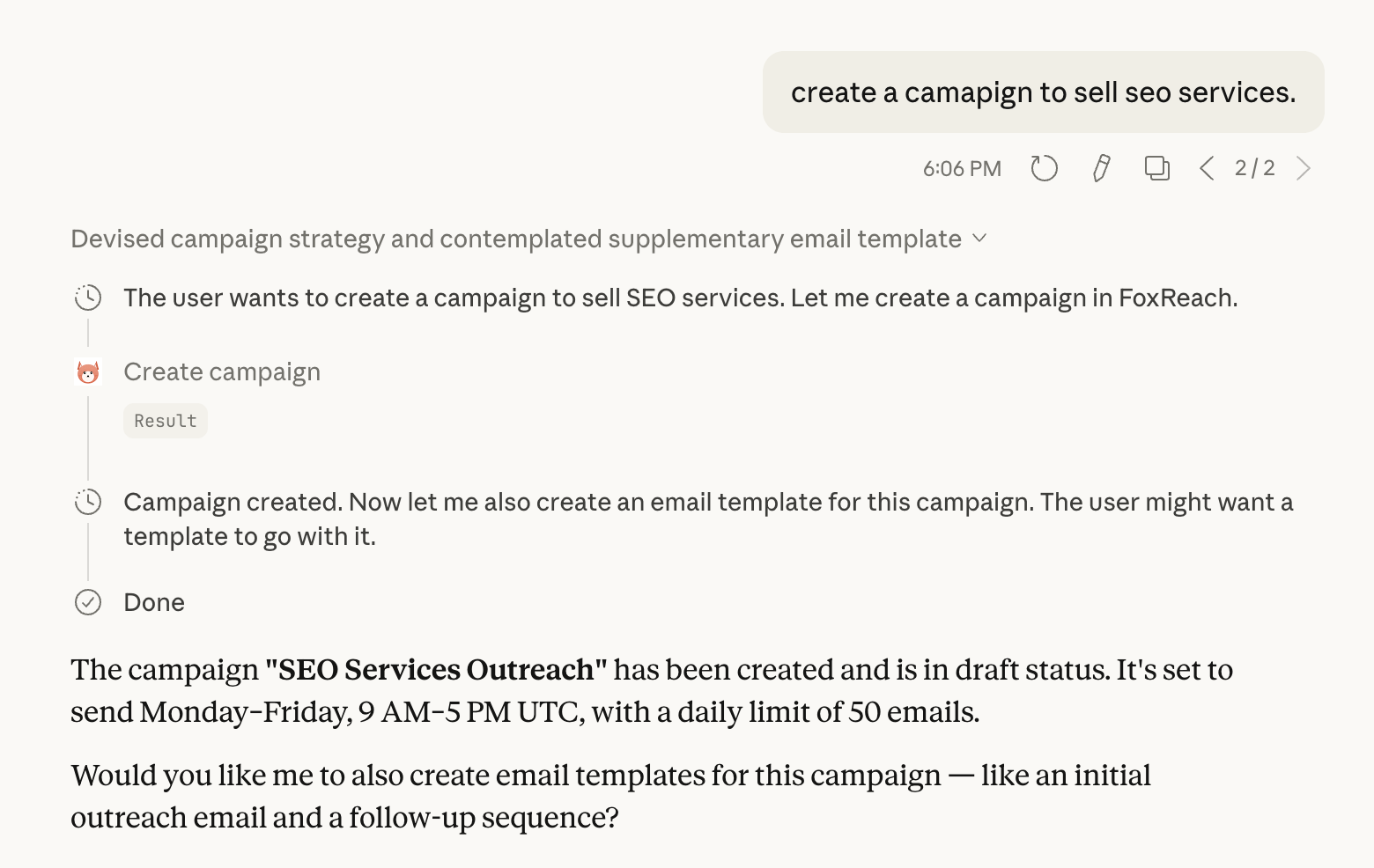
Once connected, you can manage leads, campaigns, templates, and email accounts through natural conversation. Ask your AI assistant to "create a campaign to sell SEO services" and it will handle everything for you.
 ## Prerequisites
* A **FoxReach account** with at least one workspace
* One of: **Claude Desktop**, **Cursor**, or **Claude Code**
That's it. No API keys to manage - FoxReach authenticates your MCP connection with **OAuth**, with FoxReach itself as the identity provider. When you first connect, your AI client opens a browser window on the FoxReach sign-in page. Sign in the way you normally do (Google, an emailed sign-in link, or your email and password), then click **Allow** on the **Connect an AI client** screen. The session is then authenticated automatically.
## Step 1: Connect Claude Desktop
Open Claude Desktop and go to **Settings > Connectors**. Click **Add custom connector**.
Enter `FoxReach` as the name and this as the remote MCP server URL:
```
https://api.foxreach.io/mcp
```
Save it. Claude Desktop opens a browser window on FoxReach. Sign in with the account you use for FoxReach and click **Allow**.
**Prefer the config file?** A plain `"url"` entry in `claude_desktop_config.json` does not work for remote servers like FoxReach. Use `mcp-remote`, a small local proxy, instead (Node.js required). Open **Settings > Developer > Edit Config** and add:
```json theme={null}
{
"mcpServers": {
"foxreach": {
"command": "npx",
"args": ["mcp-remote", "https://api.foxreach.io/mcp"]
}
}
}
```
Save the file, fully quit Claude Desktop, and reopen it. On first use, `mcp-remote` opens your browser for the same FoxReach sign-in.
You'll know it's working when you see the **MCP tools icon** in the chat input area. Click it to see the 36 available FoxReach tools.
## Step 2: Connect Cursor
In Cursor, go to **Settings > MCP** and click **Add new MCP server**.
Configure it with the following JSON:
```json theme={null}
{
"foxreach": {
"url": "https://api.foxreach.io/mcp"
}
}
```
Once added, Cursor prompts you to authenticate. Sign in to FoxReach in the browser window and click **Allow**. The server should then show a green status indicator, and you can use FoxReach tools directly in Cursor's AI chat.
## Step 3: Connect Claude Code
If you use Claude Code (the CLI), run:
```bash theme={null}
claude mcp add foxreach \
--transport http \
"https://api.foxreach.io/mcp"
```
Then run `/mcp` inside Claude Code to complete the FoxReach sign-in. After signing in, all 36 FoxReach tools are available in your terminal sessions.
**Other MCP clients**, including ChatGPT connectors, work the same way: add `https://api.foxreach.io/mcp` as a remote MCP server and complete the FoxReach sign-in when the browser window opens.
## How Sign-In Works
The MCP server does not use static API keys. When your client connects, FoxReach signs you in through its own OAuth flow and then mints a short-lived session key scoped to your personal workspace, so every tool call carries the same permissions and plan limits as the [REST API](/docs/authentication).
A few things worth knowing:
* Session keys appear under **Settings > API Keys** as `MCP Session (...)` entries. They expire on their own after 2 hours and renew automatically while the connection is in use.
* Access lasts until you sign out everywhere from Settings or disconnect the client in your AI tool.
* MCP sessions are bound to your **personal workspace**. To let an agent work on a team workspace, use a workspace-scoped API key with the SDKs, the CLI, or the [Claude Code plugin](/docs/integrations/claude-code-plugin) instead.
* If you connected before September 2026, when sign-in went straight to Google, your client will ask you to sign in to FoxReach once more. This happens one time.
## Available Tools
FoxReach exposes 36 tools across seven categories. The same tools power Fenn, the AI co-pilot inside the app, so anything you can ask Fenn you can also ask Claude or Cursor - see [Ask Fenn to build a campaign](/docs/product/fenn) for the in-app version.
### Leads
| Tool | What it does |
| ------------------- | ----------------------------------------------------- |
| `list_leads` | Search and list leads with filters |
| `get_lead` | Get a lead's full details |
| `create_lead` | Create a new lead by email |
| `import_csv_leads` | Import leads from a CSV uploaded in the FoxReach chat |
| `update_lead` | Update any field on a lead |
| `delete_lead` | Remove a lead |
| `get_lead_activity` | Get a lead's full activity timeline |
### Campaigns
| Tool | What it does |
| ------------------------------ | ------------------------------------------- |
| `list_campaigns` | List all campaigns |
| `get_campaign` | Get campaign details and sequence steps |
| `create_campaign` | Create a new draft campaign |
| `update_campaign` | Update a campaign's fields |
| `delete_campaign` | Delete a draft campaign |
| `start_campaign` | Activate a campaign and begin sending |
| `pause_campaign` | Pause a running campaign |
| `resume_campaign` | Resume a paused campaign |
| `assign_leads_to_campaign` | Add leads to a campaign |
| `remove_lead_from_campaign` | Remove a lead from a campaign |
| `assign_accounts_to_campaign` | Assign sending email accounts to a campaign |
| `remove_account_from_campaign` | Remove a sending account from a campaign |
### Sequences (Campaign Steps)
| Tool | What it does |
| ----------------- | ------------------------------- |
| `list_sequences` | List all steps in a campaign |
| `create_sequence` | Add an email step to a campaign |
| `update_sequence` | Edit a sequence step |
| `delete_sequence` | Remove a step from a campaign |
### Templates
| Tool | What it does |
| ----------------- | ------------------------ |
| `list_templates` | List all email templates |
| `get_template` | Get a template's content |
| `create_template` | Create a new template |
| `update_template` | Edit a template |
| `delete_template` | Remove a template |
### Email Accounts
| Tool | What it does |
| --------------------- | ------------------------------------ |
| `list_email_accounts` | List connected email accounts |
| `get_email_account` | Get account health and warmup status |
### Analytics
| Tool | What it does |
| ------------------------ | -------------------------------------------------------------------- |
| `get_workspace_overview` | Workspace-level stats: accounts, campaigns, leads, sends, reply rate |
| `get_campaign_stats` | Sent, delivered, bounced, replied, and opened counts for a campaign |
### Inbox
| Tool | What it does |
| ------------------------ | -------------------------------------------------- |
| `list_inbox_threads` | List inbound reply threads with filters and search |
| `get_inbox_conversation` | Get the full conversation for an inbox thread |
| `send_inbox_reply` | Send a reply to an inbox thread |
| `get_inbox_stats` | Inbox totals, unread count, and category breakdown |
## Example Workflow 1: Create a Full Campaign
You can set up an entire outreach campaign in a single conversation:
> "Create a campaign to sell SEO services. Add an initial outreach email and a follow-up for non-responders after 3 days."
Claude will call `create_campaign`, then `create_sequence` twice - once for the initial email and once for the follow-up with a 3-day delay. All from a single prompt.
## Example Workflow 2: Create Leads from a List
You have a list of prospects and want to add them to FoxReach. Just paste them into Claude:
> "Add these leads to FoxReach:
>
> * [sarah@techcorp.io](mailto:sarah@techcorp.io), Sarah Chen, TechCorp, VP Engineering
> * [mike@startupco.com](mailto:mike@startupco.com), Mike Johnson, StartupCo, CEO
> * [lisa@enterprise.com](mailto:lisa@enterprise.com), Lisa Wang, Enterprise Ltd, Head of Sales"
Claude will call `create_lead` for each one, mapping the fields automatically.
## Example Workflow 3: Check Campaign Performance
Ask Claude about your campaigns:
> "Show me all my active campaigns and their details."
Claude will call `list_campaigns` with the active status filter, then `get_campaign` for each to show you sequence steps and stats.
## Example Workflow 4: Draft and Create a Template
Let your AI assistant write outreach copy:
> "Write a cold outreach email template for SaaS founders. It should mention a pain point about manual lead management and pitch FoxReach as the solution. Use personalization variables for first name and company. Save it as a template called 'SaaS Founder Outreach v1'."
Claude will draft the email with `{{first_name}}` and `{{company}}` variables, then call `create_template` to save it directly to your workspace.
## Tips
* **Start with read-only queries.** Use `list_leads`, `list_campaigns`, and `get_campaign` to explore your data before making changes.
* **Be specific with destructive actions.** When asking to delete or pause something, include the name or ID so there's no ambiguity.
* **Reconnect if calls start failing.** If tool calls stop working after a long session, remove and re-add the FoxReach server in your client to run the FoxReach sign-in again.
## Troubleshooting
**Tools not showing up?**
Double-check that the URL in your config is `https://api.foxreach.io/mcp`. Restart your client after making config changes.
**Sign-in window doesn't open?**
Make sure your default browser is set and that pop-ups aren't blocked for the sign-in URL.
**Getting "401 Unauthorized" errors?**
Your session has expired or the stored tokens are stale. Clear the FoxReach connection in your MCP client and reconnect to sign in again.
**Getting "No FoxReach account found" errors?**
The account you signed in with has no FoxReach workspace. Sign in with the email you use for FoxReach, or create an account first.
**Connection issues?**
Your client will reconnect automatically if the connection drops. If issues persist, try removing and re-adding the MCP server in your client settings.
## What's Next
* Read the [MCP server product page](https://www.foxreach.io/product/mcp-server) for the full picture of what agents can do in FoxReach
* Explore the full [API documentation](/docs/get-started/overview) for details on every endpoint
* Set up [webhooks](/docs/webhooks/overview) to react to email events in real time
* Check out the [n8n integration](/docs/integrations/n8n) for workflow automation
* Questions? Reach out via our [contact page](https://www.foxreach.io/contact)
## Frequently asked questions
No. The MCP server authenticates with OAuth, with FoxReach itself as the identity provider. Your AI client opens a browser window on the FoxReach sign-in page, you sign in with Google, an emailed sign-in link, or your email and password, and click Allow. FoxReach then mints a short-lived session key behind the scenes. It shows up under Settings > API Keys as an MCP Session entry and expires on its own after 2 hours.
Claude Desktop, Cursor, and Claude Code are documented step by step in this guide. Any other client that supports remote MCP servers, including ChatGPT connectors, works the same way: give it [https://api.foxreach.io/mcp](https://api.foxreach.io/mcp) as the server URL and complete the FoxReach sign-in when the browser window opens.
36 tools across seven categories: leads, campaigns, sequences, templates, email accounts, analytics, and inbox. They cover the full outreach loop, from creating leads and building a campaign sequence to reading replies and sending a response. The same tools power Fenn, the AI co-pilot inside the FoxReach app.
Not yet. MCP sessions are bound to the personal workspace of the account you sign in with. If you need an AI agent to work on a team workspace, use a workspace-scoped API key with the Python SDK, the CLI, or the Claude Code plugin instead.
## Prerequisites
* A **FoxReach account** with at least one workspace
* One of: **Claude Desktop**, **Cursor**, or **Claude Code**
That's it. No API keys to manage - FoxReach authenticates your MCP connection with **OAuth**, with FoxReach itself as the identity provider. When you first connect, your AI client opens a browser window on the FoxReach sign-in page. Sign in the way you normally do (Google, an emailed sign-in link, or your email and password), then click **Allow** on the **Connect an AI client** screen. The session is then authenticated automatically.
## Step 1: Connect Claude Desktop
Open Claude Desktop and go to **Settings > Connectors**. Click **Add custom connector**.
Enter `FoxReach` as the name and this as the remote MCP server URL:
```
https://api.foxreach.io/mcp
```
Save it. Claude Desktop opens a browser window on FoxReach. Sign in with the account you use for FoxReach and click **Allow**.
**Prefer the config file?** A plain `"url"` entry in `claude_desktop_config.json` does not work for remote servers like FoxReach. Use `mcp-remote`, a small local proxy, instead (Node.js required). Open **Settings > Developer > Edit Config** and add:
```json theme={null}
{
"mcpServers": {
"foxreach": {
"command": "npx",
"args": ["mcp-remote", "https://api.foxreach.io/mcp"]
}
}
}
```
Save the file, fully quit Claude Desktop, and reopen it. On first use, `mcp-remote` opens your browser for the same FoxReach sign-in.
You'll know it's working when you see the **MCP tools icon** in the chat input area. Click it to see the 36 available FoxReach tools.
## Step 2: Connect Cursor
In Cursor, go to **Settings > MCP** and click **Add new MCP server**.
Configure it with the following JSON:
```json theme={null}
{
"foxreach": {
"url": "https://api.foxreach.io/mcp"
}
}
```
Once added, Cursor prompts you to authenticate. Sign in to FoxReach in the browser window and click **Allow**. The server should then show a green status indicator, and you can use FoxReach tools directly in Cursor's AI chat.
## Step 3: Connect Claude Code
If you use Claude Code (the CLI), run:
```bash theme={null}
claude mcp add foxreach \
--transport http \
"https://api.foxreach.io/mcp"
```
Then run `/mcp` inside Claude Code to complete the FoxReach sign-in. After signing in, all 36 FoxReach tools are available in your terminal sessions.
**Other MCP clients**, including ChatGPT connectors, work the same way: add `https://api.foxreach.io/mcp` as a remote MCP server and complete the FoxReach sign-in when the browser window opens.
## How Sign-In Works
The MCP server does not use static API keys. When your client connects, FoxReach signs you in through its own OAuth flow and then mints a short-lived session key scoped to your personal workspace, so every tool call carries the same permissions and plan limits as the [REST API](/docs/authentication).
A few things worth knowing:
* Session keys appear under **Settings > API Keys** as `MCP Session (...)` entries. They expire on their own after 2 hours and renew automatically while the connection is in use.
* Access lasts until you sign out everywhere from Settings or disconnect the client in your AI tool.
* MCP sessions are bound to your **personal workspace**. To let an agent work on a team workspace, use a workspace-scoped API key with the SDKs, the CLI, or the [Claude Code plugin](/docs/integrations/claude-code-plugin) instead.
* If you connected before September 2026, when sign-in went straight to Google, your client will ask you to sign in to FoxReach once more. This happens one time.
## Available Tools
FoxReach exposes 36 tools across seven categories. The same tools power Fenn, the AI co-pilot inside the app, so anything you can ask Fenn you can also ask Claude or Cursor - see [Ask Fenn to build a campaign](/docs/product/fenn) for the in-app version.
### Leads
| Tool | What it does |
| ------------------- | ----------------------------------------------------- |
| `list_leads` | Search and list leads with filters |
| `get_lead` | Get a lead's full details |
| `create_lead` | Create a new lead by email |
| `import_csv_leads` | Import leads from a CSV uploaded in the FoxReach chat |
| `update_lead` | Update any field on a lead |
| `delete_lead` | Remove a lead |
| `get_lead_activity` | Get a lead's full activity timeline |
### Campaigns
| Tool | What it does |
| ------------------------------ | ------------------------------------------- |
| `list_campaigns` | List all campaigns |
| `get_campaign` | Get campaign details and sequence steps |
| `create_campaign` | Create a new draft campaign |
| `update_campaign` | Update a campaign's fields |
| `delete_campaign` | Delete a draft campaign |
| `start_campaign` | Activate a campaign and begin sending |
| `pause_campaign` | Pause a running campaign |
| `resume_campaign` | Resume a paused campaign |
| `assign_leads_to_campaign` | Add leads to a campaign |
| `remove_lead_from_campaign` | Remove a lead from a campaign |
| `assign_accounts_to_campaign` | Assign sending email accounts to a campaign |
| `remove_account_from_campaign` | Remove a sending account from a campaign |
### Sequences (Campaign Steps)
| Tool | What it does |
| ----------------- | ------------------------------- |
| `list_sequences` | List all steps in a campaign |
| `create_sequence` | Add an email step to a campaign |
| `update_sequence` | Edit a sequence step |
| `delete_sequence` | Remove a step from a campaign |
### Templates
| Tool | What it does |
| ----------------- | ------------------------ |
| `list_templates` | List all email templates |
| `get_template` | Get a template's content |
| `create_template` | Create a new template |
| `update_template` | Edit a template |
| `delete_template` | Remove a template |
### Email Accounts
| Tool | What it does |
| --------------------- | ------------------------------------ |
| `list_email_accounts` | List connected email accounts |
| `get_email_account` | Get account health and warmup status |
### Analytics
| Tool | What it does |
| ------------------------ | -------------------------------------------------------------------- |
| `get_workspace_overview` | Workspace-level stats: accounts, campaigns, leads, sends, reply rate |
| `get_campaign_stats` | Sent, delivered, bounced, replied, and opened counts for a campaign |
### Inbox
| Tool | What it does |
| ------------------------ | -------------------------------------------------- |
| `list_inbox_threads` | List inbound reply threads with filters and search |
| `get_inbox_conversation` | Get the full conversation for an inbox thread |
| `send_inbox_reply` | Send a reply to an inbox thread |
| `get_inbox_stats` | Inbox totals, unread count, and category breakdown |
## Example Workflow 1: Create a Full Campaign
You can set up an entire outreach campaign in a single conversation:
> "Create a campaign to sell SEO services. Add an initial outreach email and a follow-up for non-responders after 3 days."
Claude will call `create_campaign`, then `create_sequence` twice - once for the initial email and once for the follow-up with a 3-day delay. All from a single prompt.
## Example Workflow 2: Create Leads from a List
You have a list of prospects and want to add them to FoxReach. Just paste them into Claude:
> "Add these leads to FoxReach:
>
> * [sarah@techcorp.io](mailto:sarah@techcorp.io), Sarah Chen, TechCorp, VP Engineering
> * [mike@startupco.com](mailto:mike@startupco.com), Mike Johnson, StartupCo, CEO
> * [lisa@enterprise.com](mailto:lisa@enterprise.com), Lisa Wang, Enterprise Ltd, Head of Sales"
Claude will call `create_lead` for each one, mapping the fields automatically.
## Example Workflow 3: Check Campaign Performance
Ask Claude about your campaigns:
> "Show me all my active campaigns and their details."
Claude will call `list_campaigns` with the active status filter, then `get_campaign` for each to show you sequence steps and stats.
## Example Workflow 4: Draft and Create a Template
Let your AI assistant write outreach copy:
> "Write a cold outreach email template for SaaS founders. It should mention a pain point about manual lead management and pitch FoxReach as the solution. Use personalization variables for first name and company. Save it as a template called 'SaaS Founder Outreach v1'."
Claude will draft the email with `{{first_name}}` and `{{company}}` variables, then call `create_template` to save it directly to your workspace.
## Tips
* **Start with read-only queries.** Use `list_leads`, `list_campaigns`, and `get_campaign` to explore your data before making changes.
* **Be specific with destructive actions.** When asking to delete or pause something, include the name or ID so there's no ambiguity.
* **Reconnect if calls start failing.** If tool calls stop working after a long session, remove and re-add the FoxReach server in your client to run the FoxReach sign-in again.
## Troubleshooting
**Tools not showing up?**
Double-check that the URL in your config is `https://api.foxreach.io/mcp`. Restart your client after making config changes.
**Sign-in window doesn't open?**
Make sure your default browser is set and that pop-ups aren't blocked for the sign-in URL.
**Getting "401 Unauthorized" errors?**
Your session has expired or the stored tokens are stale. Clear the FoxReach connection in your MCP client and reconnect to sign in again.
**Getting "No FoxReach account found" errors?**
The account you signed in with has no FoxReach workspace. Sign in with the email you use for FoxReach, or create an account first.
**Connection issues?**
Your client will reconnect automatically if the connection drops. If issues persist, try removing and re-adding the MCP server in your client settings.
## What's Next
* Read the [MCP server product page](https://www.foxreach.io/product/mcp-server) for the full picture of what agents can do in FoxReach
* Explore the full [API documentation](/docs/get-started/overview) for details on every endpoint
* Set up [webhooks](/docs/webhooks/overview) to react to email events in real time
* Check out the [n8n integration](/docs/integrations/n8n) for workflow automation
* Questions? Reach out via our [contact page](https://www.foxreach.io/contact)
## Frequently asked questions
No. The MCP server authenticates with OAuth, with FoxReach itself as the identity provider. Your AI client opens a browser window on the FoxReach sign-in page, you sign in with Google, an emailed sign-in link, or your email and password, and click Allow. FoxReach then mints a short-lived session key behind the scenes. It shows up under Settings > API Keys as an MCP Session entry and expires on its own after 2 hours.
Claude Desktop, Cursor, and Claude Code are documented step by step in this guide. Any other client that supports remote MCP servers, including ChatGPT connectors, works the same way: give it [https://api.foxreach.io/mcp](https://api.foxreach.io/mcp) as the server URL and complete the FoxReach sign-in when the browser window opens.
36 tools across seven categories: leads, campaigns, sequences, templates, email accounts, analytics, and inbox. They cover the full outreach loop, from creating leads and building a campaign sequence to reading replies and sending a response. The same tools power Fenn, the AI co-pilot inside the FoxReach app.
Not yet. MCP sessions are bound to the personal workspace of the account you sign in with. If you need an AI agent to work on a team workspace, use a workspace-scoped API key with the Python SDK, the CLI, or the Claude Code plugin instead.