> ## Documentation Index
> Fetch the complete documentation index at: https://www.foxreach.io/docs/llms.txt
> Use this file to discover all available pages before exploring further.
# Email templates, variables and spintax
> Build reusable email templates in FoxReach with lead variables, fallbacks for missing data, and spintax, then load them into any campaign sequence step.
By the end of this guide you will have a saved email template with a subject line, lead variables pulled from the Variables menu, a fallback for leads whose data is missing, and spin syntax that rotates the phrasing on every send. You will have loaded that template into a campaign step, and you will know how to publish it to the public gallery or clone somebody else's.
Email templates in FoxReach are emails you write once and reuse in any campaign. Everything below happens on the Templates page or in the Sequences tab of a campaign. If you have not connected an inbox or imported leads yet, start with the [getting started guide](/docs/get-started/overview) and come back.
## Two kinds of templates
The Templates page holds two types, and the Type toggle in the editor decides which one you are making.
**Email.** A subject line plus a body. This is the kind that appears under Load from Template when you build a sequence step. Think first touches, follow-ups, breakups.
**Reply Macro.** A body with no subject line: the answers you send over and over when a lead writes back. Macros do not show up in the sequence picker.
The stat cards count each type, and the All, Email, and Macros buttons filter the list.
## Step 1: Open the Templates page
Click Templates in the sidebar. Each template is a card showing its name, an Email or Macro badge, the subject, the first line of the body, and how many variables it uses. Click a card to expand it.
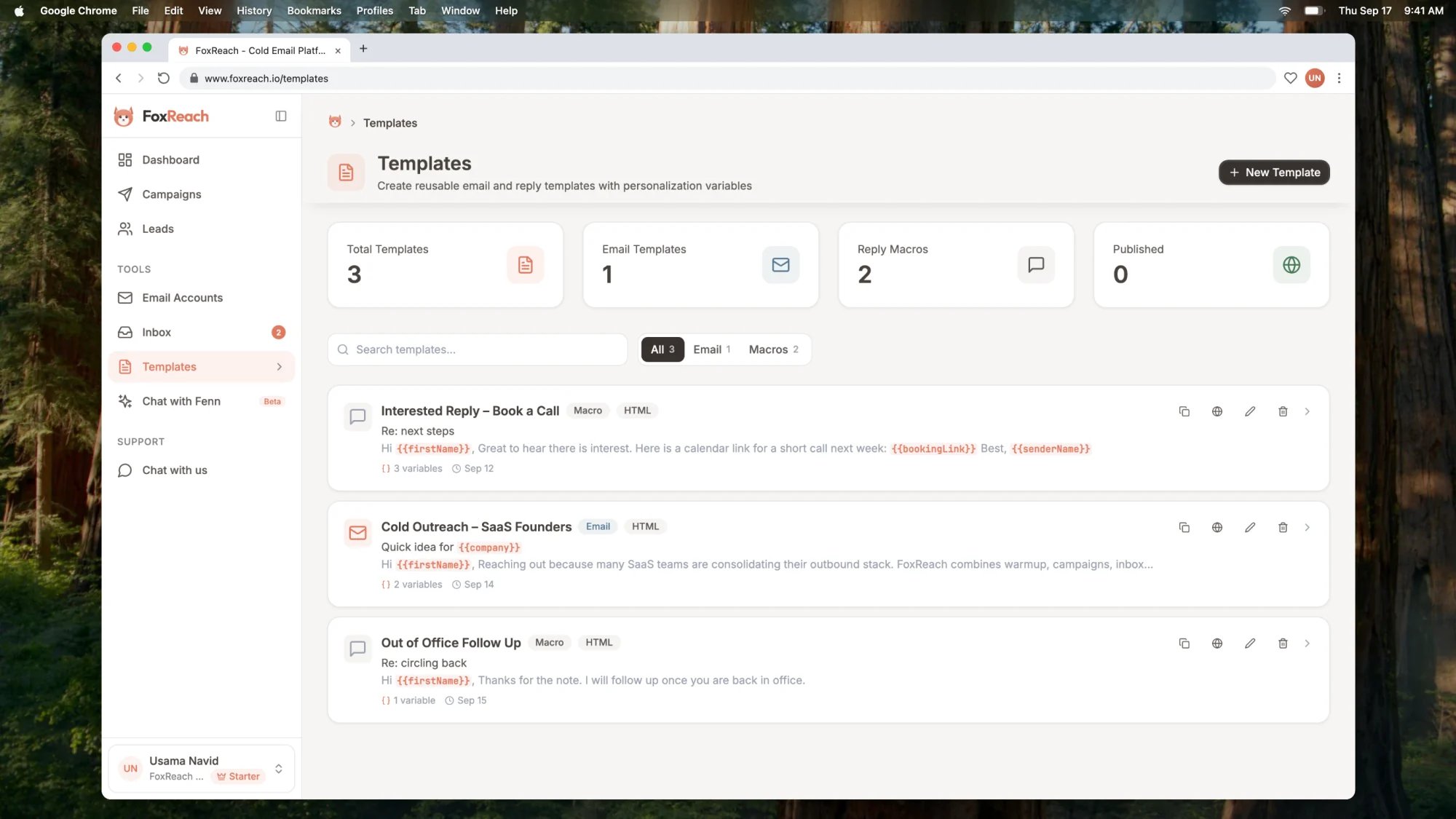 In the FoxReach Academy Demo workspace shown above there are three already: "Cold Outreach - SaaS Founders" and "Out of Office Follow Up" are email templates, and "Interested Reply - Book a Call" is a reply macro. Hover any card and four icons appear: Duplicate, Publish, Edit, and Delete.
Click New Template in the top right to start a fresh one.
## Step 2: Name it and choose a type
The New Template sheet slides in. The first field is Template Name. This is the label you will see in the sequence picker later, so describe the job, not the content. The video calls this one "Founder intro".
Below the name is the Type toggle: Email or Reply Macro. Leave it on Email. Choosing Reply Macro hides the Subject Line field, because a reply goes out in an existing thread and keeps that thread's subject.
Name and body are required; the subject is optional.
## Step 3: Write the subject line and insert a variable
The Subject Line field comes with its own Variables button on the right. Type the fixed part of the subject first, for example "Quick question about ", then click Variables.
In the FoxReach Academy Demo workspace shown above there are three already: "Cold Outreach - SaaS Founders" and "Out of Office Follow Up" are email templates, and "Interested Reply - Book a Call" is a reply macro. Hover any card and four icons appear: Duplicate, Publish, Edit, and Delete.
Click New Template in the top right to start a fresh one.
## Step 2: Name it and choose a type
The New Template sheet slides in. The first field is Template Name. This is the label you will see in the sequence picker later, so describe the job, not the content. The video calls this one "Founder intro".
Below the name is the Type toggle: Email or Reply Macro. Leave it on Email. Choosing Reply Macro hides the Subject Line field, because a reply goes out in an existing thread and keeps that thread's subject.
Name and body are required; the subject is optional.
## Step 3: Write the subject line and insert a variable
The Subject Line field comes with its own Variables button on the right. Type the fixed part of the subject first, for example "Quick question about ", then click Variables.
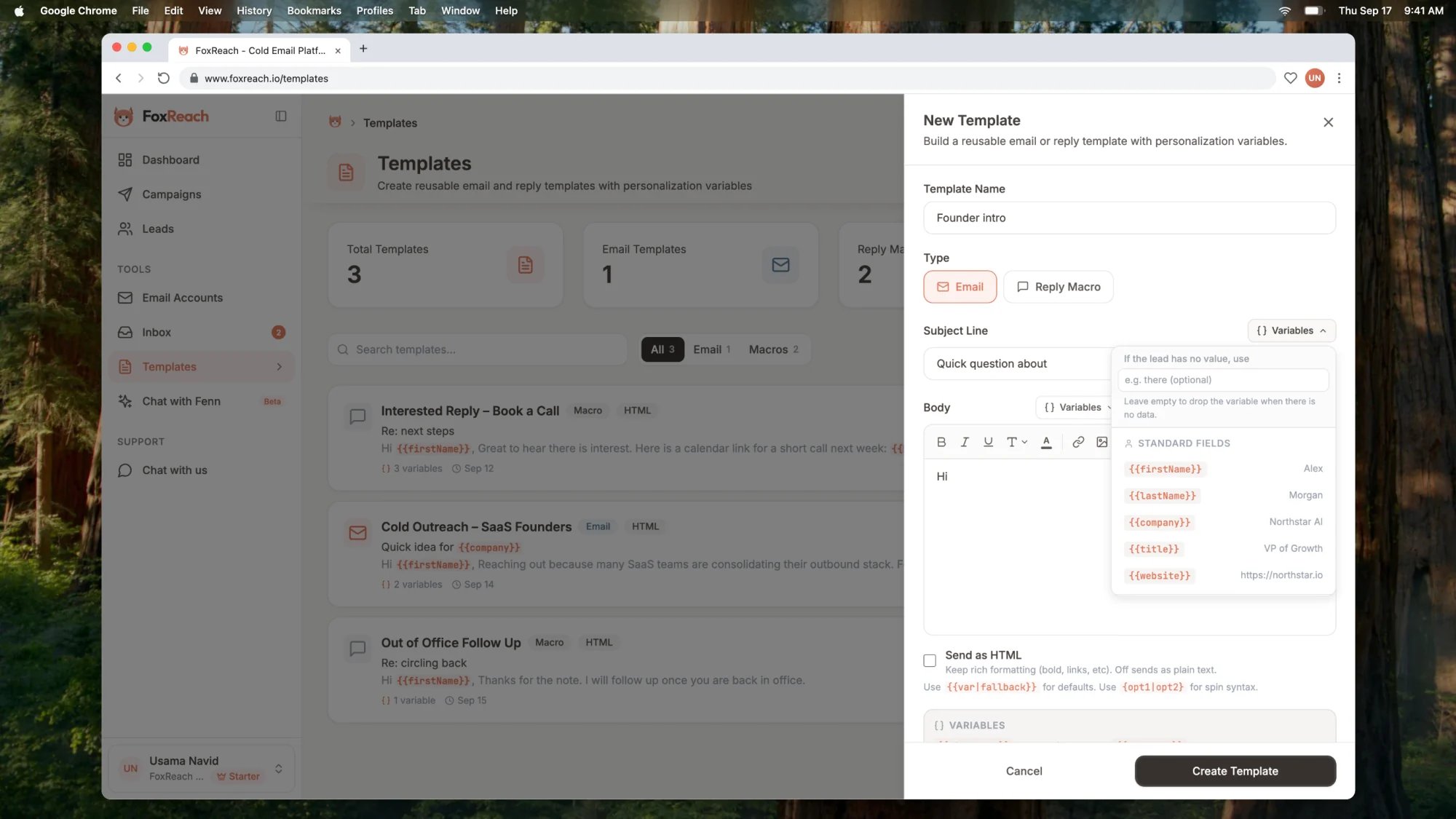 The menu has three groups:
* **Standard Fields**: the columns every lead has.
* **Custom Fields**: any extra columns you mapped when you imported your list. This group only appears once at least one lead in the workspace has a custom field.
* **Account Fields**: values from the inbox that sends the email, such as the signature.
Click `{{company}}` and it is inserted at the cursor, so the subject reads `Quick question about {{company}}`. You can also type variables by hand.
Keep one variable in the subject at most. "Quick question about Acme" reads like a person. "Acme, Sarah, Head of Growth, question" reads like a mail merge.
## Step 4: Write the body
The Body editor has two modes, Visual and HTML, with a Send as HTML checkbox underneath. Stay in Visual for a normal cold email.
Write it the way the video does. Type "Hi ", open the Variables button above the body, pick `{{firstName}}`, and add a comma. Then a line that shows you did some homework: "Saw that " followed by `{{company}}` and " is hiring SDRs." Then the actual question and a one-line ask.
Anything on the lead record can go in here. The hint under the editor lists the two extra pieces of syntax you will use next: `{{var|fallback}}` for defaults and `{opt1|opt2}` for spin syntax.
Leave Send as HTML off unless the formatting earns its place. Off sends plain text; on shows a notice that HTML emails are more likely to land in Promotions or spam, which matters most on a first touch.
## Step 5: Add a fallback and some spin
**Fallbacks.** Not every lead has a first name. If you insert `{{firstName}}` with no fallback and the field is empty, the variable is dropped and the email opens with "Hi ,". The fix is the fallback input at the top of the Variables menu, labelled "If the lead has no value, use". Type "there" in it before you click the variable and FoxReach inserts `{{firstName|there}}` instead. You can also type the pipe by hand inside any existing variable.
**Spin syntax.** Single braces with options separated by pipes, like `{Worth|Open to|Up for} a quick call this week?`, pick one option at random every time the email is sent. Across a few hundred sends, your emails are not word-for-word identical, which is one of the things that separates a person writing from a script running. Use it on phrasing, never on facts.
Spin blocks have rules: at least two options, no empty options, no block nested inside another, and every opening brace needs its closing brace. FoxReach does not check these when you save the template. It checks them when the content lands in a sequence step, so a broken block shows up as an error when you save the step, not now.
## Step 6: Save the template
Click Create Template. A "Template created!" toast confirms it, the sheet closes, and "Founder intro" appears at the top of the list with its variable count.
To change it later, hover the card and click the pencil, edit, and click Save Changes. Duplicate makes a copy named with "(Copy)" on the end, which is the quickest way to write a follow-up that shares the same opening.
## Step 7: Load it into a campaign step
Open Campaigns, open the campaign, and go to the Sequences tab. If the campaign is running you will see "Pause the campaign to edit sequences" with a Pause button; sequences are locked while a campaign is active.
Click Add Step. The first thing in the new step form is a panel labelled Load from Template with a dropdown that reads "Choose a template...". Each option shows the template name and its subject in brackets. Pick "Founder intro".
The menu has three groups:
* **Standard Fields**: the columns every lead has.
* **Custom Fields**: any extra columns you mapped when you imported your list. This group only appears once at least one lead in the workspace has a custom field.
* **Account Fields**: values from the inbox that sends the email, such as the signature.
Click `{{company}}` and it is inserted at the cursor, so the subject reads `Quick question about {{company}}`. You can also type variables by hand.
Keep one variable in the subject at most. "Quick question about Acme" reads like a person. "Acme, Sarah, Head of Growth, question" reads like a mail merge.
## Step 4: Write the body
The Body editor has two modes, Visual and HTML, with a Send as HTML checkbox underneath. Stay in Visual for a normal cold email.
Write it the way the video does. Type "Hi ", open the Variables button above the body, pick `{{firstName}}`, and add a comma. Then a line that shows you did some homework: "Saw that " followed by `{{company}}` and " is hiring SDRs." Then the actual question and a one-line ask.
Anything on the lead record can go in here. The hint under the editor lists the two extra pieces of syntax you will use next: `{{var|fallback}}` for defaults and `{opt1|opt2}` for spin syntax.
Leave Send as HTML off unless the formatting earns its place. Off sends plain text; on shows a notice that HTML emails are more likely to land in Promotions or spam, which matters most on a first touch.
## Step 5: Add a fallback and some spin
**Fallbacks.** Not every lead has a first name. If you insert `{{firstName}}` with no fallback and the field is empty, the variable is dropped and the email opens with "Hi ,". The fix is the fallback input at the top of the Variables menu, labelled "If the lead has no value, use". Type "there" in it before you click the variable and FoxReach inserts `{{firstName|there}}` instead. You can also type the pipe by hand inside any existing variable.
**Spin syntax.** Single braces with options separated by pipes, like `{Worth|Open to|Up for} a quick call this week?`, pick one option at random every time the email is sent. Across a few hundred sends, your emails are not word-for-word identical, which is one of the things that separates a person writing from a script running. Use it on phrasing, never on facts.
Spin blocks have rules: at least two options, no empty options, no block nested inside another, and every opening brace needs its closing brace. FoxReach does not check these when you save the template. It checks them when the content lands in a sequence step, so a broken block shows up as an error when you save the step, not now.
## Step 6: Save the template
Click Create Template. A "Template created!" toast confirms it, the sheet closes, and "Founder intro" appears at the top of the list with its variable count.
To change it later, hover the card and click the pencil, edit, and click Save Changes. Duplicate makes a copy named with "(Copy)" on the end, which is the quickest way to write a follow-up that shares the same opening.
## Step 7: Load it into a campaign step
Open Campaigns, open the campaign, and go to the Sequences tab. If the campaign is running you will see "Pause the campaign to edit sequences" with a Pause button; sequences are locked while a campaign is active.
Click Add Step. The first thing in the new step form is a panel labelled Load from Template with a dropdown that reads "Choose a template...". Each option shows the template name and its subject in brackets. Pick "Founder intro".
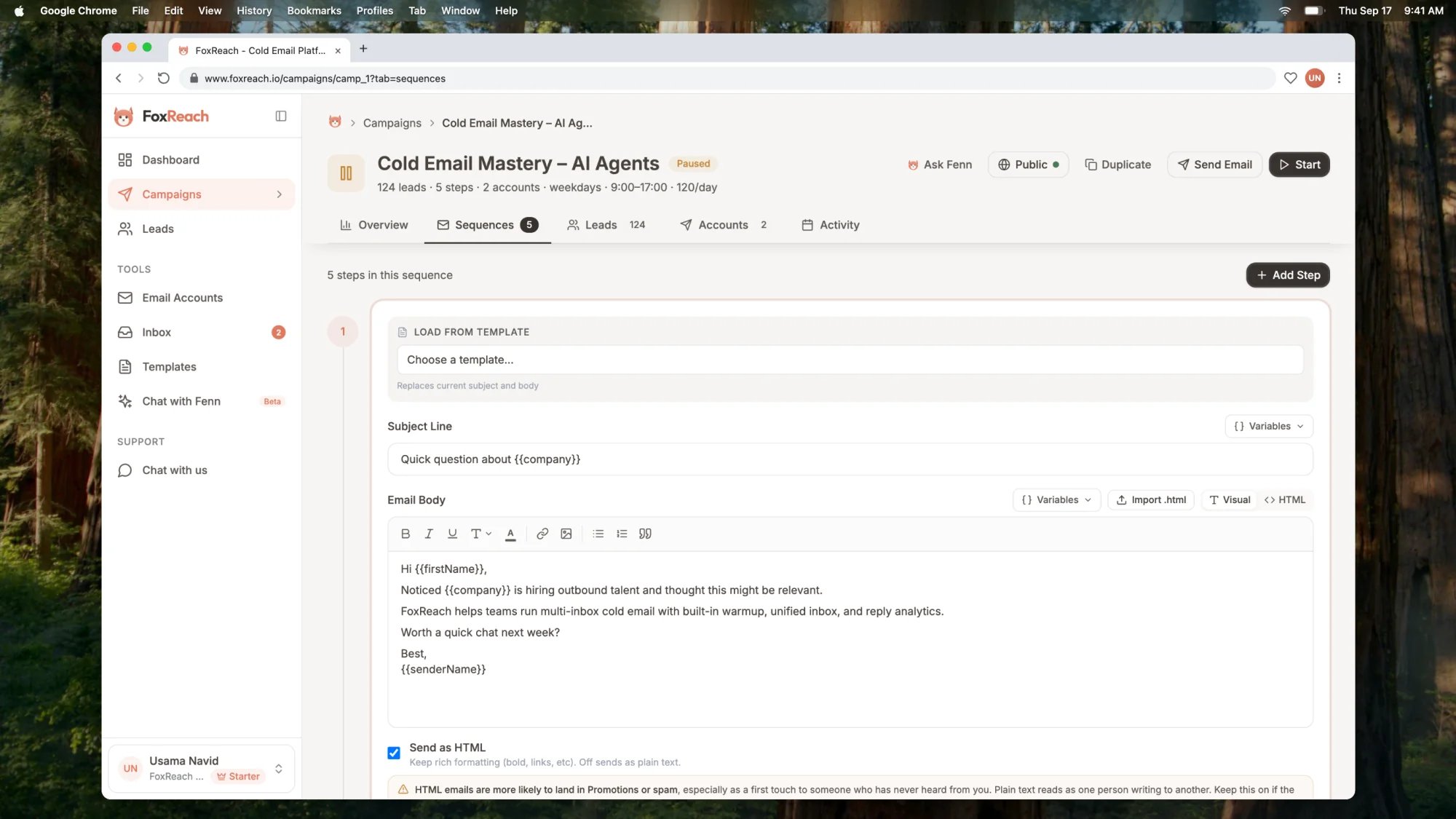 The subject, body, and Send as HTML setting are copied into the step. The panel warns "Replaces current subject and body", which is exactly what it does, so load the template before you start editing, not after.
This is a copy, not a link. Edit the step as much as you like; none of it changes the saved template, and editing the template later does not change any step that used it.
Before you save, open "Preview with and without lead data" under the editor. It renders the email twice, once as a lead with data and once as a lead missing data. The second one is where you catch a missing fallback. Then set the delay, click Add Step, and the step is in the sequence. The same Load from Template panel appears when you click the pencil on an existing step.
For the wider campaign build, see [how to create a cold email campaign in FoxReach](/docs/get-started/create-campaign) and the [cold email follow-up sequence](https://www.foxreach.io/blog/cold-email-follow-up-sequence) guide.
## Variables, fallbacks, and spintax: quick reference
| Syntax | Example | Result |
| -------- | ---------------------- | --------------------------------------- |
| Variable | `{{company}}` | The lead's company, or nothing if empty |
| Fallback | `{{firstName\|there}}` | The first name, or "there" if empty |
| Spin | `{Hi\|Hello\|Hey}` | One option, chosen at random per send |
Variables available from the menu:
* **Standard Fields:** `firstName`, `lastName`, `fullName`, `email`, `company`, `title`, `phone`, `linkedin`, `website`
* **Custom Fields:** every custom field key on your leads, exactly as it was named on import
* **Account Fields:** `signature`, `senderName`, `senderEmail`
Snake case aliases work as well: `{{first_name}}`, `{{job_title}}`, and `{{sender_name}}` resolve to the same values. Custom field names can contain spaces and are matched to the lead's field verbatim.
At send time spin blocks are resolved first, then variables are substituted; a fallback inside a variable is safe from the spin pass. Subjects can be up to 500 characters and bodies up to 200,000.
## Publish to the gallery, or clone from it
Every template can be shared to the public Email Template Gallery, and any gallery template can be copied into your workspace.
**Publishing.** Hover a template and click the globe icon labelled Publish. The Publish to Gallery dialog asks for a Description (required) and a Category: Cold Outreach, Follow-up, Introduction, or Breakup. Click Publish. The template gets a Published badge and the Published stat card ticks up. Listings are reviewed before they go live, so expect a gap before it appears on the site.
To take it down, click the globe again, now labelled Manage Gallery, and choose Unpublish from Gallery. Unpublishing kills the share URL for good; publishing again mints a new one and asks for a fresh description and category.
**Cloning.** Browse the [gallery](https://www.foxreach.io/gallery), search, and open a template. Copy body puts the text on your clipboard. Use This Template clones it into your workspace as a new template named with "(Copy)" on the end and drops you on the Templates page. If you are signed out, you are sent to log in first and the clone completes after. The copy is yours: edit it, use it in steps, and it starts unpublished.
## Writing a template that gets replies
A few rules that hold up across most B2B lists:
1. **Subject: short, lowercase, one variable at most.** It should look like something a colleague would type.
2. **First line about them, not you.** A specific observation beats an introduction.
3. **One ask, phrased as a question.** Not a link, not a calendar, not three options.
4. **Fallback on every variable.** Assume the list is dirty because it is.
5. **Spin the phrasing, never the facts.** Greetings, transitions, and the ask are good spin candidates. Company names and numbers are not.
6. **Plain text for step one.** Google's [email sender guidelines](https://support.google.com/mail/answer/81126) and Yahoo's [sender best practices](https://senders.yahooinc.com/best-practices/) both push senders toward messages that look like they were written for one person, and a text-only first touch is the simplest way to get there.
Here is the template from the video with those rules applied:
```text theme={null}
Subject: quick question about {{company|your team}}
{Hi|Hey} {{firstName|there}},
Saw that {{company|your team}} is hiring SDRs. Are replies
landing in one place for the team yet, or is each rep
working their own inbox?
{Worth|Open to} a quick call this week?
{{senderName}}
```
## Troubleshooting
**A variable renders blank.** Either the lead has no value and there is no fallback, or the name does not match; custom field names must match the lead's field key exactly. Check the "Lead missing data" side of the step preview; every blank there needs a fallback.
**I edited the template but the running campaign did not change.** That is expected. Loading a template copies it into the step. Pause the campaign, click the pencil on the step, load the template again from Load from Template, and resume.
**Saving the step fails with a spin syntax error.** Look for a brace you did not close, a block with only one option, an empty option like `{a||b}`, or a block inside another block. The template editor does not validate spin syntax, so the first place you will see the error is the step.
**The sent email lost its formatting.** Send as HTML was off, so the email went as plain text and bold, links, and styles were converted away. Turn it on if the formatting is worth the deliverability trade. Pasted HTML source switches the editor to HTML mode, which always sends as HTML.
**My template is missing from Load from Template.** Only Email type templates appear there, and the panel is hidden entirely when the workspace has none. Open the template and check its Type.
## Next step
You have a template in the library and a step that uses it. Build the rest of the sequence with the guide to [creating a cold email campaign in FoxReach](/docs/get-started/create-campaign), then split step one with the [A/B testing guide](/docs/product/ab-testing) so the subject line earns its place. When replies arrive, the [unified inbox guide](/docs/get-started/unified-inbox) covers reply handling, which is where reply macros come in. Templates, variables, and spin syntax are available on every plan, including Free; the [pricing page](https://www.foxreach.io/pricing) lists the limits for each.
## Frequently asked questions
An email template has a subject line and a body, and it is what you load into a campaign sequence step from the Load from Template menu. A reply macro has no subject line. It is a canned reply you keep for answering the same kinds of responses in the inbox. Both live on the Templates page and are filtered with the Email and Macros buttons.
The Variables menu lists standard lead fields (first name, last name, full name, email, company, job title, phone, LinkedIn, website), any custom fields you created when importing leads, and account fields for the sending inbox (signature, sender name, sender email). Every variable accepts a fallback with a pipe, for example a first name that falls back to the word there.
If you set a fallback, the fallback text is used. If you did not, the variable is dropped and nothing is printed in its place, which can leave a sentence reading oddly. The dual preview under every sequence step shows the email once with full lead data and once with none, so you can catch missing fallbacks before the campaign starts.
No. Loading a template into a sequence step copies its subject, body, and Send as HTML setting into that step. From then on the step and the template are independent. Editing the template later does not touch any step, and editing the step does not touch the template. To pick up template changes, pause the campaign, edit the step, and load the template again.
Spin syntax such as a block with three greetings separated by pipes picks one option at random on every send, so a thousand emails do not share identical wording. Mailbox providers watch for large volumes of near-identical messages, and variation in phrasing is one of several signals that make bulk outreach look like one person writing to another. It is not a substitute for a good list or authentication.
The subject, body, and Send as HTML setting are copied into the step. The panel warns "Replaces current subject and body", which is exactly what it does, so load the template before you start editing, not after.
This is a copy, not a link. Edit the step as much as you like; none of it changes the saved template, and editing the template later does not change any step that used it.
Before you save, open "Preview with and without lead data" under the editor. It renders the email twice, once as a lead with data and once as a lead missing data. The second one is where you catch a missing fallback. Then set the delay, click Add Step, and the step is in the sequence. The same Load from Template panel appears when you click the pencil on an existing step.
For the wider campaign build, see [how to create a cold email campaign in FoxReach](/docs/get-started/create-campaign) and the [cold email follow-up sequence](https://www.foxreach.io/blog/cold-email-follow-up-sequence) guide.
## Variables, fallbacks, and spintax: quick reference
| Syntax | Example | Result |
| -------- | ---------------------- | --------------------------------------- |
| Variable | `{{company}}` | The lead's company, or nothing if empty |
| Fallback | `{{firstName\|there}}` | The first name, or "there" if empty |
| Spin | `{Hi\|Hello\|Hey}` | One option, chosen at random per send |
Variables available from the menu:
* **Standard Fields:** `firstName`, `lastName`, `fullName`, `email`, `company`, `title`, `phone`, `linkedin`, `website`
* **Custom Fields:** every custom field key on your leads, exactly as it was named on import
* **Account Fields:** `signature`, `senderName`, `senderEmail`
Snake case aliases work as well: `{{first_name}}`, `{{job_title}}`, and `{{sender_name}}` resolve to the same values. Custom field names can contain spaces and are matched to the lead's field verbatim.
At send time spin blocks are resolved first, then variables are substituted; a fallback inside a variable is safe from the spin pass. Subjects can be up to 500 characters and bodies up to 200,000.
## Publish to the gallery, or clone from it
Every template can be shared to the public Email Template Gallery, and any gallery template can be copied into your workspace.
**Publishing.** Hover a template and click the globe icon labelled Publish. The Publish to Gallery dialog asks for a Description (required) and a Category: Cold Outreach, Follow-up, Introduction, or Breakup. Click Publish. The template gets a Published badge and the Published stat card ticks up. Listings are reviewed before they go live, so expect a gap before it appears on the site.
To take it down, click the globe again, now labelled Manage Gallery, and choose Unpublish from Gallery. Unpublishing kills the share URL for good; publishing again mints a new one and asks for a fresh description and category.
**Cloning.** Browse the [gallery](https://www.foxreach.io/gallery), search, and open a template. Copy body puts the text on your clipboard. Use This Template clones it into your workspace as a new template named with "(Copy)" on the end and drops you on the Templates page. If you are signed out, you are sent to log in first and the clone completes after. The copy is yours: edit it, use it in steps, and it starts unpublished.
## Writing a template that gets replies
A few rules that hold up across most B2B lists:
1. **Subject: short, lowercase, one variable at most.** It should look like something a colleague would type.
2. **First line about them, not you.** A specific observation beats an introduction.
3. **One ask, phrased as a question.** Not a link, not a calendar, not three options.
4. **Fallback on every variable.** Assume the list is dirty because it is.
5. **Spin the phrasing, never the facts.** Greetings, transitions, and the ask are good spin candidates. Company names and numbers are not.
6. **Plain text for step one.** Google's [email sender guidelines](https://support.google.com/mail/answer/81126) and Yahoo's [sender best practices](https://senders.yahooinc.com/best-practices/) both push senders toward messages that look like they were written for one person, and a text-only first touch is the simplest way to get there.
Here is the template from the video with those rules applied:
```text theme={null}
Subject: quick question about {{company|your team}}
{Hi|Hey} {{firstName|there}},
Saw that {{company|your team}} is hiring SDRs. Are replies
landing in one place for the team yet, or is each rep
working their own inbox?
{Worth|Open to} a quick call this week?
{{senderName}}
```
## Troubleshooting
**A variable renders blank.** Either the lead has no value and there is no fallback, or the name does not match; custom field names must match the lead's field key exactly. Check the "Lead missing data" side of the step preview; every blank there needs a fallback.
**I edited the template but the running campaign did not change.** That is expected. Loading a template copies it into the step. Pause the campaign, click the pencil on the step, load the template again from Load from Template, and resume.
**Saving the step fails with a spin syntax error.** Look for a brace you did not close, a block with only one option, an empty option like `{a||b}`, or a block inside another block. The template editor does not validate spin syntax, so the first place you will see the error is the step.
**The sent email lost its formatting.** Send as HTML was off, so the email went as plain text and bold, links, and styles were converted away. Turn it on if the formatting is worth the deliverability trade. Pasted HTML source switches the editor to HTML mode, which always sends as HTML.
**My template is missing from Load from Template.** Only Email type templates appear there, and the panel is hidden entirely when the workspace has none. Open the template and check its Type.
## Next step
You have a template in the library and a step that uses it. Build the rest of the sequence with the guide to [creating a cold email campaign in FoxReach](/docs/get-started/create-campaign), then split step one with the [A/B testing guide](/docs/product/ab-testing) so the subject line earns its place. When replies arrive, the [unified inbox guide](/docs/get-started/unified-inbox) covers reply handling, which is where reply macros come in. Templates, variables, and spin syntax are available on every plan, including Free; the [pricing page](https://www.foxreach.io/pricing) lists the limits for each.
## Frequently asked questions
An email template has a subject line and a body, and it is what you load into a campaign sequence step from the Load from Template menu. A reply macro has no subject line. It is a canned reply you keep for answering the same kinds of responses in the inbox. Both live on the Templates page and are filtered with the Email and Macros buttons.
The Variables menu lists standard lead fields (first name, last name, full name, email, company, job title, phone, LinkedIn, website), any custom fields you created when importing leads, and account fields for the sending inbox (signature, sender name, sender email). Every variable accepts a fallback with a pipe, for example a first name that falls back to the word there.
If you set a fallback, the fallback text is used. If you did not, the variable is dropped and nothing is printed in its place, which can leave a sentence reading oddly. The dual preview under every sequence step shows the email once with full lead data and once with none, so you can catch missing fallbacks before the campaign starts.
No. Loading a template into a sequence step copies its subject, body, and Send as HTML setting into that step. From then on the step and the template are independent. Editing the template later does not touch any step, and editing the step does not touch the template. To pick up template changes, pause the campaign, edit the step, and load the template again.
Spin syntax such as a block with three greetings separated by pipes picks one option at random on every send, so a thousand emails do not share identical wording. Mailbox providers watch for large volumes of near-identical messages, and variation in phrasing is one of several signals that make bulk outreach look like one person writing to another. It is not a substitute for a good list or authentication.