> ## Documentation Index
> Fetch the complete documentation index at: https://www.foxreach.io/docs/llms.txt
> Use this file to discover all available pages before exploring further.
# Create a campaign and sequence
> Build a cold email campaign in FoxReach step by step: schedule, sending accounts, daily limit, a sequence with variables and follow-ups, leads, then Start.
By the end of this guide you will have a running cold email campaign in FoxReach: a schedule that respects your leads' working hours, a set of mailboxes rotating the sends, a two-step sequence with personalization and a follow-up, and a lead list attached to it.
The whole build takes about ten minutes the first time. After that it is a two-minute job, and once you know where each setting lives you can duplicate a campaign and reuse it for the next list.
## Before you start
You need two things in the workspace before a campaign can send:
* **At least one connected email account.** If you have not done that yet, follow [connecting an email account to FoxReach](/docs/get-started/connect-email-account). You can create the campaign without one, but you cannot start it.
* **Some leads.** Import a CSV or add them by hand, ideally with a tag so you can pull the right ones into the campaign later. See [importing leads into FoxReach](/docs/get-started/import-leads).
If you are brand new, the [getting started guide](/docs/get-started/overview) covers both in order.
## Step 1: Create the campaign
Open **Campaigns** in the sidebar and click **New Campaign**. The page is titled Create New Campaign and has four cards.
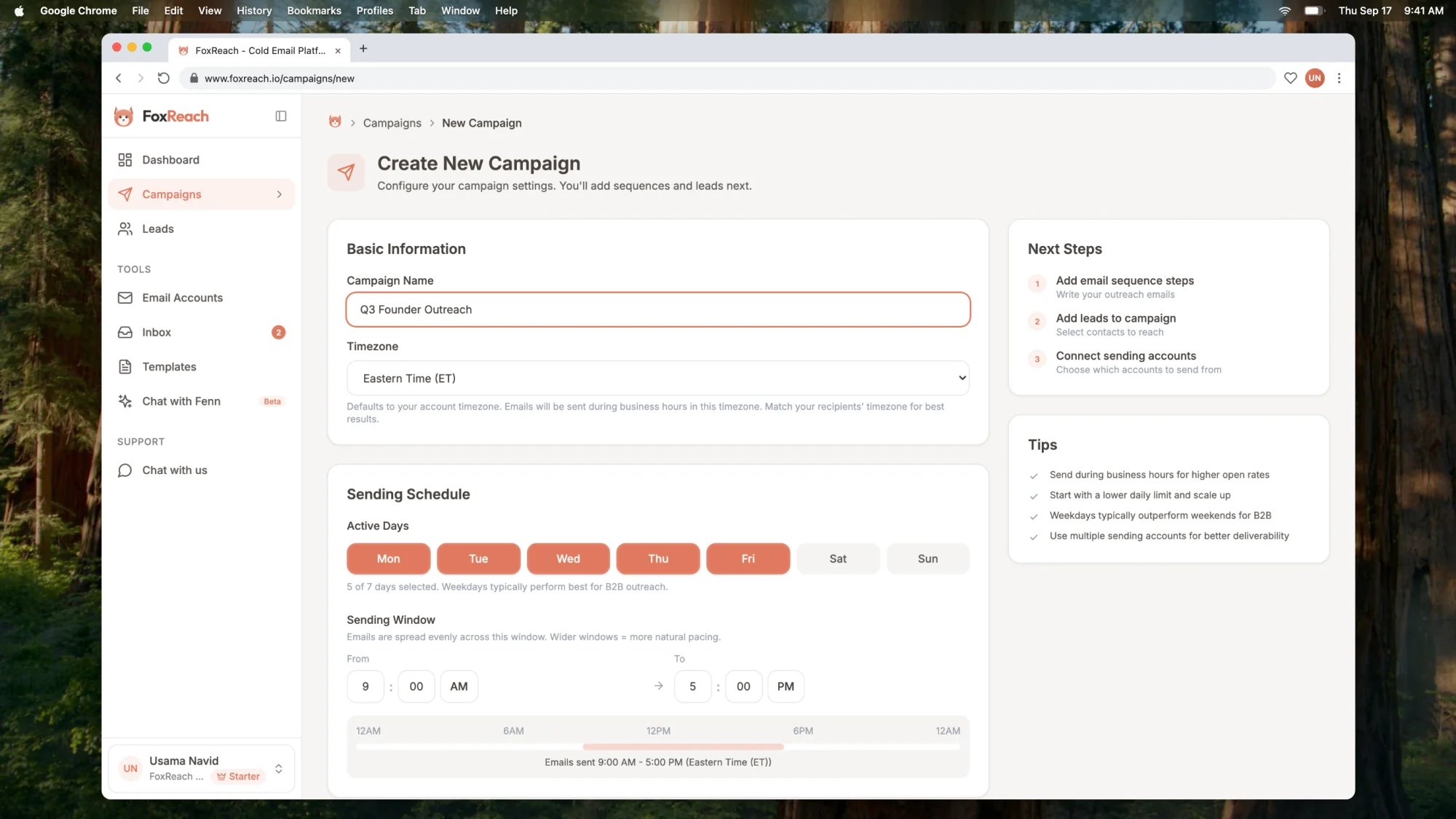 **Basic Information.** Give the campaign a name that says who it targets, like "Cold Email Mastery - AI Agents". Then pick the **Timezone**. It defaults to your account timezone, but the right choice is the timezone your leads are in, because the sending window below is interpreted in this zone.
**Sending Schedule.** Under **Active Days**, click the day buttons to toggle them. Monday to Friday is preselected, which is right for most B2B lists. Under **Sending Window**, set **From** and **To**. The default is 9:00 AM to 5:00 PM. FoxReach spreads the day's sends evenly across this window, so a wider window means a more natural cadence.
**Sending Accounts.** Every connected account is ticked by default, with its health score and daily limit next to it. Untick any mailbox that should stay out of this campaign, or use Clear all and pick the ones you want. Emails rotate across the accounts you leave selected.
**Sending Limits.** The **Daily Send Limit** is the maximum number of emails this campaign sends per day across all of its accounts. It defaults to 100 and accepts anything from 1 to 5000. The first campaign from a fresh mailbox should sit at 50 or below; raise it once the accounts have warmed up.
Click **Create Campaign**. You land on the campaign page with a Draft badge next to the name.
The campaign limit is only one of three caps. Each account has its own daily limit, and FoxReach clamps Gmail and Microsoft mailboxes to 50 sends a day whatever number you type. On top of that, your plan has a workspace-wide daily safety cap (25 on Free, 500 on Starter, 5,000 on Growth, 25,000 on Agency). The lowest of the three is what actually goes out. New accounts also inherit the workspace defaults from Settings, Workspace, Sending Defaults, where the Daily Sending Limit starts at 50.
## Step 2: Write the first email
The campaign page has five tabs: Overview, Sequences, Leads, Accounts and Activity. Open **Sequences** and click **Add First Step**.
An inline editor appears with a **Subject Line** field and a body editor. Write the subject, then click **Variables** next to it to insert a lead field at the cursor. The menu is grouped into Standard Fields (first name, last name, full name, email, company, title, phone, LinkedIn, website), Custom Fields (anything you imported that is not a standard column), and Account Fields (the sender's signature, name and email).
**Basic Information.** Give the campaign a name that says who it targets, like "Cold Email Mastery - AI Agents". Then pick the **Timezone**. It defaults to your account timezone, but the right choice is the timezone your leads are in, because the sending window below is interpreted in this zone.
**Sending Schedule.** Under **Active Days**, click the day buttons to toggle them. Monday to Friday is preselected, which is right for most B2B lists. Under **Sending Window**, set **From** and **To**. The default is 9:00 AM to 5:00 PM. FoxReach spreads the day's sends evenly across this window, so a wider window means a more natural cadence.
**Sending Accounts.** Every connected account is ticked by default, with its health score and daily limit next to it. Untick any mailbox that should stay out of this campaign, or use Clear all and pick the ones you want. Emails rotate across the accounts you leave selected.
**Sending Limits.** The **Daily Send Limit** is the maximum number of emails this campaign sends per day across all of its accounts. It defaults to 100 and accepts anything from 1 to 5000. The first campaign from a fresh mailbox should sit at 50 or below; raise it once the accounts have warmed up.
Click **Create Campaign**. You land on the campaign page with a Draft badge next to the name.
The campaign limit is only one of three caps. Each account has its own daily limit, and FoxReach clamps Gmail and Microsoft mailboxes to 50 sends a day whatever number you type. On top of that, your plan has a workspace-wide daily safety cap (25 on Free, 500 on Starter, 5,000 on Growth, 25,000 on Agency). The lowest of the three is what actually goes out. New accounts also inherit the workspace defaults from Settings, Workspace, Sending Defaults, where the Daily Sending Limit starts at 50.
## Step 2: Write the first email
The campaign page has five tabs: Overview, Sequences, Leads, Accounts and Activity. Open **Sequences** and click **Add First Step**.
An inline editor appears with a **Subject Line** field and a body editor. Write the subject, then click **Variables** next to it to insert a lead field at the cursor. The menu is grouped into Standard Fields (first name, last name, full name, email, company, title, phone, LinkedIn, website), Custom Fields (anything you imported that is not a standard column), and Account Fields (the sender's signature, name and email).
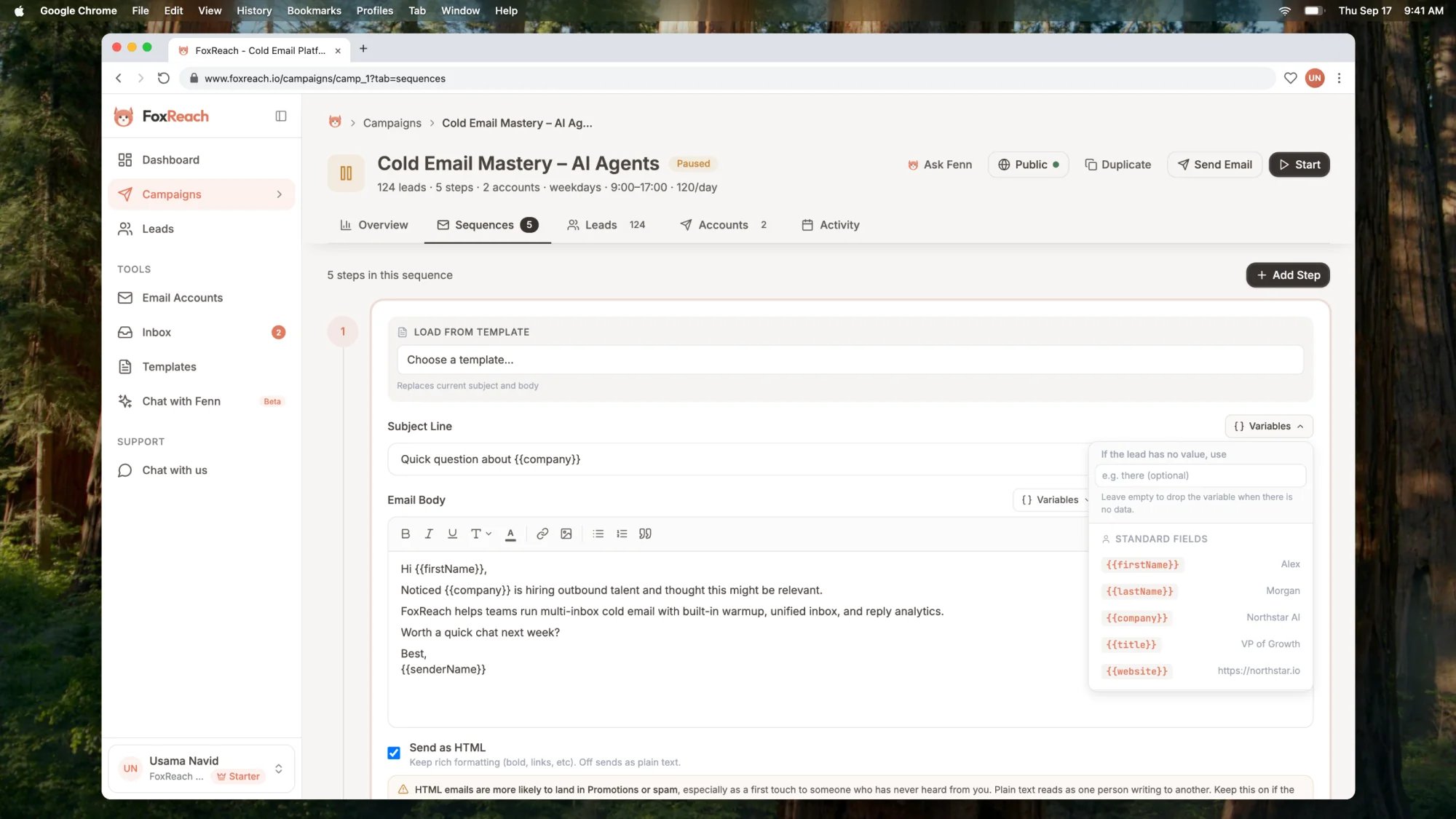 Three syntax details worth knowing before you write:
* **Variables** look like `{{firstName}}` and `{{company}}`. Snake case works too, so `{{first_name}}` is the same thing.
* **Fallbacks** cover leads with missing data. `{{firstName|there}}` renders the first name when it exists and "there" when it does not. In the Variables menu, the field labelled "If the lead has no value, use" bakes the fallback into the tag for you.
* **Spin syntax** rotates phrasing per send. `{Hi|Hello|Hey}` picks one option at random each time the step goes out, so no two emails are identical. Keep it to short phrases and never nest one block inside another.
Under the editor is a collapsible dual preview that renders the email twice, once as a lead with every field filled and once as a lead with none. This is where you catch a bare `{{company}}` that would print an empty gap.
If you already have a template, the **Load from Template** dropdown at the top of the editor pulls its subject and body into the step. Templates are covered in [email templates in FoxReach](/docs/get-started/email-templates).
Click **Add Step**. A "Sequence step added" toast confirms it, and the step appears as a card.
## Step 3: Add a follow-up
Click **Add Step** at the top of the Sequences tab. The editor is the same, with two extra fields that only appear from the second step on: **Delay (Days)** and **Delay (Hours)**. The delay counts from the previous step, not from the first email. Three days is a sensible first follow-up; the [follow-up sequence guide](https://www.foxreach.io/blog/cold-email-follow-up-sequence) goes into spacing for longer sequences.
Write a short bump, set the delay, and click **Add Step**. The card for step two shows "Wait 3 days after step 1" under its subject.
Three syntax details worth knowing before you write:
* **Variables** look like `{{firstName}}` and `{{company}}`. Snake case works too, so `{{first_name}}` is the same thing.
* **Fallbacks** cover leads with missing data. `{{firstName|there}}` renders the first name when it exists and "there" when it does not. In the Variables menu, the field labelled "If the lead has no value, use" bakes the fallback into the tag for you.
* **Spin syntax** rotates phrasing per send. `{Hi|Hello|Hey}` picks one option at random each time the step goes out, so no two emails are identical. Keep it to short phrases and never nest one block inside another.
Under the editor is a collapsible dual preview that renders the email twice, once as a lead with every field filled and once as a lead with none. This is where you catch a bare `{{company}}` that would print an empty gap.
If you already have a template, the **Load from Template** dropdown at the top of the editor pulls its subject and body into the step. Templates are covered in [email templates in FoxReach](/docs/get-started/email-templates).
Click **Add Step**. A "Sequence step added" toast confirms it, and the step appears as a card.
## Step 3: Add a follow-up
Click **Add Step** at the top of the Sequences tab. The editor is the same, with two extra fields that only appear from the second step on: **Delay (Days)** and **Delay (Hours)**. The delay counts from the previous step, not from the first email. Three days is a sensible first follow-up; the [follow-up sequence guide](https://www.foxreach.io/blog/cold-email-follow-up-sequence) goes into spacing for longer sequences.
Write a short bump, set the delay, and click **Add Step**. The card for step two shows "Wait 3 days after step 1" under its subject.
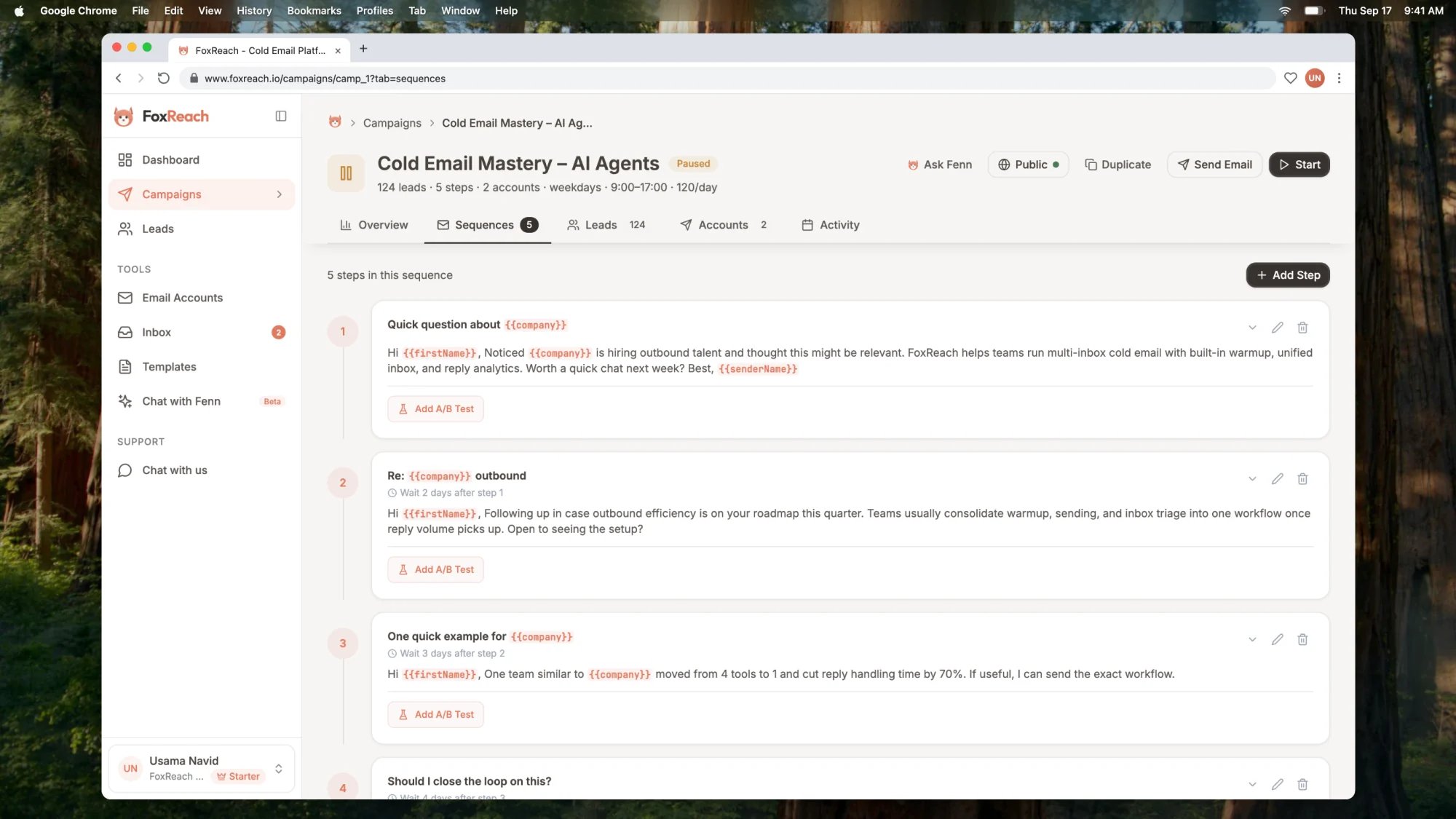 Every follow-up is a "send only if no reply" step by default. FoxReach checks for a reply from the lead before each step goes out and skips the rest of the sequence for anyone who has answered. You do not need to configure that; it is how sequences work.
Repeat for as many steps as you want. The demo campaign in the screenshots runs five: Initial Outreach, Follow Up 1, Follow Up 2, Follow Up 3 and Last Touch. Three to five is the range most lists respond to.
Any step can be split into A/B variants with the Add A/B Test button on its card. That is its own topic, so read [how to A/B test cold email in FoxReach](/docs/product/ab-testing) once the basic sequence is in place.
## Step 4: Add leads
Open the **Leads** tab and click **Add Leads**. A panel titled Add Leads to Campaign slides in with a search box, a Status filter, a Tag filter, and a checkbox list of every lead in the workspace who is not already in this campaign.
Every follow-up is a "send only if no reply" step by default. FoxReach checks for a reply from the lead before each step goes out and skips the rest of the sequence for anyone who has answered. You do not need to configure that; it is how sequences work.
Repeat for as many steps as you want. The demo campaign in the screenshots runs five: Initial Outreach, Follow Up 1, Follow Up 2, Follow Up 3 and Last Touch. Three to five is the range most lists respond to.
Any step can be split into A/B variants with the Add A/B Test button on its card. That is its own topic, so read [how to A/B test cold email in FoxReach](/docs/product/ab-testing) once the basic sequence is in place.
## Step 4: Add leads
Open the **Leads** tab and click **Add Leads**. A panel titled Add Leads to Campaign slides in with a search box, a Status filter, a Tag filter, and a checkbox list of every lead in the workspace who is not already in this campaign.
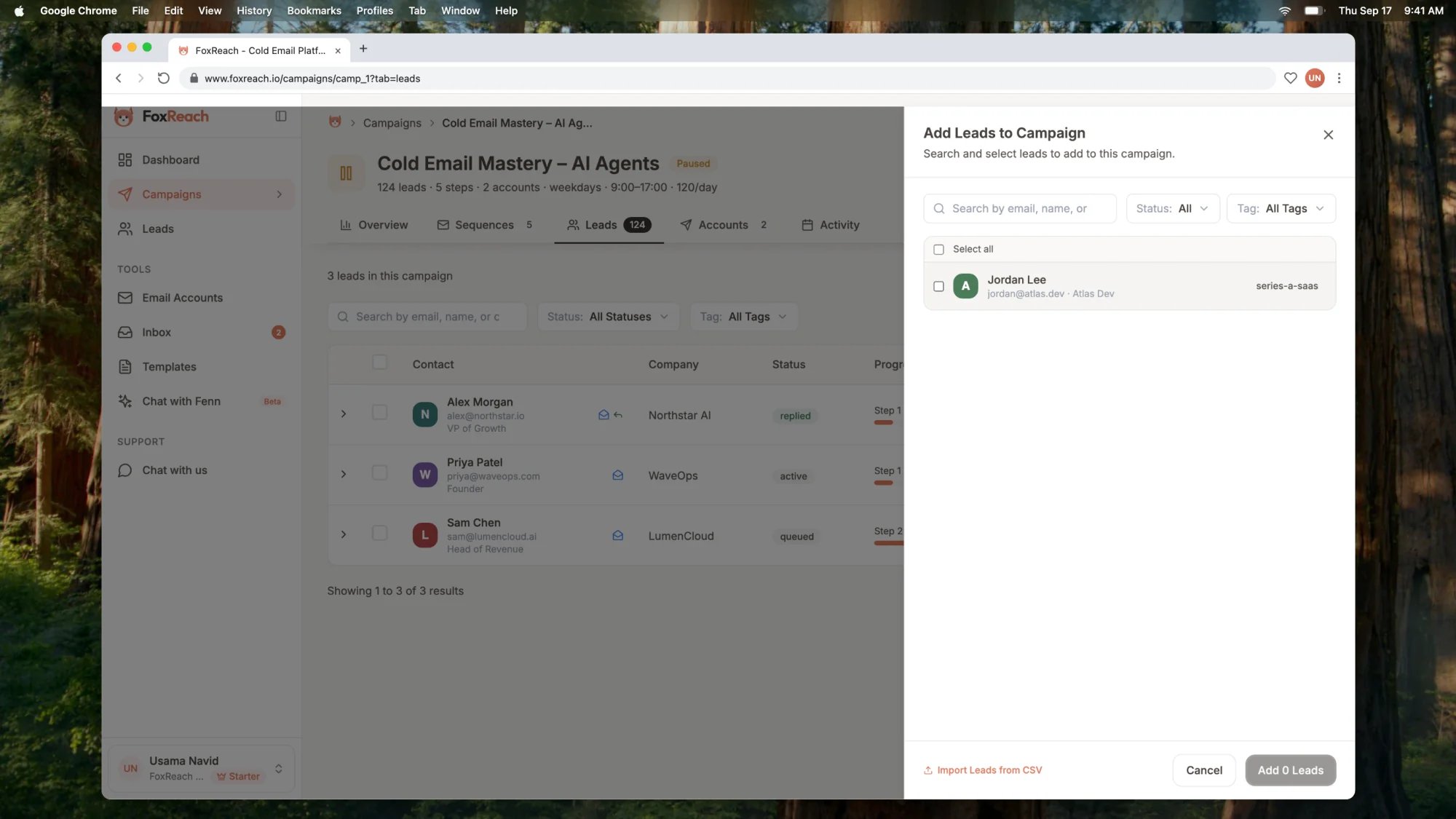 Three ways to pick:
* **Search** by email, name or company to find individuals, like Alex Morgan at Northstar AI.
* **Tag** narrows the list to one imported segment. If you tagged your CSV on import, this is the fastest route.
* **Select all** ticks every lead on the page. If the filtered list runs past one page, a second link selects every matching lead across all pages.
Click **Add N Leads** at the bottom. Bounced and unsubscribed leads are never sent to even if they are in the list, and leads that failed email verification are skipped as well.
You can add more leads later, including while the campaign is running. Removing leads, however, requires the campaign to be paused.
## Step 5: Check the accounts and start
Open the **Accounts** tab. The mailboxes you ticked when creating the campaign are already here. Use **Add Account** to attach another, or Remove to drop one.
Now click **Start** at the top right of the page. FoxReach checks that the campaign has at least one sequence step, at least one lead and at least one account, then flips the badge from Draft to Active and shows a "Campaign started" toast. Sends begin at the next minute inside your window.
**Pause** replaces Start while the campaign is active. Pausing cancels everything queued but not yet sent; nothing goes out until you click **Start** again, at which point leads pick up from where they were.
## How sending works once the campaign is live
A few things happen automatically that are worth understanding before you look at the numbers.
**The window and timezone are enforced.** Sends only go out on the active days, between From and To, in the campaign's timezone. If you set 9:00 AM to 5:00 PM New York time, a lead in London gets email between 2:00 PM and 10:00 PM their time, so choose the zone your leads live in.
**Volume is spread across accounts and across the window.** Each day's sends are divided among the selected accounts and paced through the window rather than fired in a burst. Two sends from the same mailbox are at least nine minutes apart by default, plus a random extra delay of up to five minutes. In an eight-hour window that works out to roughly 42 emails per mailbox per day; widen the window or lower the gap under Edit on the Overview tab to send more.
**Follow-ups come from the same sender and thread as replies.** The account that sends step one to a lead is remembered, and every later step to that lead leaves from the same mailbox. Follow-ups carry the In-Reply-To and References headers defined in [RFC 5322](https://www.rfc-editor.org/rfc/rfc5322) and a "Re:" subject prefix, so Gmail and Outlook show the lead one thread.
**A reply stops the sequence for that lead.** The moment FoxReach sees a reply, the lead is marked replied and no further steps are sent to them. Their reply appears in the unified inbox.
**Bounces are handled for you.** A hard bounce marks the lead bounced in every campaign, and if a campaign's bounce rate spikes, FoxReach pauses it automatically and emails you.
**Limits are checked at every send.** The plan's monthly email allowance, the workspace daily safety cap, the campaign daily limit and each account's own limit are all checked again just before an email leaves. When any of them is hit, sending resumes when the counter resets.
**The campaign completes itself.** When every lead has either finished the sequence, replied, bounced or been cancelled, the status changes to Completed and you get an email. Adding new leads to a completed campaign puts it back to Active.
Two external rules shape these defaults. Google's [Email sender guidelines](https://support.google.com/a/answer/81126) set the bar for authentication and complaint rates, which is why the pacing and account caps are conservative. The FTC's [CAN-SPAM compliance guide](https://www.ftc.gov/business-guidance/resources/can-spam-act-compliance-guide-business) requires an honest sender, a truthful subject and a working opt-out, which is why every lead has an unsubscribe status FoxReach respects across all campaigns.
## Duplicating a campaign
Once one campaign is dialled in, click **Duplicate** at the top of its page. The copy keeps the schedule, the daily limit, the sequence steps, any A/B variants and the account assignments, and starts as a new draft. Leads are not copied, so open the Leads tab of the copy, add the next list, and click Start.
## Troubleshooting
**Nothing is sending.** Check four things in order. Is the badge Active, or still Draft? Draft campaigns never send. Is it inside the window right now, on an active day, in the campaign's timezone? Has the daily limit been reached, either the campaign's or every account's? And does the Accounts tab show at least one account marked connected? A banner appears on the campaign page when no account can send.
**I cannot edit the sequence.** Steps, settings and accounts are locked while the campaign is active, and the Sequences tab says "Pause the campaign to edit sequences". Click Pause, edit, then Start again. Every email not yet sent uses the new content.
**The daily limit is lower than I set.** Gmail and Microsoft mailboxes are capped at 50 sends a day regardless of the account setting, the workspace daily safety cap depends on your plan, and the nine-minute gap limits how many sends fit in a short window. The lowest cap wins. Compare the account limit, the plan cap on the [pricing page](https://www.foxreach.io/pricing), and the window length.
**A lead stopped getting follow-ups.** That is the intended behaviour if they replied, bounced or unsubscribed. Open the lead in the Leads tab to see which one, and check the unified inbox for the reply.
**Start is refused.** The campaign needs at least one sequence step, at least one lead and at least one connected account. The error names the one that is missing.
## Next step
The campaign is live. Replies will start arriving in the unified inbox, and that is where the next guide picks up: [working the FoxReach unified inbox](/docs/get-started/unified-inbox). Once a week or so of sends is in, [reading campaign results in FoxReach](/docs/get-started/campaign-results) explains which numbers on the Overview and Activity tabs matter and which to ignore.
If you are bumping into the daily safety cap or the monthly email allowance, the [pricing page](https://www.foxreach.io/pricing) lists the email limits on every plan so you can size the campaign to the plan you are on.
## Frequently asked questions
A campaign is the container for one outreach run. It holds a schedule with a timezone, sending days and a sending window, a daily send limit, the sending accounts that will send, the leads who will receive the emails, and the sequence of steps to send them. Nothing goes out until you click Start.
Three limits apply at once and the lowest one wins. The campaign daily limit caps the whole campaign across every account. Each sending account has its own daily limit, and FoxReach caps Gmail and Microsoft mailboxes at 50 sends a day regardless of the value you set. Your plan adds a workspace-wide daily safety cap on top.
Yes. When FoxReach sends step one to a lead it records which account sent it, and every later step to that lead goes out from the same account. Follow-ups are threaded as replies to the first email and their subject is prefixed with Re, so the lead sees one conversation instead of several unrelated messages.
Their sequence stops. Follow-up steps only go to leads who have not replied, so the moment a reply is detected, no further steps are sent to that lead. The reply lands in the unified inbox where you can categorize it and answer. Leads who never reply keep moving through the remaining steps on schedule.
Not while it is active. Settings, sequence steps, and the account list are locked once the campaign is running. Click Pause, make your changes, then click Start again. Leads keep their place in the sequence, and any email that has not gone out yet uses the updated content. Adding more leads is allowed at any time.
Three ways to pick:
* **Search** by email, name or company to find individuals, like Alex Morgan at Northstar AI.
* **Tag** narrows the list to one imported segment. If you tagged your CSV on import, this is the fastest route.
* **Select all** ticks every lead on the page. If the filtered list runs past one page, a second link selects every matching lead across all pages.
Click **Add N Leads** at the bottom. Bounced and unsubscribed leads are never sent to even if they are in the list, and leads that failed email verification are skipped as well.
You can add more leads later, including while the campaign is running. Removing leads, however, requires the campaign to be paused.
## Step 5: Check the accounts and start
Open the **Accounts** tab. The mailboxes you ticked when creating the campaign are already here. Use **Add Account** to attach another, or Remove to drop one.
Now click **Start** at the top right of the page. FoxReach checks that the campaign has at least one sequence step, at least one lead and at least one account, then flips the badge from Draft to Active and shows a "Campaign started" toast. Sends begin at the next minute inside your window.
**Pause** replaces Start while the campaign is active. Pausing cancels everything queued but not yet sent; nothing goes out until you click **Start** again, at which point leads pick up from where they were.
## How sending works once the campaign is live
A few things happen automatically that are worth understanding before you look at the numbers.
**The window and timezone are enforced.** Sends only go out on the active days, between From and To, in the campaign's timezone. If you set 9:00 AM to 5:00 PM New York time, a lead in London gets email between 2:00 PM and 10:00 PM their time, so choose the zone your leads live in.
**Volume is spread across accounts and across the window.** Each day's sends are divided among the selected accounts and paced through the window rather than fired in a burst. Two sends from the same mailbox are at least nine minutes apart by default, plus a random extra delay of up to five minutes. In an eight-hour window that works out to roughly 42 emails per mailbox per day; widen the window or lower the gap under Edit on the Overview tab to send more.
**Follow-ups come from the same sender and thread as replies.** The account that sends step one to a lead is remembered, and every later step to that lead leaves from the same mailbox. Follow-ups carry the In-Reply-To and References headers defined in [RFC 5322](https://www.rfc-editor.org/rfc/rfc5322) and a "Re:" subject prefix, so Gmail and Outlook show the lead one thread.
**A reply stops the sequence for that lead.** The moment FoxReach sees a reply, the lead is marked replied and no further steps are sent to them. Their reply appears in the unified inbox.
**Bounces are handled for you.** A hard bounce marks the lead bounced in every campaign, and if a campaign's bounce rate spikes, FoxReach pauses it automatically and emails you.
**Limits are checked at every send.** The plan's monthly email allowance, the workspace daily safety cap, the campaign daily limit and each account's own limit are all checked again just before an email leaves. When any of them is hit, sending resumes when the counter resets.
**The campaign completes itself.** When every lead has either finished the sequence, replied, bounced or been cancelled, the status changes to Completed and you get an email. Adding new leads to a completed campaign puts it back to Active.
Two external rules shape these defaults. Google's [Email sender guidelines](https://support.google.com/a/answer/81126) set the bar for authentication and complaint rates, which is why the pacing and account caps are conservative. The FTC's [CAN-SPAM compliance guide](https://www.ftc.gov/business-guidance/resources/can-spam-act-compliance-guide-business) requires an honest sender, a truthful subject and a working opt-out, which is why every lead has an unsubscribe status FoxReach respects across all campaigns.
## Duplicating a campaign
Once one campaign is dialled in, click **Duplicate** at the top of its page. The copy keeps the schedule, the daily limit, the sequence steps, any A/B variants and the account assignments, and starts as a new draft. Leads are not copied, so open the Leads tab of the copy, add the next list, and click Start.
## Troubleshooting
**Nothing is sending.** Check four things in order. Is the badge Active, or still Draft? Draft campaigns never send. Is it inside the window right now, on an active day, in the campaign's timezone? Has the daily limit been reached, either the campaign's or every account's? And does the Accounts tab show at least one account marked connected? A banner appears on the campaign page when no account can send.
**I cannot edit the sequence.** Steps, settings and accounts are locked while the campaign is active, and the Sequences tab says "Pause the campaign to edit sequences". Click Pause, edit, then Start again. Every email not yet sent uses the new content.
**The daily limit is lower than I set.** Gmail and Microsoft mailboxes are capped at 50 sends a day regardless of the account setting, the workspace daily safety cap depends on your plan, and the nine-minute gap limits how many sends fit in a short window. The lowest cap wins. Compare the account limit, the plan cap on the [pricing page](https://www.foxreach.io/pricing), and the window length.
**A lead stopped getting follow-ups.** That is the intended behaviour if they replied, bounced or unsubscribed. Open the lead in the Leads tab to see which one, and check the unified inbox for the reply.
**Start is refused.** The campaign needs at least one sequence step, at least one lead and at least one connected account. The error names the one that is missing.
## Next step
The campaign is live. Replies will start arriving in the unified inbox, and that is where the next guide picks up: [working the FoxReach unified inbox](/docs/get-started/unified-inbox). Once a week or so of sends is in, [reading campaign results in FoxReach](/docs/get-started/campaign-results) explains which numbers on the Overview and Activity tabs matter and which to ignore.
If you are bumping into the daily safety cap or the monthly email allowance, the [pricing page](https://www.foxreach.io/pricing) lists the email limits on every plan so you can size the campaign to the plan you are on.
## Frequently asked questions
A campaign is the container for one outreach run. It holds a schedule with a timezone, sending days and a sending window, a daily send limit, the sending accounts that will send, the leads who will receive the emails, and the sequence of steps to send them. Nothing goes out until you click Start.
Three limits apply at once and the lowest one wins. The campaign daily limit caps the whole campaign across every account. Each sending account has its own daily limit, and FoxReach caps Gmail and Microsoft mailboxes at 50 sends a day regardless of the value you set. Your plan adds a workspace-wide daily safety cap on top.
Yes. When FoxReach sends step one to a lead it records which account sent it, and every later step to that lead goes out from the same account. Follow-ups are threaded as replies to the first email and their subject is prefixed with Re, so the lead sees one conversation instead of several unrelated messages.
Their sequence stops. Follow-up steps only go to leads who have not replied, so the moment a reply is detected, no further steps are sent to that lead. The reply lands in the unified inbox where you can categorize it and answer. Leads who never reply keep moving through the remaining steps on schedule.
Not while it is active. Settings, sequence steps, and the account list are locked once the campaign is running. Click Pause, make your changes, then click Start again. Leads keep their place in the sequence, and any email that has not gone out yet uses the updated content. Adding more leads is allowed at any time.