> ## Documentation Index
> Fetch the complete documentation index at: https://www.foxreach.io/docs/llms.txt
> Use this file to discover all available pages before exploring further.
# Connect an email account
> How to connect an email account to FoxReach with Google sign-in or an app password: run the connection test, set a safe daily limit, and read the health score.
Every campaign in FoxReach sends from a mailbox you own, so connecting one is the first thing to do in a new workspace. By the end of this guide you will have an email account connected, tested for both sending and inbox access, set to a sensible daily limit, and showing as Connected with a health score on the Email Accounts page.
The guide covers both ways to connect: Sign in with Google for Gmail and Google Workspace, and an app password for Gmail, Outlook, Yahoo, Zoho, or any custom SMTP and IMAP server. It also explains what the account page shows you afterwards and how to fix an account that stops working.
## Before you start
You need three things:
* **A FoxReach workspace.** If you are brand new, the [getting started guide](/docs/get-started/overview) walks through the whole first campaign. This post is the detailed version of its first step.
* **A mailbox you control**, on a domain you are allowed to send cold email from. Gmail, Google Workspace, Outlook or Office 365, Yahoo, Zoho, and any server that exposes SMTP and IMAP all work.
* **Either Google sign-in or an app password.** If the mailbox is Gmail or Google Workspace, you can skip the password entirely and use Sign in with Google. For every other provider, and for Gmail if you prefer, you will create an app password in Step 3.
Connecting email accounts is unlimited on every plan, including Free. Plan limits apply to monthly email volume and warmup, not to the number of mailboxes.
## Step 1: Open Email Accounts and click Connect Account
In the sidebar, click **Email Accounts**. The page lists every mailbox connected to the current workspace, with a status badge, the sent-today counter against its daily limit, and its health score.
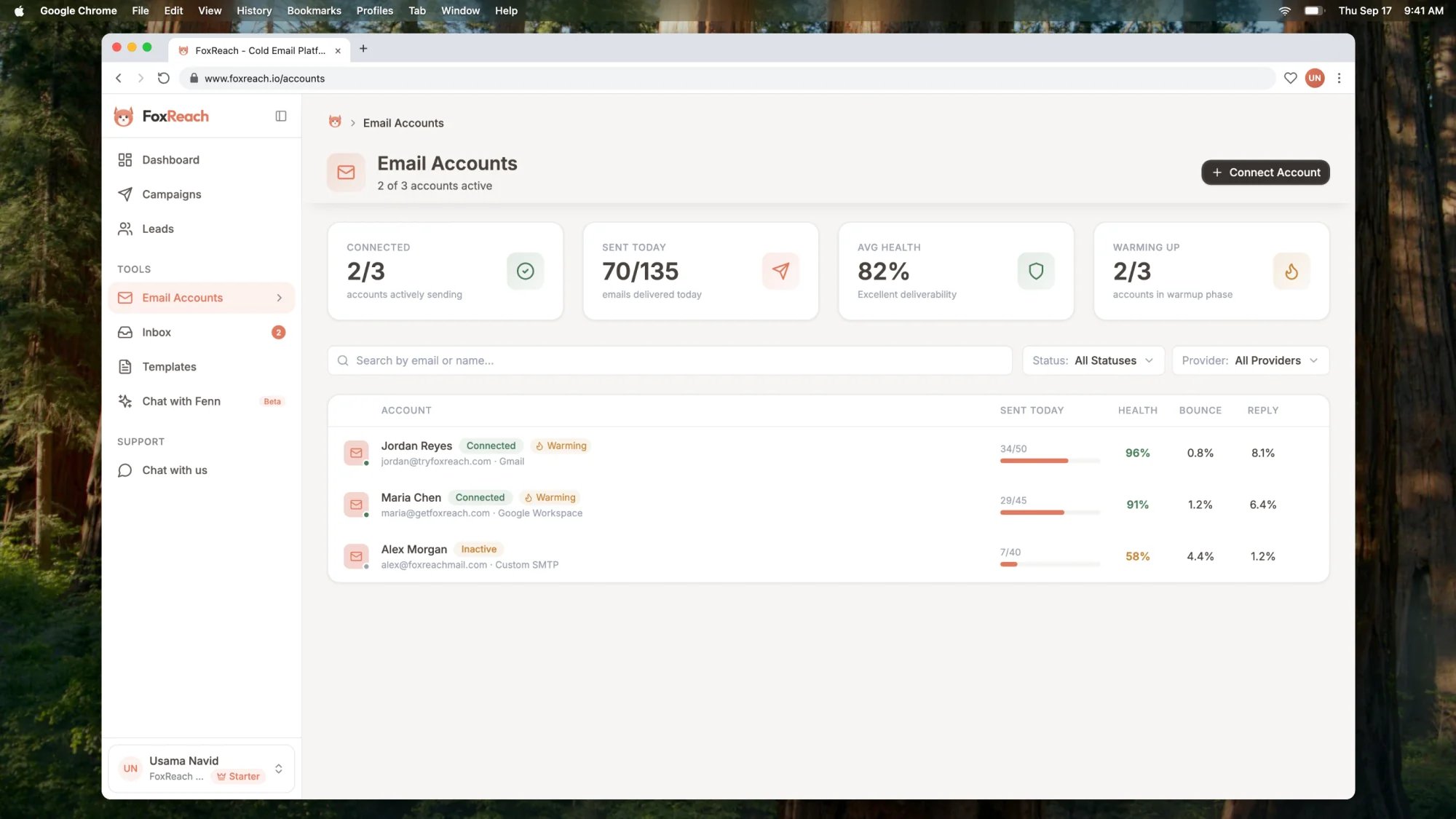 In the FoxReach Academy Demo workspace above, Usama Navid has three accounts connected: [jordan@tryfoxreach.com](mailto:jordan@tryfoxreach.com) (Jordan Reyes, Gmail), [maria@getfoxreach.com](mailto:maria@getfoxreach.com) (Maria Chen, Google Workspace), and [alex@foxreachmail.com](mailto:alex@foxreachmail.com) (Alex Morgan, Custom SMTP). Each row shows Sent Today as a progress bar, then Health, Bounce, and Reply columns.
Click **Connect Account** in the top right. If the workspace has no accounts yet, the page shows a banner with a **Connect Email Account** button instead, which opens the same dialog.
## Step 2: Choose how to connect
The Connect Email Account dialog opens with two options.
**Sign in with Google** sits at the top. It connects Gmail or Google Workspace in one click through Google's consent screen. No app password is needed. Click it, pick the Google account, approve access, and you land back on the Email Accounts page with the new account already in the list and a confirmation toast. The account is created with the default daily limit of 50, which you can change on its detail page (Step 7).
Below the divider, under "or connect with an app password", is a grid of providers:
| Provider card | Use it for |
| -------------------- | --------------------------------- |
| Gmail | Personal Gmail accounts |
| Google Workspace | Business Gmail on a custom domain |
| Outlook / Office 365 | Microsoft email accounts |
| Yahoo Mail | Yahoo and AOL accounts |
| Zoho Mail | Zoho business email |
| Custom SMTP | Any SMTP and IMAP server |
Picking a provider pre-fills the SMTP and IMAP hosts and ports for you. Custom SMTP leaves them blank so you can enter your own. An account behaves identically once connected, whichever path you used.
The rest of this guide follows the app password path with Gmail, matching the video. Click the **Gmail** card to continue.
## Step 3: Create an app password
An app password is a 16-character code your email provider generates for a single application. It is not your normal login password, and FoxReach will not accept your normal password for Gmail. The dialog says so above the form: "Use an App Password (not your regular password). Enable 2-Step Verification first."
**Gmail and Google Workspace.** Turn on 2-Step Verification for the Google account, then open the app passwords page at [myaccount.google.com/apppasswords](https://myaccount.google.com/apppasswords), give the password a name such as FoxReach, and copy the 16 characters Google shows you. Google's help article on [creating an App Password](https://support.google.com/accounts/answer/185833) covers the details. On Workspace, an admin may need to allow app passwords first; Google's [Workspace SMTP setup guide](https://support.google.com/a/answer/176600) explains the admin side.
**Outlook and Office 365.** If two-step verification is on for the Microsoft account, create an app password by following Microsoft's guide on [using app passwords with apps that don't support two-step verification](https://support.microsoft.com/en-us/account-billing/using-app-passwords-with-apps-that-don-t-support-two-step-verification-5896ed9b-4263-e681-128a-a6f2979a7944). If it is off, the dialog accepts your regular password.
**Yahoo and Zoho.** Both generate app passwords from their account security settings. The dialog links to each provider's own instructions once you pick the card.
## Step 4: Fill in the connection form
With Gmail selected, the form asks for a few fields.
In the FoxReach Academy Demo workspace above, Usama Navid has three accounts connected: [jordan@tryfoxreach.com](mailto:jordan@tryfoxreach.com) (Jordan Reyes, Gmail), [maria@getfoxreach.com](mailto:maria@getfoxreach.com) (Maria Chen, Google Workspace), and [alex@foxreachmail.com](mailto:alex@foxreachmail.com) (Alex Morgan, Custom SMTP). Each row shows Sent Today as a progress bar, then Health, Bounce, and Reply columns.
Click **Connect Account** in the top right. If the workspace has no accounts yet, the page shows a banner with a **Connect Email Account** button instead, which opens the same dialog.
## Step 2: Choose how to connect
The Connect Email Account dialog opens with two options.
**Sign in with Google** sits at the top. It connects Gmail or Google Workspace in one click through Google's consent screen. No app password is needed. Click it, pick the Google account, approve access, and you land back on the Email Accounts page with the new account already in the list and a confirmation toast. The account is created with the default daily limit of 50, which you can change on its detail page (Step 7).
Below the divider, under "or connect with an app password", is a grid of providers:
| Provider card | Use it for |
| -------------------- | --------------------------------- |
| Gmail | Personal Gmail accounts |
| Google Workspace | Business Gmail on a custom domain |
| Outlook / Office 365 | Microsoft email accounts |
| Yahoo Mail | Yahoo and AOL accounts |
| Zoho Mail | Zoho business email |
| Custom SMTP | Any SMTP and IMAP server |
Picking a provider pre-fills the SMTP and IMAP hosts and ports for you. Custom SMTP leaves them blank so you can enter your own. An account behaves identically once connected, whichever path you used.
The rest of this guide follows the app password path with Gmail, matching the video. Click the **Gmail** card to continue.
## Step 3: Create an app password
An app password is a 16-character code your email provider generates for a single application. It is not your normal login password, and FoxReach will not accept your normal password for Gmail. The dialog says so above the form: "Use an App Password (not your regular password). Enable 2-Step Verification first."
**Gmail and Google Workspace.** Turn on 2-Step Verification for the Google account, then open the app passwords page at [myaccount.google.com/apppasswords](https://myaccount.google.com/apppasswords), give the password a name such as FoxReach, and copy the 16 characters Google shows you. Google's help article on [creating an App Password](https://support.google.com/accounts/answer/185833) covers the details. On Workspace, an admin may need to allow app passwords first; Google's [Workspace SMTP setup guide](https://support.google.com/a/answer/176600) explains the admin side.
**Outlook and Office 365.** If two-step verification is on for the Microsoft account, create an app password by following Microsoft's guide on [using app passwords with apps that don't support two-step verification](https://support.microsoft.com/en-us/account-billing/using-app-passwords-with-apps-that-don-t-support-two-step-verification-5896ed9b-4263-e681-128a-a6f2979a7944). If it is off, the dialog accepts your regular password.
**Yahoo and Zoho.** Both generate app passwords from their account security settings. The dialog links to each provider's own instructions once you pick the card.
## Step 4: Fill in the connection form
With Gmail selected, the form asks for a few fields.
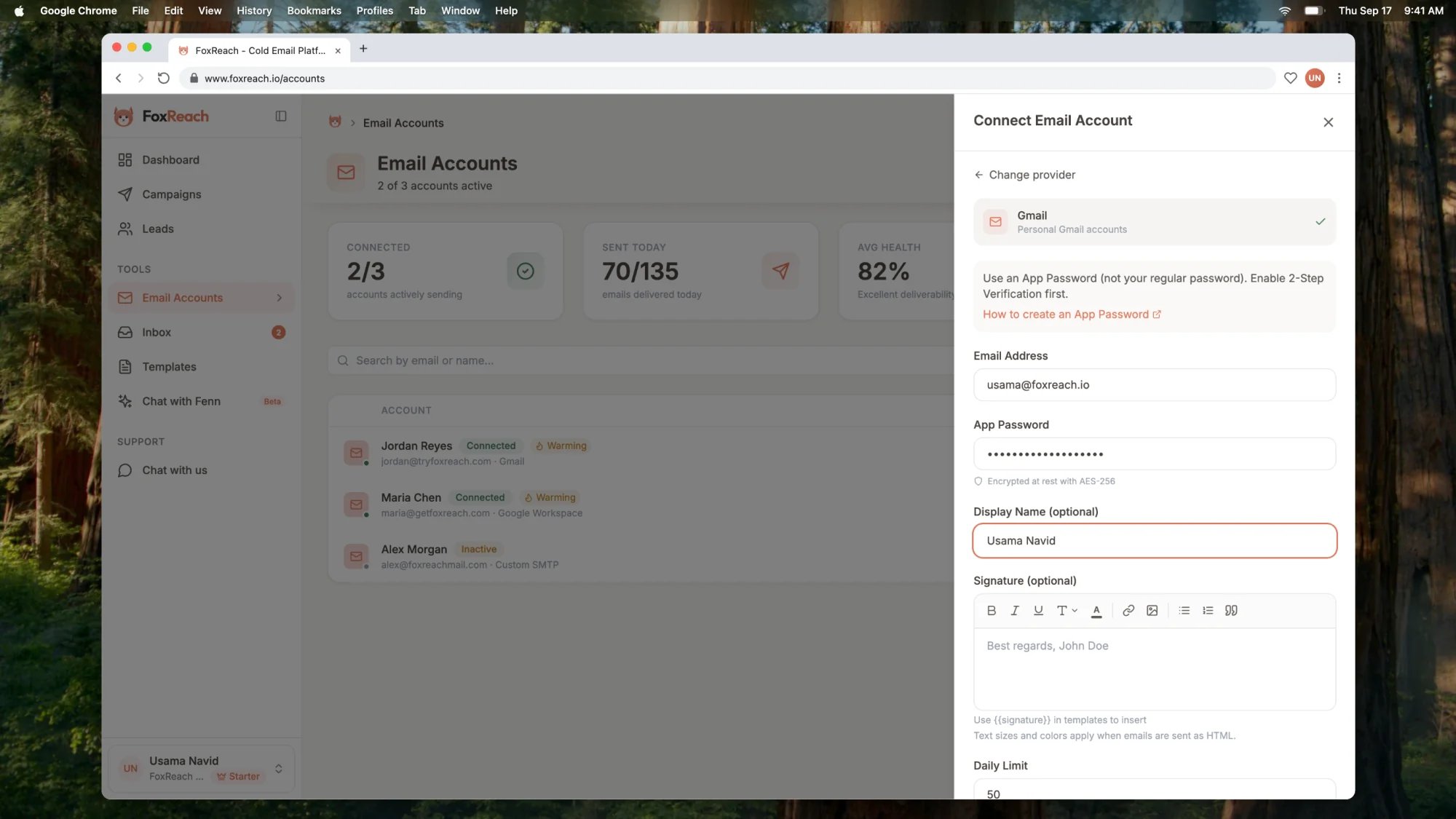 * **Email Address.** The mailbox you are connecting, for example [jordan@tryfoxreach.com](mailto:jordan@tryfoxreach.com).
* **App Password.** Paste the code from Step 3. Spaces are fine. Under the field FoxReach notes that credentials are encrypted at rest.
* **Display Name (optional).** The sender name recipients see in their inbox, such as Jordan Reyes. Leave it blank and the address is shown instead.
* **Signature (optional).** A rich-text block you can insert into any template with the `{{signature}}` variable. Text sizes and colors only apply when the email is sent as HTML.
* **Daily Limit.** The maximum number of campaign emails this account sends per day. The field accepts 1 to 200 and starts at 50. The hint under it changes per provider; for Gmail it recommends 30 to 50.
Keep the daily limit modest for a fresh inbox. The account page suggests 20 to 50 for new accounts, increased gradually. For Gmail and Outlook mailboxes, FoxReach will not save a limit above 50 per day, because that is the volume those providers tolerate from a cold sender. Warmup raises real-world capacity over time; the limit is a ceiling, not a target.
For a named provider you rarely need to touch server settings, but **Override Server Settings** expands SMTP Host, SMTP Port, IMAP Host, and IMAP Port if your organisation routes mail through a different host. For Custom SMTP, the Server Settings block is shown by default and the SMTP Host and IMAP Host fields are required.
If you picked the wrong provider, **Change provider** at the top of the form takes you back to the grid.
## Step 5: Test the connection
Click **Test Connection**. FoxReach logs in to the mailbox twice: once over SMTP, which is how it will send, and once over IMAP, which is how it reads the inbox for replies and bounces.
Two result lines appear under the form:
* **SMTP: Connected** means sending works.
* **IMAP: Connected** means inbox access works.
Both have to pass. A mailbox that can send but not receive cannot be added, because FoxReach would never see the replies. If a line shows an error instead of Connected, the message says which side failed; Troubleshooting below covers the common ones. Editing any field clears the result, so re-run the test after a fix.
## Step 6: Connect the account
Once both lines say Connected, the same button changes to **Connect Account**. Click it. The dialog closes, a toast confirms the account is connected, and the new mailbox appears in the list with a green Connected badge, a 0/50 sent-today counter (or whatever limit you chose), and a starting health score. The account is ready to be attached to a campaign.
## Step 7: Review the account page
Click the new row to open its detail page, where you adjust the account later.
* **Email Address.** The mailbox you are connecting, for example [jordan@tryfoxreach.com](mailto:jordan@tryfoxreach.com).
* **App Password.** Paste the code from Step 3. Spaces are fine. Under the field FoxReach notes that credentials are encrypted at rest.
* **Display Name (optional).** The sender name recipients see in their inbox, such as Jordan Reyes. Leave it blank and the address is shown instead.
* **Signature (optional).** A rich-text block you can insert into any template with the `{{signature}}` variable. Text sizes and colors only apply when the email is sent as HTML.
* **Daily Limit.** The maximum number of campaign emails this account sends per day. The field accepts 1 to 200 and starts at 50. The hint under it changes per provider; for Gmail it recommends 30 to 50.
Keep the daily limit modest for a fresh inbox. The account page suggests 20 to 50 for new accounts, increased gradually. For Gmail and Outlook mailboxes, FoxReach will not save a limit above 50 per day, because that is the volume those providers tolerate from a cold sender. Warmup raises real-world capacity over time; the limit is a ceiling, not a target.
For a named provider you rarely need to touch server settings, but **Override Server Settings** expands SMTP Host, SMTP Port, IMAP Host, and IMAP Port if your organisation routes mail through a different host. For Custom SMTP, the Server Settings block is shown by default and the SMTP Host and IMAP Host fields are required.
If you picked the wrong provider, **Change provider** at the top of the form takes you back to the grid.
## Step 5: Test the connection
Click **Test Connection**. FoxReach logs in to the mailbox twice: once over SMTP, which is how it will send, and once over IMAP, which is how it reads the inbox for replies and bounces.
Two result lines appear under the form:
* **SMTP: Connected** means sending works.
* **IMAP: Connected** means inbox access works.
Both have to pass. A mailbox that can send but not receive cannot be added, because FoxReach would never see the replies. If a line shows an error instead of Connected, the message says which side failed; Troubleshooting below covers the common ones. Editing any field clears the result, so re-run the test after a fix.
## Step 6: Connect the account
Once both lines say Connected, the same button changes to **Connect Account**. Click it. The dialog closes, a toast confirms the account is connected, and the new mailbox appears in the list with a green Connected badge, a 0/50 sent-today counter (or whatever limit you chose), and a starting health score. The account is ready to be attached to a campaign.
## Step 7: Review the account page
Click the new row to open its detail page, where you adjust the account later.
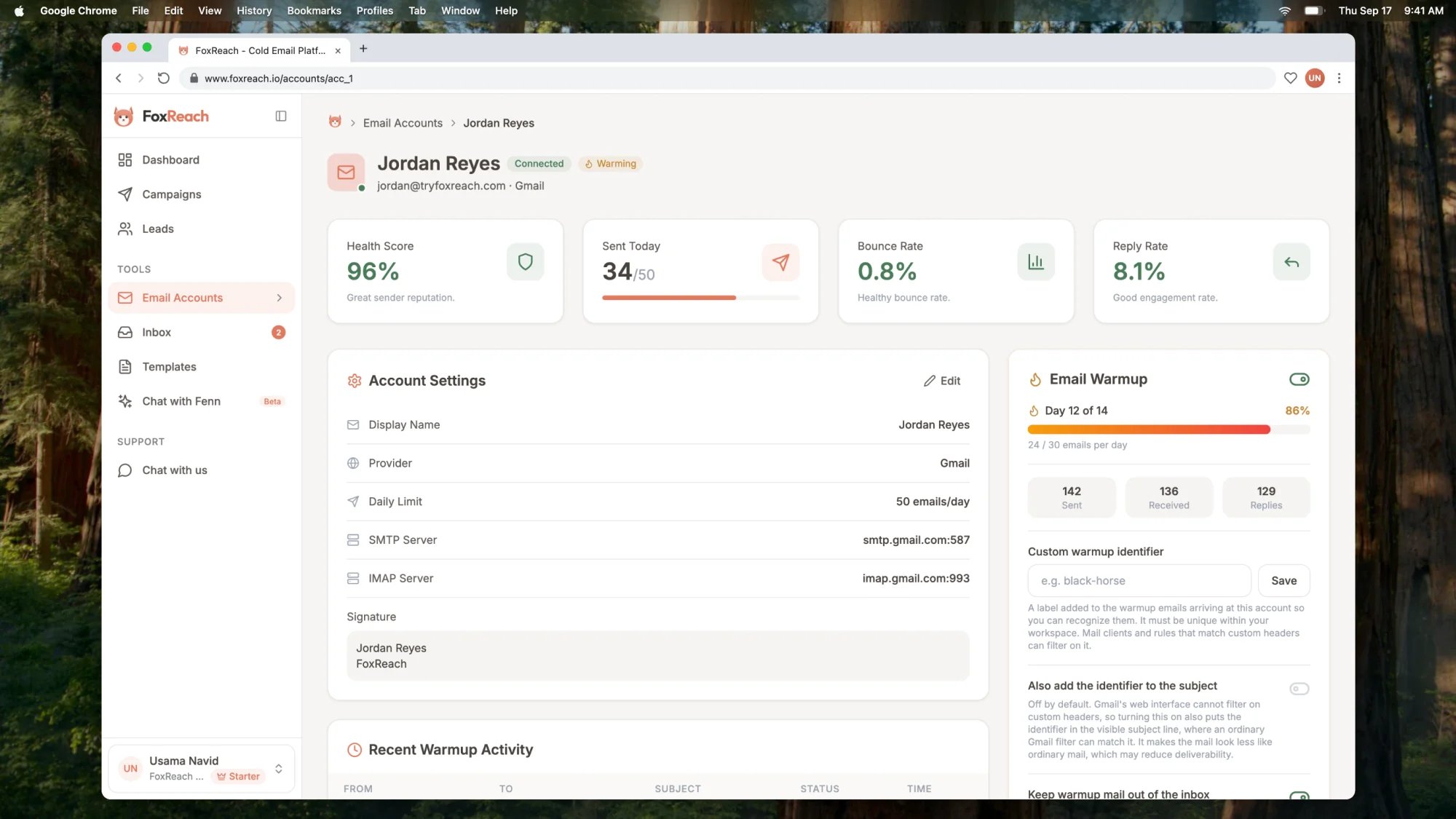 The top of the page shows four cards: **Health Score**, **Sent Today** against the daily limit, **Bounce Rate**, and **Reply Rate**. Each has a one-line reading underneath, so a bounce rate card might say "Healthy bounce rate." or "High: clean your lead list."
Under **Account Settings**, click **Edit** to change three things:
* **Display Name**, which appears as the sender name in recipients' inboxes.
* **Daily Sending Limit**, 1 to 200.
* **Email Signature**, the rich-text block inserted with `{{signature}}`.
Click **Save** when done. The read-only view also lists the Provider and the SMTP Server and IMAP Server the account uses, which is handy when checking a Custom SMTP setup.
On the right, the **Email Warmup** card has a toggle and an **Enable Warmup** button. Warmup builds sender reputation for a new mailbox over two to four weeks and is recommended for new accounts. It has its own tutorial, [email warmup in FoxReach](/docs/get-started/warm-up-inbox); for now, know the card is here and that a fresh inbox should usually have it on.
Below that, **Activity** shows Last Sent and Created, and **Delete Account** removes the account and all of its data after a confirmation.
## How it behaves after you connect
A few things about connected accounts are not obvious from the form.
**The daily limit is per account and per day in the account's own timezone.** The Sent Today counter resets at midnight where the mailbox lives, not at a fixed server time, so a New York inbox and a London inbox each get a full day. The Email Accounts page sums these into one Sent Today total across all accounts.
**Provider ceilings apply on top of your setting.** For Gmail and Microsoft mailboxes, campaign sends are capped at 50 per day regardless of the number in the field. Custom SMTP servers have no platform cap, since a dedicated sending server manages its own reputation.
**The health score is a deliverability score, updated daily.** It starts at 100. Bounces pull it down, replies push it up a little, and an account in an error state loses points. It shows green at 80 and above ("Great sender reputation."), amber from 50 to 79 ("Moderate: consider reducing volume."), and red below 50 ("Low: pause sending and investigate."). An account with no campaign activity keeps its score unchanged.
**The status badge tells you whether FoxReach can still log in.** Connected means the mailbox accepted FoxReach's credentials the last time it tried. Error means a send, an inbox check, or a warmup send failed to authenticate, and the row shows the reason underneath. Inactive on the list page (Disconnected on the detail page) means the account is switched off and will not be used by campaigns. The Email Accounts page also shows a banner counting accounts with connection errors, so you notice them without opening each one.
**Sending defaults are per workspace.** Settings, Workspace holds the workspace's default daily limit and sending window; each account's own limit is still set on its page. The [workspaces guide](/docs/product/workspaces) covers what else is stored per workspace.
## Troubleshooting
**The SMTP or IMAP line says the login failed.** For Gmail and Workspace, you almost certainly pasted the regular account password instead of an app password, or 2-Step Verification is not on yet. Generate a fresh app password and paste it again. For Outlook with two-step verification on, the same rule applies.
**The test passes but the account later shows Error.** App passwords can be revoked, for example when you change the account password or turn off 2-Step Verification, and a Google sign-in grant can be withdrawn. Open the account page. For an app password account, click **Reconnect with new password** in the error banner, paste a new app password, and click **Reconnect**; FoxReach tests it before saving. For a Google sign-in account, click **Reconnect with Google** on the account row and approve access again. Reconnecting keeps the account's history and campaign assignments.
**The daily limit will not save above 50.** For Gmail, Google Workspace, and Outlook mailboxes this is expected. Set 50 or below, and connect more mailboxes if you need more volume.
**Custom SMTP fails with a connection or DNS error.** Check the SMTP Host and IMAP Host spellings and confirm the ports. FoxReach uses implicit TLS on port 465 and STARTTLS on port 587 for SMTP, and IMAP on 993. Ask your mail host which combination they support.
**The same address is already connected.** An email account can only exist once per workspace. To move a mailbox between workspaces, delete it from the old one first.
## Next step
With an email account connected, the next thing a fresh mailbox needs is reputation. Turn on the toggle in the Email Warmup card and follow [email warmup in FoxReach](/docs/get-started/warm-up-inbox) to understand the ramp. While that runs, [import your leads](/docs/get-started/import-leads) so there is a list ready when the account is warm.
If you are planning more than one mailbox, remember that connecting accounts is unlimited on every plan; the [pricing page](https://www.foxreach.io/pricing) lists the monthly email and warmup allowances that actually shape how many you need.
## Frequently asked questions
Not if you use Sign in with Google. That path connects a Gmail or Google Workspace mailbox through Google's own consent screen and never asks for a password. The app password path is the alternative for Gmail, and the only path for Outlook, Yahoo, Zoho, and custom SMTP servers. An app password requires 2-Step Verification to be turned on first.
SMTP is how FoxReach sends from your mailbox and IMAP is how it reads the inbox to detect replies and bounces. Both have to pass before the account can be saved, because a mailbox that can send but not receive would leave replies invisible in the unified inbox. If either line shows an error, fix it and run Test Connection again.
Start low. The form defaults to 50, and the account page suggests 20 to 50 for a new account, increased gradually. For Gmail and Outlook mailboxes FoxReach will not accept a limit above 50 per day. Turn on warmup for a fresh inbox and let the sending volume grow over a few weeks rather than jumping to the maximum on day one.
It is a deliverability score from 0 to 100 for that mailbox, recalculated daily from campaign activity. Bounces pull it down, replies push it up, and a connection error costs points. Above 80 is healthy, 50 to 79 means reduce volume and check your list, and below 50 means pause sending from that account and investigate.
Open the account from the Email Accounts page. If it was connected with an app password, use the Reconnect with new password link in the error banner, paste a fresh app password, and click Reconnect. FoxReach tests the new credentials before saving them. If it was connected with Google, click Reconnect with Google on the account row and repeat the sign-in.
The top of the page shows four cards: **Health Score**, **Sent Today** against the daily limit, **Bounce Rate**, and **Reply Rate**. Each has a one-line reading underneath, so a bounce rate card might say "Healthy bounce rate." or "High: clean your lead list."
Under **Account Settings**, click **Edit** to change three things:
* **Display Name**, which appears as the sender name in recipients' inboxes.
* **Daily Sending Limit**, 1 to 200.
* **Email Signature**, the rich-text block inserted with `{{signature}}`.
Click **Save** when done. The read-only view also lists the Provider and the SMTP Server and IMAP Server the account uses, which is handy when checking a Custom SMTP setup.
On the right, the **Email Warmup** card has a toggle and an **Enable Warmup** button. Warmup builds sender reputation for a new mailbox over two to four weeks and is recommended for new accounts. It has its own tutorial, [email warmup in FoxReach](/docs/get-started/warm-up-inbox); for now, know the card is here and that a fresh inbox should usually have it on.
Below that, **Activity** shows Last Sent and Created, and **Delete Account** removes the account and all of its data after a confirmation.
## How it behaves after you connect
A few things about connected accounts are not obvious from the form.
**The daily limit is per account and per day in the account's own timezone.** The Sent Today counter resets at midnight where the mailbox lives, not at a fixed server time, so a New York inbox and a London inbox each get a full day. The Email Accounts page sums these into one Sent Today total across all accounts.
**Provider ceilings apply on top of your setting.** For Gmail and Microsoft mailboxes, campaign sends are capped at 50 per day regardless of the number in the field. Custom SMTP servers have no platform cap, since a dedicated sending server manages its own reputation.
**The health score is a deliverability score, updated daily.** It starts at 100. Bounces pull it down, replies push it up a little, and an account in an error state loses points. It shows green at 80 and above ("Great sender reputation."), amber from 50 to 79 ("Moderate: consider reducing volume."), and red below 50 ("Low: pause sending and investigate."). An account with no campaign activity keeps its score unchanged.
**The status badge tells you whether FoxReach can still log in.** Connected means the mailbox accepted FoxReach's credentials the last time it tried. Error means a send, an inbox check, or a warmup send failed to authenticate, and the row shows the reason underneath. Inactive on the list page (Disconnected on the detail page) means the account is switched off and will not be used by campaigns. The Email Accounts page also shows a banner counting accounts with connection errors, so you notice them without opening each one.
**Sending defaults are per workspace.** Settings, Workspace holds the workspace's default daily limit and sending window; each account's own limit is still set on its page. The [workspaces guide](/docs/product/workspaces) covers what else is stored per workspace.
## Troubleshooting
**The SMTP or IMAP line says the login failed.** For Gmail and Workspace, you almost certainly pasted the regular account password instead of an app password, or 2-Step Verification is not on yet. Generate a fresh app password and paste it again. For Outlook with two-step verification on, the same rule applies.
**The test passes but the account later shows Error.** App passwords can be revoked, for example when you change the account password or turn off 2-Step Verification, and a Google sign-in grant can be withdrawn. Open the account page. For an app password account, click **Reconnect with new password** in the error banner, paste a new app password, and click **Reconnect**; FoxReach tests it before saving. For a Google sign-in account, click **Reconnect with Google** on the account row and approve access again. Reconnecting keeps the account's history and campaign assignments.
**The daily limit will not save above 50.** For Gmail, Google Workspace, and Outlook mailboxes this is expected. Set 50 or below, and connect more mailboxes if you need more volume.
**Custom SMTP fails with a connection or DNS error.** Check the SMTP Host and IMAP Host spellings and confirm the ports. FoxReach uses implicit TLS on port 465 and STARTTLS on port 587 for SMTP, and IMAP on 993. Ask your mail host which combination they support.
**The same address is already connected.** An email account can only exist once per workspace. To move a mailbox between workspaces, delete it from the old one first.
## Next step
With an email account connected, the next thing a fresh mailbox needs is reputation. Turn on the toggle in the Email Warmup card and follow [email warmup in FoxReach](/docs/get-started/warm-up-inbox) to understand the ramp. While that runs, [import your leads](/docs/get-started/import-leads) so there is a list ready when the account is warm.
If you are planning more than one mailbox, remember that connecting accounts is unlimited on every plan; the [pricing page](https://www.foxreach.io/pricing) lists the monthly email and warmup allowances that actually shape how many you need.
## Frequently asked questions
Not if you use Sign in with Google. That path connects a Gmail or Google Workspace mailbox through Google's own consent screen and never asks for a password. The app password path is the alternative for Gmail, and the only path for Outlook, Yahoo, Zoho, and custom SMTP servers. An app password requires 2-Step Verification to be turned on first.
SMTP is how FoxReach sends from your mailbox and IMAP is how it reads the inbox to detect replies and bounces. Both have to pass before the account can be saved, because a mailbox that can send but not receive would leave replies invisible in the unified inbox. If either line shows an error, fix it and run Test Connection again.
Start low. The form defaults to 50, and the account page suggests 20 to 50 for a new account, increased gradually. For Gmail and Outlook mailboxes FoxReach will not accept a limit above 50 per day. Turn on warmup for a fresh inbox and let the sending volume grow over a few weeks rather than jumping to the maximum on day one.
It is a deliverability score from 0 to 100 for that mailbox, recalculated daily from campaign activity. Bounces pull it down, replies push it up, and a connection error costs points. Above 80 is healthy, 50 to 79 means reduce volume and check your list, and below 50 means pause sending from that account and investigate.
Open the account from the Email Accounts page. If it was connected with an app password, use the Reconnect with new password link in the error banner, paste a fresh app password, and click Reconnect. FoxReach tests the new credentials before saving them. If it was connected with Google, click Reconnect with Google on the account row and repeat the sign-in.