> ## Documentation Index
> Fetch the complete documentation index at: https://www.foxreach.io/docs/llms.txt
> Use this file to discover all available pages before exploring further.
# Read your campaign results
> How to read campaign results in FoxReach: the dashboard, campaign stats, the Activity tab, healthy reply and bounce rates, and how to share a public report.
Your first campaign has been sending for a day or two and the question is simple: is it working? By the end of this tutorial you will know how to read the dashboard in under a minute, open a campaign and understand every number on it, trace a single reply or bounce back to the step and inbox that produced it, judge whether your reply rate and bounce rate are healthy, and hand a read-only report to a client or teammate.
If you have not launched a campaign yet, start with the [getting started guide](/docs/get-started/overview) or the [campaign tutorial](/docs/get-started/create-campaign) and come back once the first sends have gone out.
## Step 1: Start on the Dashboard
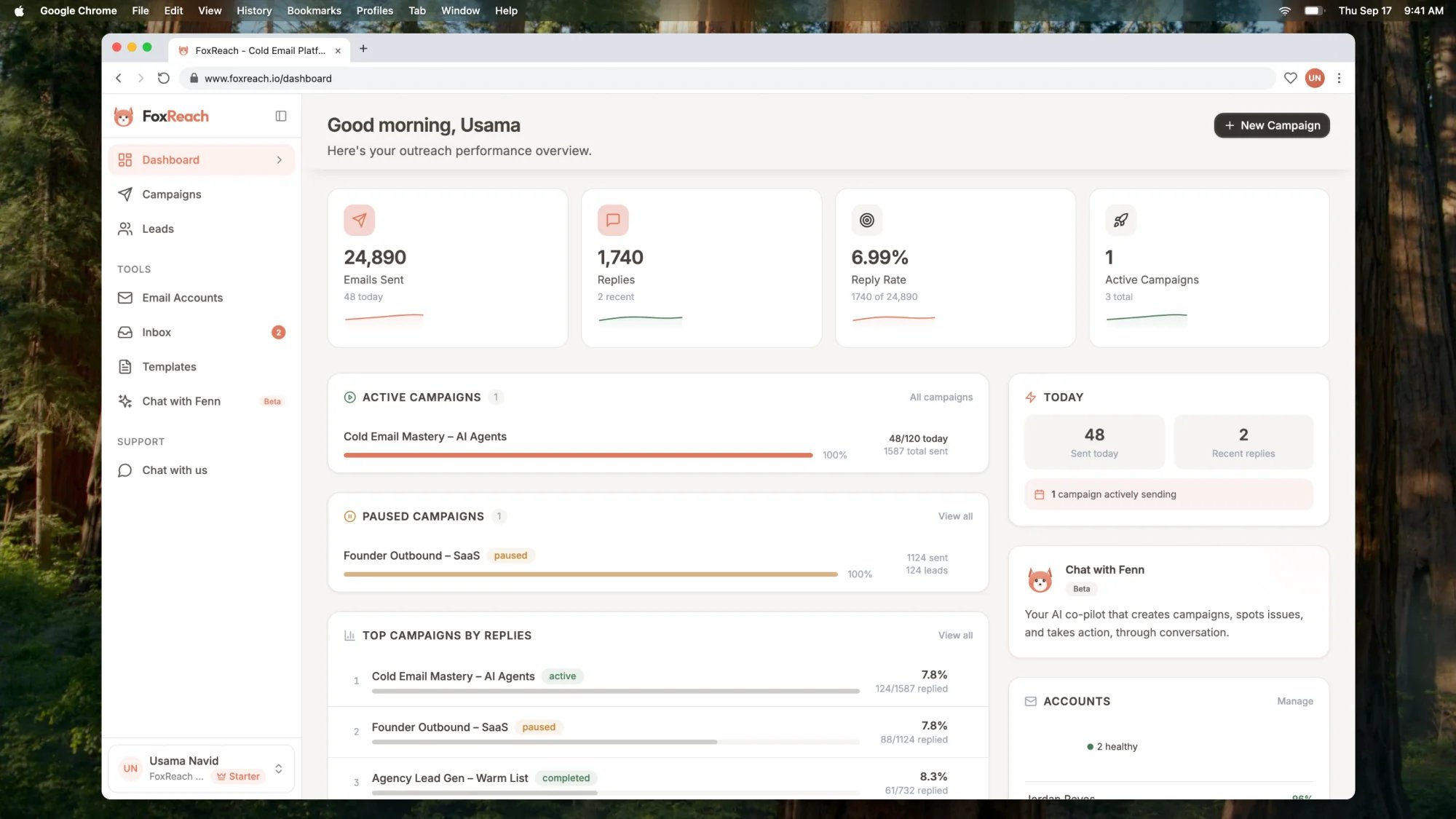
Click **Dashboard** at the top of the sidebar. This is the morning check: how much has gone out, how many people replied, what share of sends that is, and what is still running.
The four cards across the top are:
* **Emails Sent**, the total across every campaign in the workspace, with a smaller "today" line underneath while campaigns are active.
* **Replies**, the total real replies, with a "recent" count taken from the activity feed below.
* **Reply Rate**, replies divided by sends, with the fraction shown underneath so you can see the sample size behind the percentage.
* **Active Campaigns**, with the total number of campaigns beside it.
Each card carries a sparkline of the last seven days, so a flat line under Replies beside a rising line under Emails Sent says volume is up but results are not.
 Below the cards:
**Active Campaigns** lists each running campaign with a progress bar, how many emails it has sent today against its daily limit, and its total sent. Paused campaigns get their own short list.
**Top Campaigns by Replies** ranks your five best campaigns by absolute reply count, not reply rate. If one campaign is carrying all the results, this is where you see it.
**Recent Activity** is the live feed: the most recent sends and replies across the workspace. Replies carry a category badge such as interested or not interested, which is the same classification the inbox uses. Click **View inbox** to act on them.
**Accounts** shows each connected sending inbox with its health score as a percentage, how many it has sent today against its daily limit, and a Warming badge if warmup is on. The small donut above the list groups accounts into healthy (80 and above), warning (50 to 79) and critical (below 50), with the average health at the bottom.
The headline totals are summed from every campaign, so one campaign going wrong is easier to catch in Top Campaigns by Replies or Accounts than in the top cards.
## Step 2: Open the campaign overview
Click **Campaigns** in the sidebar, then click the campaign name. In the demo workspace that is "Cold Email Mastery - AI Agents". You land on the **Overview** tab, which is the full picture for one campaign.
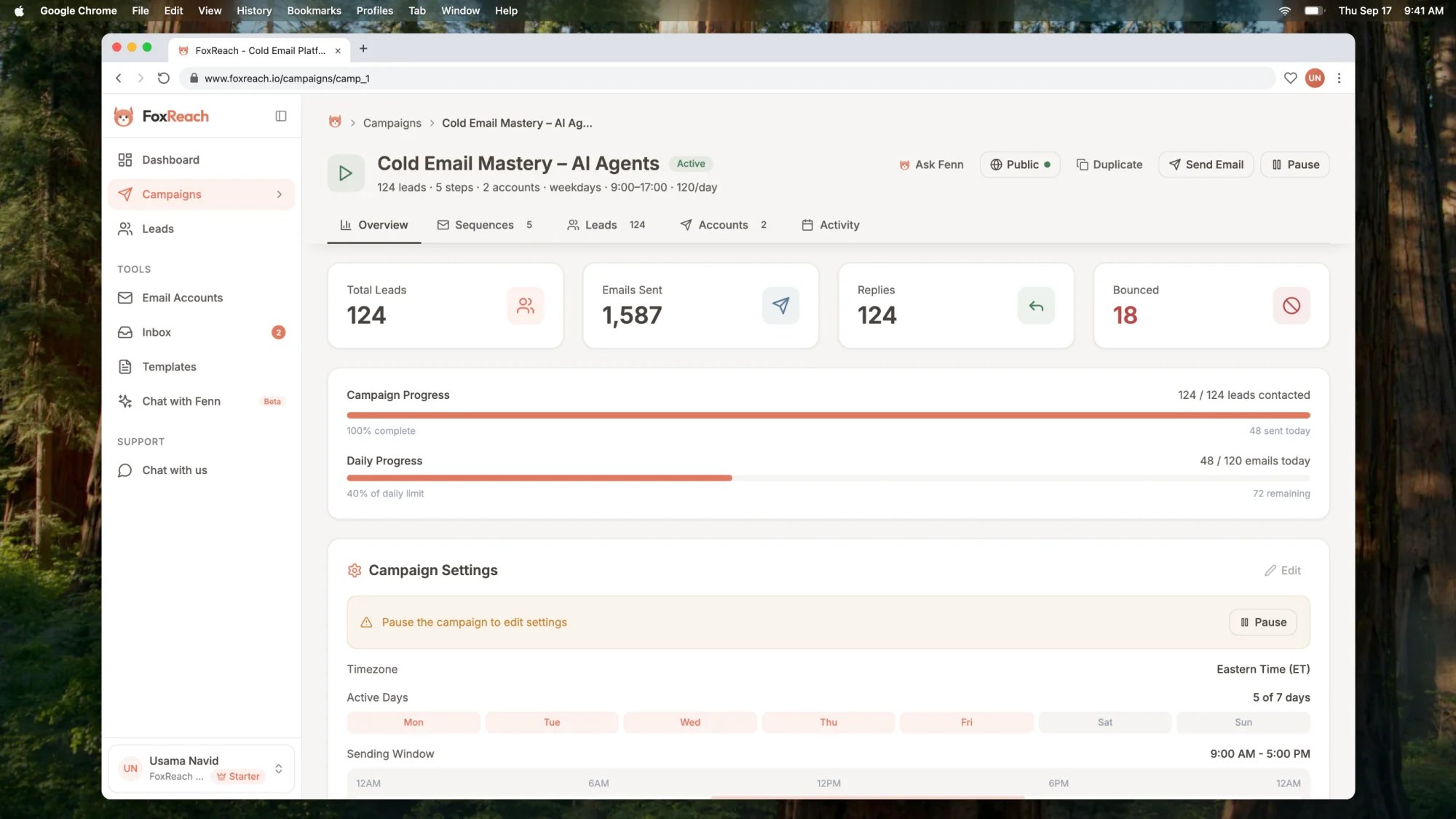
The stat cards at the top show **Total Leads**, **Emails Sent** and **Replies**. The fourth card changes with the situation: it shows **Bounced** once the campaign has any bounces, **Open Rate** if open tracking is on, and **Reply Rate** otherwise. In the demo the campaign has 124 leads, 1,587 emails sent, 124 replies and 18 bounces.
Below the cards:
**Active Campaigns** lists each running campaign with a progress bar, how many emails it has sent today against its daily limit, and its total sent. Paused campaigns get their own short list.
**Top Campaigns by Replies** ranks your five best campaigns by absolute reply count, not reply rate. If one campaign is carrying all the results, this is where you see it.
**Recent Activity** is the live feed: the most recent sends and replies across the workspace. Replies carry a category badge such as interested or not interested, which is the same classification the inbox uses. Click **View inbox** to act on them.
**Accounts** shows each connected sending inbox with its health score as a percentage, how many it has sent today against its daily limit, and a Warming badge if warmup is on. The small donut above the list groups accounts into healthy (80 and above), warning (50 to 79) and critical (below 50), with the average health at the bottom.
The headline totals are summed from every campaign, so one campaign going wrong is easier to catch in Top Campaigns by Replies or Accounts than in the top cards.
## Step 2: Open the campaign overview
Click **Campaigns** in the sidebar, then click the campaign name. In the demo workspace that is "Cold Email Mastery - AI Agents". You land on the **Overview** tab, which is the full picture for one campaign.
The stat cards at the top show **Total Leads**, **Emails Sent** and **Replies**. The fourth card changes with the situation: it shows **Bounced** once the campaign has any bounces, **Open Rate** if open tracking is on, and **Reply Rate** otherwise. In the demo the campaign has 124 leads, 1,587 emails sent, 124 replies and 18 bounces.
 Two progress bars sit under the cards:
**Campaign Progress** reads "N / M leads contacted" with a percentage complete. It counts leads, not emails: 1,587 emails to 124 leads means most leads have received several steps, and the bar shows how far through the list the campaign is.
**Daily Progress** reads "sent / limit emails today", with the percentage of the daily limit used and how many sends remain. The bar turns amber at 70 percent and red at 90 percent. With a daily limit of 120, as in the demo, this confirms the campaign is pacing through its allowance each day.
Further down, the read-only settings rows show **Daily Limit**, **Sent Today**, **Open Tracking**, **Unsubscribe Header** and **Send Gap**. Check Open Tracking here before you draw any conclusions from an opens column anywhere else.
Emails Sent on this tab counts campaign emails only. Warmup mail sent from the same inboxes is tracked separately and never inflates campaign results.
## Step 3: Trace individual events in the Activity tab
Click the **Activity** tab. Where the Overview tab gives totals, Activity lists every event with the step and the account that produced it. The table columns are **Type**, **Contact**, **Subject**, **Step**, **Details**, **Account** and **Time**.
Two progress bars sit under the cards:
**Campaign Progress** reads "N / M leads contacted" with a percentage complete. It counts leads, not emails: 1,587 emails to 124 leads means most leads have received several steps, and the bar shows how far through the list the campaign is.
**Daily Progress** reads "sent / limit emails today", with the percentage of the daily limit used and how many sends remain. The bar turns amber at 70 percent and red at 90 percent. With a daily limit of 120, as in the demo, this confirms the campaign is pacing through its allowance each day.
Further down, the read-only settings rows show **Daily Limit**, **Sent Today**, **Open Tracking**, **Unsubscribe Header** and **Send Gap**. Check Open Tracking here before you draw any conclusions from an opens column anywhere else.
Emails Sent on this tab counts campaign emails only. Warmup mail sent from the same inboxes is tracked separately and never inflates campaign results.
## Step 3: Trace individual events in the Activity tab
Click the **Activity** tab. Where the Overview tab gives totals, Activity lists every event with the step and the account that produced it. The table columns are **Type**, **Contact**, **Subject**, **Step**, **Details**, **Account** and **Time**.
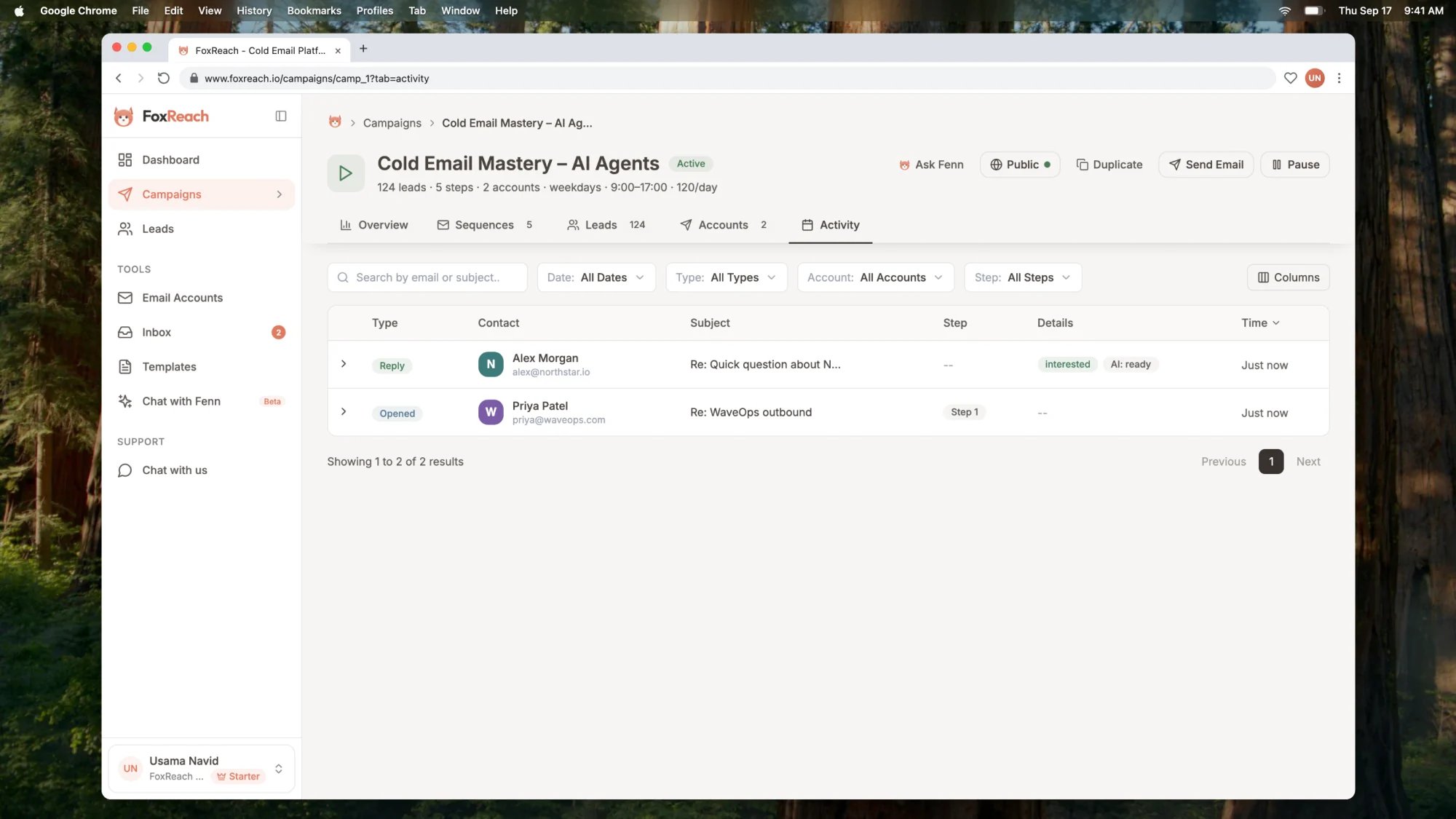 Four filters sit above the table:
* **Type** narrows to Sent, Opened, Replied, Bounced, Clicked or Failed.
* **Step** narrows to one step of the sequence, which is how you get per-step numbers for a step that has no A/B test.
* **Account** narrows to one sending inbox, which is how you find out whether one mailbox is producing all the bounces.
* **Date** narrows to a single day with activity.
Click any row to expand it: subject, exact time, the inbox it went out through, and the variant label if the step is A/B tested. Replies show their category badge, and bounces are tagged hard or soft.
When a number on the Overview looks wrong, filter Type to Bounced and Account to each inbox in turn; the source is usually obvious within a minute.
## Step 4: Check per-step and variant performance
Click the **Sequences** tab. Each step is a card with its subject line and, from step two onward, the delay after the previous step.
If a step has an A/B test, expand it and look for **Variant Performance**. It is a table with a row per variant and columns for **Sent**, **Opened**, **Open%**, **Replied** and **Reply%**. FoxReach highlights the variant with the best reply rate but leaves the decision to you. The [A/B testing tutorial](/docs/product/ab-testing) covers how to set the test up, how large a sample to wait for, and how to promote the winner.
For a step without variants, use the Activity tab's Step filter from the previous section to count sends and replies for that step.
Compare steps by reply count, not open count. Step one never carries a tracking pixel, so its Opened column will always read zero even with tracking on.
## Step 5: Share a read-only report
At the top of the campaign page, click **Share**. The **Share Campaign** dialog opens, generates a public link, and shows it under **Share Link**. Click **Copy Link** to put it on your clipboard, or open it in a new tab to see what the recipient sees.
Four filters sit above the table:
* **Type** narrows to Sent, Opened, Replied, Bounced, Clicked or Failed.
* **Step** narrows to one step of the sequence, which is how you get per-step numbers for a step that has no A/B test.
* **Account** narrows to one sending inbox, which is how you find out whether one mailbox is producing all the bounces.
* **Date** narrows to a single day with activity.
Click any row to expand it: subject, exact time, the inbox it went out through, and the variant label if the step is A/B tested. Replies show their category badge, and bounces are tagged hard or soft.
When a number on the Overview looks wrong, filter Type to Bounced and Account to each inbox in turn; the source is usually obvious within a minute.
## Step 4: Check per-step and variant performance
Click the **Sequences** tab. Each step is a card with its subject line and, from step two onward, the delay after the previous step.
If a step has an A/B test, expand it and look for **Variant Performance**. It is a table with a row per variant and columns for **Sent**, **Opened**, **Open%**, **Replied** and **Reply%**. FoxReach highlights the variant with the best reply rate but leaves the decision to you. The [A/B testing tutorial](/docs/product/ab-testing) covers how to set the test up, how large a sample to wait for, and how to promote the winner.
For a step without variants, use the Activity tab's Step filter from the previous section to count sends and replies for that step.
Compare steps by reply count, not open count. Step one never carries a tracking pixel, so its Opened column will always read zero even with tracking on.
## Step 5: Share a read-only report
At the top of the campaign page, click **Share**. The **Share Campaign** dialog opens, generates a public link, and shows it under **Share Link**. Click **Copy Link** to put it on your clipboard, or open it in a new tab to see what the recipient sees.
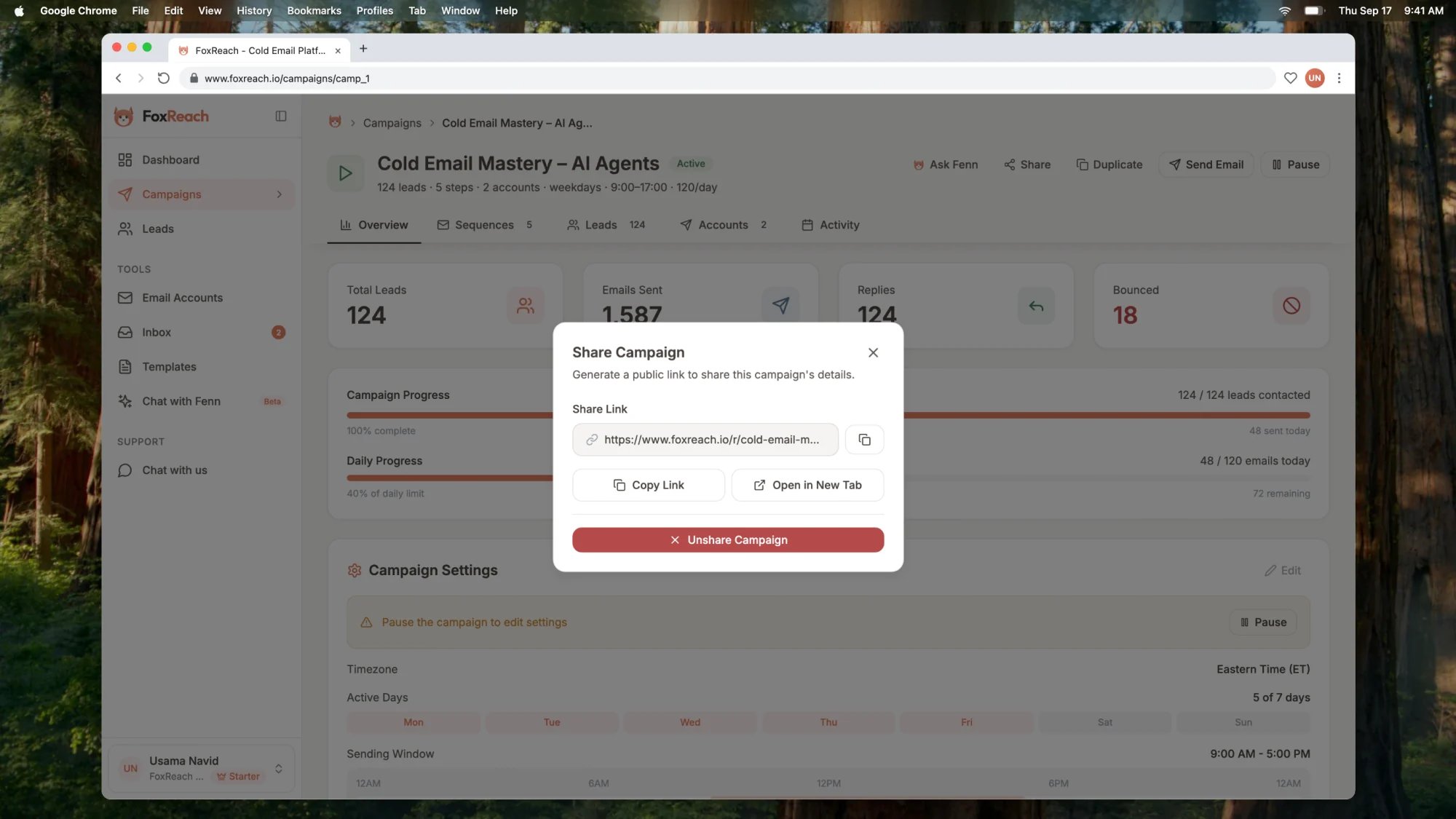 The public page is a FoxReach Campaign Report. It shows the campaign name, Emails Sent, Opened, Replied and Reply Rate, plus bars for Open Rate, Reply Rate and Bounce Rate. It shows no lead names, email addresses, subject lines or sending inboxes, so it is safe to hand to a client. Anyone with the link can view it without logging in.
To revoke access, open the dialog again and click **Unshare Campaign**, then confirm. The link stops working immediately and the page shows "Report Not Found". Sharing again later mints a fresh link rather than reviving the old one.
## What the numbers mean
Every count on the Overview and the dashboard comes from one of a few sources, and knowing which explains most apparent contradictions.
| Metric | What it counts | Where it comes from |
| ------------ | ----------------------------------------------------------- | ---------------------------------------------------------------------- |
| Emails Sent | Campaign emails that left an inbox | Campaign totals, refreshed every 15 minutes |
| Replies | Real replies to a campaign email | Inbox checks every 5 minutes, then the 15-minute refresh |
| Reply Rate | Replies divided by Emails Sent | Computed from the two above |
| Bounced | Hard and soft bounces | Reported at send time or by bounce notices, refreshed every 15 minutes |
| Opened | First open of a tracked follow-up | Tracking pixel, only when Open Tracking is on |
| Sent Today | Campaign emails since midnight in the campaign timezone | Live |
| Health score | Per-inbox score from the last 7 days of bounces and replies | Recalculated once a day |
Replies exclude bounce notices, warmup exchanges, and unrelated inbound mail, so the Replies figure is smaller than the raw count of messages that arrived in the inbox. Out-of-office auto-replies do count as replies.
Opened is a first-touch count and only ever populated on step two and later. FoxReach injects the tracking pixel into HTML follow-ups only, never the cold first email, because pixels cost inbox placement. Even where a pixel exists, [Apple Mail Privacy Protection](https://support.apple.com/guide/iphone/use-mail-privacy-protection-iphf084865c7/ios) preloads images on the reader's behalf, so some opens are recorded before a human looks and some never are. Read opens as a weak directional signal.
## When to act
**Bounce rate.** Divide Bounced by Emails Sent on the Overview tab. As a rule of thumb, above two to three percent on a verified list means the list is stale or verification was skipped, and above five percent you should pause and fix the list before sending more. Bounces feed straight into the health score of the inbox that sent them, so a bad list damages the mailbox, not just the campaign. Google's [email sender guidelines](https://support.google.com/a/answer/81126) set a separate threshold for spam complaints, which must stay below 0.3 percent and ideally under 0.1 percent; both measures climb on the same bad lists. The [deliverability guide](https://www.foxreach.io/blog/cold-email-deliverability) covers what to change.
**Reply rate.** As a rule of thumb, cold email reply rates mostly fall between two and ten percent, and a campaign above five percent is doing well. Below two percent after a few hundred sends, the problem is usually targeting or copy rather than infrastructure, provided bounces are low. Use the Activity tab's category badges before deciding: a four percent reply rate that is mostly opt-outs is a different problem from one that is mostly meetings.
**A falling health score.** Each inbox's score is recalculated daily from the last seven days: bounces pull it down hard, replies nudge it up a little, and a broken connection costs it 20 points. If a score drops below 70 and has fallen by ten points or more, FoxReach emails you an alert. Open the Activity tab, filter Type to Bounced and Account to that inbox, and find the campaign and leads behind it. Pausing that campaign for a day while the score recovers is cheaper than losing the mailbox.
## Troubleshooting
**The stats look stale.** Campaign totals for sent, replied and bounced are recomputed every 15 minutes. If you just watched a reply land in the Activity tab, give the Overview cards a quarter of an hour. Sent Today and the Activity feed are live.
**Opens are missing or zero.** Check the Open Tracking row on the Overview tab. It is off by default, and you turn it on from Edit. Even when it is on, step one never carries a pixel, and plain-text follow-ups do not either. A single-step campaign will always read zero opens, and that is correct behaviour.
**Replies are lower than what I see in the inbox.** The Replies counter deliberately excludes bounce notices, warmup exchanges and unrelated inbound mail. Open the [unified inbox](/docs/get-started/unified-inbox) and filter by category to see the full set, including the ones that were filtered out of the count.
**The shared report is not loading.** A "Report Not Found" page means the campaign has been unshared, or the link came from an older share since revoked. Open the campaign, click Share, and copy the current link from the Share Campaign dialog. Re-sharing creates a new link, so any old one stays dead.
**Dashboard Reply Rate and campaign Reply Rate disagree.** The dashboard sums every campaign in the workspace, including completed and paused ones, so a strong old campaign can mask a weak new one. Judge one campaign on its own Overview tab.
## Next step
Once you can read the numbers, improve them. Split a step into variants and let the [Variant Performance table decide](/docs/product/ab-testing) which subject line earns more replies. Then work the replies in the [unified inbox](/docs/get-started/unified-inbox), where every interested reply from the Activity feed is waiting with an AI-drafted response.
If you want these numbers somewhere other than the FoxReach screen, the same overview and per-campaign counters are exposed on the public API for any key with read scope; the [API keys and webhooks tutorial](/docs/product/api-keys-and-webhooks) shows the calls. AI agents can query them through the [FoxReach MCP server](https://www.foxreach.io/product/mcp-server), and the [integrations directory](https://www.foxreach.io/integrations) lists the automation tools that can pull them into a sheet or a CRM on a schedule.
## Frequently asked questions
The campaign totals for sent, replies and bounces are recomputed every 15 minutes, so a number you just watched change in the Activity tab can take up to a quarter of an hour to show in the cards. Sent today and the Activity feed are live. Account health scores are recalculated once a day.
Open tracking is off by default. Turn it on from Edit on the campaign Overview tab. Even when it is on, the tracking pixel only goes into HTML follow-ups from step two onward, never the first email, because it costs inbox placement. A campaign with one step will always show zero opens.
As a rule of thumb, most cold email campaigns land somewhere between two and ten percent replies, and anything above five percent on a fresh list is a healthy result. Judge on replies rather than opens. Opens are undercounted in FoxReach by design and inflated by Apple Mail Privacy Protection everywhere else.
Yes. Open the campaign and click Share. FoxReach generates a public link to a read-only Campaign Report page showing emails sent, opened, replied, reply rate, open rate and bounce rate. It contains no lead names or email addresses. Click Unshare Campaign at any time and the link stops working.
Yes. The public API exposes a workspace overview and per-campaign counters for sent, delivered, bounced, replied and opened, plus reply and bounce rates, to any API key with read scope. The same numbers are available to AI agents through the FoxReach MCP server and to automation tools through the integrations directory.
The public page is a FoxReach Campaign Report. It shows the campaign name, Emails Sent, Opened, Replied and Reply Rate, plus bars for Open Rate, Reply Rate and Bounce Rate. It shows no lead names, email addresses, subject lines or sending inboxes, so it is safe to hand to a client. Anyone with the link can view it without logging in.
To revoke access, open the dialog again and click **Unshare Campaign**, then confirm. The link stops working immediately and the page shows "Report Not Found". Sharing again later mints a fresh link rather than reviving the old one.
## What the numbers mean
Every count on the Overview and the dashboard comes from one of a few sources, and knowing which explains most apparent contradictions.
| Metric | What it counts | Where it comes from |
| ------------ | ----------------------------------------------------------- | ---------------------------------------------------------------------- |
| Emails Sent | Campaign emails that left an inbox | Campaign totals, refreshed every 15 minutes |
| Replies | Real replies to a campaign email | Inbox checks every 5 minutes, then the 15-minute refresh |
| Reply Rate | Replies divided by Emails Sent | Computed from the two above |
| Bounced | Hard and soft bounces | Reported at send time or by bounce notices, refreshed every 15 minutes |
| Opened | First open of a tracked follow-up | Tracking pixel, only when Open Tracking is on |
| Sent Today | Campaign emails since midnight in the campaign timezone | Live |
| Health score | Per-inbox score from the last 7 days of bounces and replies | Recalculated once a day |
Replies exclude bounce notices, warmup exchanges, and unrelated inbound mail, so the Replies figure is smaller than the raw count of messages that arrived in the inbox. Out-of-office auto-replies do count as replies.
Opened is a first-touch count and only ever populated on step two and later. FoxReach injects the tracking pixel into HTML follow-ups only, never the cold first email, because pixels cost inbox placement. Even where a pixel exists, [Apple Mail Privacy Protection](https://support.apple.com/guide/iphone/use-mail-privacy-protection-iphf084865c7/ios) preloads images on the reader's behalf, so some opens are recorded before a human looks and some never are. Read opens as a weak directional signal.
## When to act
**Bounce rate.** Divide Bounced by Emails Sent on the Overview tab. As a rule of thumb, above two to three percent on a verified list means the list is stale or verification was skipped, and above five percent you should pause and fix the list before sending more. Bounces feed straight into the health score of the inbox that sent them, so a bad list damages the mailbox, not just the campaign. Google's [email sender guidelines](https://support.google.com/a/answer/81126) set a separate threshold for spam complaints, which must stay below 0.3 percent and ideally under 0.1 percent; both measures climb on the same bad lists. The [deliverability guide](https://www.foxreach.io/blog/cold-email-deliverability) covers what to change.
**Reply rate.** As a rule of thumb, cold email reply rates mostly fall between two and ten percent, and a campaign above five percent is doing well. Below two percent after a few hundred sends, the problem is usually targeting or copy rather than infrastructure, provided bounces are low. Use the Activity tab's category badges before deciding: a four percent reply rate that is mostly opt-outs is a different problem from one that is mostly meetings.
**A falling health score.** Each inbox's score is recalculated daily from the last seven days: bounces pull it down hard, replies nudge it up a little, and a broken connection costs it 20 points. If a score drops below 70 and has fallen by ten points or more, FoxReach emails you an alert. Open the Activity tab, filter Type to Bounced and Account to that inbox, and find the campaign and leads behind it. Pausing that campaign for a day while the score recovers is cheaper than losing the mailbox.
## Troubleshooting
**The stats look stale.** Campaign totals for sent, replied and bounced are recomputed every 15 minutes. If you just watched a reply land in the Activity tab, give the Overview cards a quarter of an hour. Sent Today and the Activity feed are live.
**Opens are missing or zero.** Check the Open Tracking row on the Overview tab. It is off by default, and you turn it on from Edit. Even when it is on, step one never carries a pixel, and plain-text follow-ups do not either. A single-step campaign will always read zero opens, and that is correct behaviour.
**Replies are lower than what I see in the inbox.** The Replies counter deliberately excludes bounce notices, warmup exchanges and unrelated inbound mail. Open the [unified inbox](/docs/get-started/unified-inbox) and filter by category to see the full set, including the ones that were filtered out of the count.
**The shared report is not loading.** A "Report Not Found" page means the campaign has been unshared, or the link came from an older share since revoked. Open the campaign, click Share, and copy the current link from the Share Campaign dialog. Re-sharing creates a new link, so any old one stays dead.
**Dashboard Reply Rate and campaign Reply Rate disagree.** The dashboard sums every campaign in the workspace, including completed and paused ones, so a strong old campaign can mask a weak new one. Judge one campaign on its own Overview tab.
## Next step
Once you can read the numbers, improve them. Split a step into variants and let the [Variant Performance table decide](/docs/product/ab-testing) which subject line earns more replies. Then work the replies in the [unified inbox](/docs/get-started/unified-inbox), where every interested reply from the Activity feed is waiting with an AI-drafted response.
If you want these numbers somewhere other than the FoxReach screen, the same overview and per-campaign counters are exposed on the public API for any key with read scope; the [API keys and webhooks tutorial](/docs/product/api-keys-and-webhooks) shows the calls. AI agents can query them through the [FoxReach MCP server](https://www.foxreach.io/product/mcp-server), and the [integrations directory](https://www.foxreach.io/integrations) lists the automation tools that can pull them into a sheet or a CRM on a schedule.
## Frequently asked questions
The campaign totals for sent, replies and bounces are recomputed every 15 minutes, so a number you just watched change in the Activity tab can take up to a quarter of an hour to show in the cards. Sent today and the Activity feed are live. Account health scores are recalculated once a day.
Open tracking is off by default. Turn it on from Edit on the campaign Overview tab. Even when it is on, the tracking pixel only goes into HTML follow-ups from step two onward, never the first email, because it costs inbox placement. A campaign with one step will always show zero opens.
As a rule of thumb, most cold email campaigns land somewhere between two and ten percent replies, and anything above five percent on a fresh list is a healthy result. Judge on replies rather than opens. Opens are undercounted in FoxReach by design and inflated by Apple Mail Privacy Protection everywhere else.
Yes. Open the campaign and click Share. FoxReach generates a public link to a read-only Campaign Report page showing emails sent, opened, replied, reply rate, open rate and bounce rate. It contains no lead names or email addresses. Click Unshare Campaign at any time and the link stops working.
Yes. The public API exposes a workspace overview and per-campaign counters for sent, delivered, bounced, replied and opened, plus reply and bounce rates, to any API key with read scope. The same numbers are available to AI agents through the FoxReach MCP server and to automation tools through the integrations directory.